Unlock your full potential by mastering the most common Understanding of Machine Specifications and Capabilities interview questions. This blog offers a deep dive into the critical topics, ensuring you’re not only prepared to answer but to excel. With these insights, you’ll approach your interview with clarity and confidence.
Questions Asked in Understanding of Machine Specifications and Capabilities Interview
Q 1. Explain the difference between CPU and GPU architecture.
The CPU (Central Processing Unit) and GPU (Graphics Processing Unit) are both processors, but they’re designed for different tasks and have distinct architectures. Think of it like this: the CPU is a highly versatile chef capable of preparing a wide range of dishes (tasks), while the GPU is a specialized pastry chef, incredibly efficient at producing large quantities of a specific type of treat (graphics).
CPU Architecture: CPUs are designed for general-purpose computing. They have a smaller number of very powerful cores, each capable of handling complex instructions. They excel at sequential processing – completing one task at a time, but very efficiently. They manage system operations, run applications, and perform calculations.
GPU Architecture: GPUs, on the other hand, are built for parallel processing. They have a massive number of smaller, less powerful cores optimized for handling many simple instructions simultaneously. This makes them ideal for tasks that can be broken down into smaller, parallel processes, such as rendering graphics, video encoding, and scientific simulations. They don’t handle system-level operations as well as a CPU.
In short: CPUs are versatile and powerful for individual tasks, while GPUs are specialized for parallel processing of many simple tasks.
Q 2. Describe the impact of RAM on system performance.
RAM (Random Access Memory) acts as your computer’s short-term memory. It’s where the operating system, running applications, and data they need are stored while the computer is in use. The more RAM you have, the more applications you can run simultaneously without experiencing slowdowns or crashes.
Impact on Performance: Insufficient RAM forces the system to use the hard drive (or SSD) as virtual memory, a significantly slower process. This is called “paging” and leads to noticeable lag, freezing, and overall poor performance. Think of it like this: If you only have a small workspace to cook (limited RAM), you constantly have to put ingredients away and get them back out (paging to the hard drive), slowing down the whole process. More workspace (RAM) allows for faster and smoother operation.
Practical Example: If you’re editing a high-resolution video, running multiple browser tabs, and have numerous applications open, you’ll need significantly more RAM than someone just browsing the web. A lack of RAM in this scenario will lead to noticeable stuttering and delays.
Q 3. What are the key factors to consider when choosing a storage solution (HDD vs. SSD)?
Choosing between HDDs (Hard Disk Drives) and SSDs (Solid State Drives) depends on your budget, performance needs, and data storage requirements. Both store data, but they do so using very different technologies.
- HDDs: Use spinning platters and read/write heads to access data. They are relatively inexpensive per gigabyte but significantly slower than SSDs.
- SSDs: Use flash memory to store data, allowing for much faster read/write speeds and improved boot times, application loading, and overall system responsiveness.
Key Factors to Consider:
- Speed: SSDs are dramatically faster than HDDs, leading to a noticeable improvement in system performance.
- Durability: SSDs are more durable and resistant to physical damage because they have no moving parts.
- Cost: SSDs are generally more expensive per gigabyte than HDDs.
- Capacity: Both HDDs and SSDs are available in a wide range of capacities.
- Power Consumption: SSDs consume less power than HDDs.
Real-world scenario: For a budget-conscious user who primarily uses their computer for basic tasks, a large HDD might be sufficient. However, for a professional video editor or gamer, an SSD will significantly enhance the workflow and experience.
Q 4. How do you determine the appropriate power supply unit (PSU) for a given system?
Determining the appropriate PSU (Power Supply Unit) wattage requires calculating the power draw of all components in your system. This ensures your PSU can reliably supply enough power to prevent system instability or damage.
Steps to determine appropriate PSU wattage:
- List all components: CPU, GPU, motherboard, RAM, storage drives, optical drives (if applicable), fans, and other peripherals.
- Check the power requirements: Each component’s power consumption is usually listed in its specifications (usually found on the manufacturer’s website).
- Calculate total power draw: Sum up the power requirements of all components. It’s crucial to add a safety margin (20-30%) to account for peak power demands and future upgrades.
- Select a PSU: Choose a PSU with a wattage rating that exceeds your calculated total power draw by the safety margin.
Example: If your components require a combined 500W, adding a 20% margin suggests a minimum 600W PSU.
Important Considerations: Choose a reputable PSU brand that offers sufficient quality and efficiency. A higher-wattage PSU doesn’t always mean better performance; focus on quality and efficiency ratings over just wattage.
Q 5. Explain the concept of clock speed and its relation to processing power.
Clock speed refers to the frequency at which a processor’s internal clock pulses. This determines how many instructions the processor can execute per second. It’s usually measured in gigahertz (GHz). A higher clock speed generally means faster processing, but it’s not the only factor determining processing power.
Relation to Processing Power: While a higher clock speed often translates to more instructions per second, other factors also play a crucial role:
- Number of cores: More cores allow for parallel processing, handling multiple tasks simultaneously.
- Cache size: Larger cache improves access speed to frequently used data.
- Architecture: The processor’s design significantly impacts its efficiency and performance.
- Instruction set: The types of instructions a processor can execute affect its capability for certain tasks.
Analogy: Think of clock speed as the speed at which a worker can complete a single task. More workers (cores) can complete more tasks overall, even if each worker is not the fastest (lower clock speed).
Q 6. What are the different types of computer buses, and how do they function?
Computer buses are communication pathways that allow different components within a computer system to exchange data. They are typically categorized by function and speed.
Types of Computer Buses:
- Address Bus: Carries the memory address the CPU wants to access. It’s unidirectional, meaning data only flows in one direction (from CPU to memory).
- Data Bus: Transports data between the CPU, memory, and other components. It’s bidirectional, allowing data to flow in both directions.
- Control Bus: Carries control signals that manage data flow and synchronize operations between components. This includes signals like read, write, memory address enable, etc.
- PCI Express (PCIe): A high-speed serial bus used for connecting expansion cards (graphics cards, network cards, etc.) to the motherboard.
- USB: A versatile serial bus used to connect a wide range of peripherals to a computer.
How they Function: These buses work together to coordinate the exchange of information within a computer. The address bus specifies the location, the data bus transfers the data, and the control bus synchronizes and manages the whole process. The speed of these buses significantly impacts the overall system performance. A faster bus allows for quicker data transfer between components.
Q 7. Describe different types of memory (e.g., cache, RAM, ROM).
Different types of memory serve distinct purposes within a computer system, each optimized for specific access speeds and functionalities.
- Cache: A small, very fast memory located directly on or near the CPU. It stores frequently accessed data, allowing the CPU to retrieve information much faster than from RAM. It’s like a chef’s immediate workspace, keeping the most frequently used ingredients easily at hand.
- RAM (Random Access Memory): The main memory of the system where the operating system, running applications, and currently used data reside. It’s faster than storage devices (HDDs or SSDs) but slower than cache. It’s the chef’s main kitchen, containing all the necessary ingredients and tools.
- ROM (Read-Only Memory): Non-volatile memory that contains firmware and boot instructions. It’s not typically modified by the user and is essential for starting the computer. This is like the chef’s foundational cookbook containing basic recipes and techniques.
- Virtual Memory: A portion of the hard drive used as an extension of RAM when the system runs out of physical RAM. It’s much slower than RAM because it’s stored on a mechanical or solid-state drive.
Each type of memory plays a critical role in the computer’s operation; they work together in a hierarchy, with the fastest memory (cache) providing the quickest access to data, followed by RAM, and finally, the slower virtual memory.
Q 8. Explain the importance of heat dissipation in computer systems.
Heat dissipation is crucial in computer systems because electronic components generate heat as they operate. This heat, if not properly managed, can lead to performance degradation, instability, and even hardware failure. Think of it like a car engine: if it overheats, it can seize up. Similarly, excessive heat in a computer can cause components to malfunction or become permanently damaged.
Effective heat dissipation ensures optimal operating temperatures, prolonging the lifespan of components and maintaining consistent performance. Methods for heat dissipation include:
- Fans: These actively circulate air to cool components.
- Heatsinks: These passive devices increase the surface area for heat transfer, allowing heat to dissipate more efficiently.
- Liquid Cooling: This advanced method uses liquid to absorb and transfer heat away from components, ideal for high-performance systems.
For example, a CPU without adequate cooling might throttle its clock speed to prevent overheating, resulting in slower performance. Similarly, a graphics card might experience artifacts or crashes if its heat isn’t properly managed.
Q 9. What are the key performance indicators (KPIs) for evaluating a server’s capabilities?
Key Performance Indicators (KPIs) for evaluating a server’s capabilities depend heavily on its intended use. However, some common KPIs include:
- CPU Utilization: Percentage of CPU time utilized. High utilization may indicate a need for more processing power.
- Memory Utilization: Percentage of RAM used. High utilization can lead to performance bottlenecks, necessitating more RAM.
- Disk I/O: The rate at which data is read from and written to the storage devices. High I/O can indicate slow storage or a need for faster drives (like SSDs).
- Network Throughput: The speed at which data is transmitted over the network. Low throughput can suggest network congestion or insufficient bandwidth.
- Response Time: The time it takes for the server to respond to requests. High response time indicates performance issues.
- Uptime: The percentage of time the server is operational. High uptime is crucial for reliability.
Imagine a web server: high CPU and memory utilization during peak hours might indicate a need for server upgrades. Conversely, consistently low disk I/O suggests that storage might be over-provisioned.
Q 10. How do you troubleshoot a system with performance bottlenecks?
Troubleshooting performance bottlenecks involves a systematic approach. Here’s a step-by-step process:
- Identify the bottleneck: Use monitoring tools to identify the component(s) causing the slowdown (CPU, memory, disk, network).
- Gather data: Collect performance metrics such as CPU utilization, memory usage, disk I/O, and network throughput.
- Analyze the data: Identify patterns and trends in the data to pinpoint the root cause.
- Isolate the problem: Use techniques like isolating processes or components to determine if a specific application or hardware is the culprit.
- Implement solutions: Based on the analysis, implement solutions such as upgrading hardware, optimizing software, or adjusting system configurations.
- Test and monitor: After implementing a solution, test the system and monitor its performance to ensure the bottleneck is resolved.
For example, if disk I/O is consistently high, it might indicate the need for faster storage. If CPU utilization is high, it could indicate insufficient CPU power or poorly written code. Using tools like top (Linux) or Task Manager (Windows) can help pinpoint resource-intensive processes.
Q 11. What are the different types of network interfaces?
Network interfaces are hardware components that allow computers to connect to a network. Different types exist based on speed, physical connection, and protocol support:
- Ethernet: The most common type, using twisted-pair cables or fiber optic cables. Standards include 10BASE-T, 100BASE-TX, 1000BASE-T (Gigabit Ethernet), and 10GBASE-T (10 Gigabit Ethernet).
- Wi-Fi: Wireless connectivity using radio waves. Standards include 802.11a/b/g/n/ac/ax, each offering different speeds and ranges.
- Fiber Channel: High-speed networking technology often used in storage area networks (SANs).
- Infiniband: High-performance networking technology used in high-performance computing (HPC) clusters.
For instance, a home computer might use a Wi-Fi network interface for internet access, while a server in a data center might use Gigabit Ethernet for high-speed connectivity.
Q 12. Explain the concept of virtualization and its benefits.
Virtualization is the creation of a virtual version of something, such as a computer, operating system, storage device, or network. It allows multiple virtual machines (VMs) to run on a single physical host machine.
Benefits of Virtualization:
- Resource Consolidation: Run multiple operating systems and applications on a single physical server, saving hardware costs and energy.
- Improved Resource Utilization: Dynamically allocate resources to VMs based on demand, optimizing resource use.
- Disaster Recovery: Easily create backups and restore VMs in case of hardware failure or disaster.
- Testing and Development: Create isolated environments for testing and development without affecting the production environment.
- Increased Flexibility and Scalability: Easily add or remove VMs as needed, adapting quickly to changing needs.
Imagine a company needing to test different operating systems on their application. Virtualization allows them to run multiple instances of different OSes on a single machine, saving the cost of buying multiple physical machines.
Q 13. Describe different RAID levels and their use cases.
RAID (Redundant Array of Independent Disks) is a way of combining multiple physical hard drives into a single logical unit to enhance performance, redundancy, or both.
Different RAID levels:
- RAID 0 (Striping): Data is distributed across multiple disks without redundancy. Offers increased performance but no data protection. Use case: high-performance applications where data loss is acceptable.
- RAID 1 (Mirroring): Data is duplicated across multiple disks. Offers high data redundancy but lower storage capacity. Use case: mission-critical applications where data loss is unacceptable.
- RAID 5 (Striping with Parity): Data is distributed across multiple disks with parity information. Offers both performance and redundancy. Use case: balance between performance and redundancy.
- RAID 6 (Striping with Double Parity): Similar to RAID 5, but with double parity, providing higher fault tolerance. Use case: systems requiring very high data protection.
- RAID 10 (Mirroring and Striping): Combines mirroring and striping for high performance and redundancy. Use case: applications requiring both high performance and high data protection.
Choosing the right RAID level depends on the application’s needs and priorities. For example, a database server might use RAID 10 for high performance and redundancy, while a file server might use RAID 5 for a balance of performance and protection.
Q 14. What are the advantages and disadvantages of using solid-state drives (SSDs)?
Solid-State Drives (SSDs) use flash memory to store data, unlike traditional Hard Disk Drives (HDDs) which use spinning platters.
Advantages of SSDs:
- Much faster read/write speeds: Resulting in significantly faster boot times, application loading, and overall system responsiveness.
- Higher durability: Less susceptible to physical damage and data loss from shocks and vibrations.
- Lower power consumption: Uses less energy than HDDs.
- Quieter operation: No moving parts, reducing noise.
Disadvantages of SSDs:
- Higher cost per gigabyte: Generally more expensive than HDDs.
- Limited write cycles: Flash memory has a finite number of write cycles, although this is rarely a limiting factor for most users.
- Data loss in case of power failure (though less likely with modern SSDs and power loss protection): Less likely with modern SSDs which often include power loss protection.
In summary, SSDs offer significant performance benefits but come at a higher cost. The choice between an SSD and HDD depends on budget, performance requirements, and the importance of data reliability.
Q 15. How do you determine the appropriate operating system for a specific hardware configuration?
Choosing the right operating system (OS) for a hardware configuration hinges on compatibility. It’s like choosing the right clothes – you wouldn’t wear a winter coat in summer! The OS must be compatible with the processor architecture (e.g., x86, ARM), the amount of RAM, and the storage type.
- Processor Architecture: A 64-bit OS requires a 64-bit processor; a 32-bit OS can run on both 32-bit and 64-bit processors, but using it on 64-bit hardware is less efficient.
- RAM: More RAM generally allows for smoother OS performance and the ability to run more applications simultaneously. An OS requiring 8GB of RAM won’t run efficiently (or at all) on a system with only 2GB.
- Storage: The OS needs sufficient disk space for installation and operation. An SSD generally leads to faster boot times and application load speeds than an HDD.
- Drivers: The OS must have drivers available for all the hardware components, such as the network card, graphics card, and sound card. Without compatible drivers, the hardware won’t function correctly.
For example, a server with a large amount of RAM and multiple processors might benefit from a server-optimized OS like Windows Server or a Linux distribution like CentOS, while a low-power embedded system might use a real-time OS (RTOS) or a stripped-down Linux version.
Career Expert Tips:
- Ace those interviews! Prepare effectively by reviewing the Top 50 Most Common Interview Questions on ResumeGemini.
- Navigate your job search with confidence! Explore a wide range of Career Tips on ResumeGemini. Learn about common challenges and recommendations to overcome them.
- Craft the perfect resume! Master the Art of Resume Writing with ResumeGemini’s guide. Showcase your unique qualifications and achievements effectively.
- Don’t miss out on holiday savings! Build your dream resume with ResumeGemini’s ATS optimized templates.
Q 16. Explain the differences between different processor architectures (e.g., x86, ARM).
Processor architectures define how instructions are fetched, decoded, and executed. Think of it like different languages – they all convey information, but their structure and grammar are distinct. x86 and ARM are two prominent examples.
- x86: Primarily used in desktop and server computers. It’s known for its backward compatibility and large software ecosystem. Intel and AMD are the major players here. Instruction sets are complex, leading to powerful performance but potentially higher power consumption.
- ARM: Predominantly found in mobile devices, embedded systems, and increasingly in servers. It emphasizes energy efficiency and low power consumption, making it ideal for battery-powered devices. ARM designs the architecture; various companies like Qualcomm and Apple produce their own chips based on this architecture. Instruction sets are more streamlined, resulting in lower power consumption but potentially less raw processing power compared to x86 for the same clock speed.
The choice between x86 and ARM depends heavily on the application. A high-performance gaming PC would likely use an x86 processor, while a smartphone would use an ARM processor. The rise of ARM in servers is driven by the need for energy efficiency and lower operating costs in large data centers.
Q 17. Describe your experience with system monitoring tools.
I have extensive experience using various system monitoring tools, from basic command-line utilities to sophisticated enterprise-level solutions. This includes tools like:
top(Linux): Provides real-time information on CPU usage, memory usage, and processes.Resource Monitor(Windows): Offers a detailed view of system resource utilization, including CPU, memory, disk, and network activity.Task Manager(Windows): A simpler tool for basic monitoring and process management.- Nagios/Zabbix/Prometheus:
- These are powerful monitoring systems that can track multiple servers and applications, generating alerts when thresholds are exceeded.
My experience extends to interpreting the data these tools provide to diagnose performance bottlenecks, identify resource leaks, and proactively address potential issues before they impact users. For instance, consistently high CPU usage might indicate a resource-intensive application or a malware infection, which I can then investigate further.
Q 18. How do you ensure system stability and reliability?
Ensuring system stability and reliability involves a multi-faceted approach, focusing on proactive measures and reactive problem-solving:
- Regular Updates: Installing the latest OS patches, drivers, and firmware updates is crucial for addressing known vulnerabilities and improving stability. Think of it as regular check-ups for your system.
- Proper Hardware Configuration: Selecting compatible components and ensuring they are correctly installed and configured minimizes the risk of hardware conflicts and failures.
- Resource Management: Monitoring resource utilization (CPU, memory, disk I/O) and optimizing resource allocation helps prevent system overload and crashes.
- Data Backup and Recovery: Regular backups protect against data loss due to hardware failure or software errors. Having a robust recovery plan is just as important as having the backups themselves.
- Monitoring and Alerting: Utilizing system monitoring tools to track key metrics and generate alerts on potential problems allows for proactive intervention.
- Stress Testing: Before deploying critical systems, performing stress tests helps identify potential weaknesses and ensure the system can handle expected workloads.
For example, if I observe a pattern of disk errors in system logs, I’d investigate the drive’s health, potentially replacing it proactively to prevent data loss. This prevents a small problem from escalating into a major outage.
Q 19. What are the security considerations for choosing hardware components?
Security considerations are paramount when selecting hardware components. Weak points in hardware can be exploited just as software vulnerabilities can be. Key considerations include:
- Secure Boot: Using UEFI with secure boot helps prevent malware from loading before the OS starts. This is like having a security guard at the front door of your system.
- Trusted Platform Module (TPM): A TPM chip adds hardware-based security features, enhancing the security of encryption keys and digital signatures.
- Hardware Encryption: Selecting storage devices with built-in encryption protects data even if the device is physically stolen. This is like adding a lock to your valuables.
- Vendor Reputation and Support: Choosing reputable vendors ensures ongoing security updates and support for addressing potential vulnerabilities.
- Physical Security: Consider the physical security of the hardware, especially in sensitive environments. This might involve secure server racks and restricted access controls.
For example, using a server motherboard with a TPM chip allows for stronger authentication and encryption, reducing the risk of unauthorized access. Ignoring hardware security can leave your system vulnerable to attacks.
Q 20. Explain the concept of BIOS/UEFI and its role in system boot.
BIOS (Basic Input/Output System) and UEFI (Unified Extensible Firmware Interface) are firmware interfaces that initialize hardware components and load the operating system. Think of them as the system’s wake-up call.
- BIOS: An older standard, typically limited to 1MB of space, and using a legacy boot process. It’s simple, but less flexible.
- UEFI: A more modern standard, offering improved boot times, better support for larger hard drives, and enhanced security features like Secure Boot. It’s more powerful and flexible.
During the boot process, both BIOS and UEFI perform several tasks, such as:
- Power-On Self-Test (POST): Verifying that all hardware components are functioning correctly.
- Boot Device Selection: Identifying the boot device (e.g., hard drive, USB drive) containing the operating system.
- Loading the OS Loader: Loading the operating system’s boot loader, which then starts the OS.
UEFI has largely replaced BIOS in modern systems due to its superior capabilities and security features. However, understanding BIOS is still relevant when dealing with older systems.
Q 21. How do you interpret system logs to identify hardware issues?
System logs are crucial for identifying hardware issues. They provide a chronological record of system events, including errors and warnings. It’s like a system diary. I interpret these logs by looking for specific patterns and error messages.
For example:
- Disk Errors: Messages indicating read/write errors on a hard drive could signify a failing hard drive, requiring replacement.
SMART(Self-Monitoring, Analysis and Reporting Technology) data, often available through system tools, can provide further insight into disk health. - Memory Errors: Errors related to RAM could suggest faulty RAM modules. Memory testing tools like Memtest86 can be used to pinpoint the problem.
- CPU Errors: Overheating or hardware malfunctions of the CPU can lead to system instability or crashes. Monitoring CPU temperature and checking for error messages in the CPU related logs are critical.
- Device Manager Errors (Windows): Yellow exclamation marks in Device Manager indicate hardware problems or driver issues that require investigation.
By carefully analyzing the timestamps, error codes, and associated events, I can isolate the faulty component and recommend appropriate corrective actions. Different operating systems have different log locations and formats, so familiarity with these is essential for effective troubleshooting.
Q 22. What is your experience with configuring and managing network devices?
My experience with configuring and managing network devices spans several years and encompasses a wide range of technologies. I’ve worked extensively with Cisco IOS, Juniper Junos, and various other vendor’s operating systems. This includes tasks like configuring routers, switches, firewalls, and load balancers for both small and large-scale networks. For example, in a previous role, I was responsible for designing and implementing a highly available network infrastructure for a financial institution, utilizing redundant network paths and advanced features such as BGP and OSPF for optimal routing and failover. This involved not only the initial configuration but also ongoing monitoring, troubleshooting, and performance optimization. I’m proficient in using various network management tools for tasks such as network monitoring, troubleshooting, and capacity planning.
Another key aspect of my experience is securing network devices. This includes implementing access control lists (ACLs), configuring firewalls, and deploying intrusion detection and prevention systems (IDS/IPS). I understand the importance of network segmentation to isolate critical systems and mitigate security risks. For instance, I helped a client secure their network by implementing a multi-layered security approach, including strong authentication, encryption, and regular security audits.
Q 23. Describe your experience working with different types of databases (e.g., relational, NoSQL).
My experience with databases covers both relational and NoSQL databases. With relational databases, I’m proficient in SQL and have worked extensively with MySQL, PostgreSQL, and Oracle. I’ve designed and implemented complex database schemas, optimized queries for performance, and managed database replication and backups. For instance, I once optimized a slow-running query in a large e-commerce database by creating appropriate indexes and refactoring the query, resulting in a significant performance improvement.
In the realm of NoSQL databases, I have experience with MongoDB and Cassandra. I understand the strengths and weaknesses of each type of database and how to choose the appropriate one for a given task. NoSQL databases are often a better choice for handling large volumes of unstructured or semi-structured data, such as in social media applications or large-scale data analytics projects. I’ve used MongoDB, for instance, to build a scalable document database for a customer’s product catalog, allowing for flexible schema and rapid data insertion.
Q 24. Explain how you would select appropriate hardware for a cloud-based application.
Selecting appropriate hardware for a cloud-based application requires careful consideration of several factors. The first step is to clearly define the application’s requirements, including processing power, memory, storage, and network bandwidth. Then, we need to assess the anticipated workload, including peak usage and average load. This helps determine the appropriate instance type or virtual machine (VM) size. For example, an application with high CPU requirements would necessitate a VM with many CPU cores, while an application requiring extensive data storage would benefit from a VM with a large amount of disk space. Cloud providers like AWS, Azure, and Google Cloud offer a wide variety of instance types, each with different specifications. The choice depends on the application’s needs and budget.
Beyond compute, storage needs are critical. We must decide between different storage options, such as SSDs (Solid State Drives) for faster performance or HDDs (Hard Disk Drives) for cost-effective mass storage, based on the application’s needs. Network bandwidth requirements also influence the selection. Applications with high network traffic demands require instances with high bandwidth capabilities. Finally, high availability and redundancy are crucial in cloud environments. Using multiple availability zones and implementing load balancing ensures application resilience and minimizes downtime.
Q 25. How do you balance performance, cost, and power consumption when designing a system?
Balancing performance, cost, and power consumption is a crucial aspect of system design. It often involves making trade-offs. For example, using high-performance processors and SSDs will improve performance but increase costs and power consumption. Conversely, utilizing less powerful components reduces costs and power usage but might compromise performance.
A systematic approach is crucial. This typically involves a detailed analysis of the application’s requirements, identifying performance bottlenecks, and exploring different hardware and software configurations. Performance testing and benchmarking can help determine the optimal balance. For instance, we might start with a baseline configuration, then incrementally upgrade components to assess the impact on performance, cost, and power consumption. This iterative process allows for data-driven decision-making. Power-efficient hardware components and software optimizations can also help reduce energy consumption without compromising performance significantly.
Q 26. Describe your experience with system upgrades and maintenance.
My experience with system upgrades and maintenance includes both proactive and reactive measures. Proactive maintenance involves regularly patching systems, performing backups, monitoring system health, and performing capacity planning to anticipate future needs. Reactive maintenance involves troubleshooting and resolving issues as they arise. This often involves diagnosing problems, identifying root causes, and implementing solutions to restore functionality. I’ve employed a variety of tools and techniques, ranging from basic command-line utilities to sophisticated monitoring systems.
A recent example involved upgrading a company’s server infrastructure. This required careful planning and execution, including a thorough assessment of the existing system, selection of new hardware and software, and the development of a detailed migration plan. The upgrade involved minimal downtime, ensuring business continuity throughout the process. Regular testing and validation were key components to ensure a smooth transition.
Q 27. What are the ethical considerations related to using and disposing of electronic equipment?
Ethical considerations related to using and disposing of electronic equipment are paramount. Responsible use involves minimizing environmental impact and ensuring data security. This includes choosing energy-efficient hardware, securely deleting sensitive data from devices before disposal or repurposing, and properly recycling or disposing of e-waste according to local regulations. Data security is critical, as improperly disposed devices can lead to data breaches. We should always use secure data erasure techniques to prevent sensitive data from falling into the wrong hands.
Environmental concerns are equally important. E-waste contains hazardous materials, and improper disposal can contaminate soil and water sources. We have a responsibility to minimize the environmental impact of our technology use. This means supporting responsible e-waste recycling programs, and selecting manufacturers committed to sustainability. It’s about making informed choices about the products we buy and how we manage their lifecycle.
Key Topics to Learn for Understanding of Machine Specifications and Capabilities Interview
- Processor Architectures: Understanding different processor architectures (e.g., x86, ARM), their strengths and weaknesses, and how they impact performance in various applications. Consider exploring instruction sets and cache mechanisms.
- Memory Management: Grasping concepts like RAM, ROM, virtual memory, paging, and caching. Be prepared to discuss their impact on system performance and application responsiveness. Practical application includes troubleshooting memory-related issues.
- Storage Systems: Familiarize yourself with different storage technologies (HDD, SSD, NVMe), their performance characteristics (speed, capacity, I/O operations), and how to choose the appropriate storage solution for specific workloads. Discuss RAID configurations and their implications.
- Input/Output (I/O) Devices and Interfaces: Understand various I/O devices and their interfaces (USB, SATA, PCIe). Be prepared to discuss bandwidth limitations and their impact on overall system performance. Practical application includes understanding bottleneck analysis.
- Networking Fundamentals: A basic understanding of networking concepts like network protocols (TCP/IP), bandwidth, latency, and network topologies is often beneficial. This helps in understanding how machines interact within a system or network.
- Power Consumption and Thermal Management: Discuss the relationship between machine specifications and power consumption. Understand how thermal management impacts performance and longevity. This is crucial for server environments and high-performance computing.
- Operating Systems and their Role: Understand how the operating system interacts with the machine’s hardware components and manages resources. This includes processes, threads, and memory allocation. Practical application includes optimizing operating system settings for specific applications.
- Benchmarking and Performance Analysis: Familiarize yourself with common benchmarking techniques and tools used to evaluate machine performance. Understanding how to interpret benchmark results is key.
Next Steps
Mastering the understanding of machine specifications and capabilities is crucial for career advancement in many technical roles. It demonstrates a deep understanding of computer architecture and allows you to make informed decisions regarding system design, performance optimization, and troubleshooting. To increase your job prospects, focus on building an ATS-friendly resume that highlights your relevant skills and experience. ResumeGemini is a trusted resource to help you create a professional and impactful resume. Examples of resumes tailored to showcase expertise in Understanding of Machine Specifications and Capabilities are available – leverage these to create a compelling application that gets noticed.
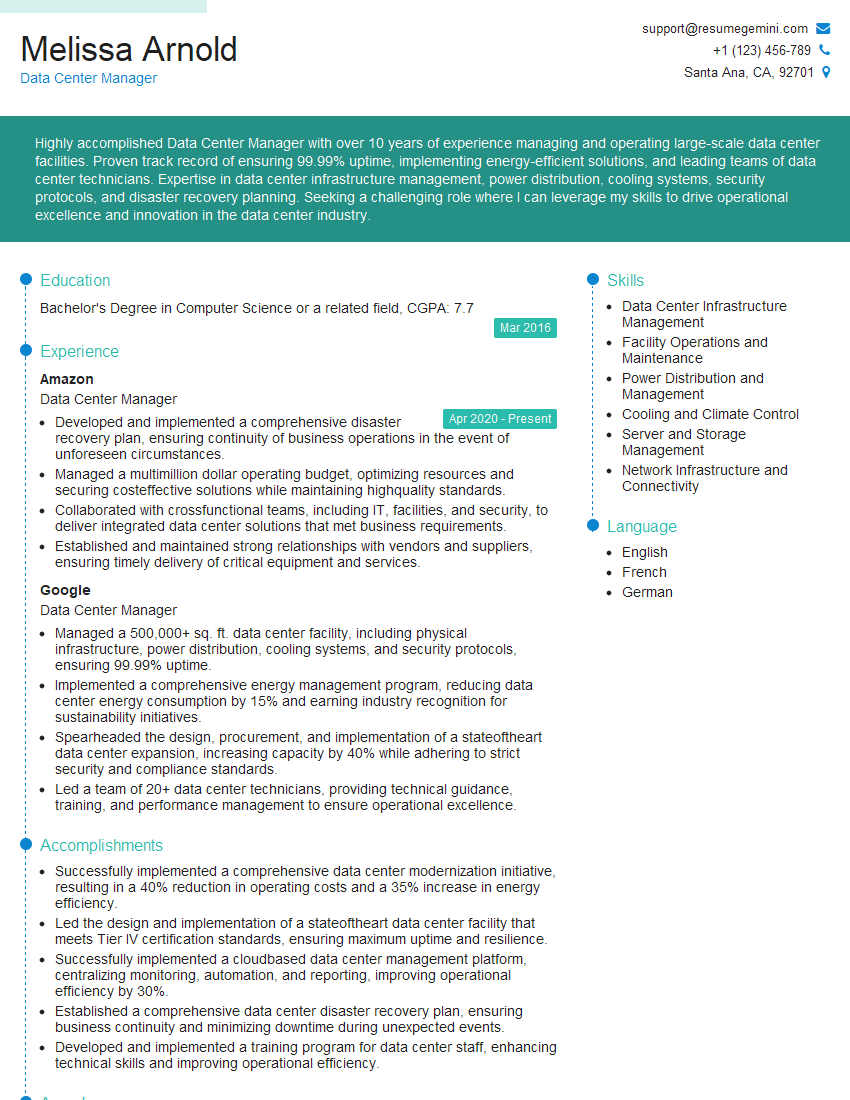
Data Center Manager Resume Sample
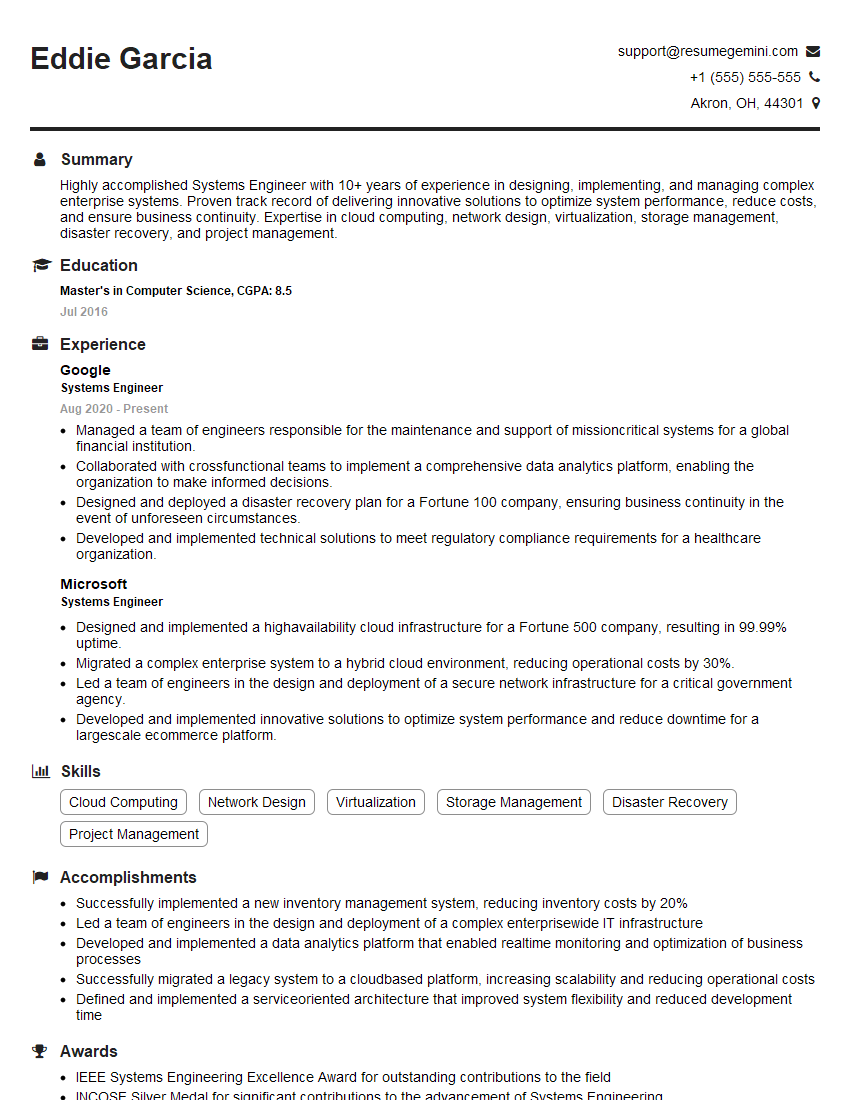
Systems Engineer Resume Sample
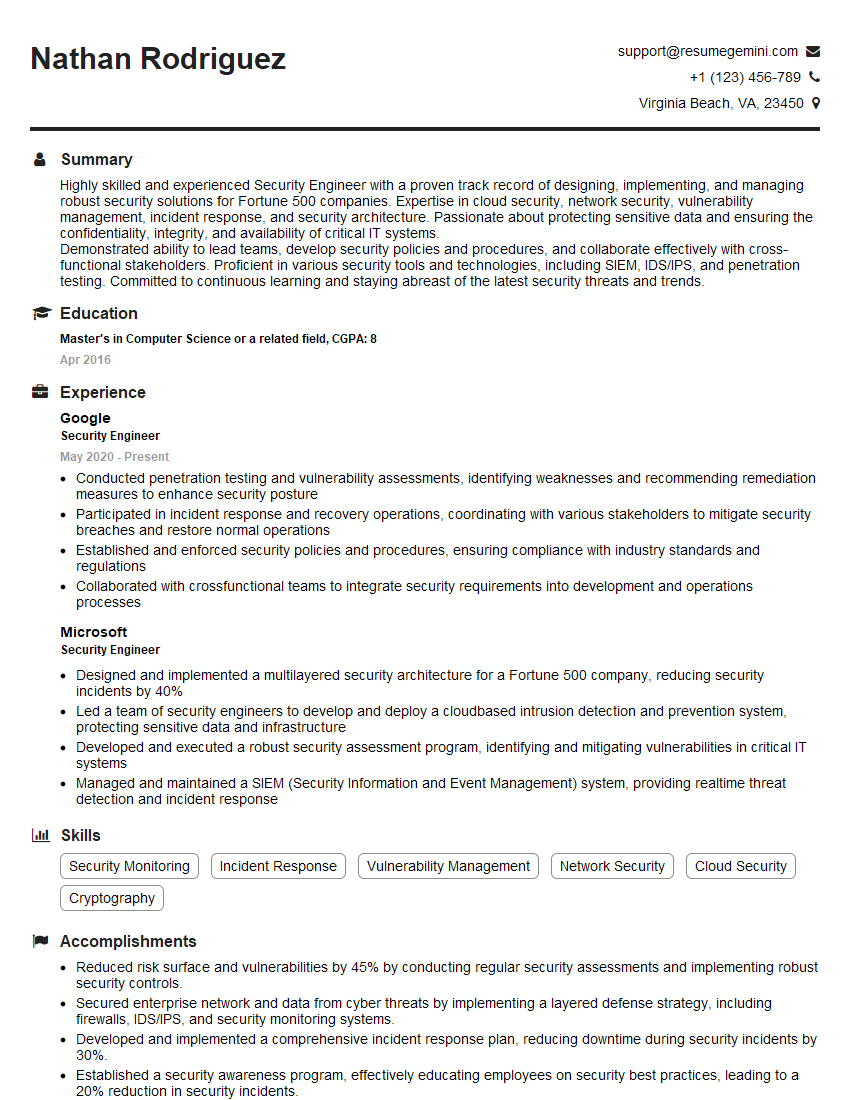
Security Engineer Resume Sample
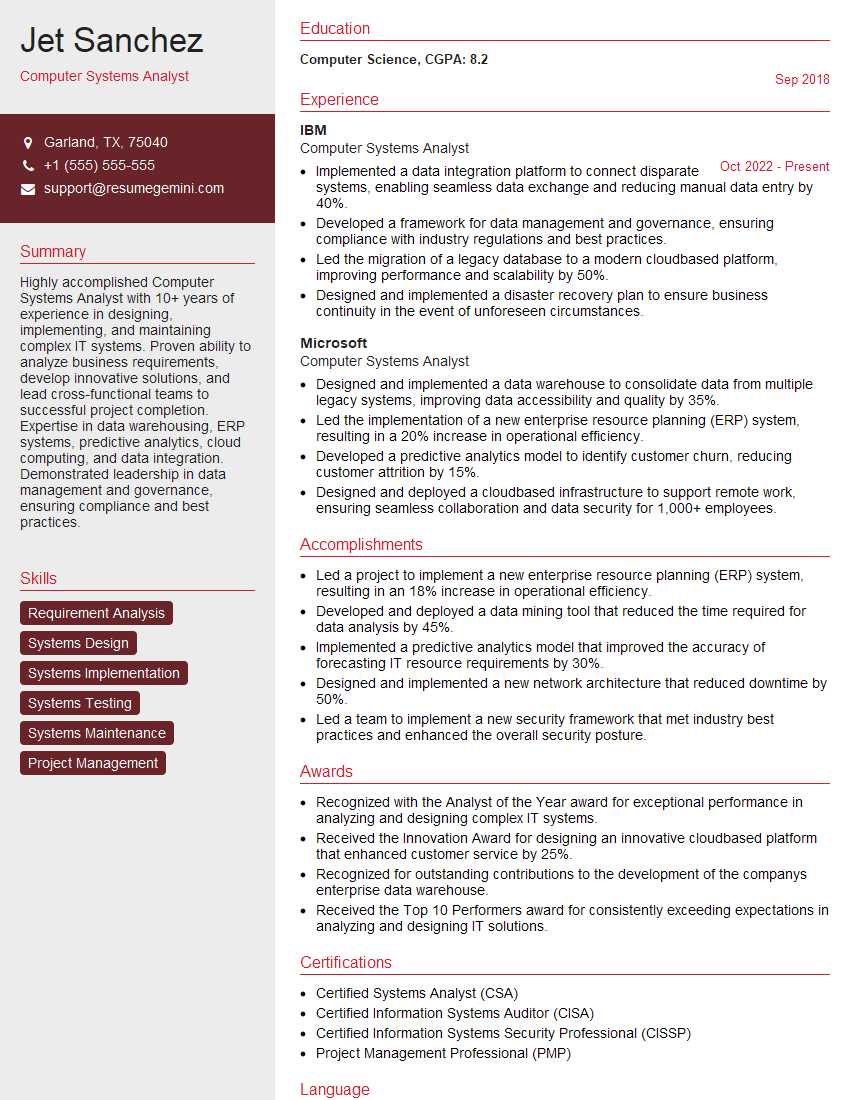
Computer Systems Analyst Resume Sample

Technical Project Manager Resume Sample
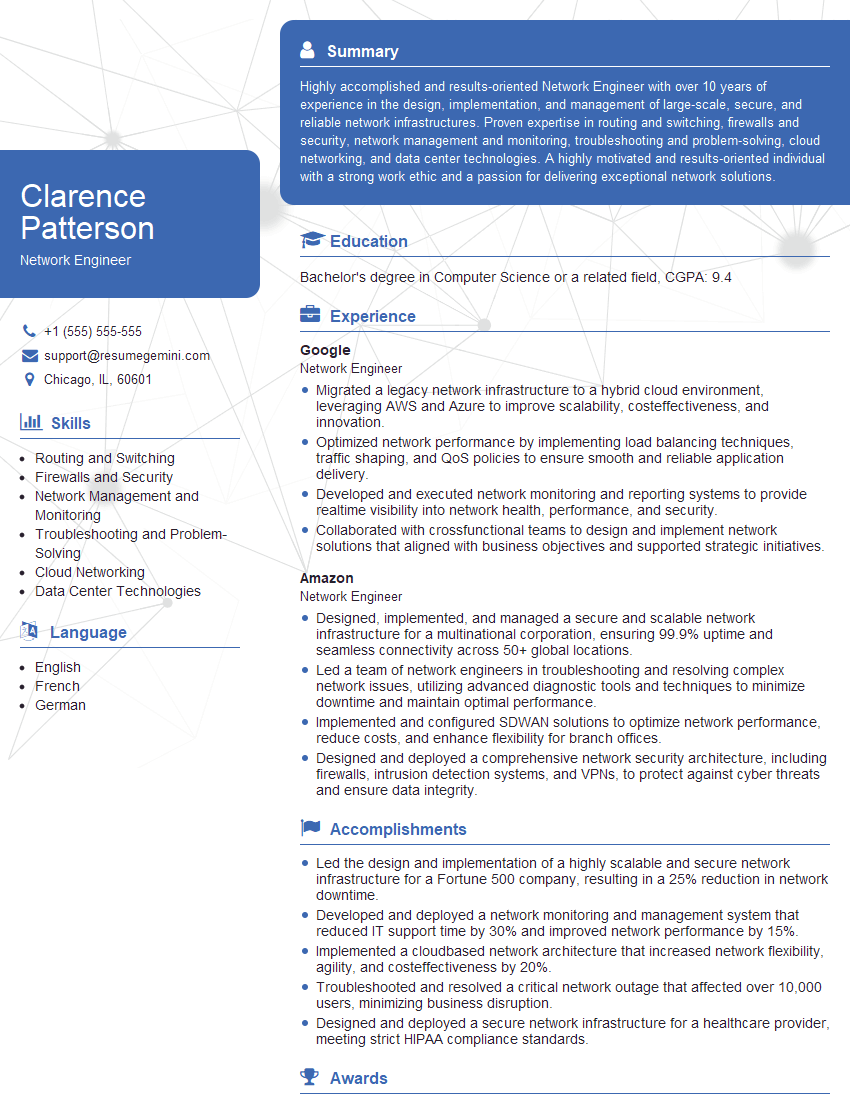
Network Engineer Resume Sample
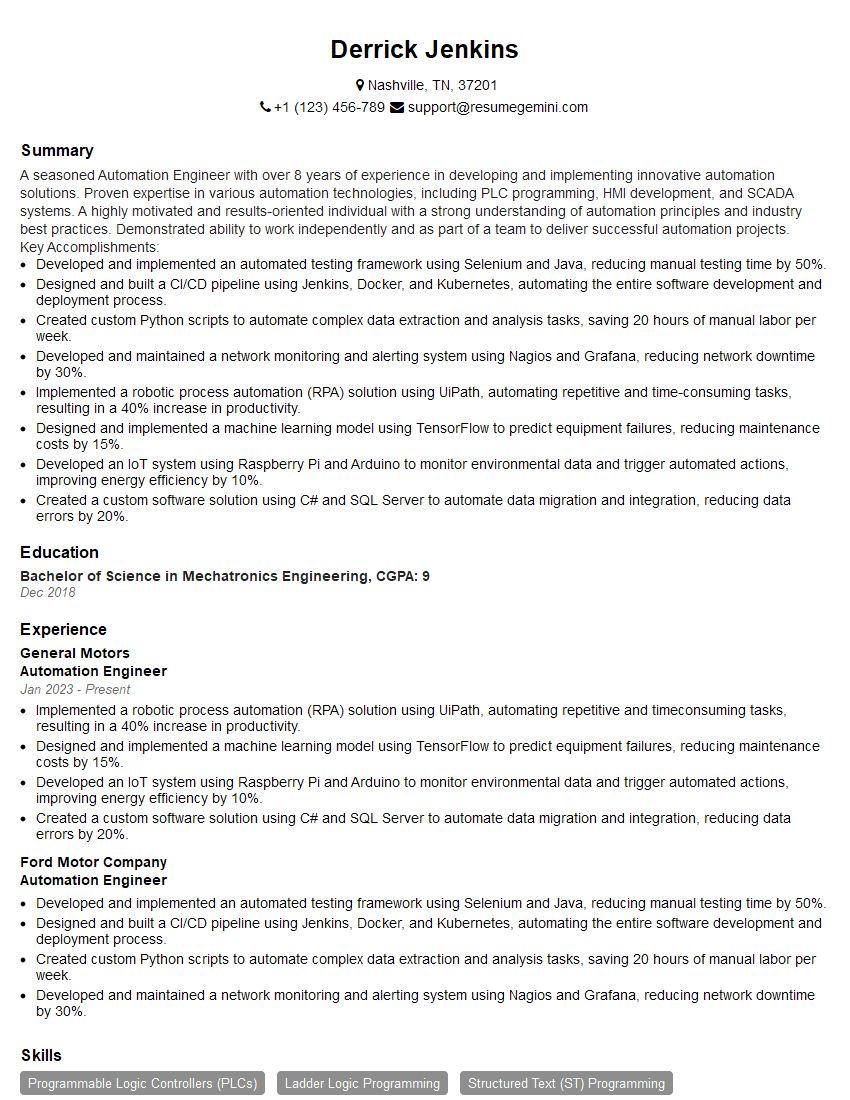
Automation Engineer Resume Sample
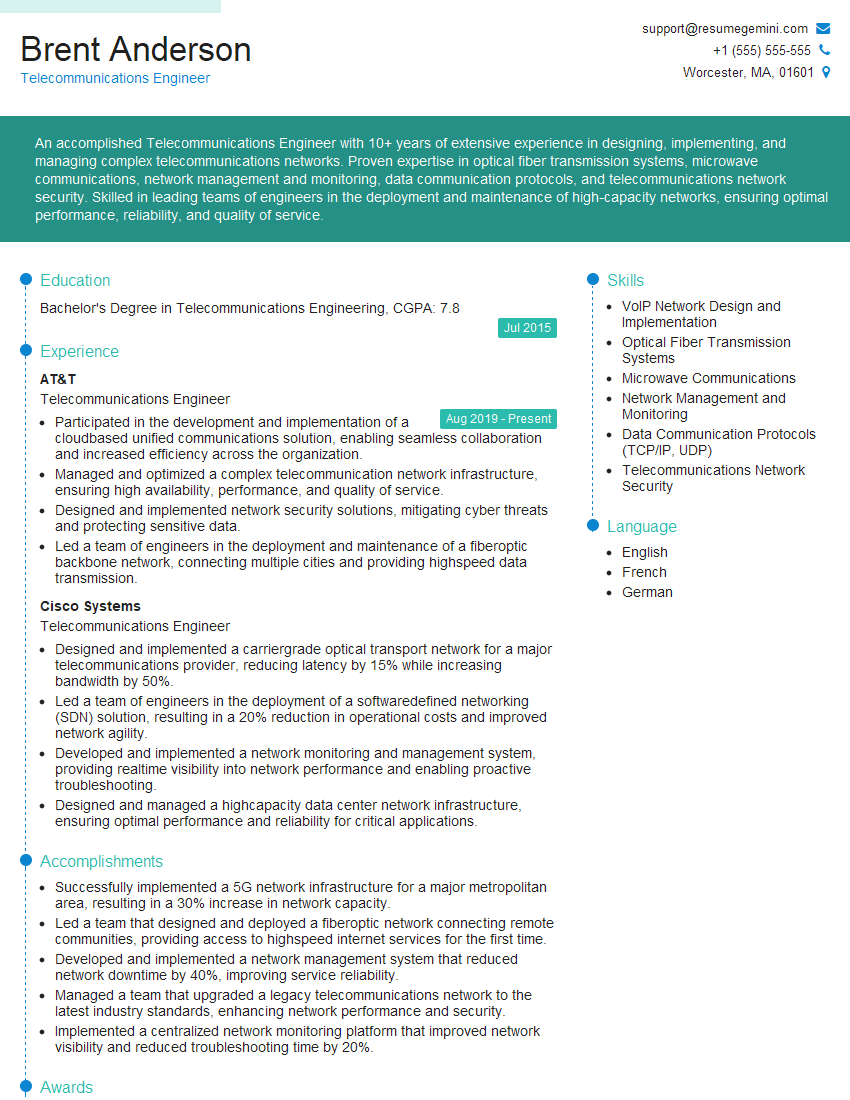
Telecommunications Engineer Resume Sample
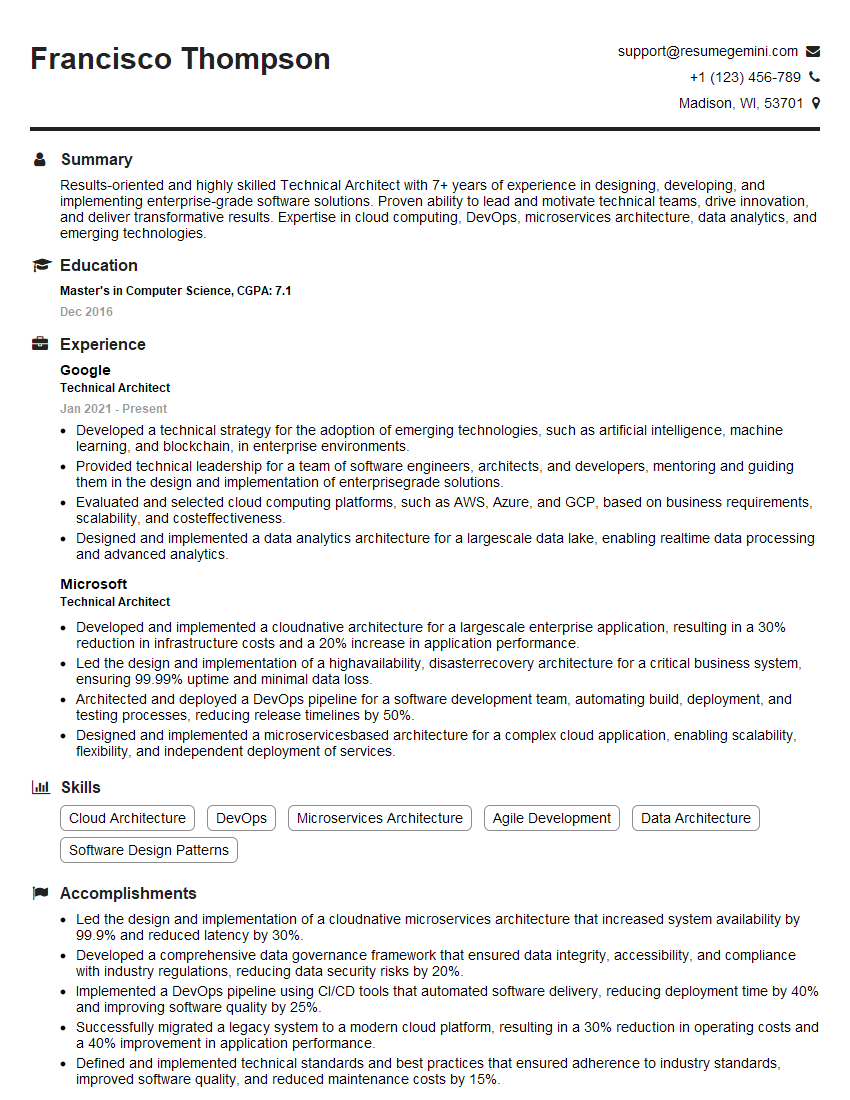
Technical Architect Resume Sample

IT Manager Resume Sample
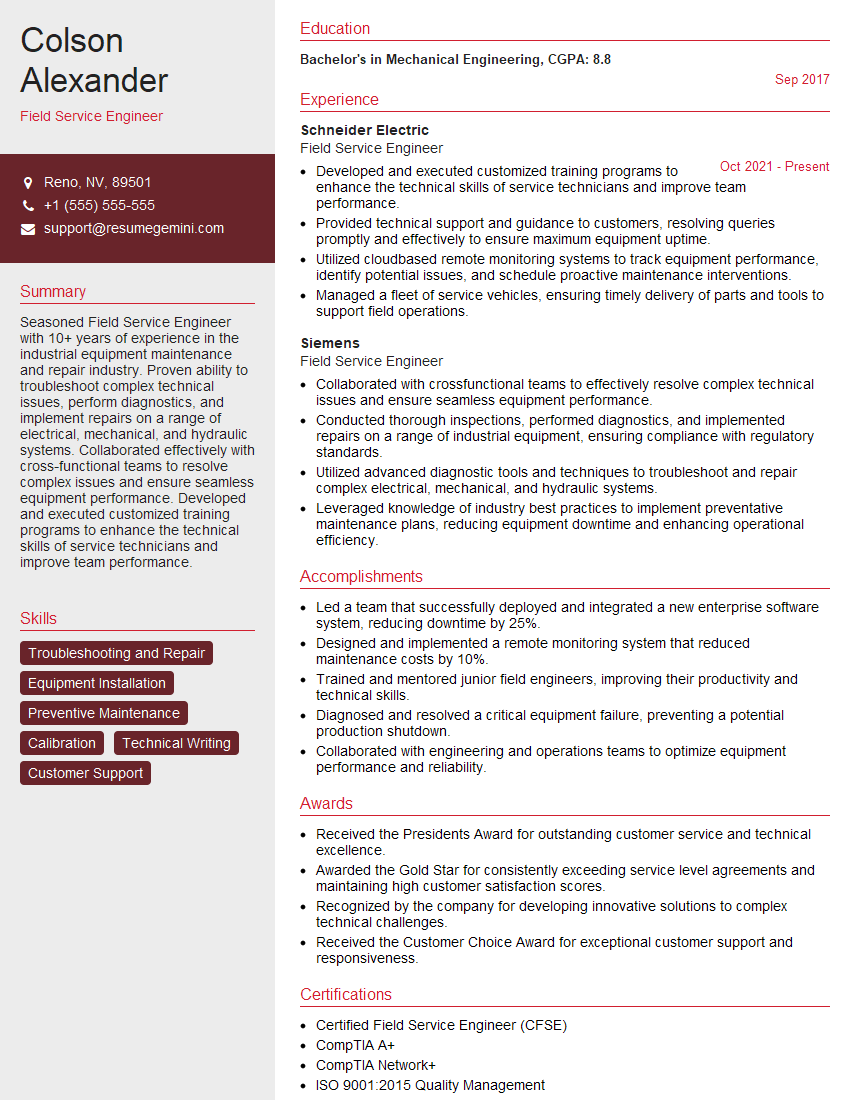
Field Service Engineer Resume Sample

Hardware Engineer Resume Sample
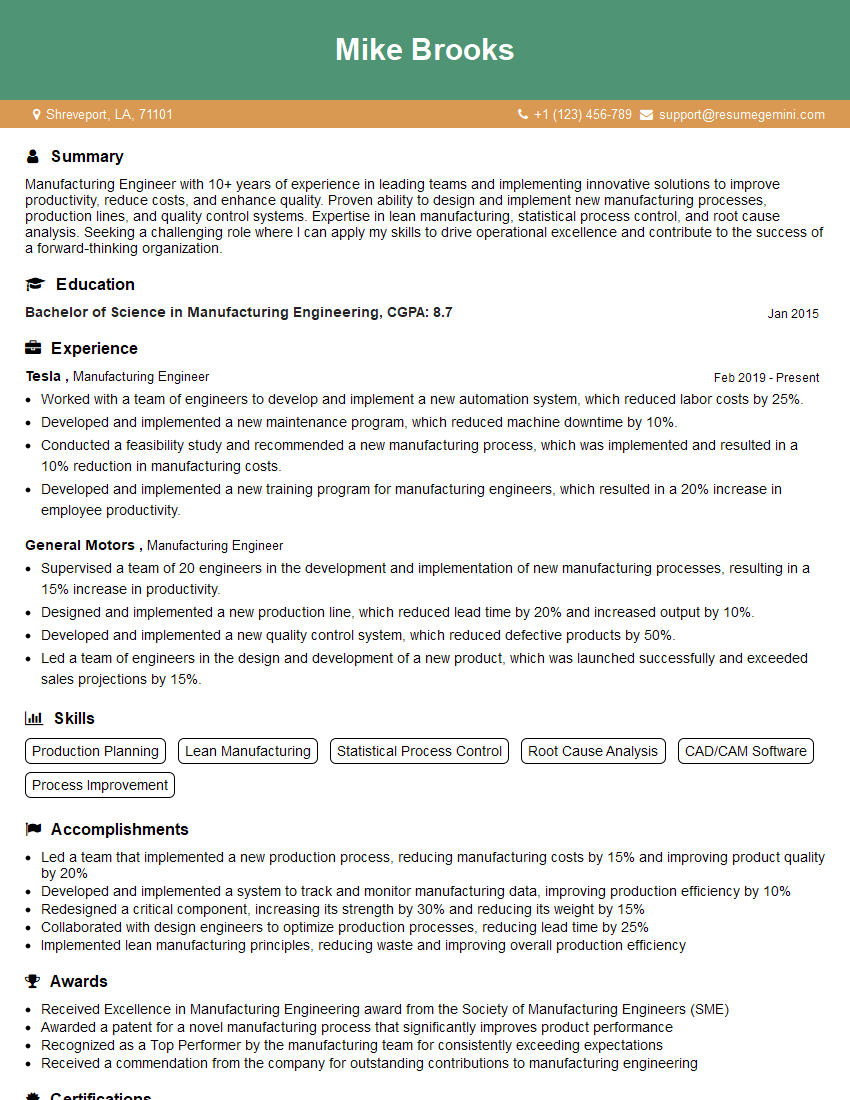
Manufacturing Engineer Resume Sample
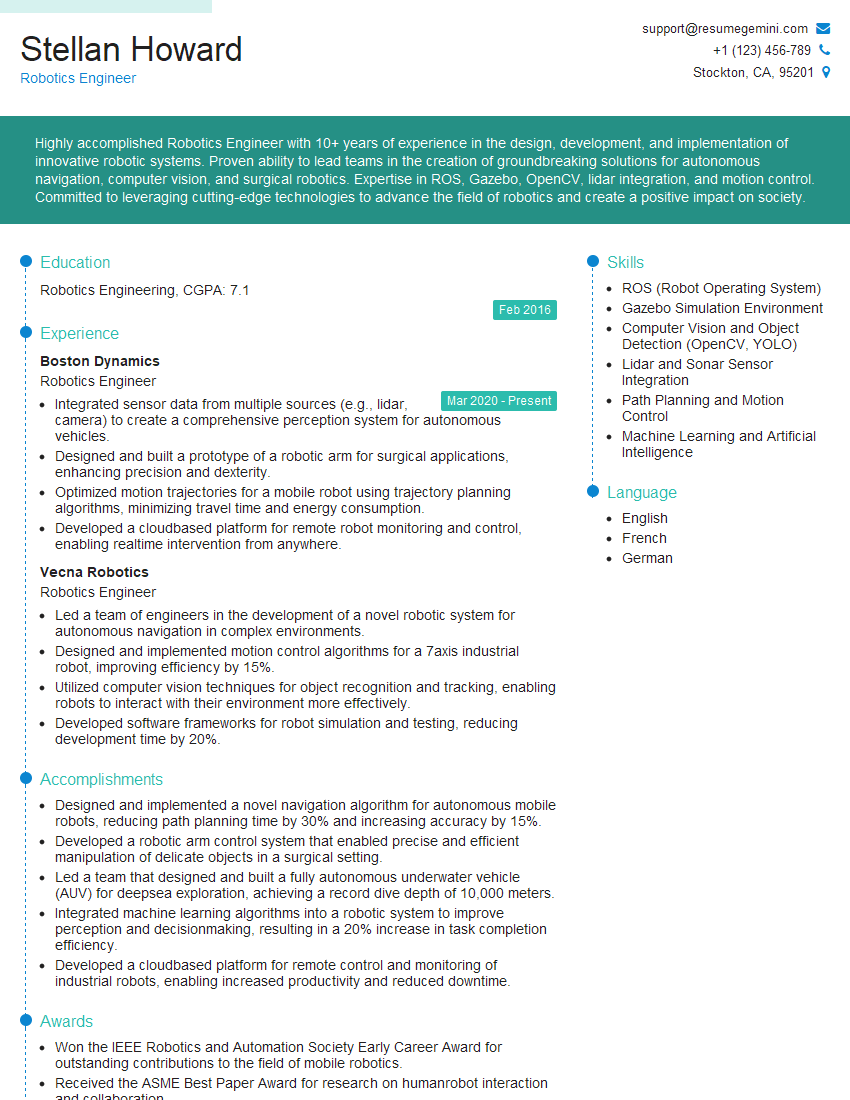
Robotics Engineer Resume Sample
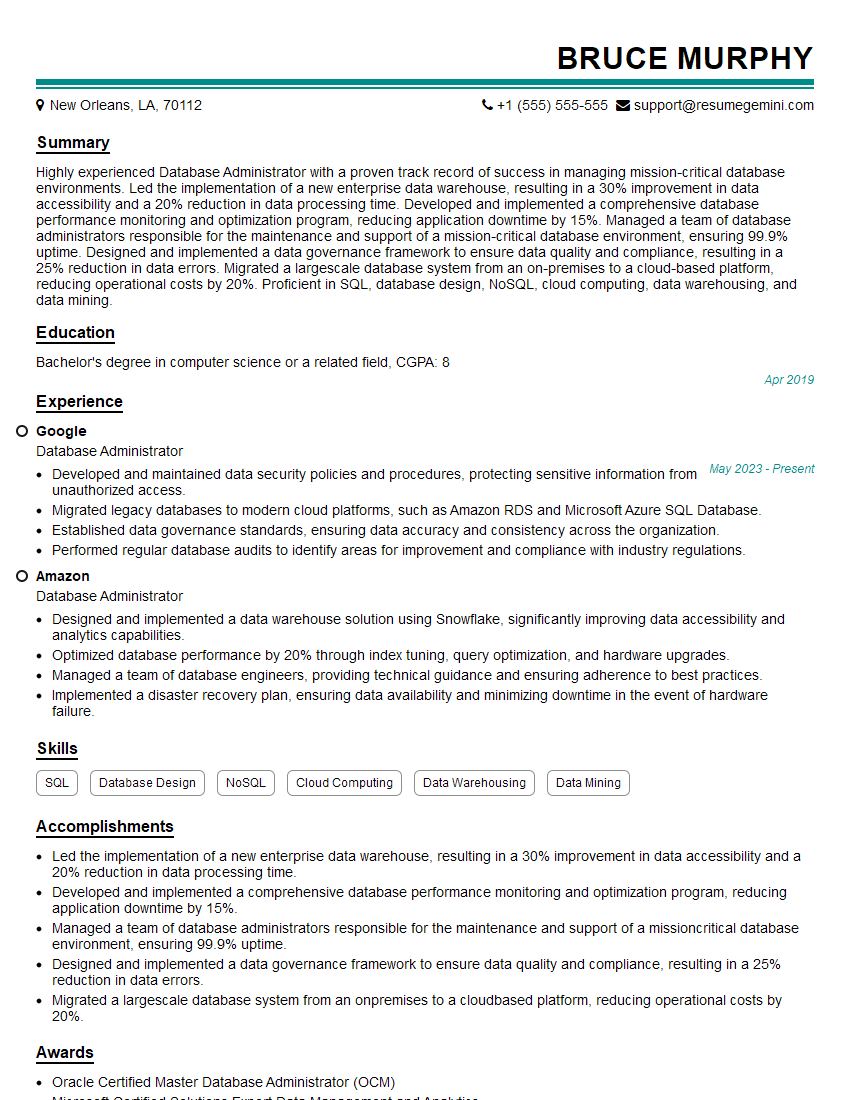
Database Administrator Resume Sample
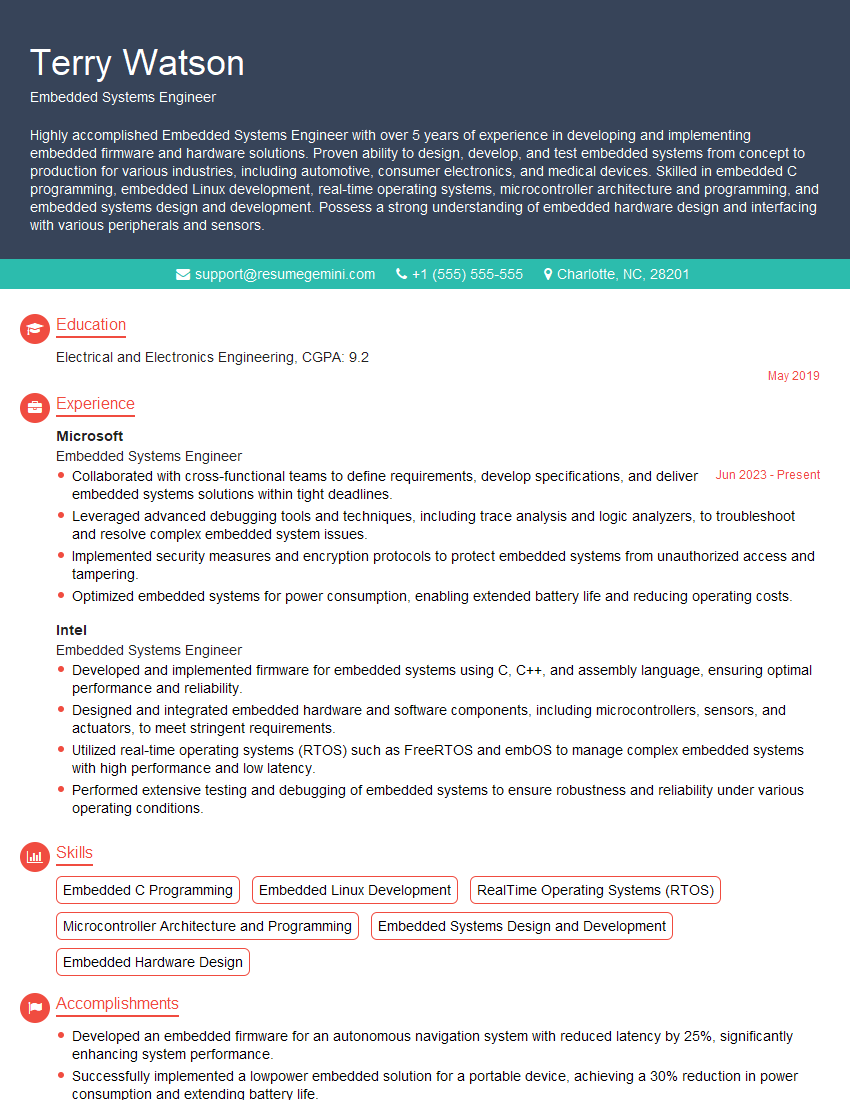
Embedded Systems Engineer Resume Sample

DevOps Engineer Resume Sample
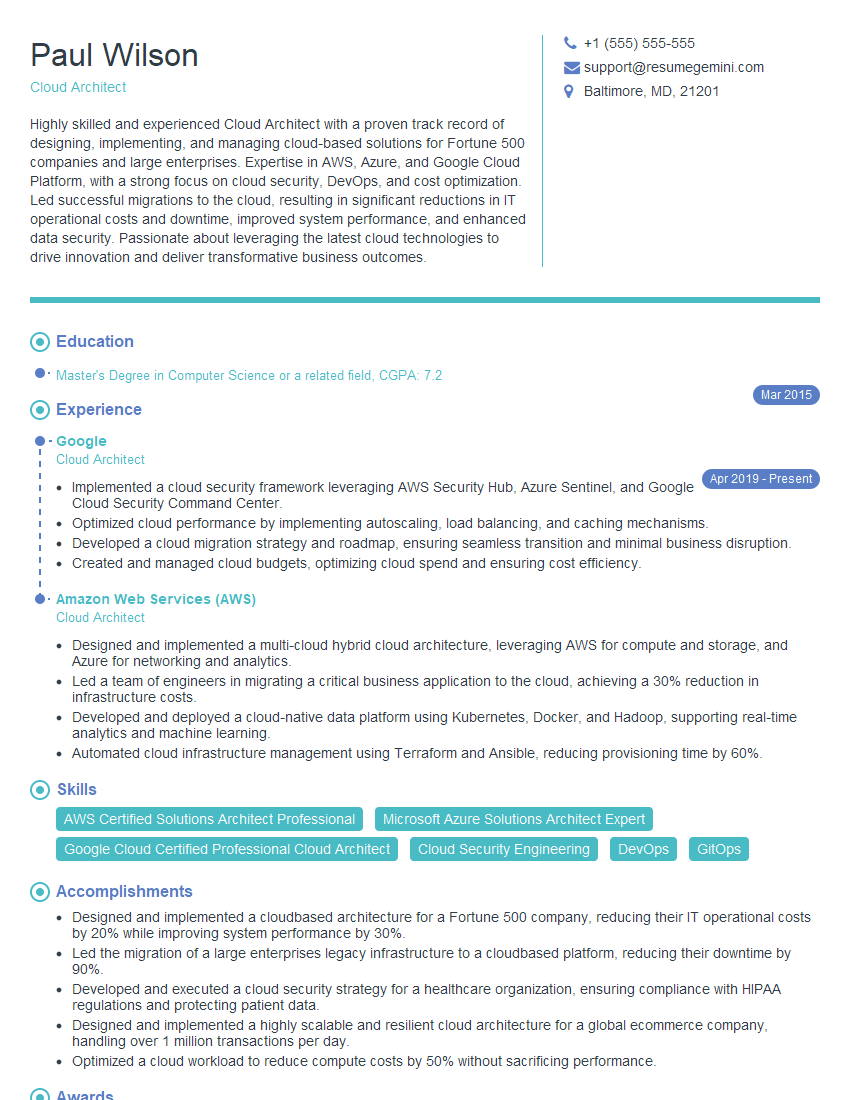
Cloud Architect Resume Sample
- Data Center Manager
- Systems Engineer
- Security Engineer
- Computer Systems Analyst
- Technical Project Manager
- Network Engineer
- Automation Engineer
- Telecommunications Engineer
- Technical Architect
- IT Manager
- Field Service Engineer
- Hardware Engineer
- Manufacturing Engineer
- Robotics Engineer
- Database Administrator
- Embedded Systems Engineer
- DevOps Engineer
- Cloud Architect
Explore more articles
Users Rating of Our Blogs
Share Your Experience
We value your feedback! Please rate our content and share your thoughts (optional).
What Readers Say About Our Blog
To the interviewgemini.com Webmaster.
Very helpful and content specific questions to help prepare me for my interview!
Thank you
To the interviewgemini.com Webmaster.
This was kind of a unique content I found around the specialized skills. Very helpful questions and good detailed answers.
Very Helpful blog, thank you Interviewgemini team.