Are you ready to stand out in your next interview? Understanding and preparing for CAD Vectorization interview questions is a game-changer. In this blog, we’ve compiled key questions and expert advice to help you showcase your skills with confidence and precision. Let’s get started on your journey to acing the interview.
Questions Asked in CAD Vectorization Interview
Q 1. Explain the difference between raster and vector graphics.
Raster and vector graphics represent images fundamentally differently. Think of it like this: raster images are like a mosaic, composed of tiny squares called pixels. Each pixel has a specific color, and changing the size of a raster image degrades its quality because you’re essentially changing the number of pixels. Vector graphics, on the other hand, are like blueprints. They’re made of mathematical equations defining lines, curves, and shapes. These equations are scalable without losing quality; you can zoom in infinitely and the image will remain crisp.
- Raster: Uses pixels to represent an image. Examples include JPEG, PNG, GIF, and BMP files. Think of your digital photos.
- Vector: Uses mathematical formulas to represent an image. Examples include SVG, AI, EPS, and DXF files. Think of logos or illustrations that can be scaled without losing quality.
In CAD, vector graphics are preferred because of their scalability and precision. This is crucial for creating blueprints, designs, and other technical drawings that need to be accurate at any scale.
Q 2. Describe the process of converting a raster image to a vector image.
Converting a raster image to a vector image, also known as vectorization, is a process of tracing the image to recreate it using vector shapes. It’s not a simple conversion; it requires skill and often a fair bit of manual intervention. Here’s a breakdown of the process:
- Image Preparation: Start with a high-resolution, clean raster image. Noise and artifacts will make vectorization more difficult.
- Tracing: This is where the magic happens. Software utilizes algorithms (often based on edge detection) to identify the shapes within the image. Manual tracing, using tools to create paths around shapes, may be necessary for complex images to achieve high-quality results.
- Shape Creation: The software creates vector shapes (lines, curves, polygons) that approximate the original raster image. The accuracy depends on the software and the complexity of the image.
- Colorization and Refinement: The vector shapes are then filled with colors, gradients, and other attributes. Manual editing is almost always necessary to ensure the final vector image is accurate and clean.
- Optimization: Reducing the number of nodes (points defining curves) without sacrificing accuracy is a crucial step for file size optimization and faster processing times.
Imagine trying to recreate a painting with building blocks. Raster images are like the individual pixels (building blocks) making up the painting. Vectorization is the process of using larger building blocks (shapes) to approximate the same painting, ensuring the end result can be scaled without breaking apart. This approach enables precise drawings and plans essential in CAD applications.
Q 3. What software are you proficient in for CAD vectorization?
I’m proficient in several software packages used for CAD vectorization, including:
- Adobe Illustrator: A versatile industry-standard for vector graphics editing, offering powerful tracing tools and manual editing capabilities. I regularly use it for intricate designs and logos.
- AutoCAD: The cornerstone of many CAD workflows, allowing for precise vector drawing and editing within a CAD environment. It’s particularly useful for mechanical drawings and architectural plans.
- CorelDRAW: A robust alternative to Illustrator, with its own strengths in vectorization and image manipulation, often preferred for specific design tasks.
- Inkscape (Open Source): A free and open-source vector graphics editor, a powerful tool particularly for those working on a budget.
My proficiency extends beyond basic tracing; I understand how to leverage the advanced features of these programs to achieve optimal results, including node editing, path manipulation, and color management.
Q 4. What are some common challenges encountered during CAD vectorization?
CAD vectorization presents several challenges:
- Image Quality: Low-resolution or noisy raster images result in poor vectorization. The source material is critical.
- Complex Details: Images with fine details, such as intricate textures or gradients, require significant manual intervention and are time-consuming to vectorize accurately.
- Accuracy: Maintaining accurate representation of the original image is crucial, particularly in technical drawings. Slight inaccuracies can have significant consequences.
- Time Consumption: Vectorization can be a labor-intensive process, especially with high-complexity images. Efficient workflow is key.
- Software Limitations: Different software packages have varying capabilities; choosing the right tool for the job is important.
For example, vectorizing a highly detailed architectural rendering can be significantly more challenging than vectorizing a simple logo. Overcoming these challenges requires a combination of skill, experience, and the right tools.
Q 5. How do you handle complex images with fine details during vectorization?
Handling complex images with fine details requires a multi-pronged approach:
- High-Resolution Source: Start with the highest-resolution image possible to capture as much detail as possible.
- Manual Tracing: Automated tracing tools are often insufficient for fine details. Manual tracing with the pen tool offers the most precision and control.
- Zoom and Detail: Work at high zoom levels to ensure accuracy and catch small nuances.
- Layered Approach: Break down complex images into layers, vectorizing each element separately to manage complexity.
- Node Editing: Refine the shape of curves and lines by adjusting the individual nodes that make up vector paths.
- Image Manipulation (Pre-Processing): Sometimes, image enhancement techniques – such as sharpening or noise reduction—can help improve the outcome of automatic tracing.
Think of it like embroidering a fine tapestry; you need patience, precision, and a keen eye for detail to create a faithful representation. The use of layers is analogous to working on different sections of the tapestry individually before combining them.
Q 6. Explain your approach to quality control in CAD vectorization.
Quality control in CAD vectorization is paramount. My approach includes:
- Visual Inspection: Thoroughly comparing the vectorized image to the original raster image at various zoom levels, looking for discrepancies in shapes, colors, and details.
- Dimensional Accuracy: Verifying dimensions are consistent with the original specifications, especially important for technical drawings.
- Node Optimization: Ensuring the vector paths are optimized for file size and performance without compromising quality.
- File Format: Using appropriate vector file formats (SVG, AI, DXF) for compatibility and future use.
- Client Review: Presenting the final vector image to the client for approval and feedback before finalizing the work.
Quality isn’t just about visual appeal; it’s about the accuracy and precision required for the intended application. A seemingly minor error in a CAD drawing can have significant consequences in the real world.
Q 7. How do you ensure accuracy and maintain consistency in your work?
Accuracy and consistency are maintained through:
- Consistent Workflow: Following established procedures and processes for each stage of vectorization ensures uniformity.
- Reference Materials: Using clear, high-quality reference materials and keeping them organized.
- Templates and Styles: Utilizing predefined templates and styles helps maintain consistency in design elements.
- Regular Calibration: Checking and adjusting software settings, tools, and workspaces periodically to minimize errors.
- Version Control: Maintaining version history to easily track changes and revert to previous states if necessary.
- Self-Review: Independently reviewing my work with fresh eyes to catch potential mistakes.
Consistency is not just about efficiency; it also significantly improves the quality and reliability of the final output, reducing the chance of costly errors in the long run.
Q 8. Describe your experience with different vectorization techniques.
Vectorization techniques broadly fall into two categories: manual and automated. Manual vectorization involves tracing raster images (like scanned drawings or photos) using CAD software to create vector lines, curves, and shapes. This is painstaking but offers superior control and accuracy. Automated vectorization employs software algorithms to convert raster images into vectors. These algorithms use various techniques such as edge detection, line tracing, and polygonization to approximate the raster image with vector data. My experience encompasses both approaches. I’ve extensively used manual techniques for high-precision work like architectural drawings demanding absolute accuracy. For large-scale projects with less stringent accuracy requirements, automated tools like Potrace and Vector Magic have proven highly efficient, often serving as a pre-processing step for subsequent manual refinement. Specific methods I’ve used include:
- Tracing: Carefully manually recreating raster lines and shapes as vector objects in CAD software.
- Image-Based Vectorization: Using software to automatically convert raster images into vector data, followed by manual cleaning and editing.
- Smart Tracing Algorithms: Utilizing software with advanced algorithms that intelligently interpret image features to generate higher-quality vectors.
Q 9. What are the advantages and disadvantages of manual vs. automated vectorization?
Manual and automated vectorization each have distinct advantages and disadvantages. Manual vectorization, while time-consuming, offers unparalleled control and accuracy, allowing for precise adjustment of every line and curve. It’s invaluable when dealing with complex or nuanced images where automated methods might fail. Think of restoring an antique map – the subtle details require a human touch. Automated vectorization, on the other hand, is significantly faster for large datasets, making it cost-effective for high-volume projects. However, the results often require extensive manual cleanup and refinement to address inaccuracies or artifacts introduced during the automation process. For instance, an automatically vectorized satellite image might create spurious lines or miss subtle details. The choice depends on the project’s needs: accuracy vs. speed and cost. A common workflow combines both approaches; automated vectorization for speed followed by manual refinement for accuracy.
Q 10. How do you manage large datasets during vectorization?
Managing large datasets during vectorization requires a strategic approach. Simple strategies like breaking down the dataset into smaller, more manageable chunks are crucial. This allows for parallel processing using multiple cores or even distributing the workload across different machines. I utilize specialized software that supports batch processing and handles large raster files efficiently. Additionally, optimizing the file formats is key. Using compressed raster formats (like TIFF) before vectorization minimizes processing times. After vectorization, efficient vector file formats like DXF or DWG (with appropriate compression settings), are employed to store the final vector data effectively. Furthermore, implementing a robust quality control process throughout the workflow is essential to catch and correct errors or inconsistencies early on. This involves regularly saving work, employing version control systems, and using quality-checking tools to identify and correct potential issues.
Q 11. How do you handle inconsistencies in source material during vectorization?
Inconsistencies in source material are a common challenge in vectorization. These might include variations in line weight, inconsistent scaling, or artifacts like noise and blurriness in raster images. My approach is to carefully analyze the source material to identify the root cause of the inconsistencies. Strategies then include:
- Pre-processing the Raster Image: Cleaning the raster image using image editing software to reduce noise and improve contrast before vectorization.
- Using Appropriate Vectorization Techniques: Choosing vectorization methods best suited to handling the specific types of inconsistencies present in the image.
- Manual Refinement: Following automated vectorization, thoroughly inspecting and correcting inconsistencies manually in CAD software. This often involves adjusting nodes, smoothing lines, and cleaning up unwanted artifacts.
- Establishing Style Guides: Creating standardized guidelines for line weights, colors, and other stylistic elements to ensure consistency across the vectorized data. This is particularly useful for large-scale projects.
Q 12. What is your experience with various file formats (e.g., DXF, DWG, AI)?
My experience with various file formats is extensive. I’m proficient in working with DXF (Drawing Exchange Format), DWG (Drawing), and AI (Adobe Illustrator) formats. DXF and DWG are industry-standard formats for CAD drawings, offering wide compatibility across different CAD software. DXF is particularly useful for data exchange between different systems and is often a preferred format for archiving. AI files, on the other hand, are used for vector graphics in Adobe Illustrator. I understand the nuances of each format, including their strengths and limitations, which allows me to select the best format based on the project requirements. For instance, when transferring data between AutoCAD and other CAD software, DXF is usually a reliable choice. Conversely, when working with illustrations that involve complex effects and color gradients, AI files are better suited. Understanding these subtleties ensures smooth data transfer and prevents issues arising from format incompatibilities.
Q 13. Describe your experience with different CAD software (e.g., AutoCAD, MicroStation)?
I have significant experience using AutoCAD and MicroStation, two of the leading CAD software packages. AutoCAD is known for its wide range of functionalities and industry acceptance, particularly in architectural, mechanical, and electrical engineering. My proficiency in AutoCAD extends to advanced features like creating and editing blocks, managing layers, and creating complex drawings. MicroStation, on the other hand, excels in large-scale projects and offers robust capabilities for managing and manipulating geospatial data, especially in civil engineering and surveying. My expertise includes creating and manipulating various geometric objects, using different editing tools, and managing layers effectively in both programs. I’m also comfortable using other CAD software, making me versatile and adaptable to various projects and client needs.
Q 14. How do you optimize vector files for different applications?
Optimizing vector files for different applications involves several crucial steps. Firstly, understanding the specific requirements of the target application is crucial. For instance, a vector file destined for laser cutting needs to be optimized for precision and minimal file size to ensure efficient processing and avoid errors. Conversely, a vector graphic intended for online use (e.g., a website logo) may require optimization for screen display and reduced file size for faster loading times. Techniques I employ include:
- Simplifying Geometry: Removing unnecessary nodes and reducing the complexity of shapes to decrease file size.
- Optimizing Line Weights: Adjusting line weights to appropriate values for the target application, ensuring clarity and consistency.
- Choosing Appropriate File Formats: Selecting the right file format based on the application’s compatibility needs (e.g., SVG for web, DXF for CAD).
- Compressing Files: Employing compression techniques appropriate to the file format to reduce file size without compromising quality.
Q 15. Explain your experience with vector editing tools and techniques.
My experience with vector editing tools spans over a decade, encompassing a wide range of software including Adobe Illustrator, CorelDRAW, Inkscape, and AutoCAD. I’m proficient in various techniques like tracing raster images, creating shapes from scratch, manipulating paths, using Bézier curves, and applying different fills and strokes. I’ve worked extensively with both simple logos and complex illustrations, architectural drawings, and even geographical maps, each requiring a nuanced approach to vectorization.
For instance, when working on a highly detailed botanical illustration, I found that using the Pen tool in Illustrator with pressure sensitivity enabled allowed for more organic curves and a much smoother result compared to using the simpler shape tools. Conversely, when vectorizing a simple logo, the shape tools and direct selection could be incredibly time-efficient, offering quick, precise adjustments.
I’m also comfortable using automated vectorization tools and understand their limitations. While they can significantly speed up the process, manual refinement is often crucial to achieve high-quality, clean vector art that’s ready for print or digital use.
Career Expert Tips:
- Ace those interviews! Prepare effectively by reviewing the Top 50 Most Common Interview Questions on ResumeGemini.
- Navigate your job search with confidence! Explore a wide range of Career Tips on ResumeGemini. Learn about common challenges and recommendations to overcome them.
- Craft the perfect resume! Master the Art of Resume Writing with ResumeGemini’s guide. Showcase your unique qualifications and achievements effectively.
- Don’t miss out on holiday savings! Build your dream resume with ResumeGemini’s ATS optimized templates.
Q 16. How do you address issues related to scaling and resolution during vectorization?
Scaling and resolution are critical concerns in vectorization. Unlike raster images (like JPEGs or PNGs), vectors are resolution-independent. This means they can be scaled to any size without losing quality. However, the initial creation of the vector file must be precise.
Addressing scaling issues involves ensuring the original artwork is created with high precision. A poorly traced raster image will appear pixelated when scaled up, even though the file itself is a vector file. Therefore, the tracing process itself is key. Using high-resolution source material is essential for the best results. If starting with a low-resolution image, using AI-based upscaling tools before vectorization can sometimes help, though manual cleanup is typically required afterwards. Resolution isn’t a factor in the *final* output quality of a vector file, only in the *process* of its creation.
For example, if vectorizing a low-resolution logo for use on billboards, a high-quality final output requires careful tracing, smoothing of curves, and potentially recreating parts of the logo from scratch to avoid pixelation even at large scales.
Q 17. Describe your workflow for a typical vectorization project.
My workflow for a typical vectorization project is highly iterative and depends on the complexity of the source material. However, it generally involves these steps:
- Assessment: I analyze the source material (raster image, scanned drawing, etc.) evaluating its resolution, complexity, and desired output specifications.
- Preparation: This may involve cleaning up the source image (removing noise, adjusting contrast), upscaling if necessary, and choosing the appropriate software.
- Tracing/Creation: I use relevant tools – pen tool, shape tools, automated tracing features – to create vector paths that represent the source material faithfully.
- Refinement: This is a crucial stage where I clean up the vector paths, smooth curves, correct inaccuracies, and ensure consistency in line weights and styles.
- Colorization/Adjustment: I create or adjust the color palette, ensuring color accuracy if necessary. This may involve using color profiles and matching specific Pantone colors.
- Quality Control: I meticulously check the finished vector for any imperfections, testing it at various scales to ensure the quality is maintained.
- Export: Finally, I export the vector file in the appropriate format (AI, SVG, EPS, DXF etc.) as per client requirements.
Q 18. How do you handle color palettes and color accuracy during vectorization?
Color palettes and color accuracy are paramount in vectorization, especially for projects requiring precise color matching, such as branding or print materials. I approach color management with a methodical approach:
Firstly, I determine the target color space (e.g., sRGB, Adobe RGB, CMYK). If the project necessitates precise color matching to a Pantone or other specific color system, I use color picking tools within my vector editor to sample colors directly from a reference image or color chart. I also ensure that the color mode (RGB or CMYK) is appropriate for the intended output. For print projects, accurate color profile matching is crucial to ensure the final product matches the design. If needed, I might even work directly with a color specialist to guarantee the fidelity of the colors.
For instance, while vectorizing a logo for a client, I ensured the exact Pantone colors were used by importing the Pantone color book into my design software and sampling the colors precisely. This ensured a visually consistent and brand-compliant result.
Q 19. What is your understanding of vectorization for different industries (e.g., GIS, AEC)?
Vectorization finds application across diverse industries, each with unique requirements:
- GIS (Geographic Information Systems): Vectorization is fundamental for creating and managing geographic data. Precisely mapped features – roads, buildings, boundaries – are represented as vectors, enabling scalable and editable maps.
- AEC (Architecture, Engineering, and Construction): Vectorization is critical in CAD workflows. Architectural blueprints, engineering drawings, and construction plans need to be precise, and vector format is ideal for this, providing a highly accurate and scalable format for collaborative work.
- Graphic Design: Vector graphics are the cornerstone of logo design, illustrations, and many other applications requiring scalability and high-quality output across various media, without losing resolution.
- Manufacturing and Industrial Design: Vector-based CAD software allows for the creation of precise product designs that can be easily modified and scaled for different manufacturing processes. The vector format also lends itself well to CNC (computer numerical control) machining and other manufacturing applications.
My experience encompasses projects in each of these areas, allowing me to adapt my vectorization techniques to match the specific needs and standards of each industry.
Q 20. Explain your experience with cleaning and improving existing vector files.
Cleaning and improving existing vector files is a common task, often involving the remediation of issues resulting from poor initial creation, file corruption, or outdated software versions. This often requires a keen eye for detail and a thorough understanding of vector principles. My approach includes:
- Path Optimization: Simplifying overly complex paths while retaining visual fidelity, reducing file size and improving rendering performance. This is especially important in files with a lot of unnecessary anchor points and overlapping paths.
- Node Manipulation: Carefully adjusting nodes and curves using tools like the Direct Selection tool to correct distortions, uneven lines, or awkward shapes.
- Layer Management: Organizing and cleaning up layers, removing redundant layers and combining elements where appropriate to improve file organization and efficiency. Properly organized layers also help in identifying specific elements for editing.
- Font Substitution: Replacing missing or corrupted fonts with similar alternatives, ensuring text remains legible and consistent. This frequently arises when dealing with older vector files.
- Color Correction: Adjusting or correcting the color profile and ensuring consistent colors throughout the file. This is particularly critical when integrating the file into existing projects.
For example, I once received a vector file of a logo that had inconsistent line weights and overlapping paths, making it difficult to edit. By carefully optimizing the paths and correcting the line weights, I was able to clean up the file, making it much more manageable and improving its overall quality.
Q 21. How do you prioritize tasks and manage deadlines in a vectorization project?
Prioritizing tasks and managing deadlines in a vectorization project is crucial for successful project completion. My approach combines careful planning and agile methodologies.
Firstly, I thoroughly review the project requirements and break it down into smaller, manageable tasks. This involves determining the total time each task requires based on the complexity of the image and the required level of accuracy. I then prioritize these tasks based on dependencies and deadlines. Critical path analysis is frequently used to determine which tasks cannot be delayed without impacting the overall project timeline.
I use project management tools (like Trello or Asana) to track progress and maintain transparency. Regular check-ins and communication with clients are crucial to manage expectations and address any unexpected issues promptly. If needed, I will adjust the schedule to account for unforeseen complexities, always communicating clearly with clients to manage expectations.
My experience allows me to accurately estimate project timelines, providing clients with realistic delivery expectations, and ensuring successful on-time completion of vectorization projects.
Q 22. How do you collaborate with other team members on vectorization projects?
Collaboration on vectorization projects hinges on effective communication and the use of version control systems. We typically utilize project management tools like Jira or Asana to track tasks, deadlines, and individual responsibilities. For example, one team member might focus on initial raster cleanup, another on automated vectorization, and a third on manual cleanup and refinement. We use cloud-based storage (like Google Drive or Dropbox) to share files and ensure everyone works on the most up-to-date version. Regular team meetings, where we review progress, discuss challenges, and coordinate efforts, are crucial. A shared style guide ensures consistency across the vectorized outputs. For instance, we might define specific tolerances for line thicknesses and node counts to maintain a standardized file.
Q 23. Describe your experience using automated vectorization tools.
My experience with automated vectorization tools spans several years, and I’m proficient with various software packages, including Adobe Illustrator’s image tracing features, Vector Magic, and Potrace. Automated tools are invaluable for initial vectorization, significantly speeding up the process, especially for simpler images. For instance, I recently used Vector Magic to convert a raster logo into a vector format, saving considerable manual tracing time. However, I understand their limitations. Automated vectorization often requires significant post-processing, manual cleanup, and refinement to achieve professional-quality results. The success heavily depends on the quality of the input raster image; higher resolution and clearer lines yield better results. Therefore, I always carefully evaluate the output of any automated tool and am prepared to manually adjust nodes and paths to ensure accuracy and precision.
Q 24. How do you troubleshoot errors during the vectorization process?
Troubleshooting during vectorization involves a systematic approach. First, I assess the type of error. Is it a result of a poor-quality input image (noise, blur, low resolution), limitations of the automation tool (incorrect line recognition or node placement), or simply an oversight during manual editing? If it’s due to image quality, pre-processing techniques like noise reduction or sharpening are applied. If it’s a tool limitation, I might try a different tool or switch to manual tracing for the affected area. For example, I recently encountered difficulty vectorizing a scanned document with uneven lighting. I resolved it by using image editing software to even out the lighting before feeding the image into the vectorization software. Manual errors are typically corrected through careful node editing and path manipulation, zooming in to ensure precision.
Q 25. Explain your understanding of node editing and path manipulation in vector software.
Node editing and path manipulation are fundamental to vector graphics editing. Nodes are anchor points that define the shape of a path; they are crucial in creating curves, lines and shapes. Path manipulation includes adjusting the position, curvature, and number of nodes. This allows for fine-grained control over the shape’s geometry. For example, you might move nodes to straighten a slightly curved line, add nodes to create a more complex curve, or delete redundant nodes to simplify a path. I’m proficient in these techniques across different software like Adobe Illustrator, CorelDRAW, and Inkscape. Think of it like sculpting with digital clay – nodes are the points of contact, and path manipulation is the shaping process. Understanding these techniques is crucial for creating clean, precise, and scalable vector graphics.
Q 26. How do you ensure the compatibility of your vectorized files with different software applications?
Ensuring compatibility with different software applications involves using widely supported file formats, primarily SVG (Scalable Vector Graphics). SVG is an open standard, meaning it’s readable across most vector editors. However, complex effects or features in one program might not be fully rendered in another, so testing on target applications is essential. Before delivering the final files, I routinely test them in various applications, such as Illustrator, CorelDRAW, Inkscape, and even browser-based SVG viewers. I avoid using application-specific features which could cause compatibility problems. For instance, I’d avoid over-reliance on effects or styles unique to Adobe Illustrator. Keeping file structures simple also aids compatibility. Excessive nesting or complex groups can cause issues in older or less capable software.
Q 27. What are your strategies for improving the efficiency of your vectorization workflow?
Improving vectorization workflow efficiency relies on a combination of strategies. Firstly, proper image preparation is key. High-resolution, clean raster images minimize the time spent on manual cleanup. Secondly, effective use of automated tools reduces manual effort. Thirdly, mastering keyboard shortcuts and efficient node editing techniques drastically cut down processing time. For example, I utilize the pen tool’s precision features and layer management to streamline my workflow. Lastly, adopting a consistent workflow – a structured approach to each task – helps avoid unnecessary repetition and enhances productivity. Regularly evaluating and refining my process by learning new shortcuts and techniques is an ongoing commitment.
Q 28. How would you approach vectorizing a highly detailed scanned architectural drawing?
Vectorizing a highly detailed scanned architectural drawing requires a multi-stage approach. I would begin by pre-processing the scanned image, enhancing contrast, and potentially using noise reduction to improve clarity. Then, I’d leverage automated tracing tools for large, relatively simple areas, followed by meticulous manual cleanup and refinement. For intricate details, like ornate moldings or complex window frames, I would switch to manual tracing using the pen tool, paying close attention to accuracy. Using layers effectively is crucial, grouping similar elements (like walls, doors, windows) into separate layers to maintain organization. Regular saving and version control are paramount to prevent loss of work. Finally, I would rigorously check the vectorized drawing for accuracy against the original scanned document, ensuring the overall representation remains faithful. The entire process could be split across multiple sessions to maintain concentration and accuracy.
Key Topics to Learn for Your CAD Vectorization Interview
Ace your next interview by mastering these key areas of CAD Vectorization. We’ve broken down the essentials to help you feel confident and prepared.
- Understanding Vector Graphics: Grasp the fundamental differences between raster and vector images. Explore file formats like DXF, DWG, and AI, and understand their implications for vectorization.
- Vectorization Techniques: Learn about manual and automated vectorization methods. Understand the strengths and weaknesses of each approach and when to apply them. This includes exploring software tools and their capabilities.
- Data Cleaning and Preprocessing: Explore techniques for preparing raster images for optimal vectorization, including noise reduction, image enhancement, and resolution adjustments. Understand how these steps impact accuracy and efficiency.
- Node Editing and Manipulation: Master the skills needed to refine vectorized images. This includes understanding Bézier curves, path editing, and the manipulation of nodes to achieve precise results.
- Quality Control and Optimization: Learn how to assess the quality of vectorized output. Understand file size optimization and strategies for maintaining accuracy and reducing file size without compromising quality.
- Software Proficiency: Demonstrate familiarity with industry-standard CAD software (AutoCAD, Adobe Illustrator, etc.) used for vectorization. Highlight your skills in using the tools and functions within these platforms.
- Practical Applications: Be ready to discuss real-world applications of CAD vectorization, such as converting scanned drawings to editable CAD files, creating logos and illustrations, and preparing designs for manufacturing processes.
Next Steps: Level Up Your Career
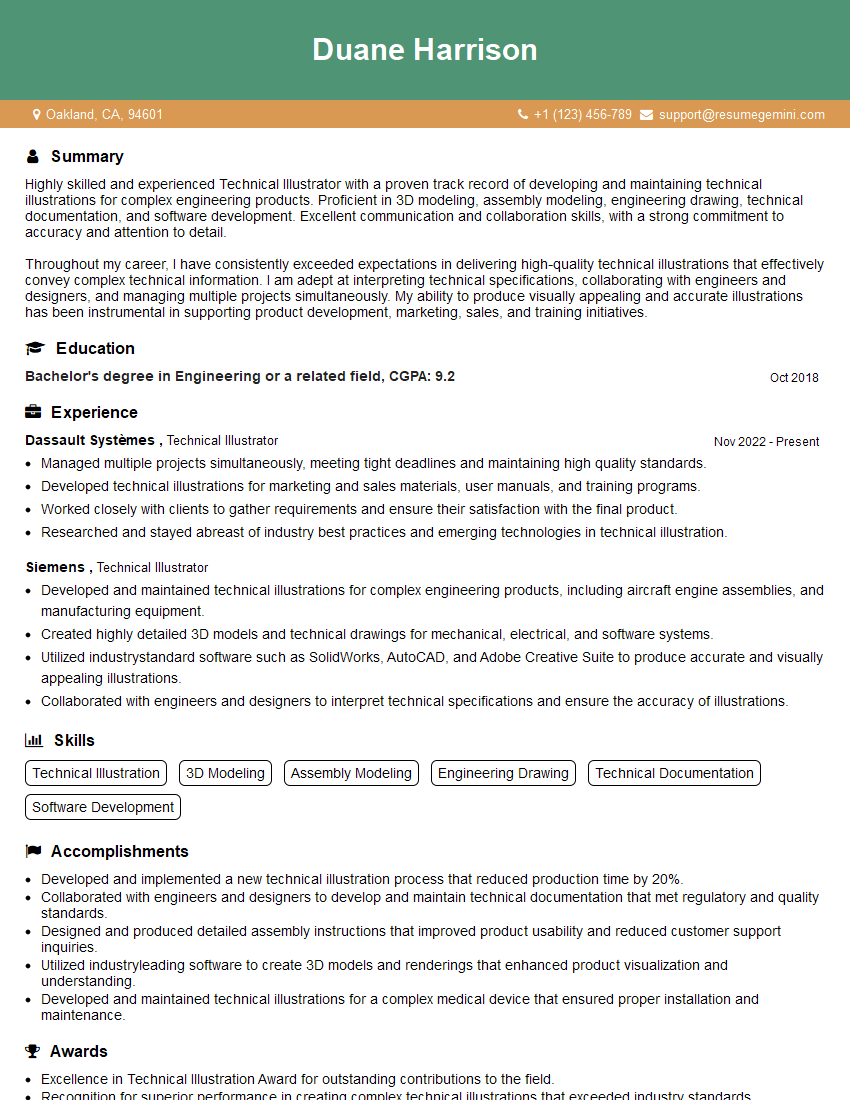
Mastering CAD Vectorization opens doors to exciting opportunities in various industries. To maximize your job prospects, focus on crafting a compelling, ATS-friendly resume that highlights your skills and experience effectively. ResumeGemini is a trusted resource for building professional resumes that make a lasting impression on recruiters. We provide examples of resumes tailored specifically for CAD Vectorization professionals to help you showcase your unique abilities and land your dream job.
Explore more articles
Users Rating of Our Blogs
Share Your Experience
We value your feedback! Please rate our content and share your thoughts (optional).
What Readers Say About Our Blog
To the interviewgemini.com Webmaster.
Very helpful and content specific questions to help prepare me for my interview!
Thank you
To the interviewgemini.com Webmaster.
This was kind of a unique content I found around the specialized skills. Very helpful questions and good detailed answers.
Very Helpful blog, thank you Interviewgemini team.