Preparation is the key to success in any interview. In this post, we’ll explore crucial Basic Microsoft Office Suite Proficiency interview questions and equip you with strategies to craft impactful answers. Whether you’re a beginner or a pro, these tips will elevate your preparation.
Questions Asked in Basic Microsoft Office Suite Proficiency Interview
Q 1. How would you create a numbered list in Microsoft Word?
Creating numbered lists in Microsoft Word is straightforward and allows for organized presentation of information. Think of it like outlining a presentation – each point gets its own numbered line for clarity.
There are two primary methods:
- Using the Numbering Button: The quickest way is to click the numbered list button on the Home tab. This automatically applies a numbered format to your selected text or the line you’re typing. You can also press
Ctrl + Shift + Las a keyboard shortcut. - Manual Numbering: For more control, type ‘1.’ (or ‘1.’) followed by a space, then type your first list item. Word will automatically continue the numbering for subsequent items when you press Enter. You can also use different numbering styles like Roman numerals or letters.
Example: Let’s say you’re creating a to-do list. You could easily use a numbered list to organize your tasks:
- Complete project proposal
- Schedule client meeting
- Finalize budget
Q 2. How do you merge cells in Microsoft Excel?
Merging cells in Excel combines multiple selected cells into a single, larger cell. This is useful for creating cleaner spreadsheets, especially when dealing with headers or combining data points. Imagine tidying up a messy table – merging cells is like putting puzzle pieces together.
Steps:
- Select the cells you want to merge.
- Go to the ‘Home’ tab.
- In the ‘Alignment’ group, click the ‘Merge & Center’ button. This merges the cells and centers the content within the new cell.
You can also find other merge options in a dropdown menu beside ‘Merge & Center’ allowing you to merge cells across rows or columns without centering the text.
Example: If you have separate cells for ‘First Name’ and ‘Last Name’ in a spreadsheet, you can merge them into a single ‘Name’ cell for a neater appearance.
Q 3. Explain how to use the ‘Find and Replace’ function in Word.
The ‘Find and Replace’ function in Word is a powerful tool for editing documents efficiently. Think of it as a super-powered search-and-replace feature in your word processor. It allows you to locate specific words or phrases and change them quickly, saving you time and effort.
How to use it:
- Go to the ‘Home’ tab and click ‘Find’ (or press
Ctrl + F). - A ‘Find and Replace’ dialog box will appear.
- In the ‘Find what’ field, enter the text you want to find.
- Optionally, in the ‘Replace with’ field, enter the text you want to replace the found text with.
- Click ‘Find Next’ to locate instances of the text. Click ‘Replace’ to replace one instance at a time, or ‘Replace All’ to replace all occurrences simultaneously. Use caution with ‘Replace All’ to avoid unintentional changes.
Example: If you mistakenly used ‘teh’ instead of ‘the’ throughout your document, you can easily find all instances of ‘teh’ and replace them with ‘the’ using this function.
Q 4. How would you create a simple chart in Excel using provided data?
Creating charts in Excel is a great way to visually represent data. Charts transform numbers into easily understandable graphics, making it easier to spot trends and patterns. Imagine explaining sales figures – a chart makes it far more intuitive than a table of numbers.
Steps:
- Select the data you want to chart (including headers).
- Go to the ‘Insert’ tab.
- Choose the chart type you need (e.g., column chart, pie chart, line chart). Excel provides a helpful preview of how your data will look in each type of chart.
- Excel will create the chart. You can then customize it further – adding titles, changing colors, and adjusting labels – to ensure it’s clear and informative.
Example: If you have data on monthly sales, you could create a column chart to visually compare sales across different months, making it easy to identify peak and low sales periods.
Q 5. What are different ways to sort data in Excel?
Sorting data in Excel allows you to organize your information efficiently, making it easier to analyze and interpret. Think of it as alphabetizing a filing cabinet – it makes finding specific information significantly easier.
There are several ways to sort data:
- Sorting by a Single Column: Select the column you want to sort by. Then go to the ‘Data’ tab and click ‘Sort’. Choose whether you want to sort in ascending or descending order. This is the simplest method for arranging data based on a single criteria (e.g., sorting names alphabetically or numbers from smallest to largest).
- Sorting by Multiple Columns: You can sort by multiple columns to create a more complex arrangement. For instance, you could sort a list of students first by last name (A-Z), then by first name (A-Z) within each last name grouping. This ensures a more precise ordering based on multiple criteria.
- Using Filters: Excel’s filtering capability allows you to show only the data that meets specific criteria without actually changing the data’s order. This can be used in conjunction with sorting to create sophisticated views of data.
Example: Imagine a sales spreadsheet with data on sales representative, region and sales amount. You could sort it first by region (ascending) then sales amount (descending) to see the top performing representatives in each region.
Q 6. How do you insert a hyperlink in a Word document?
Inserting hyperlinks in Word lets you create clickable links to websites, files, or other locations within the document. It’s like adding shortcuts to other information, making your document more interactive and informative.
Steps:
- Select the text you want to turn into a hyperlink.
- Right-click on the selected text and choose ‘Hyperlink’.
- In the ‘Insert Hyperlink’ dialog box, paste the URL of the website or browse to the file you want to link to.
- Click ‘OK’.
The selected text will now be underlined and blue (by default), indicating it’s a hyperlink. Clicking it will open the linked location.
Example: You can link a product name in your Word document to its webpage, allowing the reader to directly access more details about the product.
Q 7. How do you change the font size and style in Word?
Changing the font size and style in Word helps tailor the visual appearance of your document. Just like choosing the right font for a poster – it enhances readability and professionalism.
Steps:
- Select the text you want to change.
- On the ‘Home’ tab, find the ‘Font’ group.
- In the font size box, enter the desired size or use the increase/decrease font size buttons.
- In the font style dropdown, select the desired font style (e.g., Arial, Times New Roman, Calibri) and also the style (bold, italic, underline).
Example: You might use a larger, bold font for headings, and a smaller, standard font for body text, making your document easy to read and visually appealing.
Q 8. Explain the use of different cell formatting options in Excel (e.g., number format, alignment).
Cell formatting in Excel is crucial for data presentation and clarity. It allows you to control how your data appears, enhancing readability and professionalism. Options include number formats, alignment, fonts, and more.
- Number Format: This dictates how numerical data is displayed. You can choose from general, currency, percentage, date, time, and more. For example, you might format sales figures as currency ($1,234.50) or percentages (25%).
- Alignment: This controls the position of text or numbers within a cell. Options include left, center, right, and top/bottom alignment. Proper alignment is key to a clean and organized spreadsheet. For instance, aligning numbers to the right improves readability of columns with numerical data.
- Font: This allows you to change the typeface, size, color, and style of text. Consistent font usage makes your spreadsheet look professional. Consider using clear, legible fonts for better readability.
- Fill Color and Borders: Adding color or borders to cells helps to visually highlight important data or sections. Use color strategically to draw the eye to key information.
Imagine you’re preparing a financial report. Formatting sales figures as currency and percentages, with appropriate alignment and font sizes, makes the report significantly more readable and professional than an unformatted spreadsheet.
Q 9. How would you create a simple presentation using PowerPoint?
Creating a simple PowerPoint presentation is straightforward. Let’s say we need a presentation about ‘Team Project Success’.
- Open PowerPoint: Launch the PowerPoint application.
- Choose a Template (Optional): PowerPoint offers pre-designed templates to get you started quickly. You can select a template based on your presentation’s theme.
- Add Slides: Begin by creating slides for your key topics. For our ‘Team Project Success’ presentation, we might have slides on ‘Introduction’, ‘Project Goals’, ‘Methodology’, ‘Results’, and ‘Conclusion’. Add a title to each slide.
- Add Content: On each slide, add text, images, and charts to explain your topic. Keep text concise and use visuals to make it engaging. Use bullet points for readability.
- Format Text and Objects: Select appropriate fonts, font sizes, and colors for your text and images. Ensure consistency throughout your presentation.
- Save your presentation: Save the presentation frequently to prevent data loss.
Remember, a simple and well-organized presentation is often more effective than a visually cluttered one.
Q 10. How do you add transitions and animations in PowerPoint?
PowerPoint’s transitions and animations add visual interest to your presentations, but use them judiciously to avoid distracting your audience. Transitions affect how one slide changes to the next, while animations affect individual elements within a slide.
- Adding Transitions: Go to the ‘Transitions’ tab. Select a slide. Choose a transition from the various options (e.g., fade, wipe, push). You can adjust the transition speed.
- Adding Animations: Select an object (text, image, etc.) on a slide. Go to the ‘Animations’ tab. Choose an animation effect (e.g., entrance, emphasis, exit). You can customize the animation speed, direction, and trigger.
For example, a subtle fade transition between slides is often preferable to a flashy effect. Use animations to highlight key points, but avoid overwhelming the audience with too many effects.
Q 11. How do you create a table in Word and format it?
Creating and formatting tables in Word is simple and enhances document organization. Here’s how:
- Insert Table: Go to the ‘Insert’ tab and click ‘Table’. You can either select a predefined table size or draw a table directly on your document.
- Add Content: Fill in the table cells with your data.
- Formatting: You can format your table using the ‘Table Design’ and ‘Layout’ tabs. Options include:
- Borders and Shading: Change border styles, colors, and thicknesses. Add shading to rows or columns.
- Cell Size: Adjust column widths and row heights to fit your content.
- Alignment: Align text within cells (left, center, right).
- Header Row: Make the first row a header row that repeats on each page if your table spans multiple pages.
For example, create a table to summarize project tasks, showing task name, due date, status, and assigned person. Consistent formatting—using borders, shading, and aligned text—makes the table easy to read and understand.
Q 12. How do you insert a picture into a Word document and adjust its size?
Inserting and resizing pictures in Word is crucial for visually appealing documents.
- Insert Picture: Go to the ‘Insert’ tab and click ‘Pictures’. Select the image you want to insert from your computer.
- Resize: Once inserted, you can resize the image using the sizing handles (small squares at the corners and edges of the image). Click and drag these handles to change the image dimensions. You can also specify exact dimensions using the ‘Size’ options in the ‘Picture Format’ tab.
For instance, you could insert a company logo at the top of your report and resize it to an appropriate size. Ensure the image maintains a good resolution after resizing to prevent it from looking pixelated.
Q 13. How do you use the AutoSum function in Excel?
The AutoSum function in Excel automatically adds a range of selected cells. It’s incredibly useful for quickly calculating sums in your spreadsheets.
- Select the Cell: Select the cell where you want the sum to appear.
- Use AutoSum: Click the ‘AutoSum’ button (Σ) in the ‘Home’ tab, or type
=SUM(. - (Optional) Select Range: Excel usually automatically selects the range of cells above the selected cell. You can manually adjust the range if needed by dragging the mouse to select the desired cells.
- Enter: Press Enter to calculate and display the sum.
Example: If you have a column of numbers from A1 to A10, selecting cell A11 and clicking AutoSum will automatically insert =SUM(A1:A10) and display the sum of those ten cells in A11.
Q 14. Explain the difference between relative and absolute cell references in Excel.
In Excel, cell references determine which cells are used in formulas. Understanding the difference between relative and absolute references is crucial for creating dynamic and reusable spreadsheets.
- Relative References: These change when a formula is copied to a different cell. If you copy the formula
=A1+B1from cell C1 to cell C2, the formula in C2 becomes=A2+B2. The cell references adjust relative to their new location. - Absolute References: These remain constant when a formula is copied. To make a reference absolute, you add a dollar sign ($) before the column letter and/or the row number. For example,
=$A$1+B1. When copied to C2, the formula remains=$A$1+B2; only the B1 changes.
Imagine calculating a total cost based on quantity and price. If the price is in cell A1, you’d use an absolute reference for A1 in your total cost formula (e.g., =B1*$A$1) so that when you copy this formula to calculate the total cost for other items, the price remains consistent, while the quantity (B1) updates accordingly.
Q 15. How do you use formulas in Excel to perform calculations (e.g., SUM, AVERAGE, IF)?
Excel formulas are the backbone of any data analysis. They allow you to perform calculations automatically on your data, saving you time and reducing errors. You start a formula by typing an equals sign (=) in a cell, followed by the function name and its arguments, enclosed in parentheses.
- SUM: Adds numbers together. For example,
=SUM(A1:A10)adds the numbers in cells A1 through A10. Imagine you’re tracking your monthly expenses; this formula quickly totals them up. - AVERAGE: Calculates the average of a range of numbers.
=AVERAGE(B1:B5)computes the average of the values in cells B1 to B5. This is useful for calculating average sales figures or test scores. - IF: Performs a logical test and returns one value if the test is true and another if it’s false. For example,
=IF(C1>100, "Above Target","Below Target")checks if the value in C1 is greater than 100. If true, it returns “Above Target”; otherwise, it returns “Below Target”. This could be used to flag sales representatives who exceeded their targets.
Remember that cell references (like A1, B5) are crucial, pointing the formula to the data it should process. You can combine these functions with others for more complex calculations, building robust spreadsheets for various applications.
Career Expert Tips:
- Ace those interviews! Prepare effectively by reviewing the Top 50 Most Common Interview Questions on ResumeGemini.
- Navigate your job search with confidence! Explore a wide range of Career Tips on ResumeGemini. Learn about common challenges and recommendations to overcome them.
- Craft the perfect resume! Master the Art of Resume Writing with ResumeGemini’s guide. Showcase your unique qualifications and achievements effectively.
- Don’t miss out on holiday savings! Build your dream resume with ResumeGemini’s ATS optimized templates.
Q 16. How do you create a pie chart in Excel?
Creating a pie chart in Excel is straightforward and visually communicates proportions effectively. First, select the data you want to chart – this usually includes categories and their corresponding values. Then, navigate to the ‘Insert’ tab on the ribbon. In the ‘Charts’ group, you’ll find several chart types. Click on the ‘Pie’ chart icon and choose the desired pie chart style (2-D Pie, 3-D Pie, etc.). Excel will automatically generate a pie chart representing your data. You can customize the chart’s title, legend, and data labels to improve readability and presentation. Let’s say you’re presenting market share data for competing products – a pie chart provides an immediate and clear picture of each product’s dominance.
Q 17. How do you manage email folders and subfolders in Outlook?
Managing email folders and subfolders in Outlook is crucial for organizing your inbox and improving email management. Think of it as organizing your physical files – you wouldn’t just throw everything on your desk! You can create new folders by right-clicking in the folder pane (usually on the left side of the Outlook window) and selecting ‘New Folder’. Give the folder a descriptive name. You can then create subfolders within these folders by right-clicking on a folder and repeating the process. For example, you might have a ‘Projects’ folder with subfolders for each individual project, keeping related emails neatly organized. You can drag and drop emails between folders to reorganize them as needed.
Q 18. How do you schedule appointments and meetings in Outlook?
Scheduling appointments and meetings in Outlook is a simple yet powerful feature. In the Outlook calendar view, click on the time slot where you want to schedule your appointment or meeting. A new appointment window will open. Fill in the necessary details, such as the subject, location, attendees, and start and end times. You can also add reminders to ensure you don’t miss important events. For meetings, add the email addresses of participants. Outlook will automatically send meeting invitations to the attendees, allowing them to accept or decline. This feature integrates seamlessly with email and helps you efficiently manage your time and coordinate with others. Imagine scheduling a project meeting with your team; Outlook makes this process incredibly efficient.
Q 19. How do you use the ‘Save As’ function to create different versions of a file?
The ‘Save As’ function in Microsoft Office applications is invaluable for creating different versions of a file. It allows you to preserve the original while creating a modified copy. To use this function, go to the ‘File’ menu and select ‘Save As’. Choose a new file name and a location to save it. You can also change the file format (e.g., saving a Word document as a PDF) before saving. This is crucial for version control – let’s say you’re working on a report and need to send a draft to your manager. Use ‘Save As’ to create a version labeled ‘Draft’ before making further edits to the main file.
Q 20. How would you print a document in Word, specifying page numbers and orientation?
Printing a Word document with specific page numbers and orientation requires navigating the print settings. Go to the ‘File’ menu and select ‘Print’. In the ‘Settings’ section, you’ll find options for ‘Pages’. Here, you can specify the page range you want to print (e.g., 1-3, 5, 7-9). To adjust the orientation, select ‘Portrait’ or ‘Landscape’ from the ‘Orientation’ dropdown. Review the settings to ensure everything is correct before clicking ‘Print’. This is very important for professional documents where only specific sections might need printing, or if you need to accommodate a specific page size or orientation for better readability.
Q 21. Explain how you would use mail merge in Word.
Mail merge in Word is a powerful tool for creating personalized documents, such as letters, labels, or emails, from a single template. First, you create a main document (the template) containing the static parts of your document. Then, you create a data source (usually an Excel spreadsheet) containing the variable information, such as names and addresses. In Word, go to the ‘Mailings’ tab and select ‘Start Mail Merge’. Choose the document type (letters, emails, etc.) and select your data source. Insert merge fields (placeholders for variable data) into your main document using the ‘Insert Merge Field’ button. Finally, preview the merged documents and print or send them. This is extremely useful for sending personalized marketing materials or creating customized certificates.
Q 22. How to create a simple formula using VLOOKUP in Excel?
VLOOKUP is an incredibly useful Excel function that allows you to search for a specific value in a table and retrieve corresponding data from another column. Think of it like looking up a phone number in a phone book – you provide the name (the lookup value), and it gives you the number (the result).
The basic syntax is: =VLOOKUP(lookup_value, table_array, col_index_num, [range_lookup])
lookup_value: The value you’re searching for (e.g., a product ID).table_array: The range of cells containing the data table (including the lookup column and the column with the value you want to retrieve). It’s crucial this range is correctly selected.col_index_num: The column number in thetable_arraycontaining the result you want. The first column of the table_array is 1.[range_lookup]: Optional.TRUE(or 1) finds an approximate match (the data needs to be sorted), whileFALSE(or 0) finds an exact match. For most cases, usingFALSEfor an exact match is recommended to avoid errors.
Example: Let’s say you have a table with Product IDs in column A and Prices in column B. To find the price of Product ID 123, you’d use: =VLOOKUP(123, A1:B10, 2, FALSE), assuming your data is in A1:B10. This formula searches for 123 in column A and returns the corresponding value from column B.
In a professional setting, VLOOKUP is invaluable for tasks like looking up customer information based on their ID, calculating prices based on product codes, or summarizing sales data from a larger database. Understanding how to use it efficiently can drastically improve your data analysis workflow.
Q 23. How do you insert a header and footer in Word?
Adding headers and footers in Microsoft Word is straightforward and crucial for professional document formatting. They provide consistent information across all pages, like page numbers, document titles, dates, or company logos.
Here’s how you do it:
- Go to the Insert tab.
- Click on Header or Footer. You’ll see various pre-designed options; choose one or select Edit Header or Edit Footer to create your own.
- Type your desired text, insert images, or add page numbers using the tools provided in the Header & Footer toolbar (which appears automatically when you’re editing a header or footer). Page numbers are particularly useful, adding professional polish and aiding navigation in longer documents.
- Click Close Header and Footer when finished.
For instance, I often use headers to display the document title and the date, while footers usually contain page numbers and a file name. This ensures clear identification and organization, especially in multi-page reports or presentations.
Q 24. How do you use conditional formatting in Excel?
Conditional formatting in Excel allows you to highlight cells based on specific criteria, making it easier to visualize data trends and identify important information. Imagine having a spreadsheet of sales figures – conditional formatting can instantly show you which products are exceeding targets or which regions are underperforming.
Here’s how to use it:
- Select the range of cells you want to format.
- Go to the Home tab and click on Conditional Formatting.
- Choose a formatting rule: You can use pre-defined rules (like highlighting cells above or below average), create a new rule based on a formula (for more complex scenarios), or use color scales, data bars, or icon sets for visual representation.
- Customize the formatting (font color, fill color, etc.) as needed.
Example: If you want to highlight all sales figures above 1000, you’d choose ‘Highlight Cells Rules’ -> ‘Greater Than…’ and specify ‘1000’ as the value. The cells meeting this condition would then be highlighted.
In a professional context, conditional formatting is invaluable for quickly spotting trends, identifying outliers, and simplifying data analysis. It significantly enhances the readability and interpretability of spreadsheets, particularly those with large amounts of numerical data.
Q 25. Describe your experience with using Microsoft Outlook’s calendar.
I’ve extensively used Microsoft Outlook’s calendar for scheduling appointments, managing projects, and collaborating with colleagues. It’s integral to my workflow.
My experience includes:
- Scheduling and managing appointments: I regularly schedule meetings, set reminders, and manage my time effectively using Outlook’s calendar features. I utilize recurring events for routine tasks and set alerts to ensure I never miss a deadline.
- Sharing calendars: Collaborating with team members is simplified through shared calendars; I can easily see everyone’s schedules to avoid conflicts and coordinate activities. This ensures efficient teamwork and project management.
- Using categories and colors: I use different colors and categories to visually organize events, making it simple to distinguish between work meetings, personal appointments, and project deadlines. This approach adds a level of visual clarity to my calendar and improves my ability to prioritize tasks.
- Setting reminders: I consistently leverage reminder features to stay on schedule and avoid missing important events. This ensures timely responses and successful task completion.
In essence, Outlook’s calendar is more than just a scheduling tool for me; it’s a core component of my organizational system, ensuring efficiency and effective collaboration.
Q 26. How proficient are you with using PowerPoint’s design templates?
I’m highly proficient in utilizing PowerPoint’s design templates. I find them invaluable for creating visually appealing and professional presentations quickly and efficiently.
My experience encompasses:
- Selecting appropriate templates: I carefully choose templates based on the presentation’s purpose and audience. A template for a business proposal is vastly different from one suitable for a product launch.
- Customizing templates: While templates offer a strong foundation, I understand the importance of tailoring them to suit individual needs. I’m adept at modifying colors, fonts, and layouts to maintain brand consistency and to ensure visual appeal.
- Leveraging template features: I use built-in features like SmartArt graphics and chart styles to create visually engaging content. This makes the data more accessible and memorable for the audience.
- Maintaining consistency: I ensure consistency throughout the presentation using the design elements already provided in the template. This professionalizes the appearance and improves the overall impact.
Using pre-designed templates allows me to focus on the presentation’s content, rather than getting bogged down in the design. It’s a time-saving strategy that helps produce professional-looking presentations with minimal effort.
Q 27. How would you troubleshoot a document that is not saving properly in Word?
Troubleshooting a document that won’t save properly in Word requires a systematic approach. The problem could stem from various sources, such as file corruption, insufficient permissions, or software glitches.
Here’s how I’d approach it:
- Save As: Try saving the document with a different file name and in a different location (e.g., on the desktop). This often resolves simple file-saving errors.
- Check File Permissions: Ensure you have the necessary permissions to save files in the chosen directory. Sometimes, restricted access prevents saving.
- Restart Word: A simple restart of the Word application can resolve temporary software glitches.
- Restart Computer: If restarting Word doesn’t work, restarting the entire computer is the next step to clear any system-level issues.
- Check Disk Space: Make sure you have enough free space on your hard drive. Insufficient space can prevent saving files.
- Repair Microsoft Office Installation: If the problem persists, consider repairing the Microsoft Office installation. This can fix any underlying software corruption.
- Create a New Document: Test if the issue is with the specific document or Word itself by creating a new document and attempting to save it. If the new document saves without issues, the problem likely lies within the original document – try copying and pasting the content into a new document.
- Run a Virus Scan: A virus could be interfering with the saving process. Conduct a thorough virus scan.
This methodical process helps pinpoint the source of the problem and implement the appropriate solution. It emphasizes a systematic approach to problem-solving, a critical skill in any professional environment.
Q 28. How would you handle a large Excel spreadsheet with many formulas?
Handling large Excel spreadsheets with numerous formulas requires careful planning and optimization to maintain performance and accuracy. A poorly structured spreadsheet can become slow and prone to errors.
My strategies include:
- Data Validation: Implementing data validation rules prevents incorrect data entry, which can lead to formula errors. This helps maintain data integrity and prevents cascading errors down the spreadsheet.
- Named Ranges: Assigning names to frequently used cell ranges makes formulas more readable and easier to manage. This improves clarity and makes it easier to maintain and debug formulas.
- Formula Auditing: Using Excel’s formula auditing tools (like Trace Precedents and Trace Dependents) helps identify dependencies between cells and formulas, simplifying debugging and error detection.
- Array Formulas (when appropriate): For specific calculations, array formulas can be more efficient than multiple individual formulas. However, they require a thorough understanding of their usage.
- Data Consolidation: If possible, consolidate data from multiple sources into a more manageable spreadsheet. Avoid redundant calculations by pulling only necessary data.
- Pivot Tables: Using PivotTables to summarize and analyze large datasets is often much more efficient than complex formulas. This technique is especially helpful for reporting and analysis.
- Regular Backup: Regularly backing up the spreadsheet prevents data loss due to software crashes or accidental deletions.
These techniques improve spreadsheet efficiency, reduce errors, and maintain performance even with complex calculations. In a professional setting, efficiently managing large spreadsheets is critical for accurate data analysis and reporting. Thinking ahead and employing these techniques can save significant time and prevent potential data-related issues.
Key Topics to Learn for Basic Microsoft Office Suite Proficiency Interview
- Word Processing (Microsoft Word): Understanding document formatting (fonts, styles, spacing), creating tables and lists, using mail merge, and basic editing tools. Practical application: Preparing professional-looking reports, letters, and presentations.
- Spreadsheet Software (Microsoft Excel): Working with formulas and functions (basic arithmetic, SUM, AVERAGE, IF), creating charts and graphs, data sorting and filtering, using basic formatting. Practical application: Analyzing data, creating budgets, tracking progress, and presenting findings visually.
- Presentation Software (Microsoft PowerPoint): Creating and formatting slides, incorporating text, images, and charts, using animations and transitions effectively, delivering a compelling presentation. Practical application: Communicating ideas clearly and persuasively, supporting proposals, and conducting presentations.
- Data Management (General): Understanding file organization, saving documents in appropriate formats, efficient file management techniques, and backup strategies. Practical application: Maintaining a well-organized workspace and preventing data loss.
- Problem-Solving & Troubleshooting: Identifying and resolving common issues such as formatting errors, formula inconsistencies, and software glitches. Practical application: Demonstrating resourcefulness and the ability to overcome challenges independently.
Next Steps
Mastering the Basic Microsoft Office Suite is crucial for nearly every role, enhancing your productivity and showcasing your ability to handle everyday tasks efficiently. This proficiency significantly improves your job prospects and makes you a more valuable asset to any team. To maximize your chances of landing your dream job, create an ATS-friendly resume that highlights these skills effectively. ResumeGemini is a trusted resource that can help you build a professional and impactful resume tailored to your experience. Examples of resumes tailored to Basic Microsoft Office Suite Proficiency are available to help guide your own resume creation process.

Office Manager Resume Sample
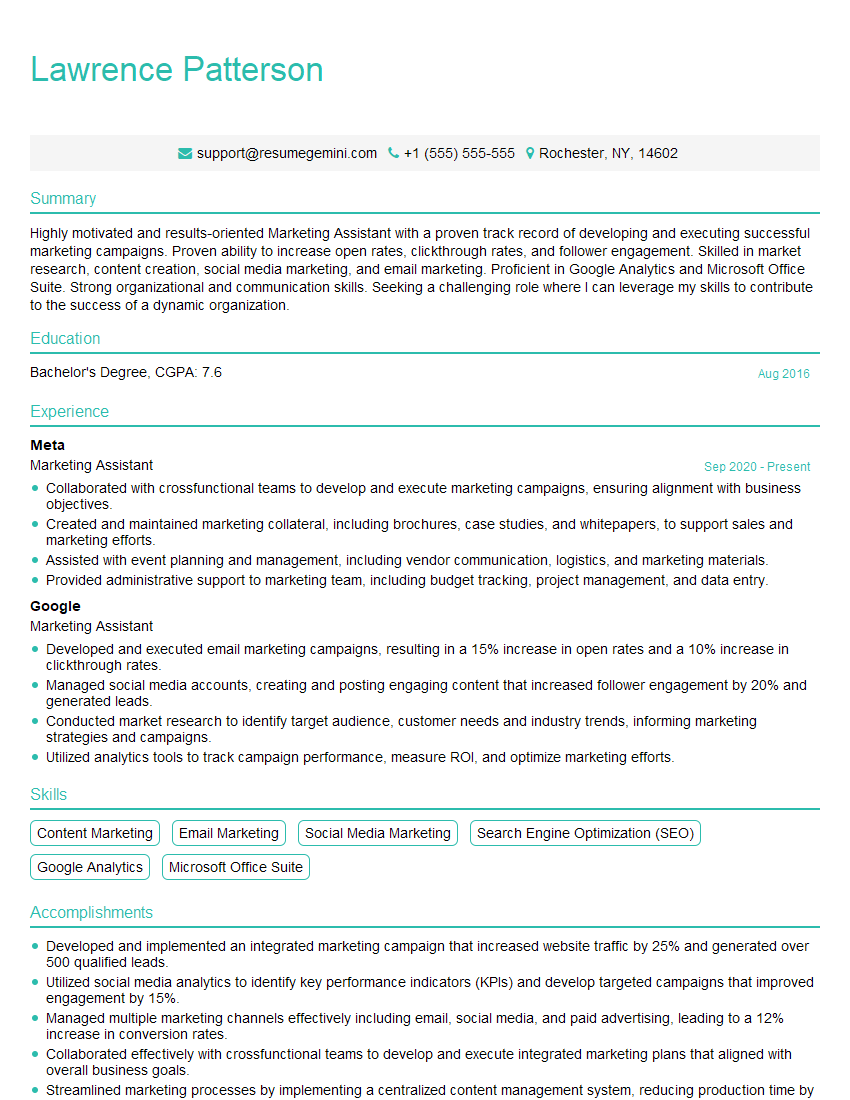
Marketing Assistant Resume Sample

Administrative Assistant Resume Sample
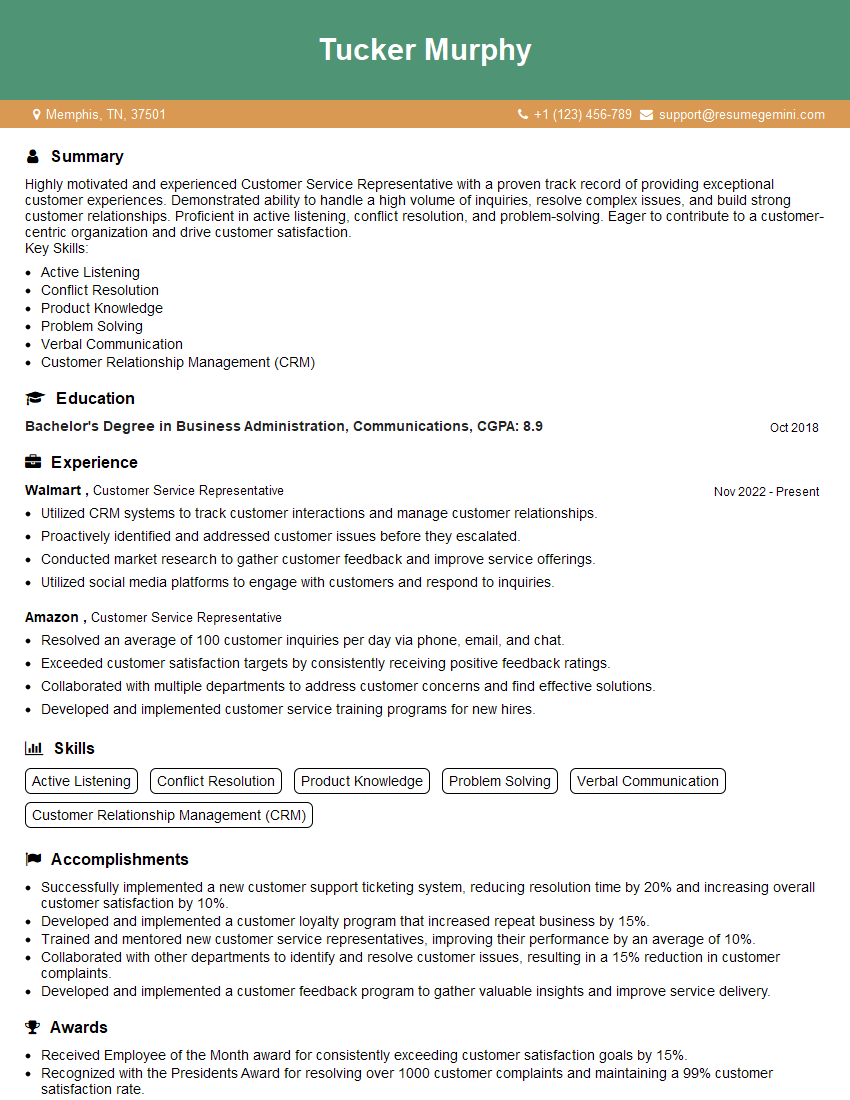
Customer Service Representative Resume Sample
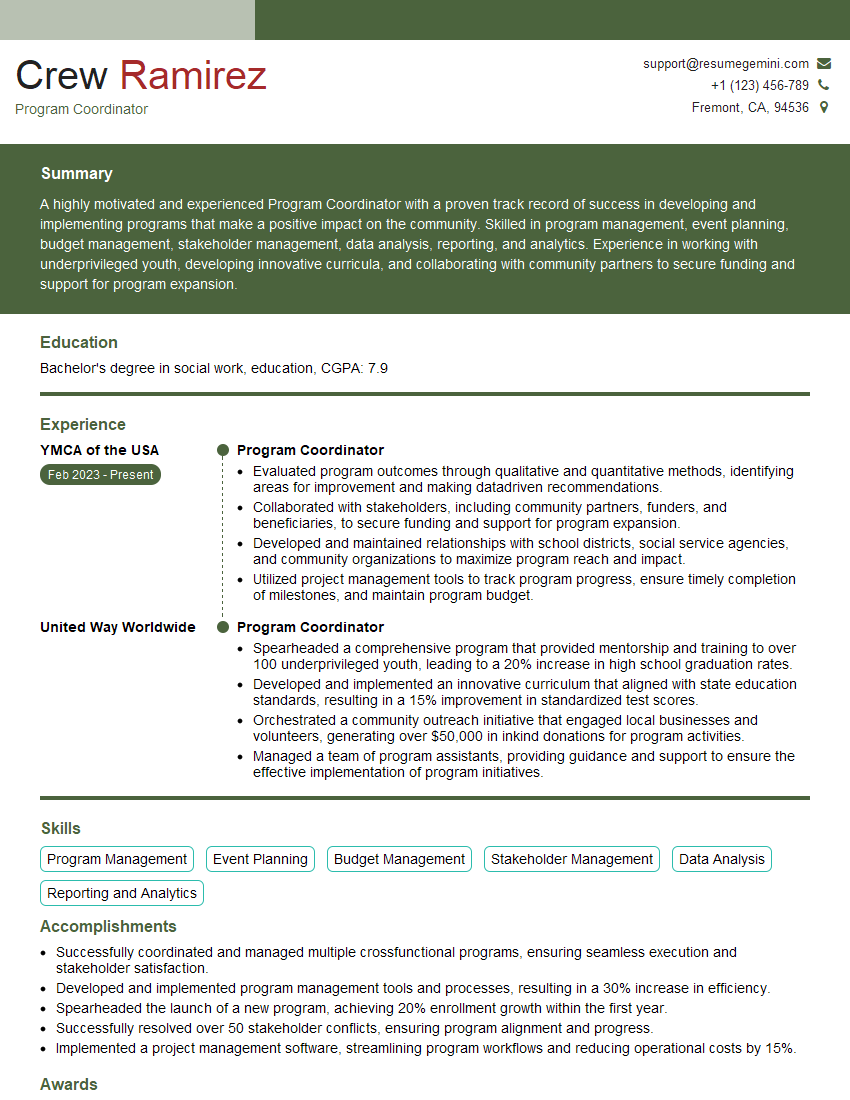
Program Coordinator Resume Sample
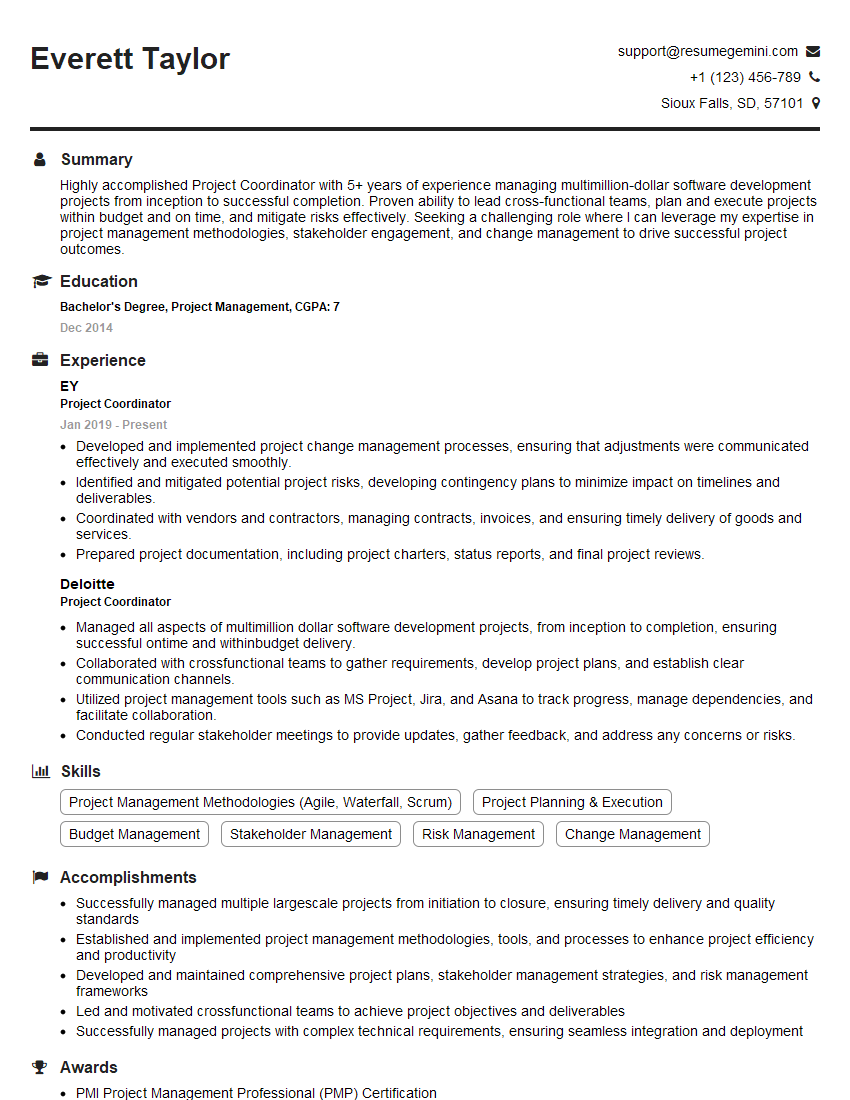
Project Coordinator Resume Sample
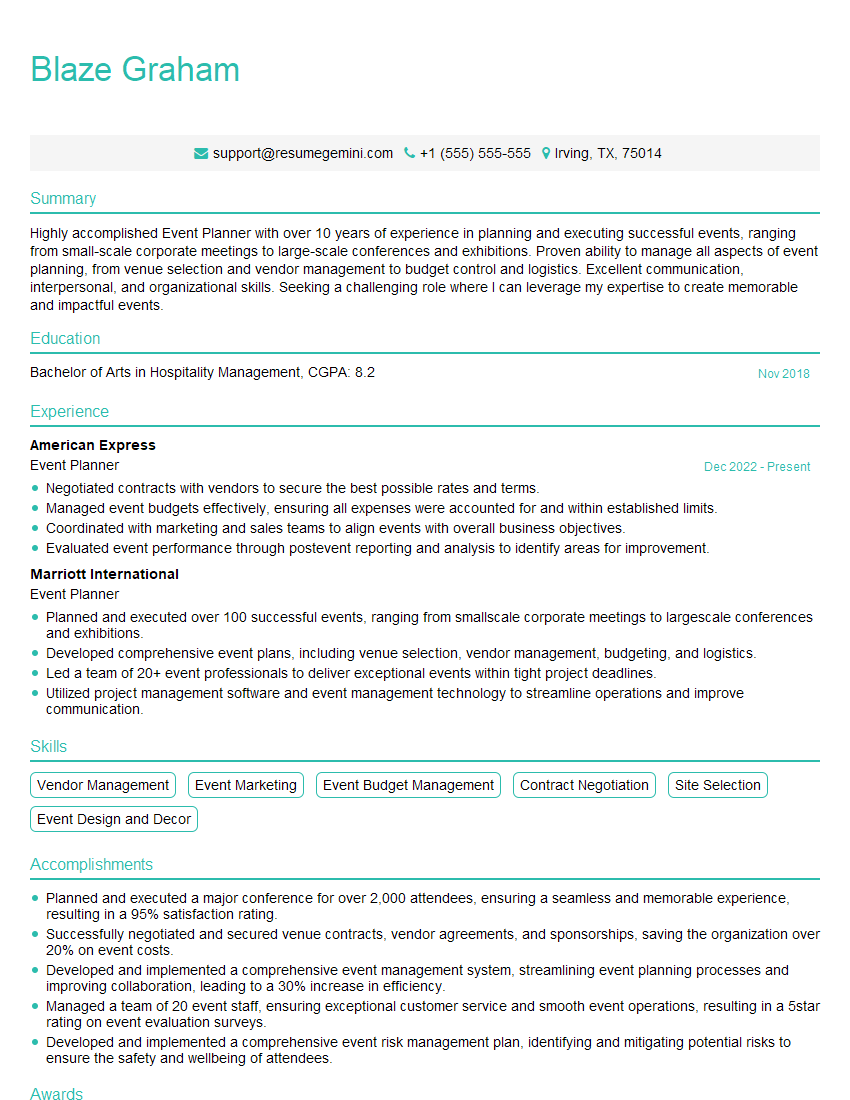
Event Planner Resume Sample
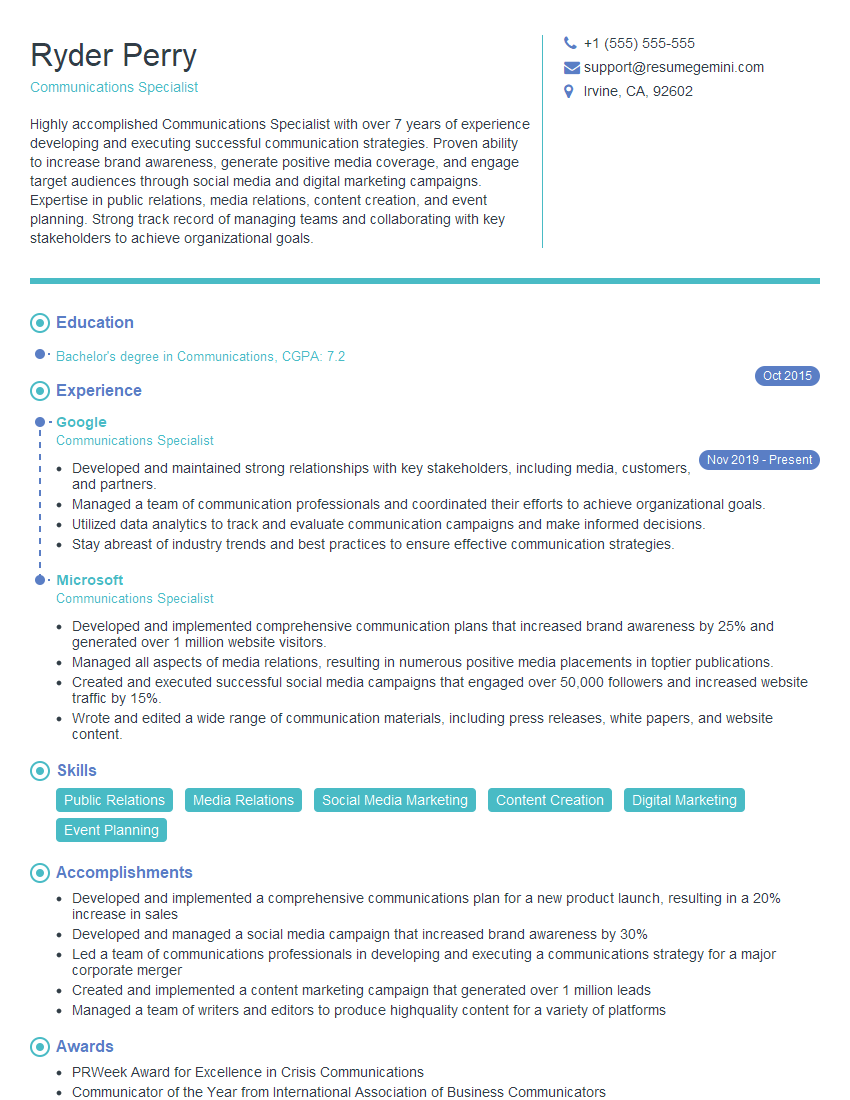
Communications Specialist Resume Sample

Social Media Manager Resume Sample
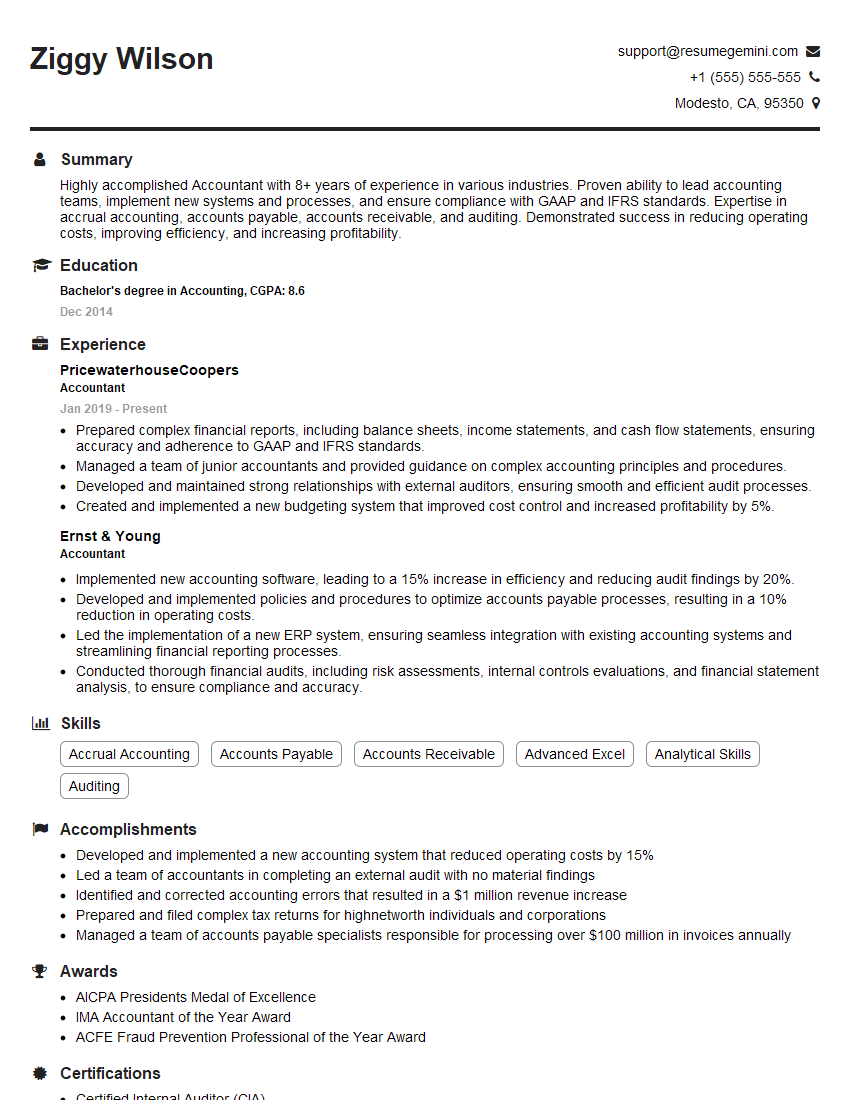
Accountant Resume Sample
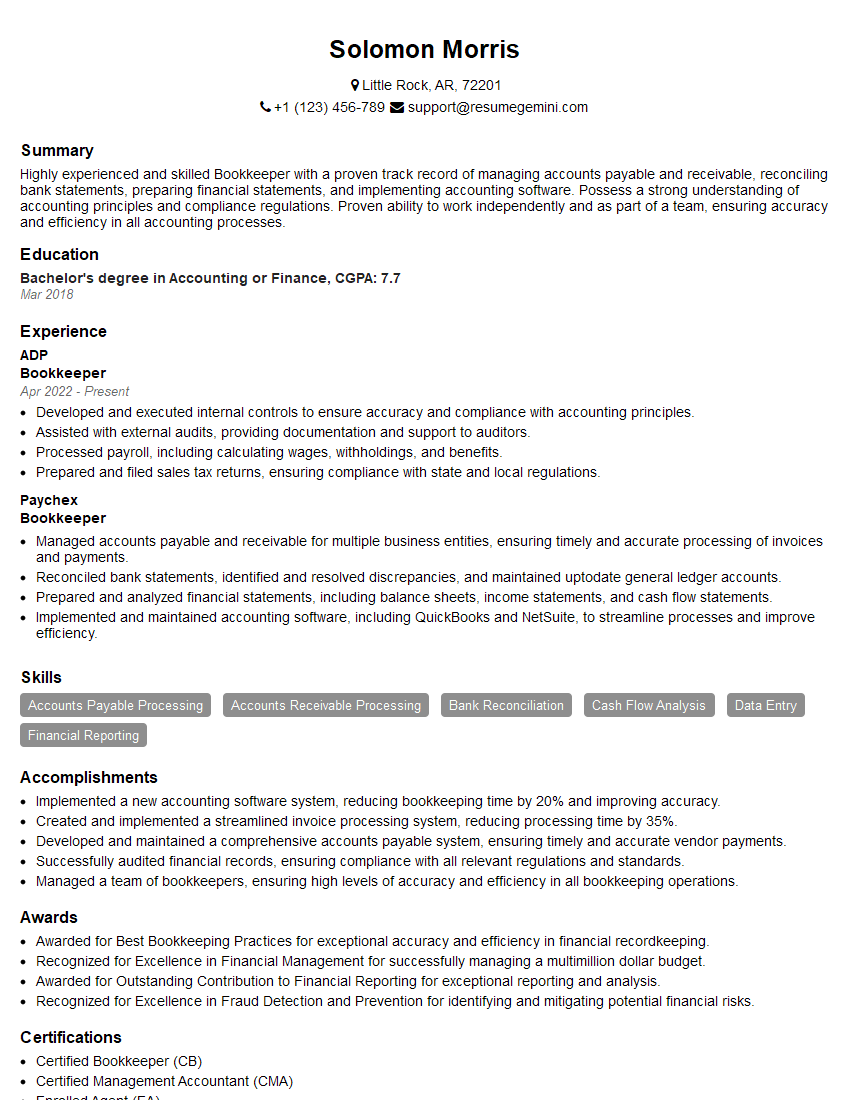
Bookkeeper Resume Sample
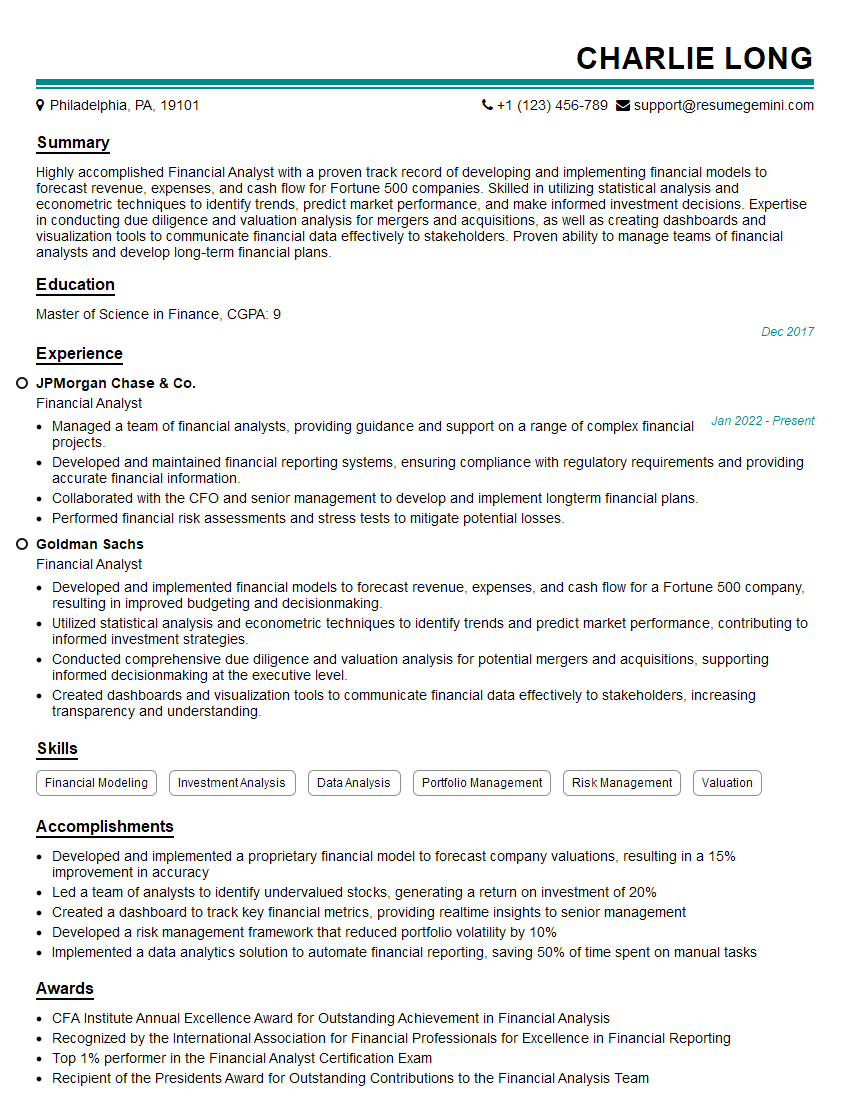
Financial Analyst Resume Sample
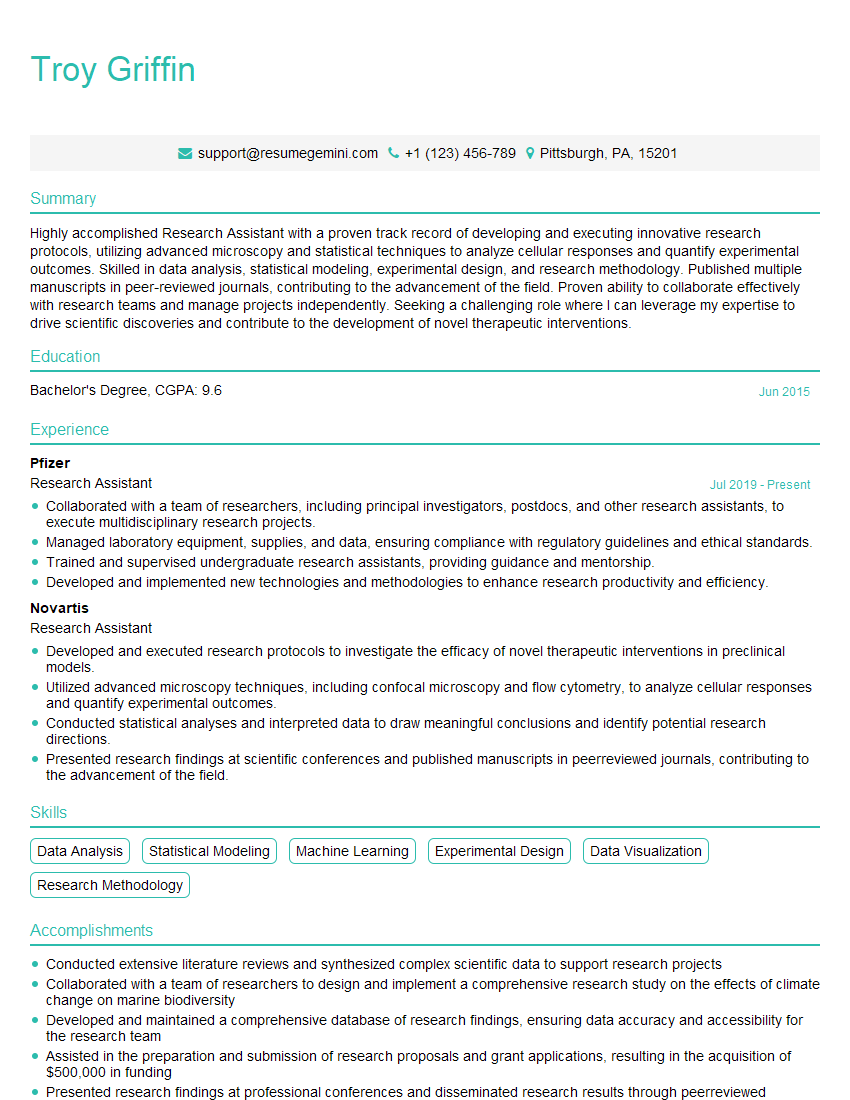
Research Assistant Resume Sample
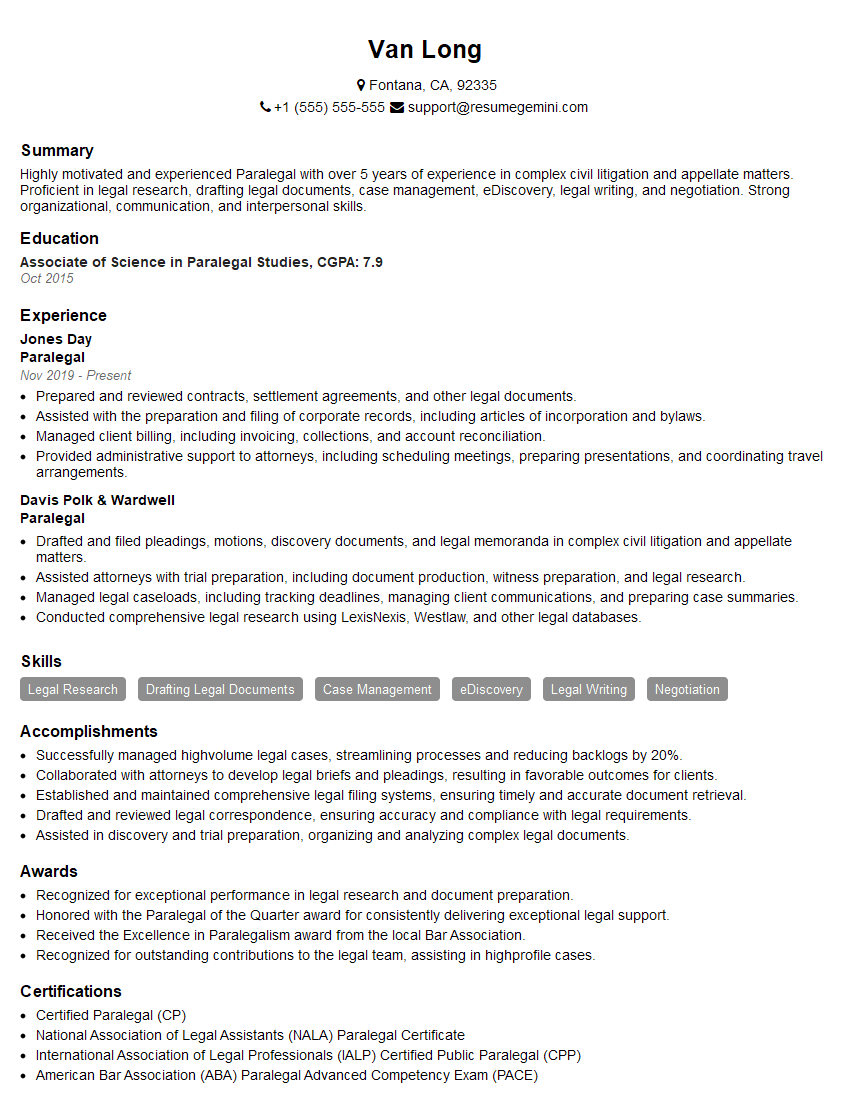
Paralegal Resume Sample
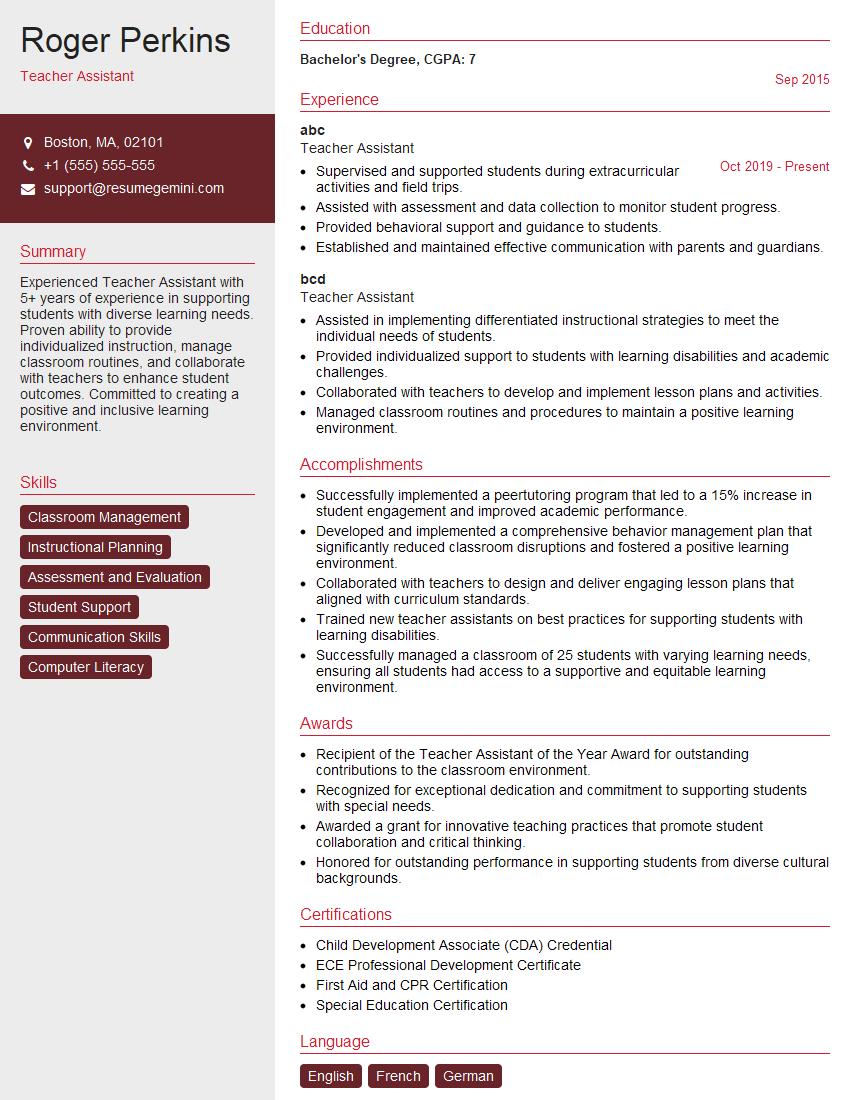
Teacher Assistant Resume Sample
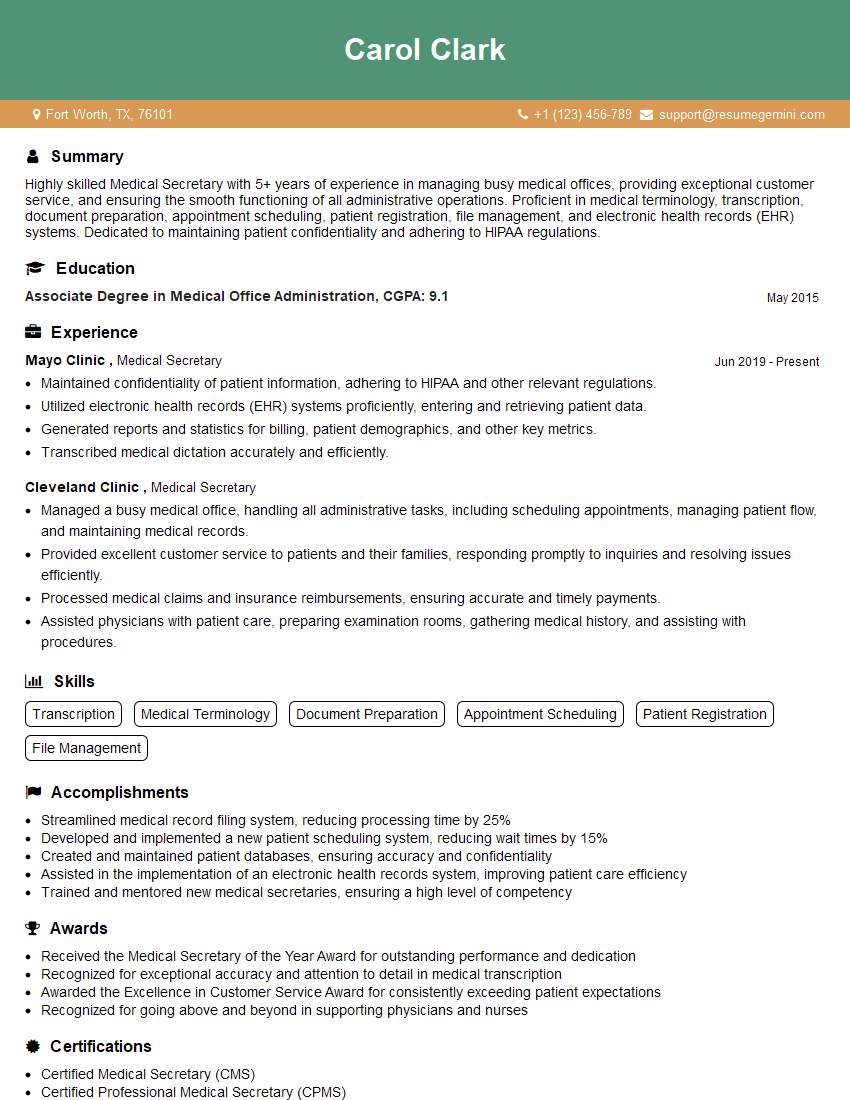
Medical Secretary Resume Sample
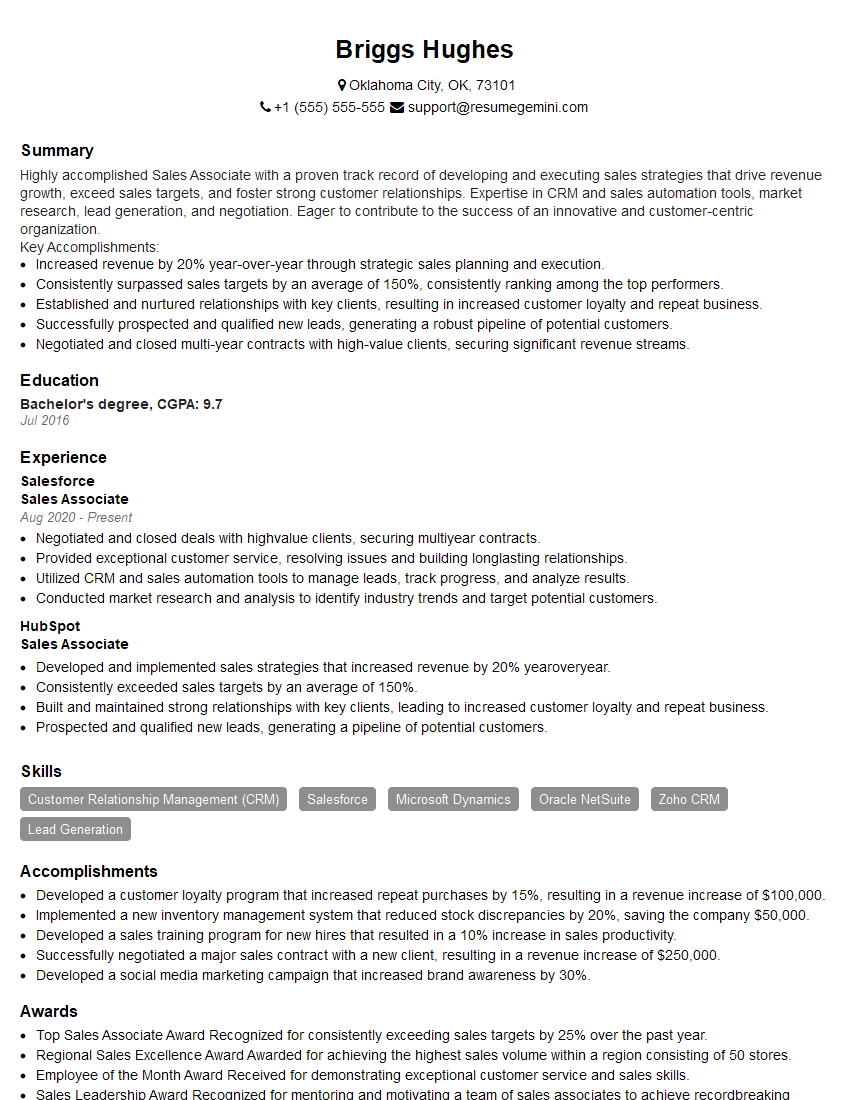
Sales Associate Resume Sample
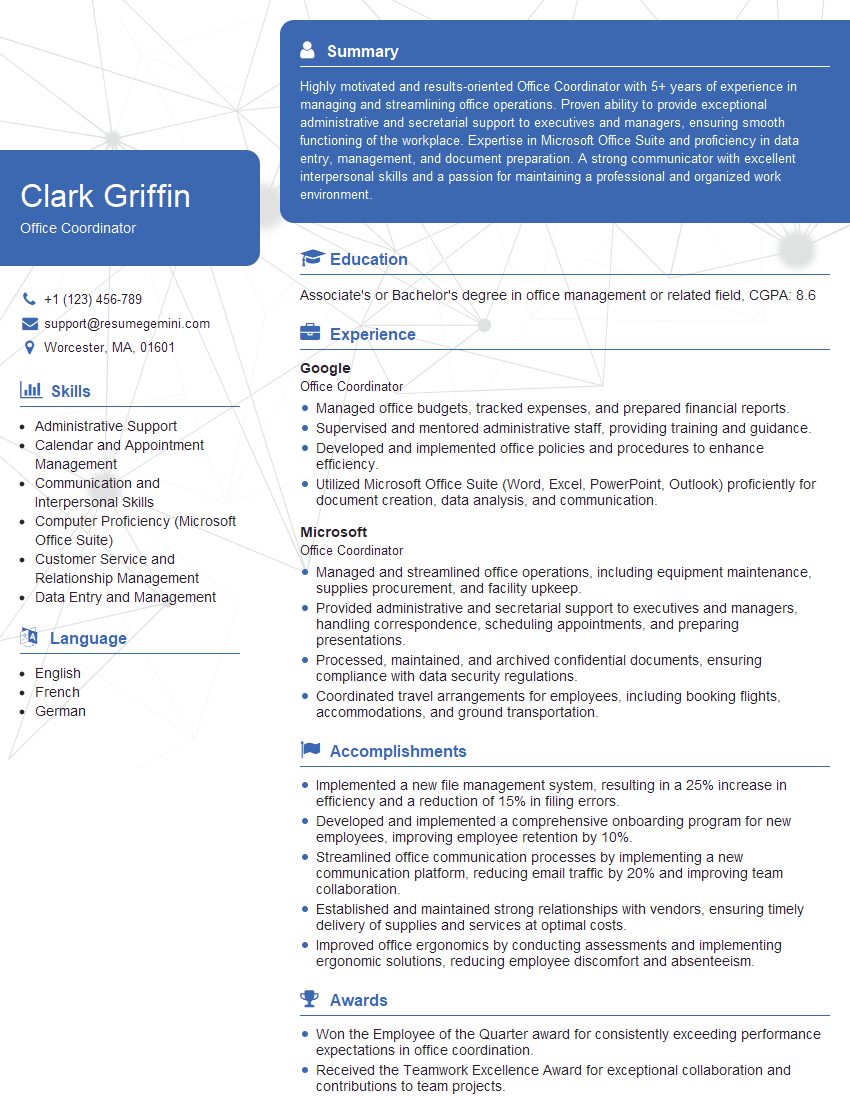
Office Coordinator Resume Sample
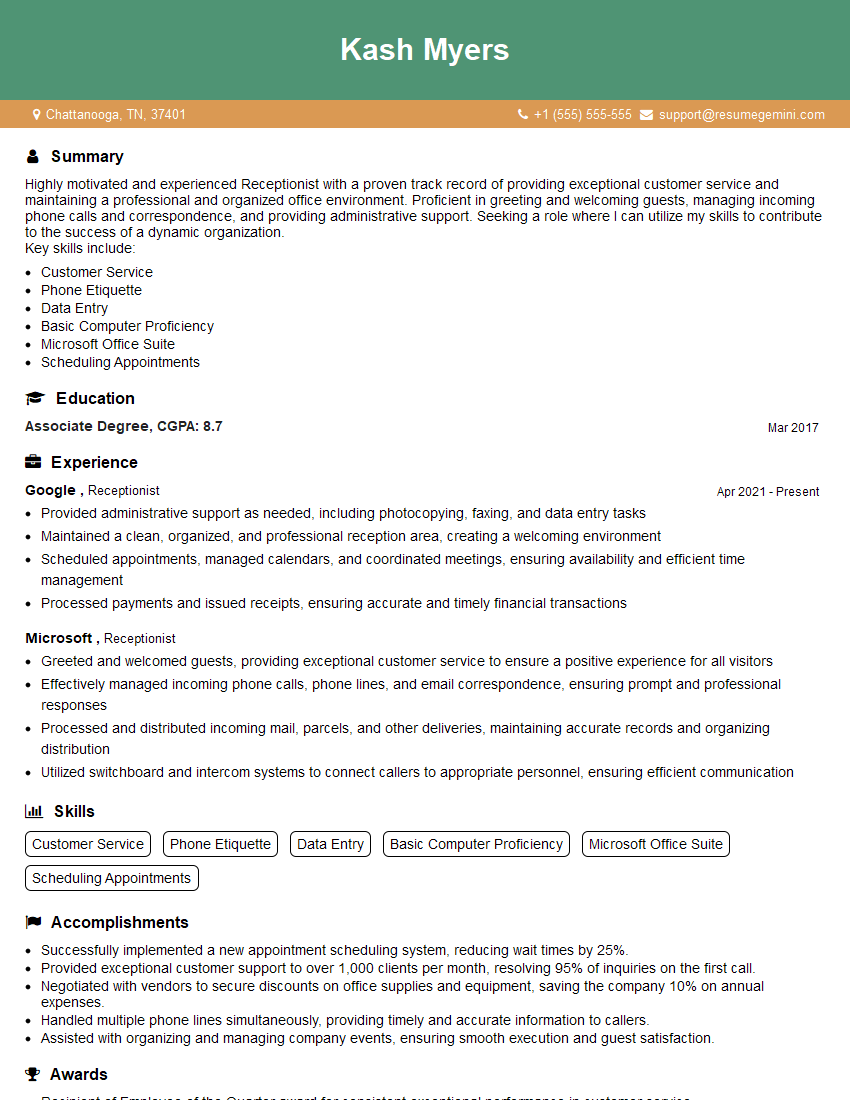
Receptionist Resume Sample

Executive Assistant Resume Sample
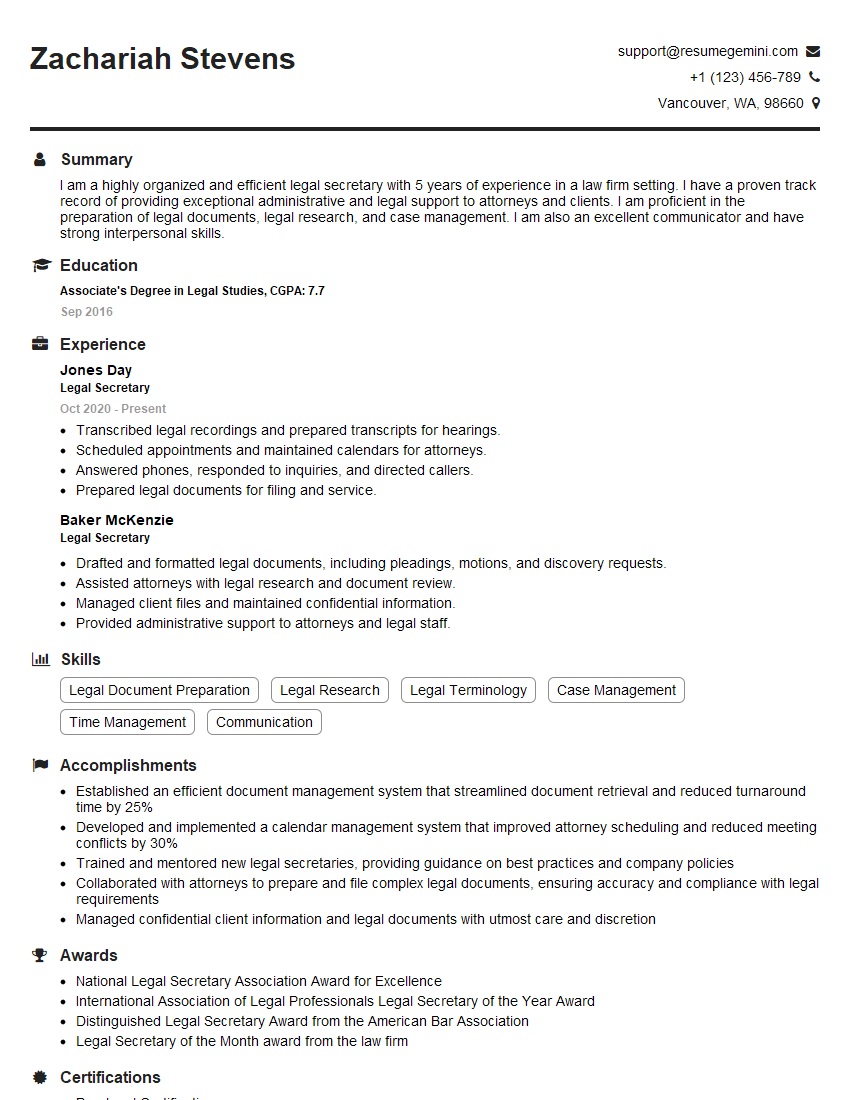
Legal Secretary Resume Sample

Data Entry Clerk Resume Sample
- Office Manager
- Marketing Assistant
- Administrative Assistant
- Customer Service Representative
- Program Coordinator
- Project Coordinator
- Event Planner
- Communications Specialist
- Social Media Manager
- Accountant
- Bookkeeper
- Financial Analyst
- Research Assistant
- Paralegal
- Teacher Assistant
- Medical Secretary
- Sales Associate
- Office Coordinator
- Receptionist
- Executive Assistant
- Legal Secretary
- Data Entry Clerk
Explore more articles
Users Rating of Our Blogs
Share Your Experience
We value your feedback! Please rate our content and share your thoughts (optional).
What Readers Say About Our Blog
To the interviewgemini.com Webmaster.
Very helpful and content specific questions to help prepare me for my interview!
Thank you
To the interviewgemini.com Webmaster.
This was kind of a unique content I found around the specialized skills. Very helpful questions and good detailed answers.
Very Helpful blog, thank you Interviewgemini team.