Preparation is the key to success in any interview. In this post, we’ll explore crucial Screen Calibration interview questions and equip you with strategies to craft impactful answers. Whether you’re a beginner or a pro, these tips will elevate your preparation.
Questions Asked in Screen Calibration Interview
Q 1. Explain the difference between hardware and software calibration.
Hardware calibration involves physically adjusting components within the monitor itself to improve color accuracy. This is often done through potentiometers or other internal adjustments, and is typically performed by manufacturers during the production process or by specialized technicians. It’s rarely something the average user undertakes. Software calibration, on the other hand, uses software to adjust the color output of the monitor based on its existing hardware capabilities. This is what most users will do using tools like colorimeters and calibration software. Think of it like this: hardware calibration is like tuning a piano’s internal mechanisms, while software calibration is like adjusting the volume and tone controls after the piano is already assembled.
Software calibration is far more common and accessible for most people, allowing for adjustments to brightness, contrast, gamma, and color balance to achieve a more accurate representation of colors. Hardware calibration is usually only necessary for high-end professional applications requiring extremely precise color accuracy where even slight software adjustments aren’t sufficient.
Q 2. Describe the process of calibrating a CRT monitor.
Calibrating a CRT monitor is a more involved process than calibrating modern LCD or OLED displays due to the technology’s inherent limitations and age. It’s less common now as CRTs are largely obsolete. However, the process generally involved several steps:
- Initial Adjustments: Adjusting the monitor’s physical controls (brightness, contrast, etc.) to a reasonable starting point using your own eyes, or using a test pattern for guidance.
- Using Test Patterns: Utilizing special test patterns (often included with calibration software or found online) to assess color balance, gamma, and other aspects of the image. These patterns help you visually check for issues like color casts (a noticeable hue that affects the entire image).
- Fine-Tuning: Methodically adjusting the monitor’s controls to correct any deviations observed in the test patterns. This can be a very iterative process, requiring patience and a keen eye for color accuracy.
- Degaussing: CRT monitors are susceptible to magnetic interference, so a degaussing procedure (often a built-in button) should be performed to remove any residual magnetic fields that can affect color reproduction.
The entire process often relied on the user’s visual assessment, making it subjective and less precise than the methods used with modern displays and colorimeters.
Q 3. What are the benefits of using a colorimeter for screen calibration?
A colorimeter is a device that measures the actual color output of a monitor, providing objective data that calibration software can use to create a highly accurate profile. This is a huge step up from relying solely on visual assessments. Here’s why using a colorimeter is beneficial:
- Objective Measurements: Unlike relying on your eyes, which can be subjective and vary from person to person, a colorimeter provides precise numerical measurements of color and brightness, ensuring consistency.
- Increased Accuracy: Colorimeters greatly enhance the accuracy of your calibration, leading to a much more true-to-life representation of colors.
- Profile Creation: The data collected by the colorimeter allows calibration software to create a custom profile for your monitor, tailoring the adjustments to its specific characteristics. This profile instructs the operating system on how to correctly interpret and render colors.
- Consistency Across Projects: Once calibrated, you can be assured that the colors you see on your screen will be consistently accurate across different projects and applications, avoiding color shifts or unexpected variations.
Think of it like using a precise measuring tool compared to estimating with your eyes. A colorimeter ensures that the calibration process is far more reliable and dependable. The increased accuracy is crucial for professionals working in graphic design, photography, videography, and other color-critical fields.
Q 4. How do you determine the optimal white point for a specific display?
The optimal white point is the target color temperature that you want your display to reproduce for white. It’s typically measured in Kelvin (K). Common choices include 6500K (daylight), 5000K (cool white), and 9300K (very cool).
Determining the optimal white point depends on several factors:
- Intended Use: If you’re a photographer working with images intended for print, you might prefer a specific white point that matches your printing workflow. For web design, sRGB’s standard 6500K is a common and widely accepted choice. For video editing, the choice will depend on the standards of the content being produced.
- Personal Preference: While accuracy is key, some users find certain white points more visually appealing. Experimentation is a big part of this decision.
- Ambient Lighting: Your environment’s lighting affects how colors are perceived. A warmer room might necessitate a warmer white point for better color consistency.
Most calibration software includes presets for common white points. It’s advisable to start with a standard value like 6500K and then fine-tune based on personal preference and the type of work being done. Colorimeters provide accurate measurements, enabling you to select and verify the most suitable white point objectively.
Q 5. Explain the concept of gamma correction in screen calibration.
Gamma correction adjusts the relationship between the input signal and the output luminance. Simply put, it controls how the monitor translates the digital signal into brightness levels. A gamma value of 2.2 is a standard widely used in the industry and most monitors aim for this value. This value ensures a proper tone reproduction, not too dark and not too light, allowing for a more natural and accurate representation of the image across different brightness levels.
Think of it as the monitor’s way of translating the digital code into a viewable image. Without proper gamma correction, dark areas might appear too dark, and bright areas might appear washed out. Gamma correction creates a smoother gradient, allowing for a better representation of subtle shades and details.
Calibration software often measures your monitor’s gamma and adjusts it to meet a target value like 2.2, resulting in better overall image quality.
Q 6. What are common color spaces (e.g., sRGB, Adobe RGB) and their applications?
Color spaces define a range of colors that can be reproduced. They’re essential for ensuring color consistency across different devices and workflows. Here are some common ones:
- sRGB (Standard Red Green Blue): This is the most common color space for the internet, web design, and many consumer applications. It’s a relatively small color gamut (range of colors) suitable for most everyday uses.
- Adobe RGB: This color space offers a wider gamut than sRGB, capable of representing a broader range of colors, making it favored by photographers and graphic designers for creating images that will be printed. However, not all monitors can perfectly display the entire Adobe RGB gamut.
- DCI-P3: Often used in digital cinema and high-end displays, DCI-P3 covers a larger color space than sRGB and is being increasingly adopted in consumer displays and devices.
- ProPhoto RGB: This space covers the widest gamut, designed for exceptionally high color accuracy in specialized applications. This is rarely used for typical screen calibration as many displays cannot reproduce the whole gamut.
Choosing the correct color space depends on the intended use of your work. Using a larger color space than your display can support will lead to inaccurate representations of colors. A smaller gamut will be fine in situations where extreme color accuracy is not needed.
Q 7. How do you troubleshoot a monitor with inaccurate color reproduction?
Troubleshooting inaccurate color reproduction requires a systematic approach:
- Calibrate Your Monitor: The first step is to calibrate your monitor using a colorimeter and calibration software. This addresses any issues due to the monitor’s settings.
- Check Video Cable and Connections: Ensure that the video cable is properly connected to both your computer and the monitor. Try a different cable if possible.
- Inspect Monitor Settings: Double-check the monitor’s settings. Incorrect brightness, contrast, color temperature, and other settings can drastically affect color accuracy.
- Update Graphics Drivers: Outdated or corrupted graphics drivers can affect color rendering. Update your graphics drivers to the latest version.
- Examine the Image Source: Verify that the image source itself isn’t the problem. If using a file, make sure it’s not corrupted, and that its color profile is correctly set.
- Test with Different Content: Use diverse images and videos to see if the problem is universal or specific to particular content.
- Hardware Failure: If all else fails, the problem might stem from a hardware issue within the monitor itself. This would require professional repair or replacement.
The troubleshooting process is often iterative; you systematically check each element until the root cause is identified and resolved. Sometimes, a combination of factors might contribute to the problem. Starting with the simplest solutions (checking cables and settings) and progressively moving to more involved steps (calibration, driver updates, hardware checks) is highly recommended.
Q 8. What is the importance of using a calibration probe with a known spectral response?
Using a calibration probe with a known spectral response is crucial for accurate screen calibration because it allows for objective measurement of the display’s color output. Think of it like using a precise measuring scale instead of eyeballing weight. A spectrophotometer, for example, measures the intensity of light across the visible spectrum, providing a far more detailed picture than the human eye can perceive. This spectral data allows the calibration software to precisely adjust the display’s settings to match a target profile (e.g., sRGB, Adobe RGB), resulting in more accurate color representation. Without a known spectral response, the calibration would be subjective and inconsistent, leading to inaccurate color reproduction.
For instance, two monitors might appear to have similar colors to the naked eye, but a spectrophotometer would reveal subtle differences in their spectral output. This subtle difference, often invisible to the eye, could be significant in color-critical work like photo editing or graphic design.
Q 9. Describe the difference between grayscale and color calibration.
Grayscale calibration focuses on the luminance (brightness) of the screen’s grayscale levels (from black to white). It aims to ensure smooth transitions between these levels, preventing banding (abrupt jumps in brightness) and achieving a consistent grayscale ramp. Color calibration, on the other hand, is broader, encompassing grayscale calibration but also targeting the accuracy of individual colors across the entire color gamut. It ensures that colors are displayed as intended, matching a standardized color space like sRGB or Adobe RGB.
Imagine a photograph of a grayscale gradient; grayscale calibration ensures a smooth transition from black to white without noticeable steps. Color calibration goes further, guaranteeing that when a specific red is displayed, it matches the precise definition of that red within a given color space. A properly color-calibrated monitor will display more accurate and consistent colors throughout its entire gamut.
Q 10. Explain the concept of color temperature and its relevance to screen calibration.
Color temperature refers to the warmth or coolness of white light, measured in Kelvin (K). A lower Kelvin value indicates warmer light (more yellow/red), while a higher value indicates cooler light (more blue). In screen calibration, color temperature is vital because it affects the overall appearance of colors. A monitor with an incorrect color temperature will display colors with a noticeable tint, making them appear too warm or too cool.
For example, a monitor with a color temperature set too low (e.g., 5000K) might make images look yellowish, while a monitor with a color temperature set too high (e.g., 7500K) might make them appear bluish. During calibration, we aim to set the color temperature to the desired standard (usually 6500K for general use) to ensure accurate and neutral color reproduction.
Q 11. How do you address banding issues during screen calibration?
Banding, the visible steps or jumps in brightness or color, is a common issue that can arise from limitations in the monitor’s hardware or improper calibration. Addressing banding involves a multi-pronged approach. First, it’s essential to ensure the monitor’s hardware is capable of smooth gradients; older or lower-end monitors might be inherently more prone to banding. Then, we use calibration software that incorporates banding correction algorithms to smooth out the transitions. Some advanced calibration tools can even identify and adjust individual pixels to minimize banding effects.
If banding persists after calibration, you might need to explore monitor settings like gamma correction or consider replacing the monitor. Sometimes, an adjustment to the monitor’s input signal (e.g., switching to a different video cable) can help. In extreme cases, a firmware update from the monitor’s manufacturer may resolve the issue.
Q 12. What software tools are you familiar with for screen calibration?
I’m proficient with several leading screen calibration software packages, including Datacolor SpyderX Pro software, X-Rite i1Display Studio, and CalMAN. These tools offer a range of features for calibrating different monitor types and addressing various issues like color accuracy, grayscale balance, and gamma correction. I’m also familiar with free and open-source options, though they usually lack the advanced features and precision of professional software.
My experience spans using these tools across various operating systems (Windows, macOS), adjusting my approach based on the specific requirements of the project and the calibration device being used. Each software provides unique strengths; for instance, CalMAN is known for its advanced features for professional-grade calibration, while SpyderX Pro is user-friendly and ideal for beginners.
Q 13. How do you ensure consistent calibration across multiple monitors?
Ensuring consistent calibration across multiple monitors requires a meticulous approach. First, I use the same calibration tool and profile target (e.g., sRGB) for all monitors to maintain uniformity. I calibrate each monitor individually using a high-quality calibration probe (spectrophotometer is preferred for ultimate accuracy), ensuring the same environmental conditions (ambient light) during each calibration session.
After individual calibration, I carefully compare the displays side-by-side using test images with varying colors and luminance levels. Minor adjustments might be necessary to minimize any perceptible differences between the monitors. It is also beneficial to set the monitors to the same resolution, refresh rate and create consistent desktop color profiles.
Q 14. Describe your experience with different types of calibration probes (e.g., spectrophotometer, colorimeter).
I have extensive experience with both spectrophotometers and colorimeters. Spectrophotometers, such as those from X-Rite and Datacolor, measure the light reflected from the screen across a wider range of wavelengths, providing much more detailed spectral information than colorimeters. This leads to more precise and accurate calibration, especially crucial in color-critical workflows. They’re more expensive but indispensable for professionals.
Colorimeters, while less precise, are more affordable and suitable for users who don’t need the utmost accuracy. They measure only a limited set of wavelengths, making them faster but potentially less accurate. My experience includes using both types depending on the client’s budget and project requirements. I understand their strengths and limitations and can select the appropriate tool for each situation.
Q 15. How do you handle calibration discrepancies between different devices?
Handling calibration discrepancies between devices requires a systematic approach. The core issue is that each display has its unique characteristics – different panel technologies, manufacturing variations, and even aging effects all contribute to color and brightness inconsistencies. We can’t simply calibrate one device and expect the others to match perfectly.
My strategy involves creating and using ICC profiles (International Color Consortium profiles) for each device. These profiles act like a translator, mapping the device’s native color space to a standardized color space like sRGB or Adobe RGB. By working within a common color space, we minimize discrepancies. For example, if I’m editing photos on a calibrated monitor and sending them to a client, ensuring both devices use a consistent profile ensures the colors are accurately represented regardless of the device’s individual characteristics. Beyond profiles, consistent ambient lighting in the work environment is crucial. Bright sunlight falling on one screen but not another significantly impacts perceived color accuracy.
Furthermore, I regularly use colorimeters or spectrophotometers to profile each device. These instruments measure the actual color output of the screen, generating highly accurate ICC profiles. These tools offer greater accuracy than software-based calibration alone. Software solutions provide a good starting point but often lack the precision of hardware-based measurement.
Career Expert Tips:
- Ace those interviews! Prepare effectively by reviewing the Top 50 Most Common Interview Questions on ResumeGemini.
- Navigate your job search with confidence! Explore a wide range of Career Tips on ResumeGemini. Learn about common challenges and recommendations to overcome them.
- Craft the perfect resume! Master the Art of Resume Writing with ResumeGemini’s guide. Showcase your unique qualifications and achievements effectively.
- Don’t miss out on holiday savings! Build your dream resume with ResumeGemini’s ATS optimized templates.
Q 16. What is your experience with ICC profiles and their application in screen calibration?
ICC profiles are the cornerstone of accurate screen calibration. Think of them as a dictionary translating a display’s unique color language into a universally understood language. Each profile contains data about a device’s color gamut – the range of colors it can reproduce – and its color response curve. This allows software applications and operating systems to correctly interpret and display colors.
My experience with ICC profiles encompasses their creation, application, and management across various devices and software. I use professional-grade calibration tools that generate highly accurate ICC profiles. I frequently embed these profiles into images and documents so that the intended colors are displayed consistently across different systems. For example, when working on a color-critical project like print design, I’ll make sure to embed the ICC profile of my monitor into the design file to ensure printers can accurately reproduce the intended colors.
Furthermore, I’m proficient in managing profile selection within operating systems and applications. Incorrectly selecting or embedding profiles can lead to significant color shifts. It’s a common mistake to skip this step or select the wrong profile entirely, resulting in inaccurate colors.
Q 17. Explain the significance of black level calibration.
Black level calibration is crucial because it affects the overall contrast and the accuracy of shadow details. An inaccurately calibrated black level can result in a washed-out image, lacking depth and detail in the darker regions. A dark gray instead of true black compromises the entire tonal range.
Accurate black level calibration ensures that the display is truly displaying black, not a dark gray. This dramatically improves contrast, making dark areas appear richer and more detailed. In video editing, for instance, maintaining accurate black levels is essential for preserving the filmmaker’s intended mood and visual impact. A too-bright black will wash out the scene’s shadows, which can significantly alter the emotional impact.
The process typically involves adjusting the monitor’s backlight intensity to reach a precise minimum luminance level while still displaying a true black. Specialized calibration tools measure the actual luminance, guiding the adjustment process. Ignoring black level calibration often results in images that are too bright, lacking depth and visual impact.
Q 18. How do you assess the accuracy of a calibrated screen?
Assessing the accuracy of a calibrated screen involves both subjective and objective methods. Subjective assessment is crucial as it involves visual inspection. I’ll often use test images with known color values and compare them to the screen’s representation. This allows me to identify any noticeable color shifts or inconsistencies.
However, objective assessment provides quantifiable data. I use colorimeters or spectrophotometers. These tools measure the actual color and luminance output of the display, comparing it to the target values. The results are expressed in numerical values, such as Delta E (ΔE), which quantifies the difference between the measured and target color. A lower ΔE value indicates greater accuracy, with a ΔE below 1 typically considered excellent.
For example, if I’m calibrating for photographic work, a ΔE value below 1 is essential. Video editing might allow a slightly higher tolerance, depending on the application, as some color variations are less perceptible in moving images.
Q 19. Describe your approach to calibrating a screen for different applications (e.g., photo editing, video editing).
Calibrating a screen for different applications requires tailoring the settings to the specific needs of each task. A monitor perfectly calibrated for photo editing might not be ideal for video editing. It all depends on the target color space, the display’s capabilities, and the priorities of the specific application. This involves the selection of appropriate ICC profiles and target luminance levels.
For photo editing, I typically aim for a color space like Adobe RGB or ProPhoto RGB to capture a wider range of colors. For video editing, sRGB or Rec.709 are common choices for a standard-dynamic-range workflow, while wider gamuts like DCI-P3 or Rec.2020 are used for High-Dynamic-Range (HDR) content. I also adjust the white point and gamma curve according to industry standards for each medium. The contrast ratio, black level, and gamma are particularly important parameters for achieving a natural and accurate look in both photo and video editing. For example, a photo editor will require greater precision in color reproduction to ensure accurate skin tones and subtle color gradients, while video editing emphasizes consistent luminance and color across the entire dynamic range.
Q 20. What are the limitations of using software-only calibration tools?
Software-only calibration tools, while convenient, have limitations compared to hardware solutions. They rely on the user’s visual assessment, which can be subjective and inconsistent. They lack the precision of instruments that objectively measure the display’s output.
These tools cannot account for individual display variations and inconsistencies which are often significant. They also do not usually create ICC profiles, which are crucial for consistent color across multiple devices and applications. While they can be helpful for a basic adjustment, critical applications requiring accuracy, like professional photography or videography, need hardware-based calibration to ensure precision.
Imagine trying to tune a musical instrument without a tuner – you could get close, but you’d never achieve the same level of precision as with a professional instrument.
Q 21. How do you calibrate touchscreens for accurate color and touch response?
Calibrating touchscreens involves two distinct aspects: color accuracy and touch response. Color calibration follows the same principles as with standard displays – using a colorimeter or spectrophotometer to generate an ICC profile and adjust settings for optimal color reproduction.
Touch response calibration is a different challenge. This involves ensuring the touchscreen accurately registers touches and gestures. Calibration tools often provide utilities for touchscreen calibration, allowing you to adjust the sensitivity and accuracy of touch input. This is often done by touching a series of calibration points on the screen. Poor touch calibration leads to inaccuracies such as misplaced taps or unresponsive areas on the screen.
I use specialized calibration software and tools designed for touchscreens to ensure both accurate color reproduction and precise touch response. The combination of software and hardware (colorimeters, touch calibration tools) ensures a comprehensive calibration process.
Q 22. What is your understanding of Delta E values and their interpretation in calibration?
Delta E is a metric that quantifies the difference between two colors. In screen calibration, it measures the discrepancy between the color displayed on your screen and the intended color. A lower Delta E value indicates a closer match and thus, better accuracy. For example, a Delta E of 0 means a perfect match, while a Delta E of 1 is generally imperceptible to the human eye. However, values above 3 become increasingly noticeable, particularly in image editing or color-critical workflows. Interpretation involves understanding the context: a Delta E of 2 might be acceptable for casual viewing, but unacceptable for professional photo editing where color fidelity is paramount. We aim for Delta E values below 1, ideally below 0.5, for the highest level of accuracy.
Q 23. Explain the importance of ambient lighting in the calibration process.
Ambient lighting significantly impacts screen calibration because it influences how the screen’s colors are perceived. Bright, direct sunlight or harsh artificial light can wash out colors, making the calibration inaccurate. Conversely, dim lighting can make the screen appear darker and alter the color balance. Therefore, it’s crucial to calibrate in a controlled environment with consistent, preferably subdued, ambient light. I typically recommend using a light meter to measure the ambient light levels and maintaining a consistent level throughout the calibration process. For professional calibrations, a darkened room with controlled lighting is ideal, replicating the viewing conditions where the display will be used.
Q 24. Describe your experience calibrating large format displays (e.g., projectors, signage).
Calibrating large format displays, like projectors and signage, presents unique challenges. The scale is much larger, requiring specialized equipment and techniques. For example, I’ve used colorimeters with extended measurement ranges to accurately profile the entire display area of large projectors. These often involve more extensive profiling, potentially necessitating the use of multiple measurement points across the screen to account for inconsistencies in light output. Software solutions are also adapted, often using advanced algorithms to handle the increased data set. Additionally, maintaining uniformity across the entire display is critical, and specialized software or hardware may be used to correct for areas of inconsistent brightness or color. I’ve also worked on projects involving multiple screens, necessitating a synchronized calibration strategy to ensure visual consistency.
Q 25. How would you handle a situation where the calibration software fails during the process?
If the calibration software fails, my first step is to troubleshoot the issue. This involves checking software compatibility, driver updates, and ensuring the colorimeter is correctly connected and recognized. I might try restarting both the software and the computer. If the problem persists, I’ll consult the software’s documentation or contact technical support. In more complex scenarios, I may need to resort to manual adjustments, carefully evaluating the screen’s output with a colorimeter and making incremental adjustments based on the color readings. As a final measure, a reinstall of the calibration software might be necessary. Documenting each step of the troubleshooting process is critical, aiding future reference and troubleshooting.
Q 26. What are some common challenges encountered during screen calibration, and how do you overcome them?
Common challenges include inconsistent display performance (due to age, manufacturing defects, or burn-in), inaccurate colorimeter readings (caused by incorrect sensor placement or environmental factors), and software incompatibility. To overcome these, I use high-quality colorimeters regularly calibrated and maintained, ensuring accurate readings. I rigorously follow calibration software instructions, paying attention to details like environmental control (ambient light, temperature). For inconsistent display performance, I use advanced calibration software that allows for adjustments to compensate for unevenness across the screen. I also communicate clearly with clients about limitations of older displays and may recommend replacements where necessary.
Q 27. How do you maintain and update calibration profiles over time?
Calibration profiles degrade over time due to changes in the display’s characteristics (aging components, temperature fluctuations). Regularly checking and updating the profile is vital. The frequency depends on the display type and usage. I usually recommend re-calibration every 3-6 months for critical applications. Reputable calibration software allows for saving multiple profiles, enabling an easy comparison and replacement of outdated profiles. The process involves running the calibration software again to generate a new profile, comparing it to the previous one to identify changes, and saving the updated profile. Proper documentation is essential to track changes and provide a history of calibration adjustments.
Q 28. What are your preferred methods for documenting the calibration process?
My preferred method involves detailed documentation combining digital and physical records. I digitally record: the date and time of the calibration, the equipment used (colorimeter model, software version), ambient light measurements, and the resulting Delta E values and profiles. This data is stored securely and organized using a naming convention that reflects the date, client, and device information (e.g., 20241027_ClientName_MonitorModel.icc). I also maintain a physical logbook with similar information, useful for quick reference. Screenshots of the calibration software’s results and the resulting calibration profile are included. All this ensures traceability, providing a complete history of the calibration process.
Key Topics to Learn for Screen Calibration Interview
- Colorimetry and Color Spaces: Understanding different color spaces (sRGB, Adobe RGB, DCI-P3), their characteristics, and how they relate to screen calibration.
- Calibration Tools and Software: Familiarity with common calibration tools (hardware colorimeters, spectrophotometers) and software applications (e.g., Datacolor Spyder, X-Rite i1Display Studio).
- Calibration Workflow: Mastering the step-by-step process of screen calibration, including profile creation, target settings, and verification.
- Gamma Correction: Understanding the concept of gamma and its impact on image appearance, and how to adjust it for optimal screen performance.
- White Point Adjustment: Knowing how to accurately set the white point for consistent color reproduction across different devices and environments.
- Troubleshooting Common Calibration Issues: Developing problem-solving skills to address issues such as inaccurate color reproduction, uneven brightness, and profile inconsistencies.
- Different Display Technologies: Understanding the differences in calibration methods and considerations for various display types (LCD, OLED, LED).
- Color Management Systems (CMS): Basic understanding of how CMS works and its role in achieving consistent color across various devices and workflows.
- Understanding Color Profiles (ICC Profiles): How color profiles work, their purpose, and how they affect the display and its interaction with other devices and software.
Next Steps
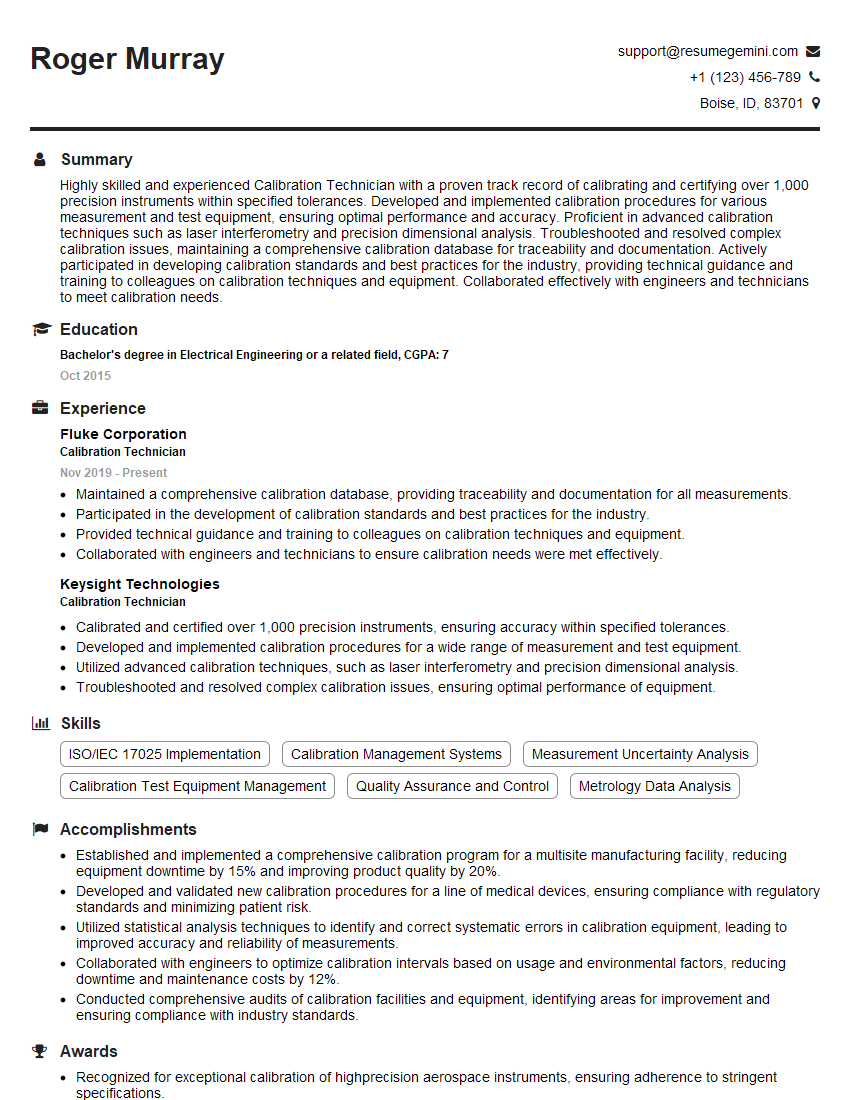
Mastering screen calibration opens doors to exciting opportunities in fields like photography, videography, graphic design, and quality assurance. A strong understanding of color accuracy and management is highly valued by employers. To enhance your job prospects, creating an ATS-friendly resume is crucial. ResumeGemini is a trusted resource that can help you build a professional resume that highlights your skills and experience effectively. Examples of resumes tailored to Screen Calibration are available to help guide you.
Explore more articles
Users Rating of Our Blogs
Share Your Experience
We value your feedback! Please rate our content and share your thoughts (optional).
What Readers Say About Our Blog
To the interviewgemini.com Webmaster.
Very helpful and content specific questions to help prepare me for my interview!
Thank you
To the interviewgemini.com Webmaster.
This was kind of a unique content I found around the specialized skills. Very helpful questions and good detailed answers.
Very Helpful blog, thank you Interviewgemini team.