The right preparation can turn an interview into an opportunity to showcase your expertise. This guide to Device Troubleshooting interview questions is your ultimate resource, providing key insights and tips to help you ace your responses and stand out as a top candidate.
Questions Asked in Device Troubleshooting Interview
Q 1. Describe your experience with remote device troubleshooting.
Remote device troubleshooting relies heavily on effective communication and diagnostic tools. My experience involves utilizing remote access software like TeamViewer or AnyDesk to connect to a user’s device and directly address the problem. This often begins with a detailed description of the issue from the user, followed by a series of questions to isolate the root cause. I then systematically check system logs, resource usage (CPU, memory, disk), network connectivity, and software configurations. For instance, I once remotely resolved a slow application issue by identifying a conflict with a recently installed extension, simply by checking the application’s logs and disabling the culprit.
Beyond direct access, I’m proficient in guiding users through basic troubleshooting steps, such as restarting devices, checking network cables, and running basic system diagnostics. This requires excellent communication skills and patience to ensure the user understands each step without feeling overwhelmed.
Q 2. Explain your process for diagnosing hardware failures.
Diagnosing hardware failures follows a structured approach. First, I gather information from the user about the symptoms, like unexpected shutdowns, unusual noises, or specific components not functioning. I then begin a visual inspection, checking for any physical damage like loose connections or burnt components. This is often followed by running built-in diagnostics tools provided by the device manufacturer, or using specialized hardware diagnostic software.
For example, if a laptop is experiencing overheating, I’d first check the cooling fans to ensure they’re working correctly. Then, I might use a temperature monitoring tool to see if any components are exceeding their safe operating temperature. If a hard drive is failing, I might use a drive diagnostic utility to check for bad sectors. In some cases, replacing suspect components (with proper safety precautions) is necessary to confirm a hardware issue.
Q 3. How do you troubleshoot network connectivity issues?
Troubleshooting network connectivity issues involves a methodical approach. I start by asking the user to describe the problem – are they unable to connect at all, experiencing slow speeds, or intermittent connectivity? Then, I check the most basic things first: Is the device powered on? Are all cables properly connected? Is the Wi-Fi router turned on and functioning correctly?
After verifying the basics, I use tools like ping and traceroute (or their Windows equivalents) to check network connectivity to various points. I also check IP configuration, DNS settings, and firewall rules. For wireless networks, signal strength and interference are key considerations. I might ask the user to reboot their modem and router, try a different network connection (wired vs. wireless), or check for other devices competing for bandwidth. A recent case involved a slow internet connection; after systematic checks, I found the issue was due to an overloaded router needing a firmware upgrade.
Q 4. What are some common software troubleshooting techniques you use?
Common software troubleshooting techniques I use include checking error messages carefully, reviewing application logs for clues, and uninstalling and reinstalling software. I also use system restore points to revert to a previous stable state if necessary. Another effective method is to disable or uninstall recently installed applications or extensions that might be causing conflicts.
For instance, if an application is crashing repeatedly, I might check its event logs for error codes. These codes can often provide very specific information about the cause of the crash. If that is unsuccessful, I might try running the application in compatibility mode for an older version of Windows.
I frequently utilize the built-in troubleshooting tools in Windows and other operating systems, which can often automatically detect and resolve common software problems.
Q 5. How do you prioritize multiple device troubleshooting requests?
Prioritizing multiple device troubleshooting requests involves a combination of factors. Criticality of the issue is paramount; a server outage impacting a business needs immediate attention compared to a user’s slow-running application. Urgency from the user (e.g., a critical deadline) is also considered. Impact of the issue on the organization or user is another factor; a widespread network outage affecting many users takes precedence over isolated individual issues.
In practice, I use a ticketing system to track requests, often employing a triage process to categorize them by severity and urgency. This ensures that the most important issues are addressed first, while less critical requests are handled in a timely manner. Clear communication with users about estimated resolution times is vital to manage expectations.
Q 6. Describe your experience with operating system troubleshooting.
Operating system troubleshooting is a significant part of my expertise. This involves addressing issues ranging from boot failures to application compatibility problems. My experience includes troubleshooting Windows, macOS, and various Linux distributions. I am familiar with using system utilities like System Configuration (msconfig in Windows) to manage startup programs, and Disk Cleanup to free up disk space. I’m skilled in using the command line to perform advanced diagnostics and system repairs. For example, I’ve resolved numerous boot failures by using startup repair utilities and repairing the boot configuration data (BCD).
A complex OS issue I recently addressed involved a corrupted user profile in Windows. By creating a new user profile and transferring data, I was able to resolve the problem and avoid a complete OS reinstall. Knowledge of system restore points is crucial for resolving unexpected OS behavior.
Q 7. How do you handle escalated troubleshooting issues?
Escalated troubleshooting issues are handled by first documenting all attempts made to resolve the problem. This detailed record helps in communicating the situation to senior colleagues or engineers. I then clearly articulate the issue, including all diagnostic steps already taken and their results. I also specify what resources I have already utilized and any limitations encountered. Collaboration is key – I actively engage with other specialists to leverage their expertise and identify potential solutions.
For extremely complex issues, I would escalate to a higher-level support team or external vendor, providing them with the comprehensive documentation previously compiled. Maintaining a clear chain of communication and keeping the affected users informed is crucial throughout the escalation process.
Q 8. What tools and software do you use for device troubleshooting?
My device troubleshooting toolkit is quite comprehensive and adapts to the specific device and issue. For hardware, I rely on multimeters to check voltage and continuity, specialized screwdrivers for delicate components, and thermal paste for CPU/GPU maintenance. Software-wise, I use a range of utilities depending on the operating system. For Windows, this includes Event Viewer for system logs, Resource Monitor to check resource utilization, and various command-line tools like ipconfig and sfc /scannow. For macOS, I use Activity Monitor, Console for log viewing, and terminal commands like lsof. For mobile devices, I leverage the built-in diagnostic tools and, in more advanced cases, specialized software that allows deep system access. Finally, I always keep a collection of manufacturer-specific diagnostic utilities at hand.
For example, recently I used a multimeter to diagnose a laptop power supply issue. By measuring the voltage output, I quickly identified a faulty component and replaced it, resolving the problem efficiently. Another example involves using the Windows Event Viewer to trace down a recurring system crash to a specific driver issue.
Q 9. Explain your experience with ticketing systems for troubleshooting.
Ticketing systems are crucial for efficient and organized troubleshooting, especially in a team environment. I have extensive experience with various systems, including Jira, ServiceNow, and Zendesk. I use these systems to log, track, and manage support requests. My workflow typically involves creating a detailed ticket upon receiving a report, categorizing the issue, prioritizing based on urgency, and documenting every step of the troubleshooting process. The system’s features, like automated email notifications and status updates, help keep clients informed and maintain accountability. Proper use of the ticketing system ensures no issue falls through the cracks and helps in building a comprehensive knowledge base over time.
For example, in a recent case involving a network outage, I meticulously documented every step, including initial diagnostics, network checks, escalation to the network team, and eventual resolution. This well-documented ticket served as a valuable resource for future troubleshooting and even helped identify a recurring issue within the network infrastructure.
Q 10. How do you document your troubleshooting steps and resolutions?
Thorough documentation is fundamental to effective troubleshooting. I maintain a detailed log for every issue, capturing all steps taken, the tools used, and the results obtained. This typically includes:
- Initial problem description and reported symptoms
- Steps undertaken, including specific commands used or software accessed (e.g.,
ping google.com) - Observations made at each step (e.g., error messages, system performance data)
- Tests performed and their results
- Parts replaced or software updated
- Final solution and its effectiveness
This documentation is not just for my own reference; it’s crucial for knowledge sharing within the team and for efficiently handling future similar issues. I typically use a combination of the ticketing system’s notes section, along with external documents where appropriate, to ensure clarity and completeness.
Q 11. Describe your experience with troubleshooting mobile devices.
Troubleshooting mobile devices requires a different approach than desktops. I have experience troubleshooting a wide range of issues, from software glitches to hardware malfunctions. My approach begins with understanding the device’s operating system (iOS or Android). I utilize the built-in diagnostics and settings to identify potential problems, checking for software updates, storage space, and app permissions. I also investigate the device’s physical condition, checking for signs of physical damage or water exposure. Hardware issues might require specialized tools and expertise, but often a simple reboot, app reinstall, or factory reset can resolve software-based problems. For more complex scenarios, tools that allow deeper access to the device’s file system and logs can be necessary.
For instance, I recently resolved an issue where a user’s Android phone was constantly crashing. By carefully analyzing the device logs, I identified a corrupted app causing the problem. After uninstalling and reinstalling the app, the issue was resolved.
Q 12. How do you troubleshoot printer problems?
Printer troubleshooting follows a structured approach. I start by verifying the basics: is the printer powered on? Is it connected correctly? Are there any error messages displayed on the printer itself? Then, I’ll check the printer’s connection (USB, network, or wireless) and ensure it’s properly configured within the operating system. Common issues include driver problems, ink or toner cartridges, paper jams, and network connectivity issues. I’ll systematically address each of these possibilities. Testing print jobs from different applications and checking the printer’s status page often provide valuable clues. If the problem persists, I might use a manufacturer-specific diagnostic tool to identify deeper issues.
A recent case involved a networked printer that wasn’t printing correctly. After verifying the network connection and drivers, I discovered a faulty print queue. Clearing the queue and restarting the print spooler resolved the issue.
Q 13. How do you troubleshoot internet connectivity issues?
Internet connectivity issues can stem from numerous sources. My troubleshooting process begins with identifying the affected devices and whether the issue is isolated to a single device or network-wide. I start with simple checks: is the modem and router powered on? Are the cables connected correctly? Then, I move to more advanced steps. This includes checking the network configuration on the affected devices (IP address, DNS settings), using command-line tools like ping and traceroute to identify connectivity problems, and checking the router’s logs for any error messages. If the problem is with the internet service provider (ISP), I’ll escalate the issue to them after completing thorough internal troubleshooting steps.
For example, I once resolved a network connectivity problem by simply restarting the router. In another instance, using traceroute revealed a problem with the DNS server, which I then resolved by configuring the devices to use a different DNS server.
Q 14. What is your experience with diagnosing and resolving power supply issues?
Diagnosing power supply issues is crucial and can be complex. My approach is methodical and safety-conscious. I always prioritize safety and ensure the power is disconnected before starting any physical inspection. I use a multimeter to check voltage levels at different points in the power supply circuit, comparing them against the expected values. I inspect the power cord for any damage. I look for signs of overheating, such as burnt components or unusual smells. If the issue is with a laptop power adapter, I’ll test it with a different laptop to rule out the adapter itself. If the issue is internal to the device, it may require a more advanced understanding of circuitry or the need to consult the device’s schematics.
In one instance, I discovered a faulty capacitor within a desktop power supply using a multimeter. Replacing this component resolved the power-related issues the user was experiencing.
Q 15. How do you handle situations where you can’t solve a device problem?
When faced with an unsolvable device problem, my approach is systematic and collaborative. First, I meticulously document all troubleshooting steps taken, including error messages, observed behaviors, and tests performed. This detailed record is crucial for later analysis and escalation. Then, I leverage my network – consulting online forums, knowledge bases, and colleagues with specialized expertise. If the problem persists despite these efforts, I escalate the issue to the appropriate support team or engineering department, providing them with the comprehensive documentation I’ve compiled. This ensures they have all the necessary information to effectively diagnose and resolve the issue.
Think of it like a detective case: you gather all the clues (logs, error messages), follow leads (online resources, expert opinions), and when stumped, bring in the specialists (senior engineers).
Career Expert Tips:
- Ace those interviews! Prepare effectively by reviewing the Top 50 Most Common Interview Questions on ResumeGemini.
- Navigate your job search with confidence! Explore a wide range of Career Tips on ResumeGemini. Learn about common challenges and recommendations to overcome them.
- Craft the perfect resume! Master the Art of Resume Writing with ResumeGemini’s guide. Showcase your unique qualifications and achievements effectively.
- Don’t miss out on holiday savings! Build your dream resume with ResumeGemini’s ATS optimized templates.
Q 16. Explain your understanding of different troubleshooting methodologies (e.g., binary search, top-down, bottom-up).
Troubleshooting methodologies are crucial for efficient problem-solving. Let’s explore three common approaches:
- Binary Search: This method involves systematically eliminating half of the possible causes with each test. Imagine troubleshooting a network connection: you could first check the cable, then the router, then the server. If the problem persists after checking the cable, you know the issue isn’t there, and you’ve eliminated half the possibilities. This approach is effective when you have a large set of potential causes.
- Top-Down Approach: This starts with the highest-level components and works its way down. In computer troubleshooting, this might mean checking the operating system, then the applications, then the hardware. This is beneficial for complex systems as it helps identify the broader area of the problem first.
- Bottom-Up Approach: This is the opposite of top-down, beginning with the lowest-level components and working upwards. For example, when a computer doesn’t boot, you might first check the power supply, then the motherboard, before checking higher-level software issues. This method is often useful when dealing with hardware failures.
The choice of methodology depends heavily on the specific situation and the complexity of the device.
Q 17. What is your approach to troubleshooting complex, multi-layered issues?
My approach to complex, multi-layered issues relies on a structured and iterative process. I begin by isolating the problem into smaller, manageable components. This often involves creating a flowchart or diagram to visually represent the system’s interactions. I then apply a combination of top-down and bottom-up approaches, systematically testing each component and its interactions with others. This might involve using diagnostic tools, reviewing logs, and systematically disabling or replacing components to pinpoint the root cause. Throughout the process, I meticulously document my findings and progress, allowing me to track my steps and identify potential areas for further investigation.
For example, if a network application malfunctions, I would first isolate whether the issue is application-specific, network-related, or hardware-related. Once the problem area is identified, I would dive into the specifics of that area, using appropriate diagnostic tools and techniques.
Q 18. How do you stay updated on the latest device troubleshooting techniques and technologies?
Staying updated is critical in this fast-paced field. I actively participate in online communities and forums dedicated to device troubleshooting, such as Stack Overflow and Reddit. I subscribe to industry newsletters and follow relevant blogs and publications. Attending webinars and workshops, as well as pursuing relevant certifications, keeps my skills sharp and knowledge current. Additionally, I actively seek out training opportunities provided by manufacturers and technology providers. Finally, hands-on experience working with a wide range of devices and technologies is invaluable.
Q 19. Describe a time you successfully resolved a difficult device troubleshooting case.
I once encountered a particularly challenging case involving a server experiencing intermittent crashes. Initial diagnostics pointed towards potential hardware failures, but replacing components yielded no improvements. After carefully reviewing the server logs, I noticed unusual spikes in CPU and memory usage coinciding with the crashes. Further investigation revealed a poorly written application script that was consuming excessive resources under specific load conditions. By identifying and modifying this script, I resolved the crashes, demonstrating the importance of thorough log analysis and understanding the application’s behavior alongside hardware assessment.
Q 20. How do you communicate technical information to non-technical users?
Communicating technical information to non-technical users requires clear, concise, and jargon-free language. I avoid using technical terms unless absolutely necessary, and when I do, I provide simple explanations. I use analogies and real-world examples to illustrate complex concepts. For example, instead of saying “the RAM is bottlenecking the system,” I might say “the computer’s short-term memory is full, slowing everything down like a crowded highway.” Visual aids like diagrams and screenshots are also incredibly helpful. Finally, I always confirm understanding by asking clarifying questions and ensuring the user feels comfortable with the information provided.
Q 21. What are some common causes of slow computer performance and how would you troubleshoot them?
Slow computer performance often stems from several interconnected factors. Here are some common causes and troubleshooting steps:
- Insufficient RAM: Low RAM leads to excessive disk swapping (using the hard drive as temporary memory), significantly slowing the system. Troubleshooting: Check RAM usage using Task Manager (Windows) or Activity Monitor (macOS). Consider upgrading RAM if consistently high.
- Hard Drive Issues: A fragmented or failing hard drive (HDD) drastically reduces performance. Troubleshooting: Run a disk defragmentation utility (Windows) or check for SMART errors using diagnostic tools. Consider upgrading to an SSD (Solid State Drive) for a significant speed boost.
- Malware/Virus Infections: Malware consumes resources and can hinder performance. Troubleshooting: Run a full system scan with reputable antivirus software.
- Too Many Startup Programs: Numerous programs starting automatically at boot consume significant resources. Troubleshooting: Manage startup programs through the operating system’s settings.
- Outdated Software/Drivers: Outdated software lacks optimizations and may contain bugs. Troubleshooting: Update all software and drivers to their latest versions.
- Overheating: Excessive heat can cause the system to throttle performance. Troubleshooting: Ensure proper cooling – clean fans, check thermal paste.
Troubleshooting slow performance requires a systematic approach, addressing each potential cause sequentially. Often, the issue is a combination of factors.
Q 22. How would you troubleshoot a device that is not powering on?
Troubleshooting a device that won’t power on requires a systematic approach. Think of it like diagnosing a car that won’t start – you need to check the basics first before looking at more complex issues.
- Check the Power Source: The most obvious first step! Ensure the power cord is securely plugged into both the device and the wall outlet. Try a different outlet to rule out a faulty outlet. If using a power adapter, check that it’s working correctly.
- Inspect the Power Button and Connections: Look for any visible damage to the power button or loose connections. Sometimes, a simple nudge can solve the problem. For laptops, ensure the battery is properly seated.
- Check the Power Supply (if applicable): If the device has an external power supply (like a desktop computer or monitor), check that the power supply itself is working. Try plugging it into another device.
- Listen for Sounds: Some devices make a sound when they’re powering on (fans spinning, hard drive whirring). The absence of such sounds could indicate a deeper hardware problem.
- Visual Inspection: Check for any obvious signs of damage, such as burn marks, cracks, or swollen capacitors (these look like small cylindrical components on circuit boards).
- Advanced Diagnostics: If the above steps don’t work, consider more advanced techniques, such as using a multimeter to test the voltage at different points in the power circuit. This requires technical expertise and caution.
For example, I once helped a client whose computer wouldn’t power on. After checking the obvious – power cord, outlets – I discovered a loose connection within the power supply. A simple tightening resolved the issue.
Q 23. Explain your process for backing up and restoring data during troubleshooting.
Backing up and restoring data is crucial during troubleshooting, especially when dealing with operating system issues or potential hardware failures. Imagine it as making a copy of your important documents before starting a major home renovation – you can restore to the original state if anything goes wrong.
- Identify Critical Data: Before anything else, determine what data needs to be backed up. This might include personal files, system configurations, applications, and so on.
- Choose a Backup Method: Several methods exist, each with its pros and cons: External hard drives, cloud storage services (like Dropbox, Google Drive, etc.), network-attached storage (NAS), and system image backups.
- Execute the Backup: Create a complete and verifiable backup of the critical data. Consider using backup software for automation and ease of recovery.
- Test the Backup: After the backup completes, it’s essential to test the restoration process. This ensures your backup is valid and can be successfully recovered if necessary.
- Restore Data (if needed): If the troubleshooting process requires data restoration, use the backup image or files to restore the device to a known working state.
For example, when troubleshooting a Windows system failing to boot, I first created a full system image backup using third-party software like Acronis or Macrium Reflect. This allowed me to quickly restore the system to a working state if my troubleshooting steps failed to fix the boot issue.
Q 24. How do you ensure data security during device troubleshooting?
Data security during device troubleshooting is paramount. Treating customer data with the utmost respect is non-negotiable.
- Secure Data Storage: Use encrypted storage devices (external hard drives or cloud services with encryption) for backups. This prevents unauthorized access to sensitive data.
- Follow Data Handling Policies: Adhere strictly to company policies and industry best practices regarding data handling and disposal. This often involves using data encryption and secure deletion methods.
- Limit Access: Restrict access to sensitive data to only authorized personnel. This minimizes the risk of accidental or malicious data breaches.
- Secure Disposal: Properly dispose of old hardware, ensuring data is irrecoverably erased using specialized data wiping tools or physical destruction.
- Use Secure Diagnostic Tools: Use reputable and trusted diagnostic tools that are regularly updated to minimize vulnerability to malware.
For instance, I once worked on a device containing medical records. I used full-disk encryption for any backups, followed all HIPAA guidelines (Health Insurance Portability and Accountability Act), and securely wiped the device upon completion of my troubleshooting process.
Q 25. Describe your experience working with different operating systems (Windows, macOS, Linux).
I have extensive experience working with various operating systems, including Windows (all versions from XP to Windows 11), macOS (from 10.5 to Monterey), and various Linux distributions (Ubuntu, CentOS, Debian). Each OS has unique features, strengths, and troubleshooting approaches.
- Windows: Proficient in using the command prompt and PowerShell for advanced troubleshooting, familiar with the registry, and experienced with system restore points. I often utilize Windows Event Viewer for diagnosing system errors.
- macOS: Comfortable using Terminal for command-line tasks, experienced with troubleshooting using Apple’s system diagnostic utilities, and familiar with Disk Utility for disk repair.
- Linux: Proficient in using the terminal and various command-line tools for system administration and troubleshooting. I’m comfortable with package management, file system manipulation, and network configuration.
This diverse OS experience allows me to adapt my approach based on the specific needs of the device and the nature of the problem. For example, a Windows system might require registry editing, while a Linux system might benefit from careful examination of system logs.
Q 26. Explain your understanding of different hardware components (CPU, RAM, HDD, SSD).
Understanding hardware components is fundamental to effective device troubleshooting. Think of it like understanding the parts of a car engine – you need to know how each part works to diagnose problems.
- CPU (Central Processing Unit): The brain of the computer, responsible for processing instructions. Issues with the CPU can manifest as system crashes or slow performance.
- RAM (Random Access Memory): Short-term memory, used by the computer to store data currently in use. Insufficient RAM can cause slowdowns or application crashes.
- HDD (Hard Disk Drive): A traditional storage device that uses spinning platters to store data. HDDs are susceptible to physical damage and can be slower than SSDs.
- SSD (Solid State Drive): A newer type of storage device that uses flash memory to store data. SSDs are faster and more durable than HDDs but are generally more expensive.
For example, if a computer is experiencing slow performance and frequent crashes, I might suspect insufficient RAM or a failing hard drive. Using system monitoring tools, I can check RAM usage and assess the health of the hard drive.
Q 27. How do you troubleshoot issues with peripherals (printers, scanners, etc.)?
Troubleshooting peripheral issues involves a systematic approach that isolates the problem. It’s like tracing a plumbing issue – you check each section until you find the leak.
- Check Connections: Ensure that the peripheral is properly connected to the device and that all cables are securely plugged in. Try different ports or cables.
- Power Supply: Make sure the peripheral has sufficient power and that its power supply is working correctly. Some peripherals have their own power adapters.
- Drivers: Check that the correct drivers are installed for the peripheral. Outdated or corrupted drivers are a common cause of peripheral problems. Use the Device Manager (Windows) or System Information (macOS) to check driver status.
- Device Manager/System Information: Examine device manager or system information for any error messages related to the peripheral. This often provides valuable clues.
- Test with Another Device: If possible, try the peripheral with another computer or device to rule out problems with the peripheral itself.
- Manufacturer’s Support: Consult the manufacturer’s website for troubleshooting guides, driver updates, or support options.
For instance, if a printer isn’t working, I’d first check the cable connections, then ensure the printer is turned on and receiving power. I’d also check the printer’s driver status and look for error messages in the system logs.
Q 28. How do you use diagnostic tools to identify and resolve device problems?
Diagnostic tools are invaluable for identifying and resolving device problems efficiently. Think of them as specialized medical tests used by a doctor to diagnose illnesses.
- System Monitoring Tools: These tools (like Task Manager in Windows or Activity Monitor in macOS) provide real-time information about system performance, resource usage, and running processes, helping identify bottlenecks or resource-intensive applications.
- Event Viewers/System Logs: These log files record system events, errors, and warnings. Examining these logs can reveal valuable clues about the root cause of a problem.
- Hardware Diagnostic Tools: Tools like Memtest86 (for RAM testing) or CrystalDiskInfo (for hard drive health checks) can identify hardware faults.
- Network Diagnostic Tools: Tools like ping, tracert, and netstat are invaluable for troubleshooting network connectivity issues.
- Specific Device Utilities: Many devices come with their own diagnostic utilities that can help pinpoint hardware or software problems.
For example, if a computer is exhibiting erratic behavior, I might use Task Manager to see which processes are consuming excessive resources or Event Viewer to investigate any error messages. If a hard drive is suspected to be failing, I might use CrystalDiskInfo to check for errors.
Key Topics to Learn for Device Troubleshooting Interview
- Hardware Diagnostics: Understanding motherboard components, peripherals, and their interconnectivity. Practical application: Diagnosing a system boot failure by isolating faulty hardware through methodical testing.
- Software Troubleshooting: Identifying and resolving software conflicts, driver issues, and operating system errors. Practical application: Resolving a blue screen of death by systematically checking for corrupted files and outdated drivers.
- Network Troubleshooting: Diagnosing network connectivity problems, including IP addressing, DNS resolution, and common network protocols. Practical application: Troubleshooting a slow internet connection by examining network settings, router configuration, and cable integrity.
- Remote Troubleshooting Techniques: Utilizing remote access tools and techniques for efficient problem solving. Practical application: Guiding a user remotely through a software installation and configuration process.
- Problem-Solving Methodologies: Applying systematic approaches like the five whys, root cause analysis, and escalation procedures. Practical application: Documenting troubleshooting steps and identifying the underlying cause of recurring errors.
- Operating Systems (OS) Familiarity: Demonstrating proficiency in troubleshooting common issues across various OS (Windows, macOS, Linux, iOS, Android). Practical application: Addressing user account issues, permissions problems, and application-specific errors.
- Security Considerations: Understanding security protocols and best practices related to device troubleshooting. Practical application: Identifying and addressing potential security risks during the troubleshooting process.
Next Steps
Mastering device troubleshooting is crucial for career advancement in IT, opening doors to diverse and rewarding roles. A strong resume is your key to unlocking these opportunities. Creating an ATS-friendly resume significantly increases your chances of getting noticed by recruiters. ResumeGemini is a trusted resource that can help you build a professional and impactful resume tailored to highlight your device troubleshooting skills. Examples of resumes specifically designed for Device Troubleshooting professionals are available to guide you.
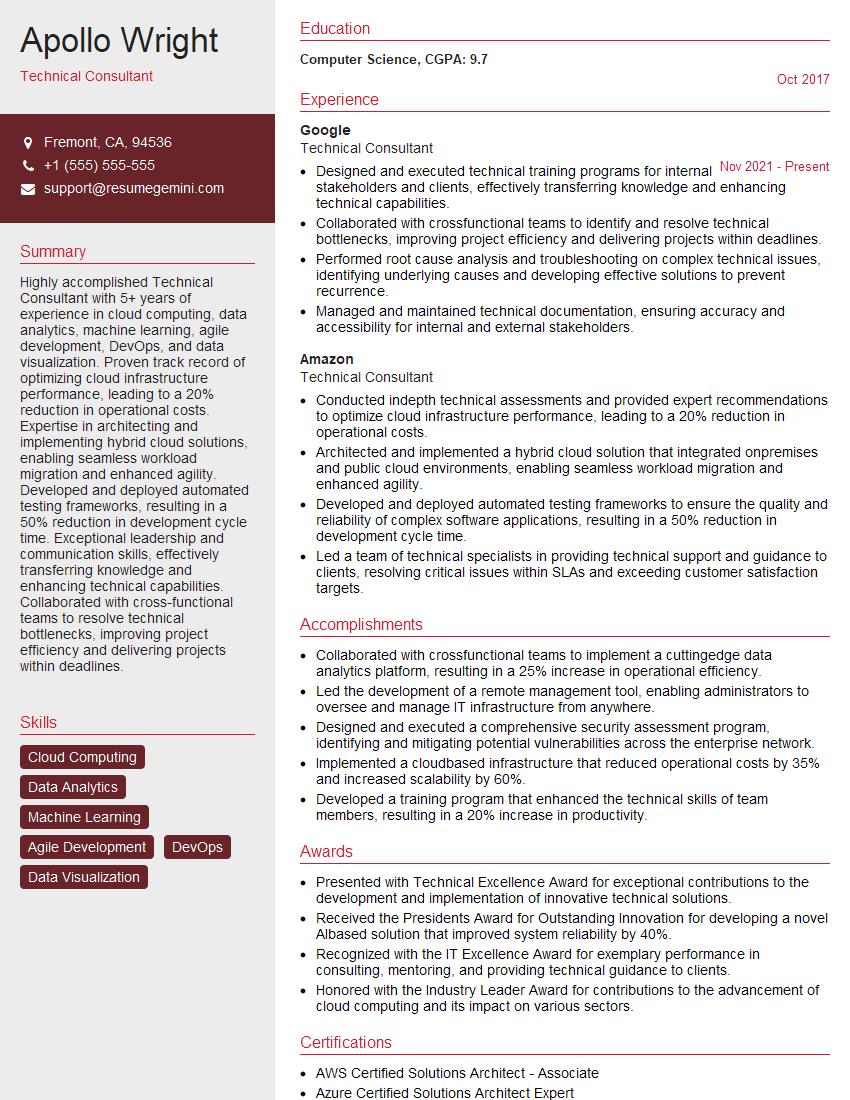
Technical Consultant Resume Sample
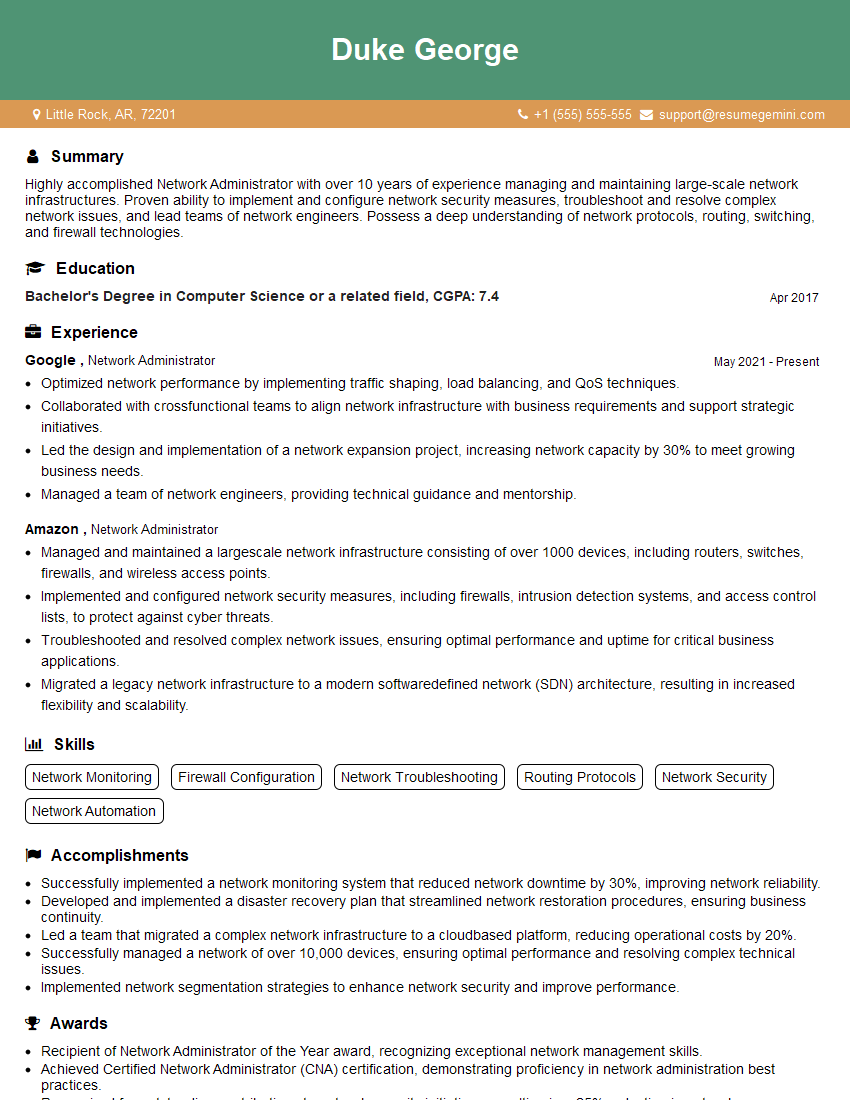
Network Administrator Resume Sample
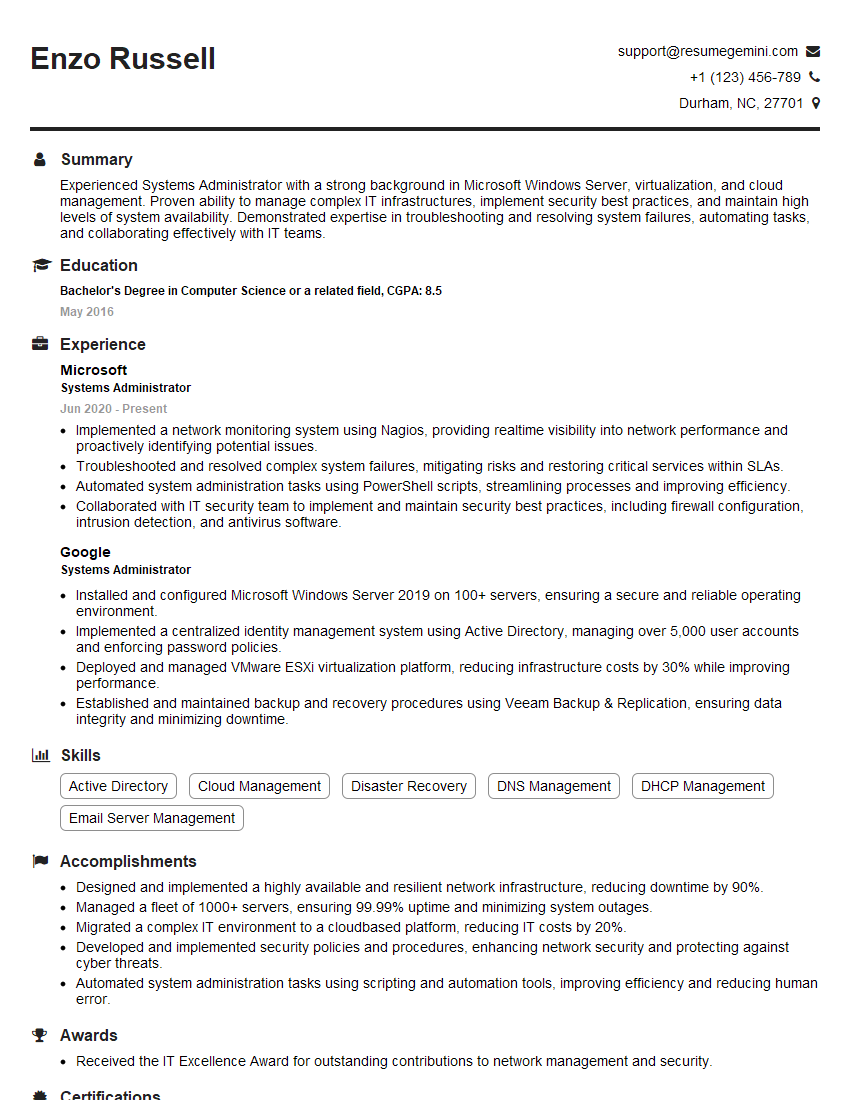
Systems Administrator Resume Sample

Technical Support Engineer Resume Sample
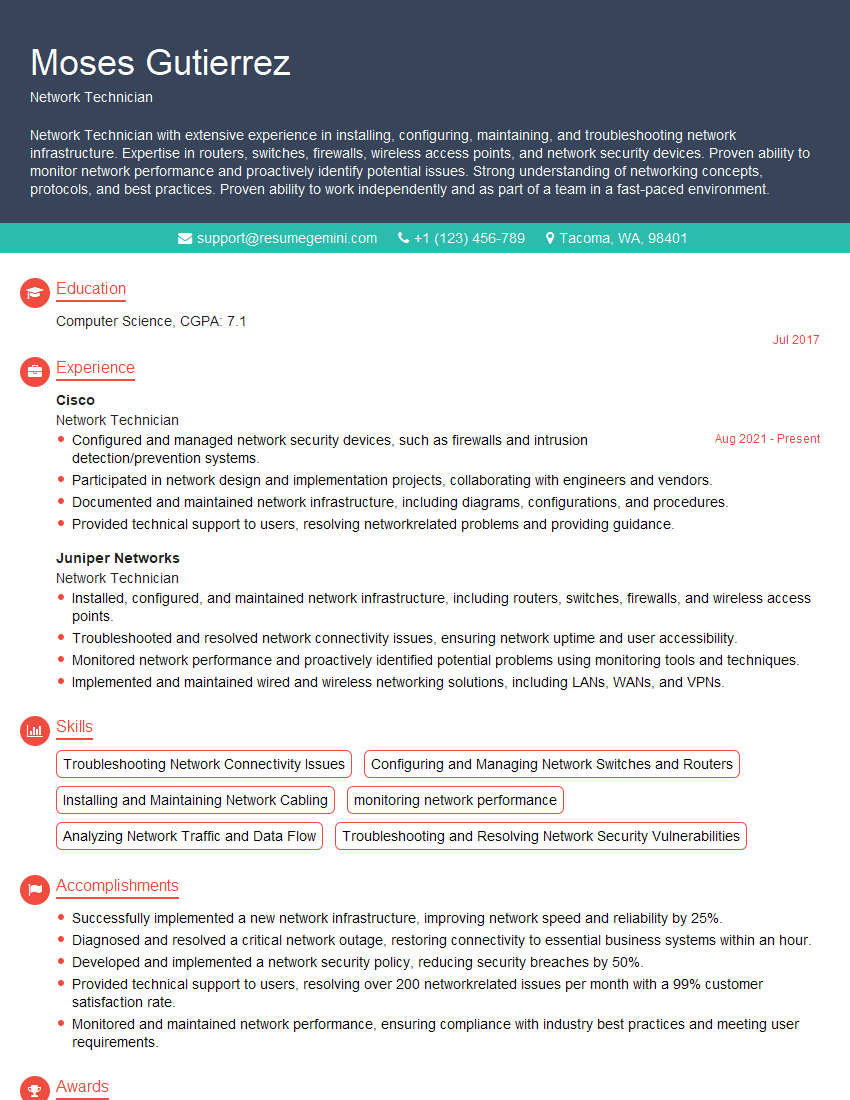
Network Technician Resume Sample
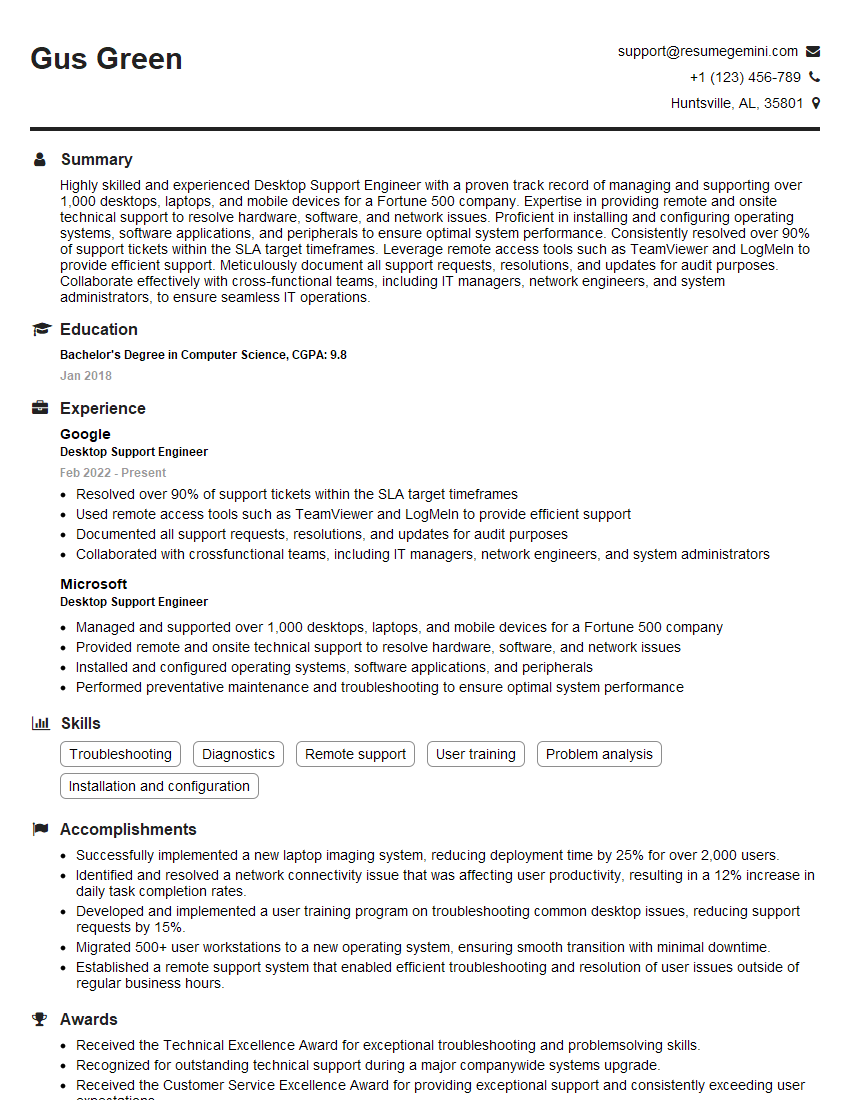
Desktop Support Engineer Resume Sample
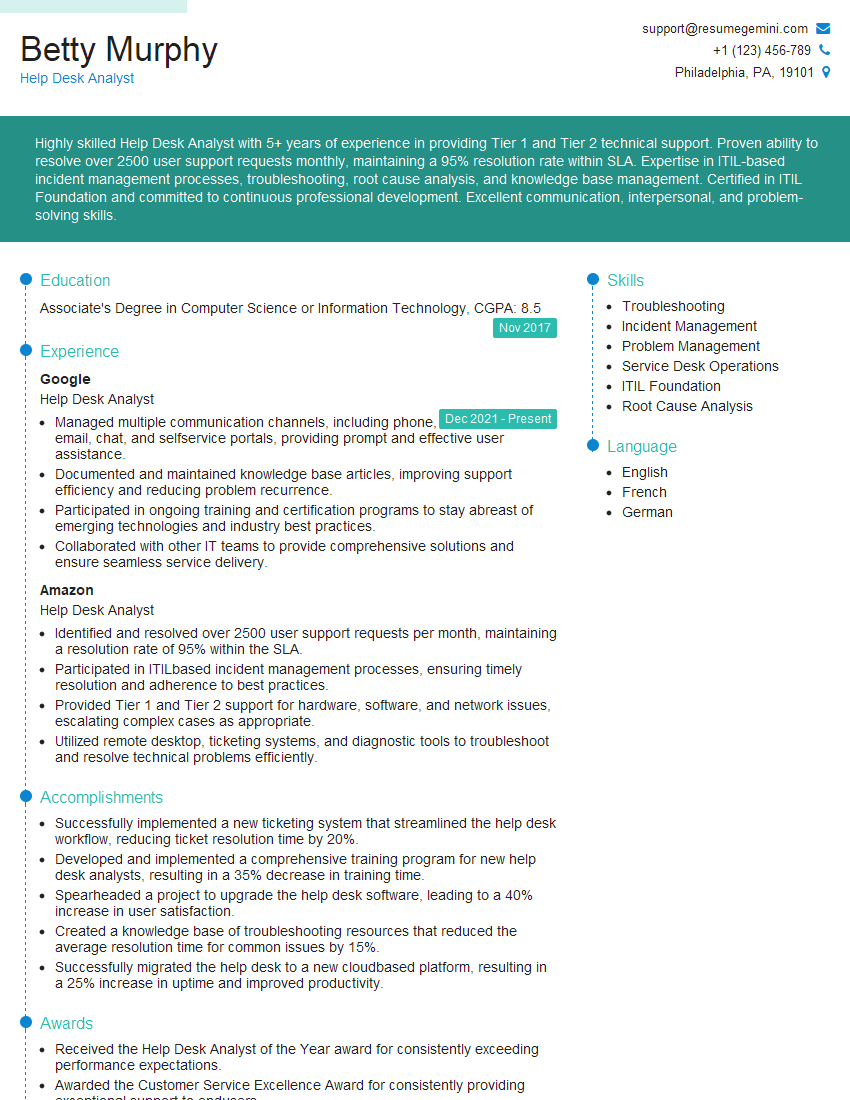
Help Desk Analyst Resume Sample

IT Manager Resume Sample
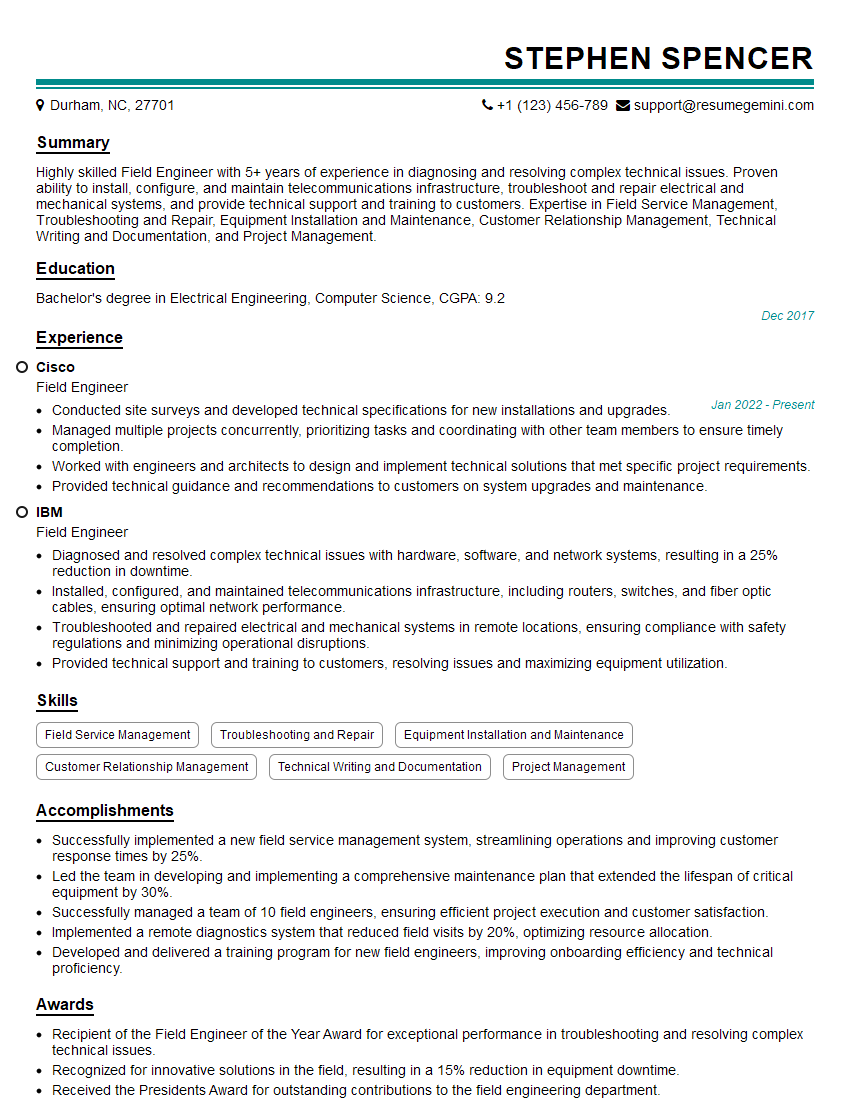
Field Engineer Resume Sample
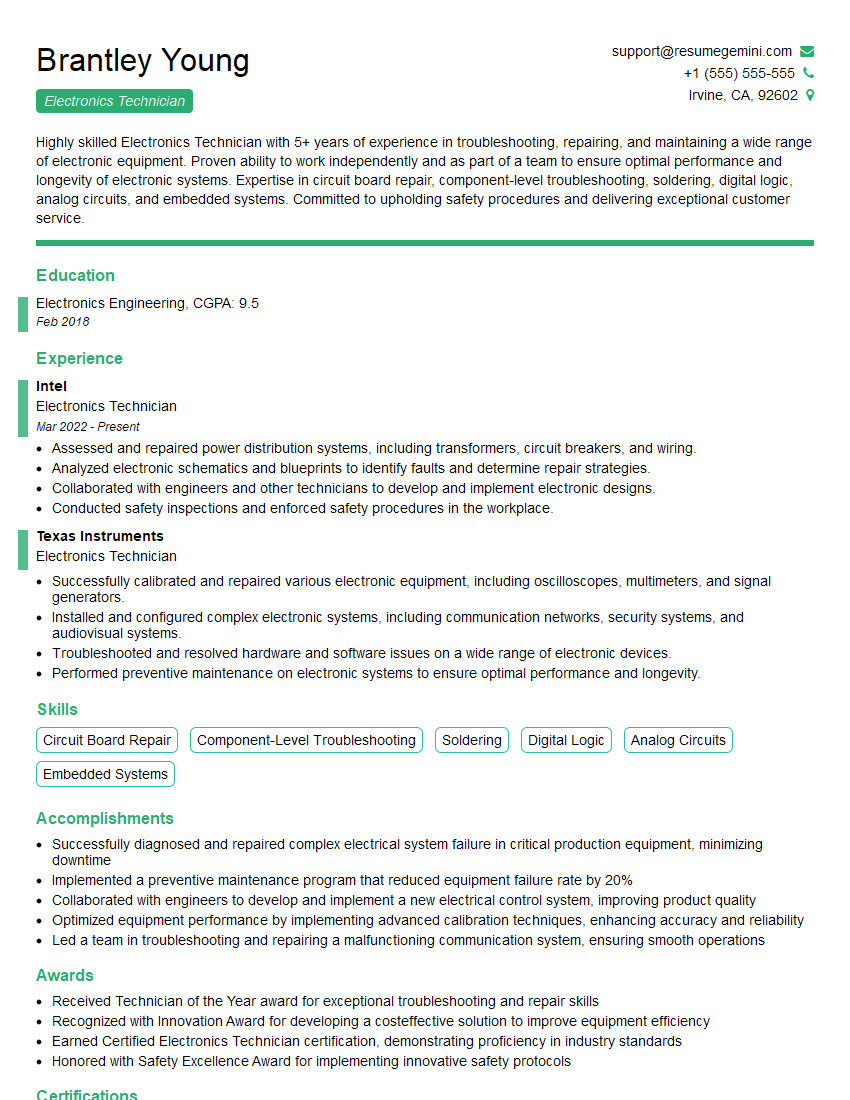
Electronics Technician Resume Sample
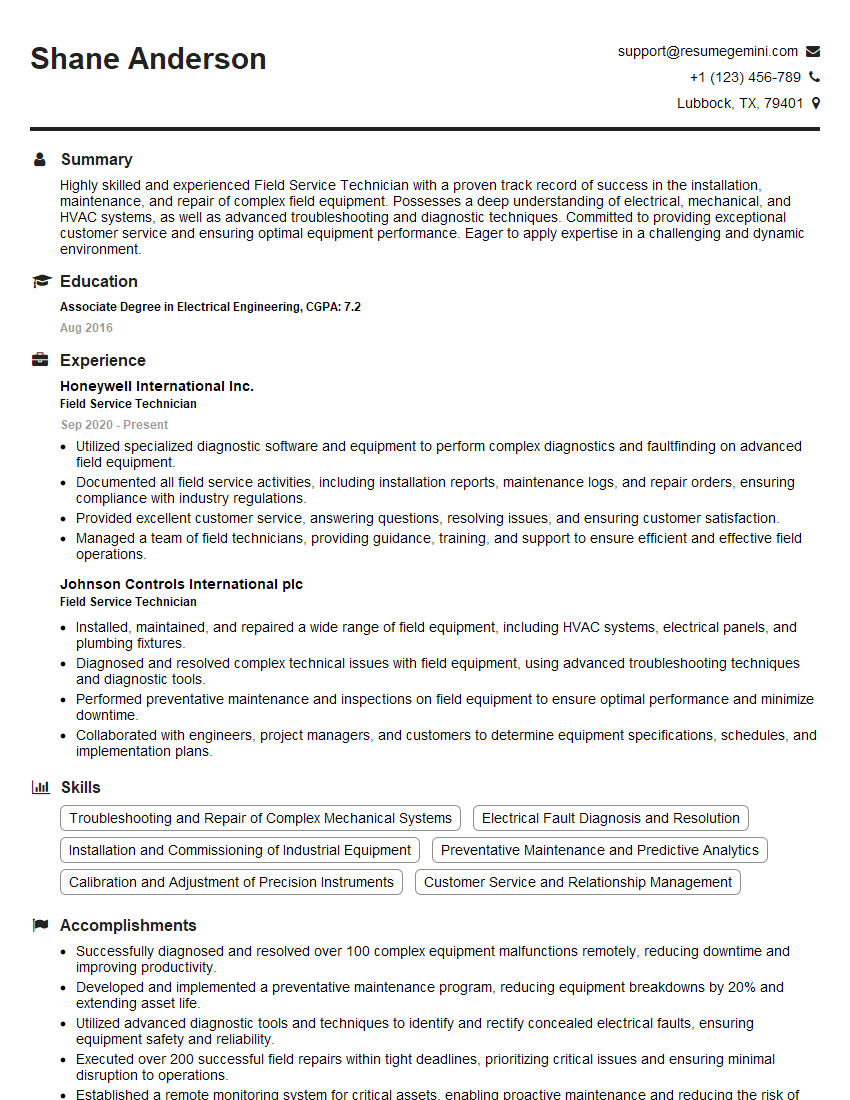
Field Service Technician Resume Sample
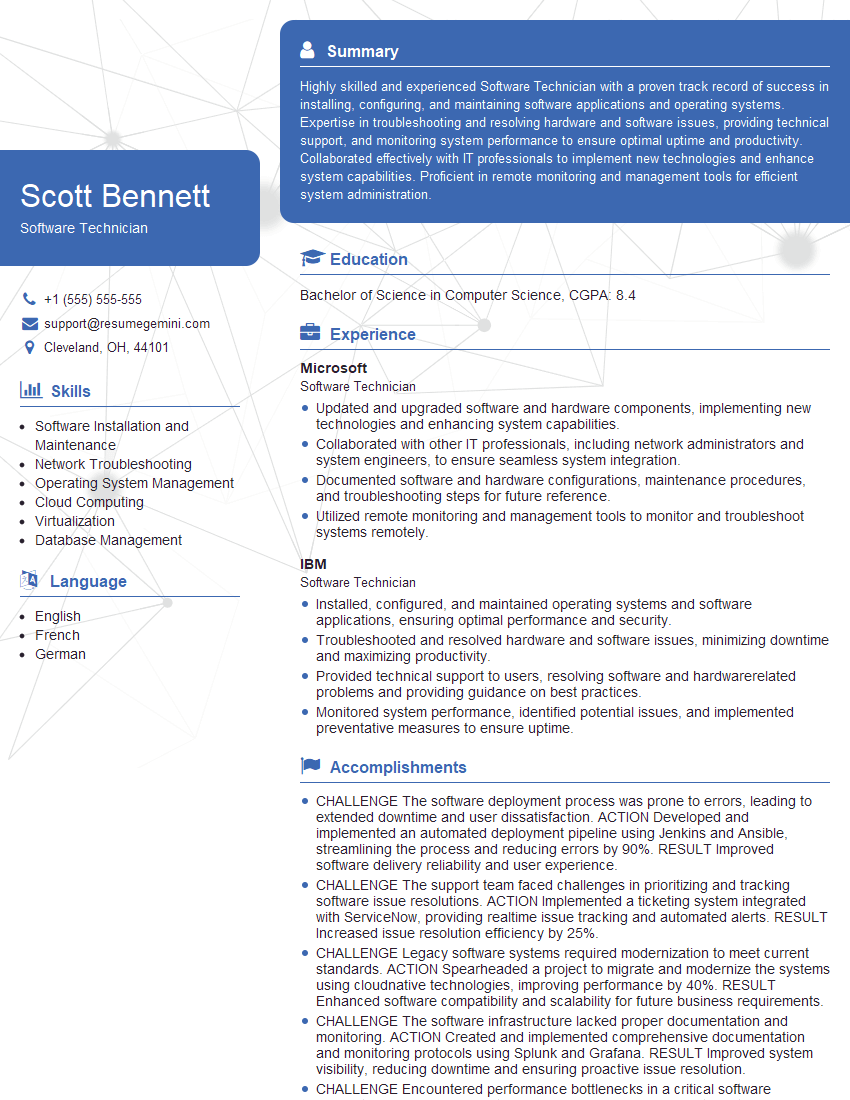
Software Technician Resume Sample
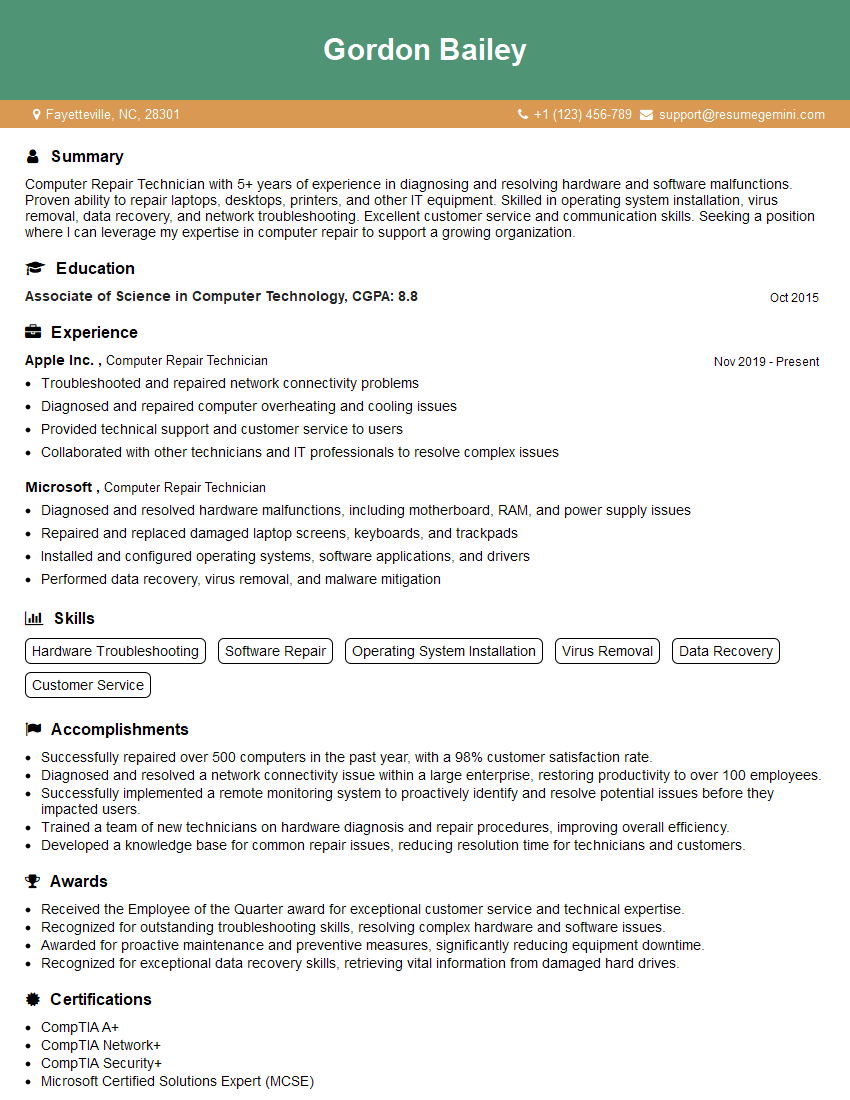
Computer Repair Technician Resume Sample
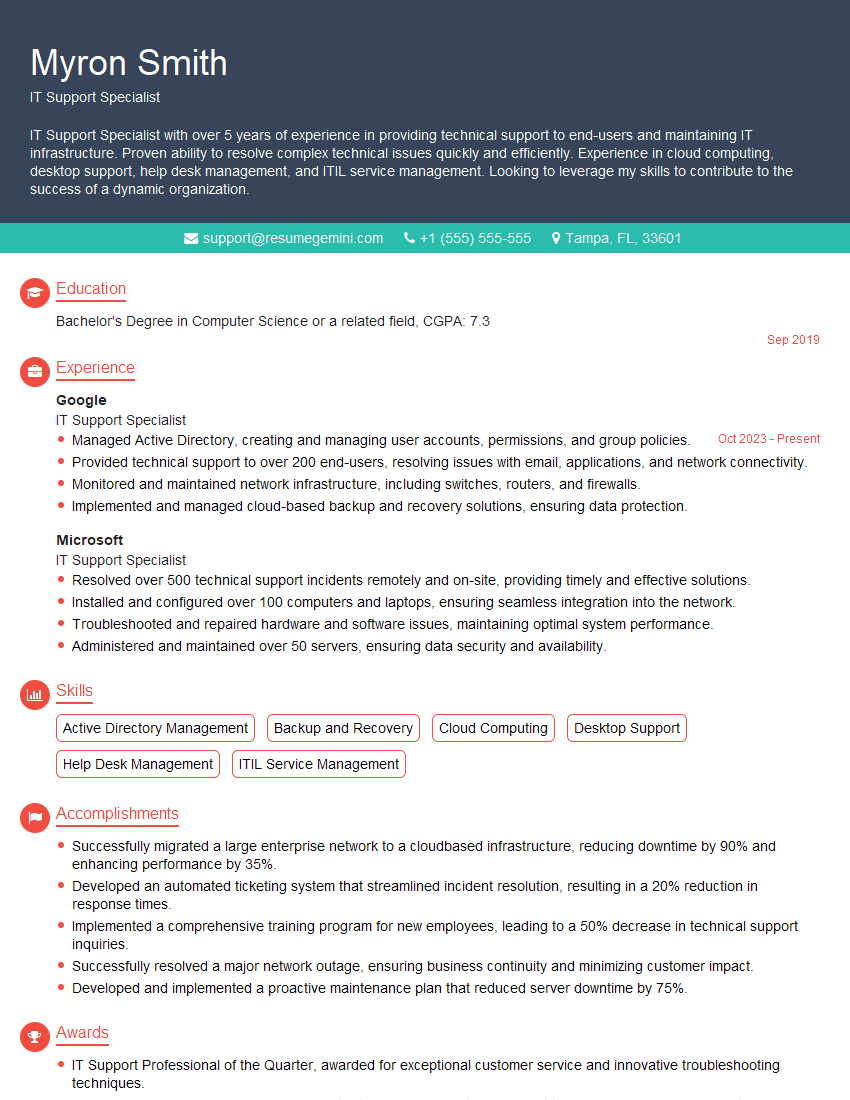
IT Support Specialist Resume Sample
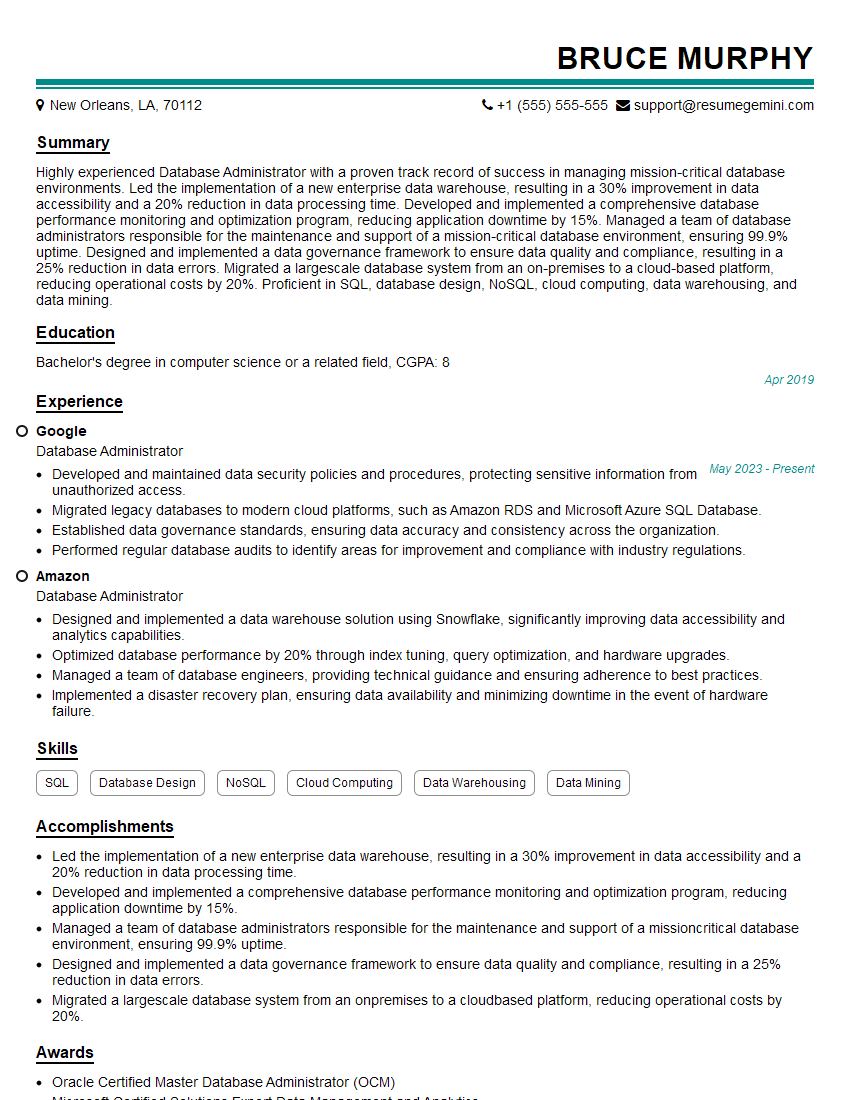
Database Administrator Resume Sample
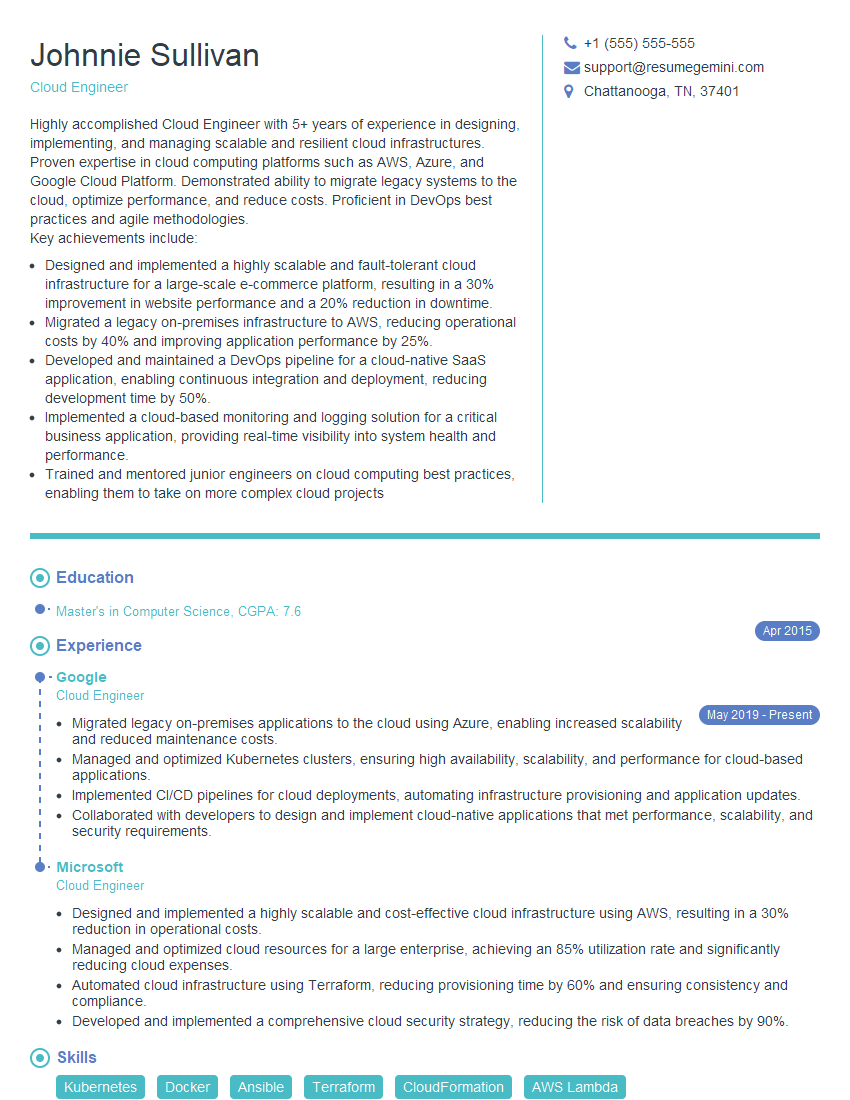
Cloud Engineer Resume Sample
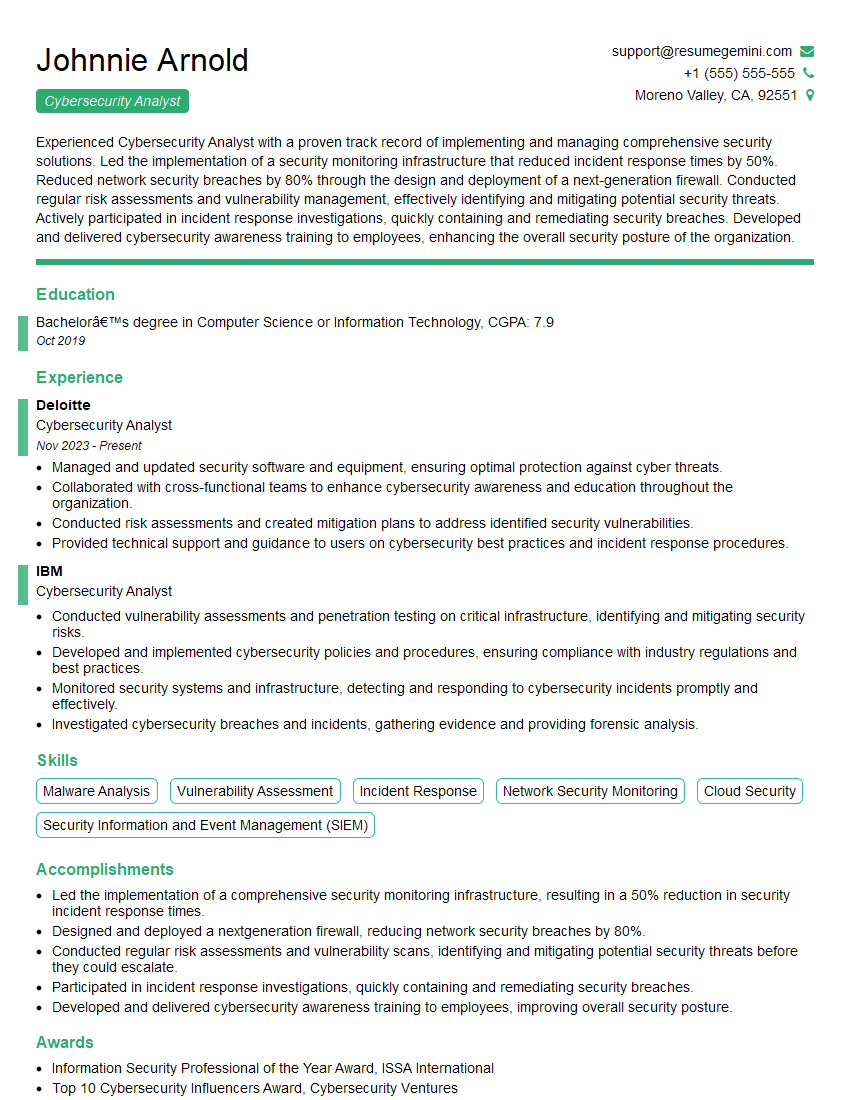
Cybersecurity Analyst Resume Sample
- Technical Consultant
- Network Administrator
- Systems Administrator
- Technical Support Engineer
- Network Technician
- Desktop Support Engineer
- Help Desk Analyst
- IT Manager
- Field Engineer
- Electronics Technician
- Field Service Technician
- Software Technician
- Computer Repair Technician
- IT Support Specialist
- Database Administrator
- Cloud Engineer
- Cybersecurity Analyst
Explore more articles
Users Rating of Our Blogs
Share Your Experience
We value your feedback! Please rate our content and share your thoughts (optional).
What Readers Say About Our Blog
To the interviewgemini.com Webmaster.
Very helpful and content specific questions to help prepare me for my interview!
Thank you
To the interviewgemini.com Webmaster.
This was kind of a unique content I found around the specialized skills. Very helpful questions and good detailed answers.
Very Helpful blog, thank you Interviewgemini team.