Preparation is the key to success in any interview. In this post, we’ll explore crucial Experience in using AutoCAD interview questions and equip you with strategies to craft impactful answers. Whether you’re a beginner or a pro, these tips will elevate your preparation.
Questions Asked in Experience in using AutoCAD Interview
Q 1. Explain your experience with AutoCAD’s various drawing tools.
My experience with AutoCAD’s drawing tools is extensive, encompassing both fundamental and advanced functionalities. I’m proficient in using tools for creating lines, arcs, circles, polylines, splines, and ellipses with precise control over their properties. I regularly utilize modification tools like trim, extend, copy, mirror, array, and offset to manipulate and refine my drawings efficiently. Beyond the basics, I’m comfortable using advanced tools such as the fillet, chamfer, and hatch commands for creating detailed and realistic representations. For example, when designing a building’s floor plan, I leverage these tools to accurately represent walls, doors, and windows, ensuring consistent dimensions and aesthetics. Furthermore, my expertise extends to the use of text and dimensioning tools, crucial for creating clear and unambiguous technical drawings.
I also have a strong grasp of object snapping tools (endpoint, midpoint, intersection, etc.) which significantly increase drawing accuracy and speed. Imagine trying to precisely connect two lines—object snapping makes this quick and easy, removing the guesswork and ensuring precise connections every time. This is essential for maintaining the integrity of the design.
Q 2. Describe your proficiency in 2D and 3D modeling within AutoCAD.
My proficiency in both 2D and 3D modeling within AutoCAD is a significant strength. In 2D, I’m adept at creating detailed plans, sections, and elevations using precise measurements and annotations. I regularly create technical drawings for construction, mechanical designs, and architectural plans. For example, I recently used AutoCAD 2D to develop detailed shop drawings for a custom cabinet installation, including precise dimensions and material specifications. This required meticulous attention to detail and accurate representation of complex joinery.
In 3D modeling, I utilize AutoCAD’s solid modeling tools to create accurate 3D representations of objects and assemblies. I’m proficient in using commands like extrude, revolve, and sweep to generate complex 3D shapes. I’m also comfortable with 3D editing tools, allowing me to modify existing models efficiently. For example, I used 3D modeling to create a detailed model of a mechanical assembly for a client, enabling them to visualize the design and identify potential issues before manufacturing. This process significantly reduced the risk of costly errors later in the project lifecycle.
Q 3. How familiar are you with AutoCAD’s layer management system?
I’m highly familiar with AutoCAD’s layer management system, recognizing its crucial role in organizing complex drawings. I consistently employ layers to categorize different aspects of a design (e.g., architecture, structural, MEP). This approach ensures clarity, simplifies editing, and allows for selective display and plotting of specific elements. For instance, when working on architectural plans, I might use separate layers for walls, doors, windows, and furniture, making it easy to isolate and modify individual components without affecting others. My understanding extends to layer properties such as color, linetype, and lineweight, enabling me to further enhance visual clarity and improve drawing organization. Proper layer management significantly streamlines the workflow, preventing confusion and improving overall drawing quality. I also utilize layer states to manage the visibility of specific layers depending on the current design phase or requirement.
Q 4. How do you handle large and complex AutoCAD drawings?
Handling large and complex AutoCAD drawings requires a strategic approach. I utilize techniques like external referencing (xrefs) to manage multiple drawing files efficiently. This allows me to link related drawings without embedding them, reducing file sizes and improving performance. For instance, in a large-scale building project, different disciplines (architecture, structural, MEP) might each work on separate xref files, which are then linked together in a master drawing file. This setup allows for collaborative work and reduces the risk of conflicts and data inconsistencies. Furthermore, I optimize drawings by purging unused blocks and layers, reducing file size and improving drawing responsiveness. I also regularly save incremental versions to avoid data loss. Using named views is particularly helpful in large drawings allowing me to save and quickly switch between different perspectives of a complex model without re-drawing or zooming each time.
Q 5. What are your preferred methods for creating and managing blocks in AutoCAD?
My preferred method for creating and managing blocks in AutoCAD involves a systematic approach prioritizing organization and reusability. I begin by creating blocks that represent frequently used components or symbols. For example, I would create blocks for standard doors, windows, and fixtures. I always name blocks descriptively (e.g., ‘Door-Interior-Single’) to ensure easy identification and retrieval. I often utilize the ‘base point’ option when creating blocks to control their insertion point, ensuring consistent placement. This minimizes errors and speeds up the design process. I also regularly use block attributes to add dynamic data to blocks—for example, adding a material attribute to a window block for better management and tracking of materials. Managing blocks efficiently improves workflow and promotes consistency within the design.
I organize blocks within a central location, often a dedicated drawing file or a library on a network drive to ensure easy access. This helps maintain consistency and avoid creating duplicate blocks. Regularly auditing and purging unused blocks helps reduce file size and prevents clutter.
Q 6. Explain your understanding of AutoCAD’s coordinate systems.
My understanding of AutoCAD’s coordinate systems is comprehensive. I’m proficient in using both the World Coordinate System (WCS) and User Coordinate Systems (UCS). The WCS provides a global reference point for the entire drawing, while UCS allows me to define local coordinate systems for specific parts of a design, simplifying complex geometries and improving workflow. For instance, when detailing a specific component within a larger assembly, defining a UCS aligned with that component’s orientation simplifies drawing and dimensioning. I use the UCS extensively to improve accuracy and efficiency, especially when dealing with angled elements or components that aren’t aligned with the WCS. Understanding the differences and the ability to seamlessly switch between these coordinate systems is critical for efficiently navigating and manipulating objects in a model.
Furthermore, I understand the importance of absolute and relative coordinates for precise object placement. This understanding allows me to accurately position objects based on specific coordinates or relative to other objects within the drawing.
Q 7. How do you ensure accuracy and precision in your AutoCAD drawings?
Ensuring accuracy and precision in my AutoCAD drawings is paramount. I utilize several methods to achieve this. Object snaps are consistently used to ensure precise connections between objects, avoiding any guesswork. This is crucial for dimensional accuracy and maintaining the integrity of the design. I frequently verify dimensions through measurement tools and compare them against design specifications. This helps catch errors early on. Furthermore, I utilize constraints (parametric constraints, geometric constraints, etc.) to maintain the relationships between objects in a drawing. These constraints ensure that if one part of the drawing is modified, related parts automatically adjust, preserving the integrity of the design and reducing the chance of error.
Finally, I regularly review drawings for inconsistencies or errors before finalizing them. This includes visually inspecting drawings, checking dimensions against specifications, and running audits to check for any errors or inconsistencies within the drawing’s geometry and data.
Q 8. Describe your experience with AutoCAD’s annotation tools (text, dimensions, etc.).
AutoCAD’s annotation tools are fundamental for creating detailed and informative drawings. They allow me to add textual information, dimensions, and other markings to communicate design intent precisely. My experience encompasses a wide range of annotation techniques, including:
Text Creation: I routinely create text annotations using various fonts, styles, and heights to clearly label components, specify materials, or add notes. I understand how to control text justification, alignment, and the use of text styles for consistency across large projects. For instance, I often create a dedicated text style for dimensions, ensuring uniformity throughout the drawing.
Dimensioning: Proficient in creating linear, angular, radial, and diameter dimensions, I consistently apply proper dimensioning standards (like ASME Y14.5) to ensure drawings are clear and unambiguous. I’m comfortable using different dimension styles and customizing their appearance to meet project requirements. For example, I’ve used associative dimensions extensively, allowing dimensions to update automatically when the underlying geometry changes.
Leader Lines and Callouts: I frequently use leader lines and callouts to connect annotations to specific features on the drawing. This improves clarity, particularly when referencing complex details or highlighting specific aspects of the design. I pay close attention to the visual flow to ensure that the annotations don’t clutter the drawing.
Hatching and Fill: I use hatching and fill patterns effectively to represent various materials or surfaces in my drawings, adding another layer of visual clarity. I can create and modify custom hatching patterns to represent specific materials not included in the standard palette.
Throughout my work, maintaining accuracy and clarity in annotations is paramount. I always review my annotated drawings meticulously to ensure that all information is correct, complete, and easily understood by others.
Q 9. How familiar are you with AutoCAD’s plotting and printing features?
Plotting and printing in AutoCAD are crucial for producing high-quality hard copies of drawings. My experience includes setting up plot configurations, managing plot styles, and troubleshooting printing issues. I am familiar with:
Plot Style Tables (PSTs): I use PSTs to define how different layers and objects in a drawing will be rendered on the printed output. This allows me to control line weights, colors, and line types for optimal clarity and consistency.
Page Setups: I can create custom page setups to match different paper sizes, plot scales, and orientations. I can define plot areas and margins precisely to control the output.
Plot Device Configuration: I have experience with a variety of plotters and printers, and can configure AutoCAD to work seamlessly with them. This involves selecting the correct driver, testing the connection, and resolving any printing errors.
PDF Creation: I frequently create PDF files of drawings for electronic distribution and archiving. I am skilled at creating optimized PDFs that retain the quality of the original AutoCAD drawings while maintaining a manageable file size.
In one instance, I had to troubleshoot a plotting issue involving a misconfigured plotter driver. By systematically checking the driver settings and communication ports, I identified and resolved the problem, preventing significant delays in the project.
Q 10. Explain your experience using AutoCAD’s external references (Xrefs).
External references (Xrefs) are indispensable for managing large and complex projects in AutoCAD. They allow me to link separate drawings together, creating a centralized project environment. My experience involves:
Xref Attachment: I routinely attach Xrefs to my drawings, ensuring proper path management to avoid broken links. I understand the difference between attaching, overlaying, and binding Xrefs, selecting the method appropriate for each situation.
Xref Management: I’m adept at managing multiple Xrefs within a drawing, including updating, detaching, and reloading them as needed. I am careful to manage naming conventions and maintain organized file structures to avoid conflicts.
Nested Xrefs: I’ve worked extensively with nested Xrefs, understanding how changes propagate through the linked drawings and how to manage potential conflicts. I understand the importance of maintaining a clear hierarchy to avoid confusion.
Xref Overlays: When necessary, I utilize Xref overlays to temporarily view and assess changes made in referenced files without altering the main drawing. This speeds up the design review process.
For example, on a large site development project, we used Xrefs to manage separate drawings for grading, utilities, and landscaping. This allowed multiple team members to work simultaneously without overwriting each other’s work.
Q 11. Describe your experience with AutoCAD’s dynamic input feature.
AutoCAD’s dynamic input feature significantly enhances drawing efficiency by providing real-time feedback as you work. I’ve extensively utilized dynamic input for:
Precise Coordinate Entry: Dynamic input allows for quick and accurate coordinate entry, eliminating the need for constantly switching between commands and the command line. For example, I can type coordinates directly while drawing lines or circles.
Real-time Dimensioning: As I draw, dynamic input displays the dimensions of lines, arcs, and other objects. This allows me to confirm measurements without having to explicitly create dimensions, improving accuracy.
Object Snapping Enhancements: Dynamic input works seamlessly with object snaps, further refining the precision of drawing. I regularly combine dynamic input with object snaps such as midpoint, endpoint, and intersection for better accuracy.
Polar Tracking and Ortho Mode Integration: I frequently use dynamic input in conjunction with polar tracking and ortho mode to quickly create accurately positioned elements without constantly moving the cursor.
Using dynamic input consistently reduces the number of steps required to create accurate geometry, saving considerable time and improving the overall workflow.
Q 12. How do you utilize AutoCAD’s customization options (CUI)?
AutoCAD’s Customization User Interface (CUI) allows tailoring the program to individual workflows and project needs. My experience with CUI involves:
Creating Custom Toolbars: I regularly create custom toolbars to organize frequently used commands and shortcuts, improving access and efficiency. I arrange commands logically for quick access, reducing mouse movements.
Customizing Menus: I can modify existing menus or create entirely new ones to organize commands based on specific project needs. This provides a highly personalized interface suited to different project types and team preferences.
Keyboard Shortcuts: I’ve extensively configured custom keyboard shortcuts to speed up repetitive tasks. This dramatically accelerates the design process and minimizes interruptions to my workflow.
Workspace Management: I use CUI to manage and switch between different workspaces optimized for various tasks. This allows me to quickly adapt to the demands of various drawing tasks, improving efficiency.
For example, I created a custom toolbar with specialized commands for piping design, reducing the number of steps to create complex piping systems.
Q 13. What is your experience with AutoCAD’s lisp programming?
While not an everyday tool, I possess experience with AutoCAD’s Lisp programming. I’ve used it for automating repetitive tasks and customizing functions that aren’t directly available through the standard interface.
Automating Repetitive Tasks: I’ve written simple Lisp routines to automate tasks like generating series of similar objects or extracting data from drawings. This reduces time spent on manual operations.
Customizing Functionality: I’ve also used Lisp to develop custom commands tailored to specific project needs. This enables me to extend AutoCAD’s capabilities beyond its standard offerings.
Understanding Lisp Syntax: I’m familiar with the fundamental syntax and structure of Lisp programming, enabling me to read, understand, and modify existing Lisp routines as needed.
For example, I developed a Lisp routine that automatically generates dimensioning for a standardized component, significantly speeding up the detailing process.
Though my Lisp expertise isn’t extensive, I’m comfortable tackling basic automation and customization tasks using this powerful language.
Q 14. How do you manage version control in your AutoCAD projects?
Version control in AutoCAD projects is critical for maintaining project integrity and collaboration. My approach involves a combination of techniques:
Regular Saving and Backups: I religiously save my work frequently and maintain multiple backups, stored locally and in the cloud. This protects against data loss due to unforeseen issues.
AutoCAD’s SAVEAS command: I use the SAVEAS command to create different versions of my drawings, clearly labeling them with dates and revisions. This allows me to track progress and revert to earlier versions if needed.
Cloud-Based Storage and Collaboration Tools: I often utilize cloud-based storage solutions like Dropbox or Google Drive for project file storage and version history tracking. These systems allow easy access and version tracking for team collaboration.
External Version Control Systems (e.g., Git): For more complex projects requiring meticulous version control, particularly when working with multiple team members, I’ve incorporated external version control systems, such as Git, using tools that integrate with AutoCAD.
By implementing these strategies, I ensure the integrity of my AutoCAD projects and the ability to revert to previous versions if necessary. This is essential for maintaining accurate records and troubleshooting issues.
Q 15. Describe your experience with AutoCAD’s object snaps.
Object snaps in AutoCAD are invaluable tools that enhance precision and efficiency by allowing you to snap your cursor to specific points on existing objects. Instead of manually trying to click exactly on a midpoint or endpoint, object snaps automatically locate these points for you. This significantly reduces errors and speeds up the drawing process.
I routinely use object snaps like Endpoint, Midpoint, Center, Intersection, and Quadrant. For example, when drawing a rectangle perfectly aligned with an existing line, I’d use the Endpoint snap to select the starting point on that line, then the Intersection snap to precisely align a corner with another object’s intersection. Imagine trying to draw this perfectly by eye – it would be time-consuming and prone to error! Object snaps ensure accuracy and save significant time, especially in complex drawings.
Beyond the basic snaps, I’m also proficient in using the more advanced options, such as Insertion (for aligning with block insertions), Tangent (for creating smooth curves), and Perpendicular. Mastering these enhances my ability to create clean, professional drawings.
Career Expert Tips:
- Ace those interviews! Prepare effectively by reviewing the Top 50 Most Common Interview Questions on ResumeGemini.
- Navigate your job search with confidence! Explore a wide range of Career Tips on ResumeGemini. Learn about common challenges and recommendations to overcome them.
- Craft the perfect resume! Master the Art of Resume Writing with ResumeGemini’s guide. Showcase your unique qualifications and achievements effectively.
- Don’t miss out on holiday savings! Build your dream resume with ResumeGemini’s ATS optimized templates.
Q 16. How familiar are you with AutoCAD’s hatch patterns?
Hatch patterns in AutoCAD are used to fill areas with various patterns, adding visual clarity and detail to drawings. They’re crucial for representing materials like concrete, brick, or soil in architectural, mechanical, or civil engineering plans.
My experience encompasses both using pre-defined hatch patterns and creating custom ones. I’m familiar with adjusting the scale, angle, and spacing of patterns to perfectly match the design requirements. For instance, if I’m drawing a concrete slab, I’ll select the appropriate concrete hatch pattern, adjust its scale to reflect the real-world dimensions, and ensure it’s accurately placed within the boundary of the slab.
Creating custom hatch patterns allows for greater design flexibility. I’ve had occasions to create unique patterns representing specialized materials or textures not included in the default library. This involves defining the pattern’s lines and spaces using a pattern definition file. It’s a bit more advanced, but knowing how to do this is critical for creating truly unique and accurate representations.
Q 17. Explain your experience with creating and editing tables in AutoCAD.
AutoCAD tables provide a structured way to present data within a drawing, useful for things like material lists, schedules, or specifications. My experience includes creating tables from scratch, importing data from spreadsheets, and modifying existing tables.
I typically create tables using the TABLE command, specifying the number of rows and columns. I then input data directly into the table cells, using formatting options like text alignment, cell merging, and borders to improve readability. For larger datasets, I often import data from Excel spreadsheets, which saves considerable time and reduces errors compared to manual entry. This data import functionality is essential for maintaining consistency between design drawings and accompanying data files.
Beyond simple data entry, I can also edit existing tables, changing cell content, formatting, and even adding or deleting rows and columns. This flexibility is invaluable when revisions are needed or data needs to be updated. I understand how to properly manage table styles to maintain consistency across multiple drawings and ensure professional presentation.
Q 18. Describe your understanding of AutoCAD’s design center.
AutoCAD’s DesignCenter is a powerful tool for managing and reusing drawing elements. Think of it as a central library of your design components. It allows you to browse and insert blocks, xrefs, and other drawing elements from various files, even across different projects.
I frequently use DesignCenter to quickly insert standard components like doors, windows, or symbols. Rather than redrawing these elements repeatedly, I simply browse my DesignCenter library, find the needed component, and drag and drop it into my current drawing. This saves enormous time and ensures consistency across all my designs. This is particularly useful in projects with many repeated components.
Furthermore, I use DesignCenter to manage external references (xrefs). It provides a clear view of which xrefs are attached to the current drawing and allows me to easily update, detach, or reload them. This is crucial for managing large and complex projects where multiple designers might be working simultaneously.
Q 19. How do you handle data extraction from AutoCAD drawings?
Extracting data from AutoCAD drawings is a common task, often required for reporting, analysis, or importing data into other software. My approach involves using a combination of techniques depending on the type and complexity of the data.
For simple data, I might use the LIST command to obtain coordinates, properties, or other information about specific objects. This is great for quick checks or extracting limited data points. For more comprehensive data extraction, I utilize AutoCAD’s data extraction features, either through exporting to a table or leveraging data linking with spreadsheets. This allows me to automate the process and export large amounts of data in a structured format, like CSV.
For complex situations, I’m proficient in using third-party tools and custom scripts (Lisp, VBA) that can automate the extraction of specific information and format it for seamless integration into other systems. For example, I’ve used scripts to extract quantities of materials from a building plan for cost estimations.
Q 20. What is your experience using AutoCAD with other design software?
My AutoCAD experience extends beyond standalone use. I’ve worked extensively integrating AutoCAD with other design software, primarily Revit and Civil 3D. The workflow often involves importing and exporting data between these platforms.
For instance, I’ve used AutoCAD to create detailed 2D plans that were later imported into Revit for 3D modeling and building information modeling (BIM). The process typically involves using DWG files as a common exchange format. Understanding how different software handles geometry and data is critical for ensuring compatibility and minimizing data loss or corruption.
Similarly, I’ve used AutoCAD to produce precise survey data that was then imported into Civil 3D for creating detailed site plans and grading designs. This integration across different design platforms streamlines the design process and fosters a more collaborative workflow.
Q 21. How do you troubleshoot common AutoCAD errors?
Troubleshooting AutoCAD errors is a regular part of my workflow. My approach is systematic and involves a series of steps to pinpoint and resolve the issue.
I begin by identifying the error message and researching the cause online, using Autodesk’s help resources and community forums. Many errors have common causes and solutions readily available. Next, I check the drawing file for any obvious problems like corrupted blocks or improperly defined layers.
If the problem persists, I try a few standard troubleshooting techniques, such as: regenerating the drawing, purging unused data, recovering the drawing from a backup, or reinstalling AutoCAD. If the error is specific to a particular command or function, I try resetting the profile or checking the configuration settings. If the problem involves external references, I ensure they are correctly attached and updated. Finally, if all else fails, I’ll contact Autodesk support.
Q 22. How do you ensure data integrity in your AutoCAD drawings?
Data integrity in AutoCAD is paramount to ensuring the accuracy and reliability of your drawings. It’s like building a house – a shaky foundation leads to problems down the line. I ensure data integrity through several key practices:
Regular backups: I frequently save my work, using incremental saves and automated backup systems to prevent data loss due to crashes or errors. Think of this as saving your work frequently while writing a crucial document.
Version control: I utilize AutoCAD’s version control features or external systems like Autodesk Vault to track changes, revert to previous versions if needed, and collaborate effectively with others. This is like using track changes in a Word document – you can see who changed what and when.
Purge and Audit: Regularly purging unnecessary objects and auditing the drawing for errors helps keep the file size manageable and prevents inconsistencies. It’s like decluttering your workspace – you remove unnecessary items to improve efficiency and clarity.
External References (Xrefs) Management: When working with Xrefs, I always ensure I have the latest versions and that any changes are properly managed to avoid conflicts. This is similar to managing different documents that you are using within a larger project.
Layer management: A well-organized layer structure is essential. Using descriptive layer names and freezing or turning off unnecessary layers improves performance and reduces confusion. Think of this as organizing files in folders – it makes finding what you need much simpler.
Q 23. Describe your experience working with different AutoCAD file formats (DWG, DXF).
I have extensive experience working with both DWG and DXF file formats. DWG (Drawing) is AutoCAD’s native format, offering the best compatibility and preserving all drawing data, including layers, blocks, and other features. DXF (Drawing Exchange Format) is a neutral file format that allows for better interoperability between different CAD applications. However, some data might be lost during conversion.
DWG is my go-to format for projects requiring maximum data preservation and collaboration within the AutoCAD ecosystem. I often use it for projects involving complex designs and multiple collaborators. For example, a large-scale architectural project where many team members work on separate parts of the building’s model.
DXF proves beneficial when sharing drawings with clients or collaborators using different CAD software. If I need to send a drawing to a client using a different CAD program, I will export it as a DXF file to ensure they can open and review it. For example, a simple design proposal that needs to be shared with a client using a non-AutoCAD software.
Q 24. Explain your approach to creating clear and concise AutoCAD drawings.
Creating clear and concise AutoCAD drawings is key to effective communication and efficient workflow. My approach involves:
Proper layer organization: Using a logical layer structure with descriptive names makes drawings easy to understand and edit.
Consistent linetypes and colors: Applying consistent standards throughout the drawing improves readability and professional appearance.
Effective use of text styles: Employing consistent text styles ensures readability and a professional look.
Annotation: Adding clear dimensions, notes, and other annotations helps to fully communicate the design intent.
Appropriate scale and viewports: Choosing the right scale and using viewports helps to present the design effectively.
Revision clouds: Highlighting changes clearly and simply.
I often use a template file with pre-defined layers, styles, and settings to ensure consistency across all my projects. This standardized approach saves time and ensures professional quality.
Q 25. Describe a challenging AutoCAD project you completed and how you overcame the challenges.
One challenging project involved creating detailed shop drawings for a complex curved staircase for a high-end residential project. The challenge was accurately modeling the complex geometry of the curved stringers, treads, and risers, while ensuring precise dimensions for fabrication. The design required the use of 3D modeling, complex parameters, and advanced surfacing techniques within AutoCAD.
To overcome these challenges, I utilized AutoCAD’s 3D modeling tools extensively. I started by creating a simplified 3D model of the staircase to establish the overall geometry. Then, I used parametric modeling techniques to control the dimensions and shape of the individual components. This allowed me to easily adjust the design as needed and maintain accuracy throughout the process. Finally, I used advanced rendering techniques to create photorealistic visualizations of the staircase, which helped the client visualize the finished product.
Q 26. What are some time-saving techniques you use in AutoCAD?
I employ several time-saving techniques in AutoCAD:
Command line: Utilizing the command line for most operations significantly speeds up workflow. It avoids the need to click through menus.
Shortcuts and aliases: Using shortcuts and custom aliases for frequently used commands saves clicks and improves speed.
Blocks and Xrefs: Creating and reusing blocks for repetitive elements and utilizing Xrefs to manage large drawings drastically reduces drawing time.
AutoLISP or VBA macros: Automating repetitive tasks through scripting can save considerable time on larger projects.
Layer states: Using layer states to quickly switch between different views (e.g., showing only structural elements, then showing only MEP elements). This helps with managing complex drawings.
Q 27. How do you stay up-to-date with the latest AutoCAD features and updates?
Staying updated on the latest AutoCAD features is critical for maintaining a competitive edge. I utilize several methods:
Autodesk’s website and forums: I regularly check Autodesk’s website for new releases, tutorials, and updates. The forums are also a valuable resource for learning about best practices and troubleshooting issues.
Autodesk’s training courses: Autodesk offers various online training courses and webinars that cover new features and techniques.
Industry publications and blogs: Keeping up with industry blogs and publications helps me understand new trends and best practices.
Networking with other AutoCAD users: Participating in online communities and attending industry events allows me to share knowledge and learn from other users’ experiences.
Q 28. Describe your experience with AutoCAD’s rendering capabilities.
My experience with AutoCAD’s rendering capabilities is extensive. I’ve used both the built-in rendering tools and third-party render engines to create high-quality visualizations for various projects. AutoCAD’s rendering tools are ideal for quick renderings and early-stage visualizations. For more photorealistic results, I often utilize external renderers.
For example, on a recent landscape design project, I used AutoCAD’s rendering capabilities to create quick visualizations of the proposed landscaping concepts. This allowed the client to see the design quickly and easily make suggestions. For the final presentation, I exported the model to a more powerful rendering engine like V-Ray or Enscape to create photorealistic renderings that showcased the design in greater detail.
I understand the importance of lighting, materials, and post-processing to achieve realistic and compelling visuals. I am familiar with various rendering techniques, such as ray tracing and path tracing, which help me to create high-quality images.
Key Topics to Learn for Experience in using AutoCAD Interview
- 2D Drafting Fundamentals: Understanding drawing layers, object snaps, and basic commands like line, circle, arc, and text. Be prepared to discuss your proficiency in creating precise and accurate 2D drawings.
- 3D Modeling Techniques: Explain your experience with creating and manipulating 3D models, including extrusion, revolution, and surface modeling. Highlight your ability to manage complex 3D assemblies.
- Working with Blocks and Xrefs: Demonstrate your understanding of creating and managing reusable blocks and external references (Xrefs) to improve efficiency and design consistency. Be ready to discuss the benefits and challenges of this approach.
- Annotation and Dimensioning: Showcase your proficiency in creating clear and accurate annotations and dimensions, adhering to industry standards and best practices. Explain how you ensure drawings are easily understood.
- Customization and Settings: Describe your experience with customizing AutoCAD’s interface and settings to optimize your workflow. This includes using tool palettes, keyboard shortcuts, and workspaces.
- Practical Application: Prepare examples of projects where you’ve used AutoCAD, highlighting your problem-solving skills and ability to translate design concepts into accurate drawings. Focus on the challenges faced and solutions implemented.
- AutoCAD Versions and Updates: Discuss your experience with different versions of AutoCAD and your ability to adapt to new features and updates. Mention any specific versions you are proficient in.
- File Management and Data Exchange: Describe your methods for organizing and managing AutoCAD files. Explain how you ensure compatibility with other software and file formats (e.g., DWG, DXF, PDF).
Next Steps
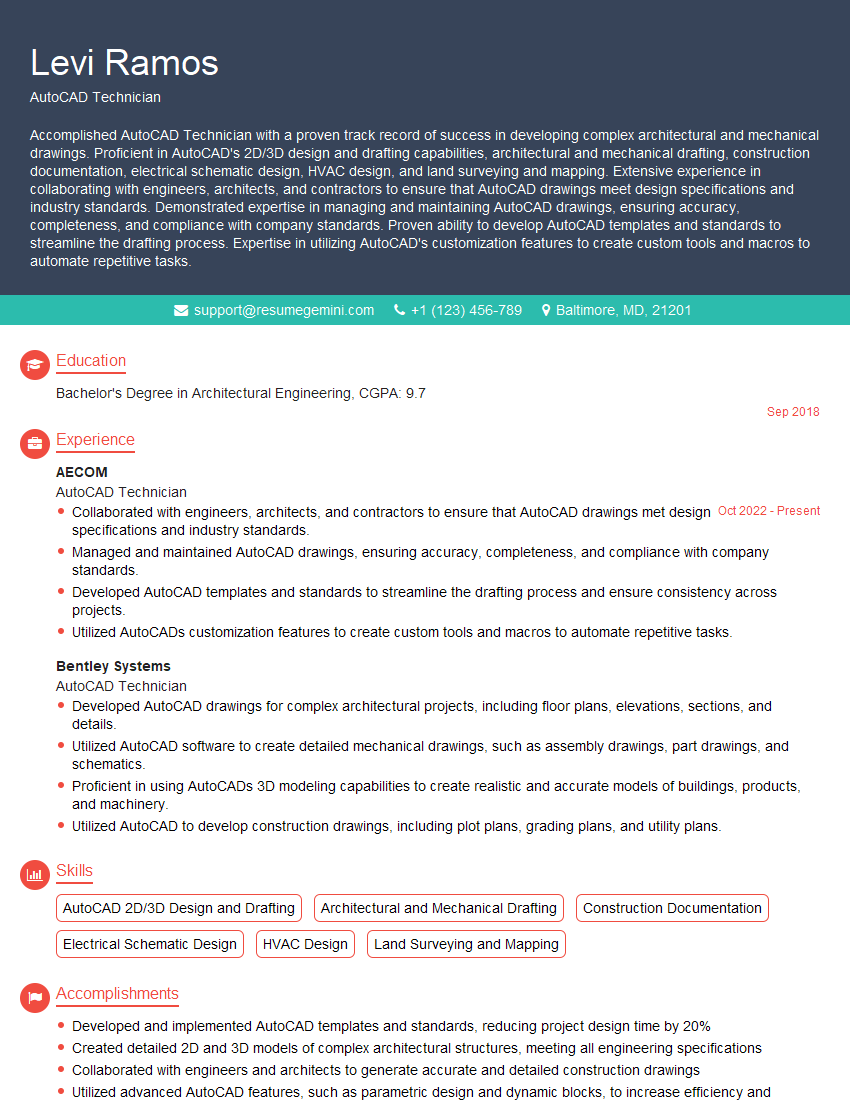
Mastering AutoCAD opens doors to exciting career opportunities in architecture, engineering, and design. To maximize your chances of landing your dream job, it’s crucial to present your skills effectively. Creating an ATS-friendly resume is key to getting noticed by recruiters. ResumeGemini is a trusted resource to help you build a professional and impactful resume that highlights your AutoCAD expertise. Examples of resumes tailored to AutoCAD experience are available to guide you. Take advantage of these resources to showcase your skills and land that interview!
Explore more articles
Users Rating of Our Blogs
Share Your Experience
We value your feedback! Please rate our content and share your thoughts (optional).
What Readers Say About Our Blog
To the interviewgemini.com Webmaster.
Very helpful and content specific questions to help prepare me for my interview!
Thank you
To the interviewgemini.com Webmaster.
This was kind of a unique content I found around the specialized skills. Very helpful questions and good detailed answers.
Very Helpful blog, thank you Interviewgemini team.