Feeling uncertain about what to expect in your upcoming interview? We’ve got you covered! This blog highlights the most important Proficient in Using Video Conferencing Platforms interview questions and provides actionable advice to help you stand out as the ideal candidate. Let’s pave the way for your success.
Questions Asked in Proficient in Using Video Conferencing Platforms Interview
Q 1. What are the key features of Zoom, Microsoft Teams, and Google Meet?
Zoom, Microsoft Teams, and Google Meet are leading video conferencing platforms, each with its strengths. Zoom excels in ease of use and its extensive webinar features, making it ideal for large-scale online events. Microsoft Teams, deeply integrated into the Microsoft 365 ecosystem, shines in its collaboration tools, allowing for seamless file sharing and project management alongside video calls. Google Meet, known for its simplicity and integration with Google Workspace, offers a clean and straightforward experience, perfect for quick meetings and internal communications.
- Zoom: Key features include screen sharing, breakout rooms, cloud recording, virtual backgrounds, and robust webinar capabilities. Think of it as the versatile all-rounder.
- Microsoft Teams: Its strengths lie in its integration with other Microsoft apps (Word, Excel, PowerPoint), chat functionality, file sharing within channels, and task management. It’s the collaboration powerhouse.
- Google Meet: Simple interface, live captioning, background blur, and easy scheduling via Google Calendar make it ideal for quick, efficient meetings. It’s the streamlined efficiency expert.
Q 2. How do you troubleshoot common video conferencing issues (audio/video problems, screen sharing difficulties)?
Troubleshooting video conferencing issues requires a systematic approach. For audio problems, I start by checking the microphone settings on the platform and my device. This often involves ensuring the correct microphone is selected and the volume is appropriately adjusted. If the issue persists, I check for background noise and investigate potential conflicts with other applications. For video problems, I confirm the camera is properly connected and selected within the platform, and check for sufficient bandwidth. If the video is pixelated, it’s often a bandwidth issue, requiring either better internet connection or reducing the video resolution. Screen sharing difficulties often stem from application permissions or the selected screen not having the required content. I would verify sharing permissions and ensure the application is not minimized or otherwise inaccessible.
Think of it like diagnosing a car problem: you systematically check the tires, engine, and brakes before jumping to conclusions.
Q 3. Describe your experience using different video conferencing platforms for meetings, webinars, and training sessions.
I have extensive experience using all three platforms—Zoom, Microsoft Teams, and Google Meet—for diverse purposes. For instance, I’ve used Zoom extensively for webinars, leveraging its webinar features to manage large audiences, conduct Q&A sessions, and utilize polling functionalities. Teams has been invaluable for internal team meetings, project collaborations, and sharing documents due to its seamless integration with other Microsoft tools. Google Meet’s ease of use has made it my go-to platform for quick one-on-one meetings or small team check-ins. For training sessions, I’ve found Zoom’s breakout rooms especially beneficial for group activities and personalized interaction. The choice of platform largely depends on the specific needs and context of the meeting, webinar, or training session.
Q 4. How do you ensure meeting security and privacy during video conferences?
Meeting security and privacy are paramount. My approach involves utilizing strong passwords or requiring participants to log in with their company accounts. I always disable the option for participants to join before the host, and I actively monitor who joins the meeting. Depending on the sensitivity of the meeting, I may also enable waiting rooms and use features like password protection. For sensitive information, I avoid sharing screen recordings and encourage participants to only share necessary information. Think of it like securing a physical meeting room: you’d lock the door, control access, and limit who can enter.
Q 5. Explain your process for setting up and managing a virtual meeting.
Setting up a virtual meeting involves several steps. First, I select the appropriate platform based on the meeting’s purpose and participant count. Next, I schedule the meeting, choosing a suitable date and time, and send out clear invitations with relevant details. Before the meeting starts, I test my audio and video equipment, ensuring everything is functioning correctly. I also prepare my presentation or any materials to be shared and check if all necessary participants have received the invitation. During the meeting, I manage participant access, mute unnecessary participants as needed, and keep the meeting focused on the agenda.
Q 6. How do you handle technical difficulties during a live video conference?
Handling technical difficulties during a live video conference requires a calm and efficient response. My first step is to identify the problem—is it audio, video, screen sharing, or a connectivity issue? I communicate clearly with participants, letting them know I’m addressing the problem. If it’s a simple issue like a muted microphone, I guide the participant through the solution. For more significant problems, I may suggest alternative methods, such as switching to a phone call or rescheduling a portion of the meeting. Throughout, I strive to maintain a professional and reassuring demeanor, minimizing disruption and keeping the meeting as productive as possible. Think of it like a flight attendant handling turbulence—calm assurance is key.
Q 7. What are your preferred methods for sharing presentations or documents during a virtual meeting?
My preferred methods for sharing presentations or documents vary depending on the platform and the context. I often use the built-in screen sharing functionality of Zoom, Teams, or Meet, providing a clear and straightforward way to share presentations. For more collaborative efforts, I may use a shared online document, enabling simultaneous editing and contributions by multiple participants. If the document is quite large, or if the participants might not have access to the relevant software, I often opt to share a PDF version. The goal is always to choose the method that ensures optimal clarity, accessibility, and collaboration.
Q 8. How do you manage participant interaction and engagement during a large virtual meeting?
Managing participant interaction and engagement in large virtual meetings requires a multifaceted approach. Think of it like orchestrating a large orchestra – you need to ensure every section (participant) is heard and contributes effectively.
- Pre-meeting preparation: Setting clear objectives, a structured agenda, and pre-circulating materials keeps everyone focused and informed. This is like giving the orchestra the sheet music beforehand.
- Active moderation: Using features like polls, Q&A sessions, and breakout rooms allows for participation from a diverse audience. This is like allowing different sections of the orchestra to showcase their unique talents.
- Interactive elements: Incorporating games, quizzes, or short polls can inject energy and keep participants actively involved. It’s like adding a lively interlude to the musical performance.
- Technology utilization: Employing tools like chat functions (for quick questions), hand-raising features (for orderly contributions), and virtual whiteboards (for collaborative idea generation) enhances the interactive experience. This is like using different instruments and technology to enhance the musical experience.
- Post-meeting follow-up: Sending a summary of key takeaways and action items keeps the momentum going. It’s like sending the audience home with a recording of the concert.
For example, during a recent large training session, I used breakout rooms to facilitate smaller discussions on specific topics, then brought the groups back together for a whole-group summary. This approach ensured that everyone had a chance to participate and share their insights.
Q 9. How familiar are you with using virtual whiteboards or collaborative annotation tools?
I’m highly proficient with virtual whiteboards and collaborative annotation tools. I’ve extensively used tools like Miro, Mural, and the whiteboard features integrated into platforms like Zoom and Google Meet. These tools are invaluable for brainstorming, collaborative problem-solving, and visual presentations.
For instance, during a project kickoff meeting, I used a virtual whiteboard to collaboratively map out project timelines, responsibilities, and milestones. This allowed for real-time feedback and ensured everyone was aligned on the project plan. The ability to annotate documents in real-time, using features like highlighting and drawing, greatly improves the clarity and efficiency of discussions.
Q 10. Describe your experience with recording and archiving video conferences.
Recording and archiving video conferences is crucial for documentation, accessibility, and knowledge sharing. My experience encompasses recording sessions using the built-in recording features of various platforms (Zoom, Teams, Google Meet), as well as using specialized recording software for higher quality or more advanced features.
I understand the importance of secure storage and access control for these recordings, adhering to company policies and data privacy regulations. I’ve also utilized cloud-based storage solutions for easy sharing and accessibility. For example, I’ve frequently recorded training sessions and client meetings for later review and reference, making sure to obtain consent from participants beforehand.
Q 11. What are some best practices for ensuring good audio and video quality during a video conference?
Ensuring good audio and video quality is paramount for a productive video conference. It’s the foundation upon which effective communication is built. Think of it as having a clear and strong signal in a radio broadcast.
- Test your setup: Before the meeting, test your microphone, speakers, and camera. Use a headset for optimal audio quality, minimizing background noise.
- Lighting: Ensure adequate lighting to illuminate your face clearly. Avoid backlighting, which can obscure your features.
- Location: Choose a quiet space with minimal background noise and distractions.
- Internet connection: A stable and high-speed internet connection is essential to avoid interruptions and buffering issues.
- Software updates: Keep your video conferencing software and drivers up to date for optimal performance.
I always advise participants to run a quick test beforehand using the platform’s built-in test features. This simple step eliminates many potential technical glitches during the actual meeting.
Q 12. How do you ensure all participants can actively participate in a virtual meeting regardless of their technical skills or location?
Ensuring active participation from all participants, regardless of their technical skills or location, requires a proactive and inclusive approach. This involves thinking about the meeting from the perspective of someone with limited tech skills or an unreliable internet connection.
- Provide clear instructions: Offer detailed, step-by-step instructions on how to join the meeting and utilize relevant features.
- Technical support: Offer pre-meeting technical support, including contact information and troubleshooting guides.
- Accessible formats: Provide materials in accessible formats, such as screen readers for visually impaired participants.
- Multiple communication channels: Incorporate multiple ways for participants to contribute, including chat, audio, and visual presentations.
- Consider time zones: Carefully select meeting times that are convenient for participants across various geographical locations.
For instance, in a recent international meeting, I provided multilingual support documents and scheduled the meeting at a time that was relatively convenient for all participants, minimizing the impact of different time zones.
Q 13. Explain your experience with integrating video conferencing with other collaboration tools.
Integrating video conferencing with other collaboration tools is crucial for a seamless workflow. It’s like connecting different parts of a sophisticated machine to make it work efficiently.
I have experience integrating video conferencing platforms with project management tools (Asana, Trello), cloud storage (Google Drive, Dropbox), and document collaboration platforms (Google Docs, Microsoft Office 365). This integration allows for efficient sharing of documents, real-time collaboration, and streamlined project management. For example, I’ve often shared project documents directly through screen sharing during a video conference, allowing everyone to view and collaboratively edit in real-time.
Q 14. How do you manage large file sharing during a video conference?
Managing large file sharing during a video conference requires careful planning and the use of appropriate tools. You can’t simply try to upload a large file directly within the conference – it will likely crash the system.
- Cloud storage: Sharing a link to a file stored in a cloud storage service (Google Drive, Dropbox, SharePoint) is the most efficient method. This avoids overwhelming the video conferencing platform.
- File compression: Compress large files before sharing to reduce their size and improve download speeds.
- Pre-sharing: Share large files in advance of the meeting, giving participants time to download them beforehand.
- Chunking: For very large files, consider dividing them into smaller, more manageable chunks.
For instance, when sharing large design files, I always upload them to a cloud storage service before the meeting and then share the link with participants. This prevents any potential issues during the conference itself.
Q 15. How do you address disruptive participants during a video conference?
Addressing disruptive participants requires a tactful and firm approach. My strategy prioritizes maintaining a respectful and productive environment for all. First, I’d subtly use non-verbal cues like a gentle gesture or a brief pause in my speech to try and redirect their behavior. If that fails, I might privately message them through the platform’s chat function, gently reminding them of the meeting’s purpose and guidelines. For more persistent disruptions, I wouldn’t hesitate to mute them temporarily, explaining my action briefly and privately. In extreme cases, I might remove them from the meeting, depending on the severity of the disruption and the platform’s capabilities. The key is consistency and clear communication. For example, if someone is consistently interrupting, I’ll clearly state, ‘To ensure everyone gets a chance to speak, let’s try to keep our comments concise and wait for others to finish.’ Documentation of disruptive behavior, including timestamps and summaries, is crucial for future reference.
Career Expert Tips:
- Ace those interviews! Prepare effectively by reviewing the Top 50 Most Common Interview Questions on ResumeGemini.
- Navigate your job search with confidence! Explore a wide range of Career Tips on ResumeGemini. Learn about common challenges and recommendations to overcome them.
- Craft the perfect resume! Master the Art of Resume Writing with ResumeGemini’s guide. Showcase your unique qualifications and achievements effectively.
- Don’t miss out on holiday savings! Build your dream resume with ResumeGemini’s ATS optimized templates.
Q 16. What is your experience with different video conferencing hardware (cameras, microphones, speakers)?
My experience spans a wide range of video conferencing hardware. I’ve worked with various cameras, from basic built-in webcams to professional-grade USB cameras offering higher resolutions and better low-light performance like Logitech Brio or PTZ cameras. I understand the importance of proper lighting and camera placement for optimal video quality. In terms of microphones, I’ve used everything from standard laptop mics to dedicated USB microphones (e.g., Blue Yeti) and even more advanced conferencing speakerphones with noise-canceling features. The choice often depends on the meeting’s size and setting. For smaller meetings, a good USB mic is usually sufficient; for larger meetings or presentations, a speakerphone with multiple microphones ensures clearer audio for everyone. Similarly, I’ve worked with various speakers – from built-in laptop speakers to external ones offering better sound quality, minimizing audio feedback and distortion. I always prioritize clear audio and video quality, ensuring all participants have a good experience.
Q 17. How do you use breakout rooms effectively in a virtual meeting?
Breakout rooms are incredibly valuable for fostering collaboration and discussion in larger virtual meetings. Effective usage involves careful planning and clear instructions. Before the meeting, I define the purpose and objectives for each breakout room, assigning specific tasks or discussion topics. I also consider the size of each group, aiming for a balance between intimate discussion and manageable group sizes. During the meeting, I clearly explain the instructions, timelines, and reporting mechanisms for each breakout room. I frequently check in with each group, addressing any questions or roadblocks. Finally, after the breakout sessions, I facilitate a comprehensive report-back, ensuring all groups share their findings and insights with the entire meeting.
For instance, in a training session, I might use breakout rooms to allow participants to practice newly learned skills in smaller groups, followed by a whole-group debrief. This approach boosts engagement and allows for more personalized feedback.
Q 18. What are the advantages and disadvantages of using different video conferencing platforms?
Different video conferencing platforms each have their own strengths and weaknesses. Zoom, for example, is widely popular and user-friendly, but can be expensive for large organizations. It excels in features like breakout rooms and screen sharing. Microsoft Teams integrates seamlessly with other Microsoft products but might feel less intuitive for users unfamiliar with the Microsoft ecosystem. Google Meet offers strong security and integration with Google Workspace, but its features might be considered less extensive than Zoom. When choosing a platform, I consider factors like the number of participants, required features (e.g., screen sharing, recording, integration with other tools), budget, and user familiarity. Each platform has its own unique set of features and limitations; the best choice depends on the specific needs of the meeting and the participants.
Q 19. How do you ensure inclusivity and accessibility for participants with disabilities in a virtual meeting?
Ensuring inclusivity and accessibility for participants with disabilities is paramount. Before the meeting, I send out a pre-meeting survey to identify any accessibility needs. This includes questions about hearing, visual, or mobility impairments. Based on the responses, I take appropriate measures. For example, I might provide transcripts or closed captions for participants with hearing impairments, using the platform’s built-in features or external transcription services. For visually impaired participants, I ensure clear audio descriptions of shared visuals. I also consider using screen readers or text-to-speech software. It’s crucial to be mindful of screen reader compatibility when designing meeting materials. Also, flexible scheduling and providing multiple communication methods (email, phone) enhances participation for individuals with varying abilities.
Q 20. Describe your experience using closed captioning or real-time transcription in virtual meetings.
I have extensive experience using closed captioning and real-time transcription in virtual meetings. I find these features indispensable for improving accessibility and ensuring clear communication. Most platforms offer integrated closed captioning, often utilizing AI-powered transcription. While this can be incredibly helpful, it’s important to note that AI is not perfect and occasional errors may require manual correction. For critical meetings, using a professional transcription service ensures higher accuracy. Real-time transcription, especially for multilingual meetings, greatly improves understanding and engagement for all participants. I also make sure to communicate clearly the availability of these features to all participants in advance.
Q 21. How do you handle language barriers in a virtual meeting with international participants?
Handling language barriers in international meetings requires careful planning and the use of appropriate tools. Providing real-time translation tools is a crucial step. Many platforms offer integrated translation features, or we can use external translation services. If possible, having a professional interpreter present can significantly enhance understanding and engagement. It’s also vital to send meeting materials in advance in multiple languages, making it easier for everyone to prepare and follow along. Keeping the language used during the meeting clear, concise, and avoiding jargon, helps everyone. Additionally, ensuring sufficient time for translation and clarification significantly improves communication and collaboration.
Q 22. What are some strategies for keeping participants engaged during a long virtual meeting?
Keeping participants engaged during long virtual meetings requires a multi-pronged approach focusing on active participation, variety, and clear communication. Think of it like planning a successful in-person conference – you wouldn’t just have one long lecture!
Interactive elements: Incorporate polls, quizzes, breakout rooms for smaller discussions, and Q&A sessions. This breaks up monotony and encourages active participation. For example, a poll asking for participants’ opinions on a specific topic midway through can re-engage a potentially flagging audience.
Varied content delivery: Mix presentation styles. Instead of only using slides, consider using short video clips, interactive whiteboards, or even screen sharing to demonstrate something practically. The more senses engaged, the better the retention and engagement.
Breaks and agenda adherence: Schedule regular short breaks (5-10 minutes) to allow participants to stretch, grab a drink, and refresh. Sticking to a well-structured agenda with clearly defined timeframes for each section helps maintain focus and predictability.
Active moderation: A skilled moderator can proactively address questions, keep discussions on track, and ensure everyone has a chance to contribute. They should actively encourage participation and manage the flow of conversation.
Q 23. How familiar are you with using virtual backgrounds?
I’m highly proficient with virtual backgrounds. I understand their aesthetic and practical applications, along with the potential security implications. I frequently utilize them for professional meetings to create a more polished and professional atmosphere or to mask a less-than-ideal home office background. I’m familiar with the features on platforms like Zoom, Microsoft Teams, and Google Meet, including the ability to upload custom images and the use of pre-loaded backgrounds. I also understand the importance of choosing appropriate backgrounds that are professional and avoid distractions or potential security risks.
Q 24. How do you ensure the security of sensitive information shared during a video conference?
Security is paramount when sharing sensitive information during video conferences. My approach is multi-layered:
Platform Security: I always use reputable and secure video conferencing platforms with strong encryption (like end-to-end encryption where possible). I regularly check for and apply platform updates to benefit from the latest security patches.
Meeting Settings: I utilize features like waiting rooms, password protection, and disabling screen sharing for participants when unnecessary. This limits unauthorized access and prevents unwanted disruptions. I also ensure only authorized individuals have access to the meeting link.
Data Handling: I avoid sharing sensitive data unnecessarily. If it’s unavoidable, I use alternative, secure methods of data transfer, such as encrypted file sharing services, instead of screen sharing. I also advise participants not to record the meeting unless absolutely necessary and only when appropriate recording features are used by the platform.
Post-Meeting: Following the meeting, I ensure the meeting recording (if any) is securely stored and protected with appropriate access controls.
Q 25. Describe your experience with scheduling and managing recurring video conferences.
I have extensive experience scheduling and managing recurring video conferences using various platforms. My process usually involves:
Choosing the right platform: Selecting a platform based on the number of attendees, required features, and integration with other tools.
Scheduling: Utilizing the platform’s scheduling tools to set up recurring meetings with the appropriate frequency, time zone, and duration. I carefully select dates and times to minimize conflicts for attendees.
Calendar Integration: Integrating the meetings with shared calendars (like Google Calendar or Outlook) to ensure everyone is notified and has the meeting details readily available. This helps to minimize scheduling confusion.
Meeting Management: Creating a consistent meeting structure with clear objectives, an agenda, and designated roles for participants. I’ll often create meeting notes and distribute them following each session.
Reminder Management: Utilizing automated reminders to minimize the risk of missed meetings.
For example, I recently managed a series of weekly team meetings for a project spanning six months, utilizing Zoom’s recurring meeting feature and calendar integration for effective communication and time management.
Q 26. How would you train new employees on using your preferred video conferencing platform?
My approach to training new employees on a video conferencing platform (let’s assume Zoom, for this example) is structured and hands-on:
Introductory Session: A short presentation covering basic functionalities, such as joining a meeting, muting/unmuting audio, turning on/off video, and using the chat function.
Guided Practice: I would guide them through a mock meeting, step-by-step, allowing them to practice each function. This includes practicing sharing screens and using features like breakout rooms.
Hands-on Activities: I’d design interactive exercises, such as setting up their own meeting, inviting others, and scheduling a recurring meeting. I could then give them feedback on how to improve their set-up and etiquette.
Resource Provision: I’d provide them with easily accessible documentation, FAQs, and video tutorials for future reference. This might include links to Zoom’s own help center or internal training materials.
Q&A and Support: I’d make myself available to answer any questions and provide ongoing support to resolve any issues they might encounter.
This multi-faceted approach combines theoretical learning with practical application to ensure effective knowledge transfer.
Q 27. Explain your experience with using video conferencing for remote interviewing.
I have extensive experience using video conferencing for remote interviewing. I find it’s a very efficient and effective method, particularly for screening candidates or conducting initial interviews. My approach prioritizes a professional and comfortable environment for both the candidate and myself. This includes:
Technical Setup: Ensuring a stable internet connection, a well-lit and uncluttered background, and using a high-quality headset to minimize background noise and ensure clear audio.
Professionalism: Dressing professionally, maintaining eye contact with the camera, and speaking clearly and concisely. I always make sure to confirm the candidate has a stable connection and clear audio before proceeding.
Candidate Experience: Making the candidate feel comfortable by starting with a friendly introduction and clearly outlining the interview process. I might share my screen to showcase the questions or share any relevant documents.
Record Keeping: Recording the interview (with the candidate’s consent) allows for a more thorough review later.
I’ve successfully conducted numerous remote interviews using this approach, leading to successful hires.
Q 28. Describe a time you had to troubleshoot a complex video conferencing issue. What was the problem, and how did you solve it?
During a crucial client presentation via Zoom, we experienced a sudden and complete audio failure for one of our key presenters. The problem wasn’t on their end; their internet connection and microphone were fine. After initial troubleshooting, we realized the issue was stemming from Zoom’s settings. It turned out that an unintentional system update on our end had inadvertently muted the audio for all participants except the host.
Solution: I quickly accessed the Zoom control panel, identified the problem setting, and re-enabled the audio for all participants. To ensure it didn’t happen again, I rolled back the Zoom update and verified the settings with the client’s IT department to confirm they had not experienced similar issues. We also created a backup plan for future presentations including a secondary audio/visual method.
This experience taught me the importance of understanding not only the software itself but also the associated system settings and potential conflicts. It reinforced the value of having a quick recovery strategy and effectively communicating with all participants during a technical problem.
Key Topics to Learn for Proficient in Using Video Conferencing Platforms Interview
- Technical Proficiency: Understanding the functionalities of various platforms (Zoom, Teams, Google Meet, etc.). This includes navigating the interface, managing participants, using screen sharing, and recording sessions.
- Audio and Video Optimization: Troubleshooting common technical issues like poor audio quality, video lag, or connection problems. Knowing how to test your equipment beforehand and optimize settings for a professional presentation.
- Effective Communication: Mastering nonverbal communication skills within the virtual environment. This includes maintaining eye contact with the camera, using clear and concise language, and actively listening.
- Security and Privacy: Understanding the security features of different platforms and best practices for protecting sensitive information during virtual meetings. Knowing how to manage meeting access and permissions.
- Collaboration Tools: Familiarity with collaborative features such as chat, whiteboarding, and file sharing within the video conferencing platform. Understanding how to effectively use these tools to enhance teamwork.
- Problem-Solving: Demonstrating the ability to quickly resolve technical difficulties during a meeting and maintain professionalism under pressure. Having a plan for common issues and alternative solutions.
- Platform Specific Features: Researching advanced features of the platforms you are most familiar with, showcasing your in-depth understanding beyond basic functionality.
Next Steps
Mastering video conferencing platforms is crucial in today’s interconnected world, opening doors to a wider range of remote work opportunities and enhancing your professional image. A strong resume is your key to unlocking these opportunities. To significantly boost your job prospects, create an ATS-friendly resume that highlights your skills and experience effectively. ResumeGemini can be a trusted partner in this process, providing tools and resources to build a professional and impactful resume. Examples of resumes tailored to showcase proficiency in using video conferencing platforms are available through ResumeGemini to help guide your creation.
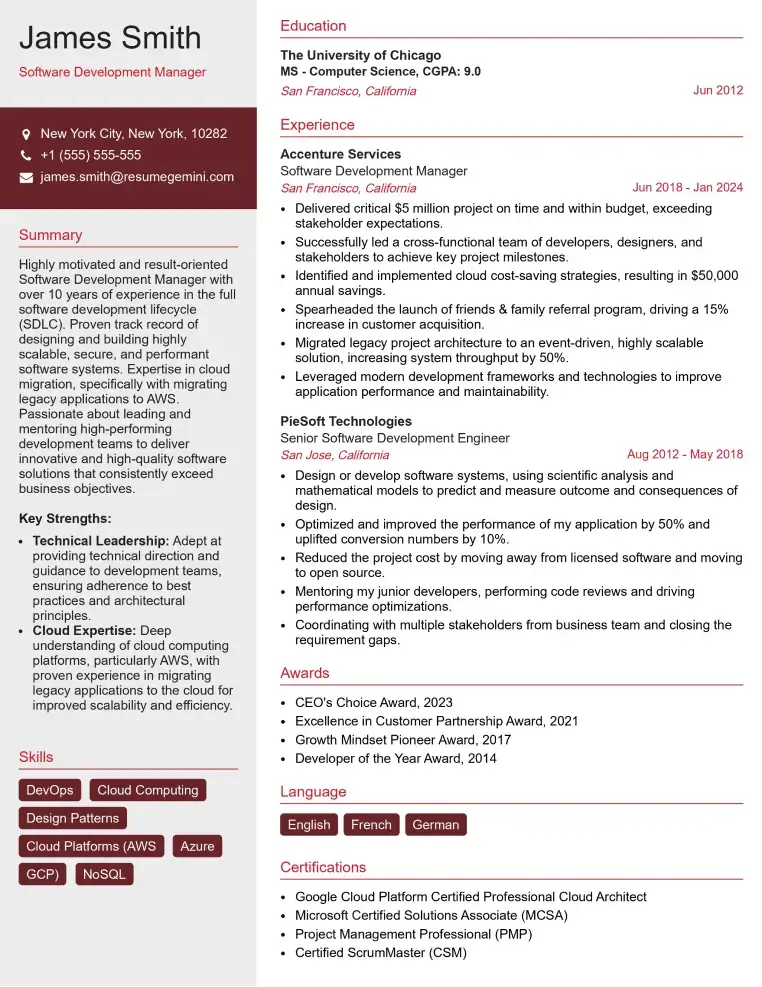
Check Out Resume Samples at ResumeGemini
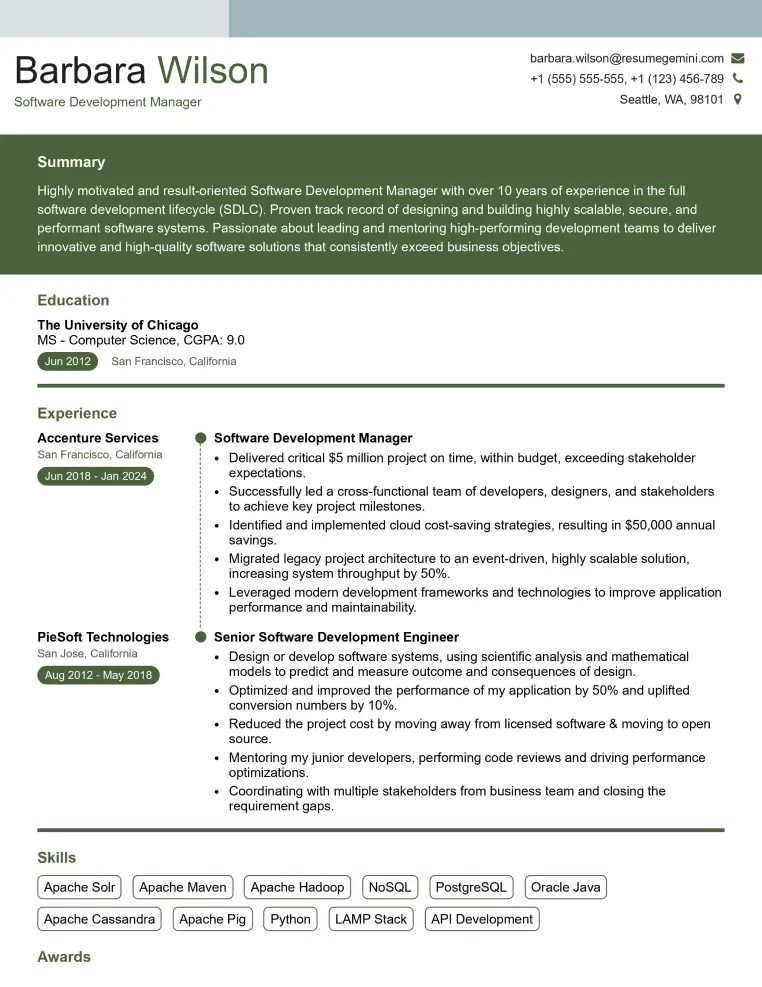
Check Out Resume Samples at ResumeGemini
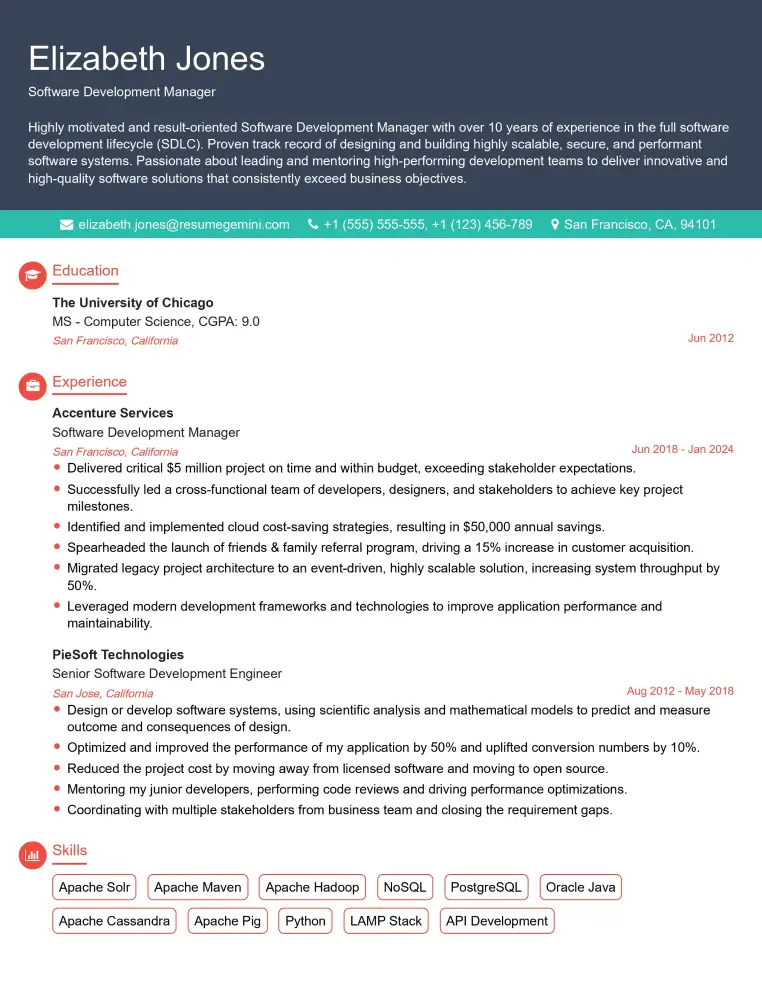
Check Out Resume Samples at ResumeGemini
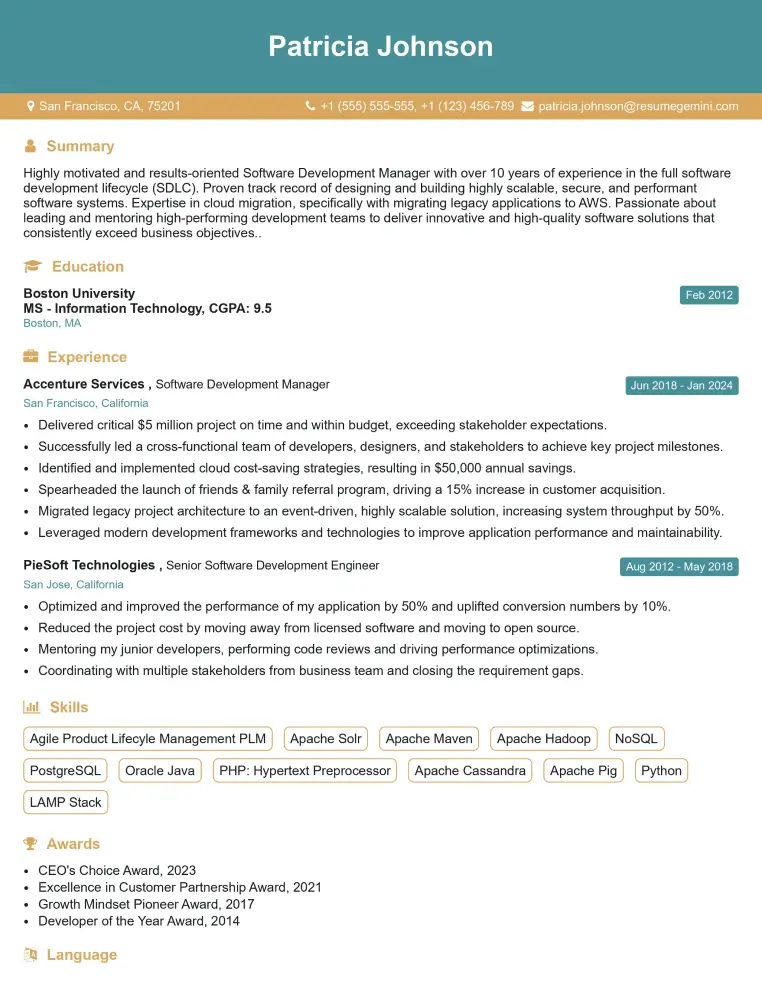
Check Out Resume Samples at ResumeGemini
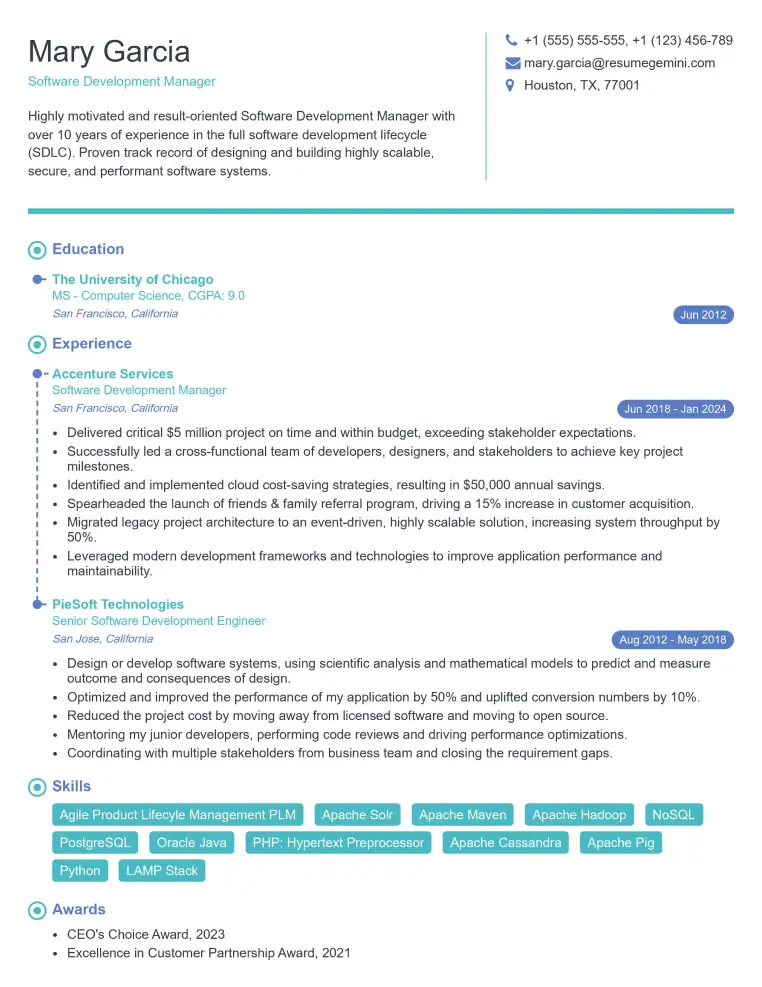
Check Out Resume Samples at ResumeGemini
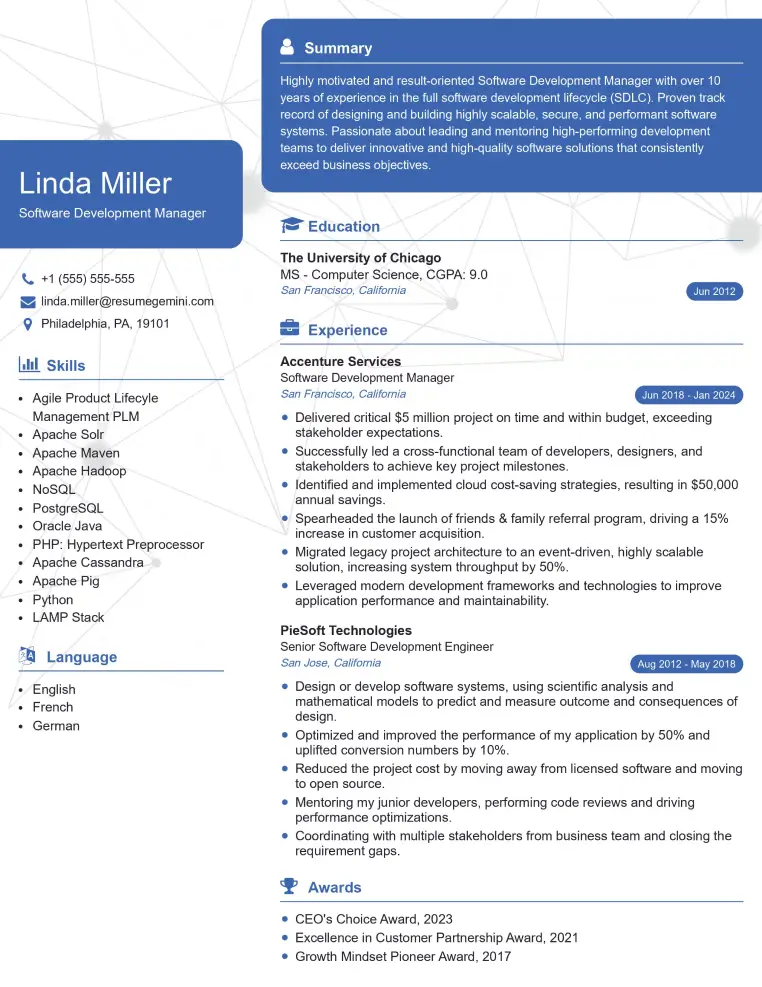
Check Out Resume Samples at ResumeGemini
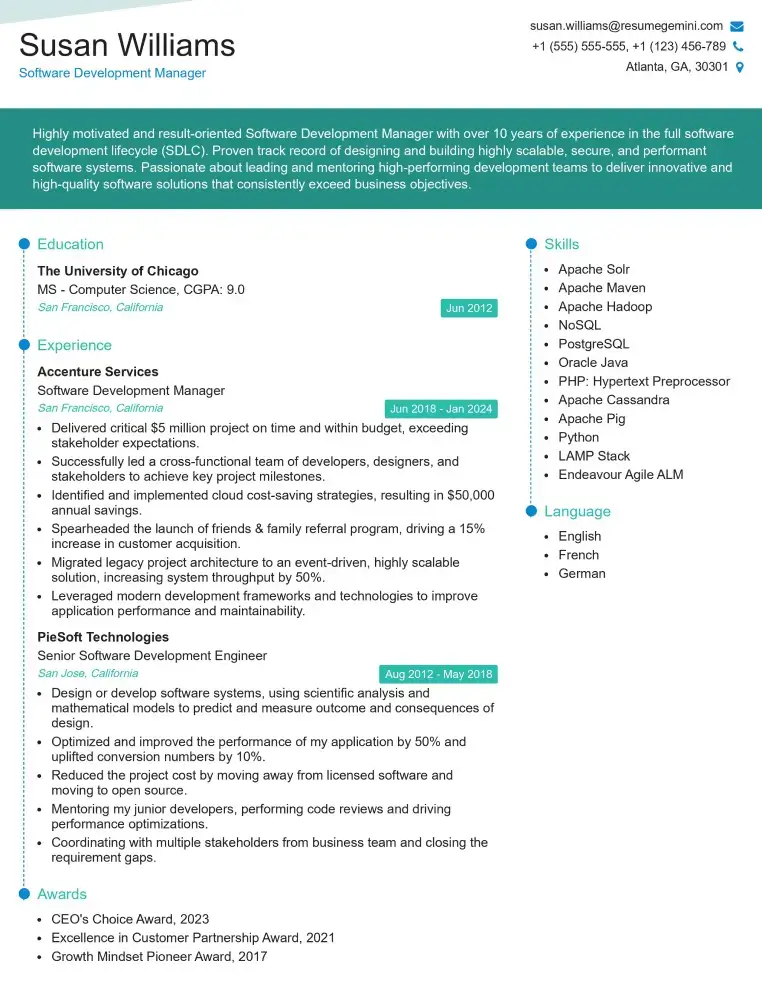
Check Out Resume Samples at ResumeGemini
Explore more articles
Users Rating of Our Blogs
Share Your Experience
We value your feedback! Please rate our content and share your thoughts (optional).
What Readers Say About Our Blog
To the interviewgemini.com Webmaster.
Very helpful and content specific questions to help prepare me for my interview!
Thank you
To the interviewgemini.com Webmaster.
This was kind of a unique content I found around the specialized skills. Very helpful questions and good detailed answers.
Very Helpful blog, thank you Interviewgemini team.