Are you ready to stand out in your next interview? Understanding and preparing for Remote Presenting interview questions is a game-changer. In this blog, we’ve compiled key questions and expert advice to help you showcase your skills with confidence and precision. Let’s get started on your journey to acing the interview.
Questions Asked in Remote Presenting Interview
Q 1. What are your preferred tools and technologies for remote presentations?
My preferred tools and technologies for remote presentations are chosen based on the specific needs of the presentation and the audience. For software, I primarily use Zoom or Microsoft Teams for their robust features like screen sharing, breakout rooms, and interactive whiteboards. For presentation creation, I favor PowerPoint or Google Slides for their ease of use and wide compatibility. However, I’m also proficient with more advanced tools like Prezi for dynamic presentations and Canva for visually appealing designs. For engaging visuals, I often incorporate high-quality images and short, impactful videos. Finally, I always test my tech setup beforehand, using a reliable internet connection and a high-quality microphone and webcam to ensure a smooth experience.
For example, if I’m presenting complex data, I might use interactive elements within PowerPoint like embedded charts that allow audience members to explore the data themselves. For a more creative presentation, I might utilize Prezi’s zooming and panning capabilities to create a visually stunning experience.
Q 2. How do you ensure audience engagement during a virtual presentation?
Ensuring audience engagement during a virtual presentation requires a multifaceted approach. First, I start by tailoring the content to be highly relevant to the audience’s interests and needs. Second, I actively incorporate interactive elements throughout the presentation, like polls, Q&A sessions, and breakout rooms for smaller group discussions. These interactive elements not only keep the audience awake but also help them stay actively involved and allows for real-time feedback. Third, I strive to maintain a conversational tone, avoiding monotone delivery. I use visual aids to illustrate key points, and I incorporate humor or relatable anecdotes where appropriate to connect on a more personal level. Finally, I make sure to actively monitor the chat function and respond to questions promptly, creating a dynamic exchange.
For instance, if I’m presenting on a new software program, I might include a short poll asking participants about their current experience with similar tools. Or, I could break the audience into smaller groups to allow them to collaboratively solve a problem related to the software.
Q 3. Describe your process for creating engaging virtual presentations.
My process for creating engaging virtual presentations involves several key steps. I begin with a strong understanding of my target audience and the learning objectives. This informs my content selection and delivery style. Next, I develop a clear and concise narrative, ensuring a logical flow of information. I then structure the presentation to incorporate a variety of media, including visuals, audio, and interactive elements, to keep the audience stimulated. Throughout the process, I focus on creating visually appealing slides that are easy to read and understand. I always practice the presentation beforehand to ensure a smooth delivery and identify any potential technical glitches.
Specifically, I might use storytelling techniques to connect with the audience emotionally. I also incorporate visual breaks, like short animated videos or engaging images, to avoid information overload. Finally, I conduct a pre-presentation technology check to make sure everything functions correctly.
Q 4. How do you handle technical difficulties during a remote presentation?
Handling technical difficulties during a remote presentation requires preparation and a calm, professional demeanor. Before the presentation, I always conduct a thorough tech rehearsal, ensuring that all software, hardware, and internet connections are functioning correctly. During the presentation, I have backup plans in place. For instance, if my internet connection drops, I have a secondary connection ready. If there’s a software issue, I have a simplified version of my presentation available. I always communicate transparently with the audience, keeping them informed about any issues and assuring them that I’m working to resolve them. I strive to minimize disruption and maintain a professional attitude throughout the process.
For example, if my screen sharing malfunctions, I might quickly switch to presenting my slides directly from my laptop while I work on resolving the problem. Open communication is key; letting the audience know what’s going on prevents unnecessary anxiety and maintains their trust.
Q 5. What strategies do you use to overcome challenges with remote audience interaction?
Overcoming challenges with remote audience interaction relies heavily on proactive engagement strategies. One key tactic is to make liberal use of interactive tools, such as polls, Q&A sessions, and chat features, to facilitate discussion and encourage participation. I also employ techniques to encourage questions and comments from audience members, like posing open-ended questions and actively seeking diverse perspectives. I strive to create a welcoming and inclusive environment where participants feel comfortable sharing their thoughts and ideas. I recognize that virtual settings can sometimes inhibit participation, so I address that head-on by actively encouraging participation in various ways, and by responding thoughtfully to every comment or question.
For example, if I notice a lack of participation in the chat, I might explicitly ask a question designed to elicit responses or break the audience into smaller groups for more focused discussions.
Q 6. Explain your approach to adapting presentation content for a virtual audience.
Adapting presentation content for a virtual audience requires considering several factors. Firstly, I shorten the overall presentation length, recognizing that attention spans can be shorter in virtual settings. I break down complex information into smaller, more digestible chunks, using visuals and interactive elements to support understanding. I also focus on delivering content in a way that’s visually engaging, using high-quality images, videos, and animations to improve clarity and maintain interest. Finally, I consider the audience’s likely technical capabilities and adapt accordingly, ensuring the presentation is accessible to everyone.
For instance, I might replace lengthy paragraphs with bullet points or short videos, and I always use clear and concise language.
Q 7. How do you maintain a professional demeanor and presence during a virtual presentation?
Maintaining a professional demeanor and presence during a virtual presentation is crucial. First, I ensure a professional background and attire. Next, I maintain eye contact with the camera as much as possible, and I use clear and articulate speech, varying my tone and pace to keep the presentation dynamic and engaging. I practice active listening and respond to questions promptly and professionally. I manage my body language to avoid distractions and maintain a confident posture. Lastly, I conclude the presentation with a clear summary and call to action, reinforcing key takeaways.
In practice, this means setting up a clean and organized background, dressing appropriately, and minimizing potential distractions in my surroundings to maintain the focus on the presentation.
Q 8. How do you manage Q&A sessions effectively in a virtual setting?
Managing Q&A in a virtual setting requires proactive planning and skillful moderation. It’s not just about answering questions; it’s about creating an engaging and inclusive dialogue.
- Pre-empt Questions: Anticipate common questions and address them proactively during the presentation. This can reduce the number of repetitive queries.
- Dedicated Q&A Section: Allocate a specific time block for Q&A. This provides structure and prevents questions from derailing the presentation flow.
- Multiple Q&A Methods: Offer various ways to ask questions: a chat box, a raised hand feature, or even a pre-submitted question form. This caters to different communication styles and technical capabilities.
- Prioritize and Paraphrase: If questions are submitted via chat, prioritize and summarize them before addressing them publicly. This helps maintain clarity and ensures everyone is on the same page. For example, instead of directly reading a complex question, you could say, “I’m seeing several questions about the cost implications. Let me address those now.”
- Time Management: Set a time limit for each question to keep the session concise and respectful of everyone’s time. If a question is too extensive or goes off-topic, politely suggest following up individually later.
- Follow Up: If you can’t answer a question immediately, promise a follow-up email with the answer. This shows attentiveness and professionalism.
For example, in a recent webinar on project management, I used a dedicated Q&A section with a raised hand feature and a chat box. This allowed for a seamless flow, and I was able to address a range of questions, from basic clarifications to more complex strategic queries.
Q 9. How do you use visuals and multimedia effectively in remote presentations?
Visuals and multimedia are crucial for keeping a remote audience engaged. They enhance understanding and prevent information overload.
- High-Quality Visuals: Use professional-looking slides with clear, concise text and high-resolution images or videos. Avoid cluttered slides; keep it simple and visually appealing.
- Data Visualization: Transform complex data into easily digestible charts, graphs, and infographics. This makes the information more engaging and memorable. Consider using tools like Tableau or Power BI for impactful visualizations.
- Strategic Multimedia: Incorporate short videos, animations, or audio clips to illustrate key points or break up lengthy explanations. Keep multimedia elements concise and relevant to avoid distraction.
- Accessibility Considerations: Ensure visuals are accessible to people with visual impairments by including alternative text descriptions for images and videos. Also, consider providing transcripts for audio content.
- Consistency and Branding: Maintain a consistent visual style throughout the presentation. Use your company’s branding guidelines to create a professional and cohesive experience.
In a presentation on marketing trends, I used a short animated video to explain a complex algorithm, followed by a simple bar chart showcasing market share data. This blend kept the audience engaged and helped them understand both the technical aspects and the key takeaways.
Q 10. Describe your experience using different virtual presentation platforms.
I have extensive experience with various virtual presentation platforms, including Zoom, Microsoft Teams, Google Meet, and WebEx. Each platform has its strengths and weaknesses.
- Zoom: Excellent for webinars and large group presentations, offering features like breakout rooms and polls for audience interaction. I find its screen sharing capabilities particularly robust.
- Microsoft Teams: Integrates seamlessly with the Microsoft Office suite, making it ideal for presentations that involve collaborative document editing or data analysis. It’s especially useful for internal team presentations.
- Google Meet: Simple and user-friendly, perfect for quick presentations and meetings. Its ease of access and integration with other Google services makes it convenient for many users.
- WebEx: Offers advanced features for large-scale events, including robust security and reporting tools. Its ability to handle multiple presenters simultaneously is a significant advantage.
My choice of platform depends on the presentation’s context, audience size, and required features. For example, I’d use Zoom for a large webinar with interactive elements, while Google Meet might suffice for a brief internal team update.
Q 11. How do you tailor your communication style for a remote audience?
Tailoring communication for a remote audience requires adjusting your delivery and interaction strategies. It’s about creating a sense of connection despite the physical distance.
- Clear and Concise Language: Use simple, direct language, avoiding jargon or overly complex sentence structures. Remember, the audience can’t see your body language as easily, so clarity is key.
- Enthusiastic Delivery: Project your voice clearly and maintain a positive and enthusiastic tone. Remote presentations can feel less personal, so energy is vital in keeping the audience engaged.
- Frequent Interaction: Regularly check in with the audience using polls, Q&A sessions, or informal chat interactions. This creates a sense of two-way communication and keeps people involved.
- Visual Cues: Use visual aids effectively to convey information that might be lost in a non-face-to-face setting. This could involve using gestures (while being mindful of the camera angle), or even creating an engaging on-screen experience.
- Pause and Respond: Allow time for the audience to process information, especially if presenting complex data. Be responsive to comments and questions in the chat.
For instance, in a recent remote sales presentation, I started with a brief personal anecdote to establish rapport, frequently paused for questions, and used humor to lighten the mood. This helped create a more engaging and less formal atmosphere compared to a traditional in-person presentation.
Q 12. How do you ensure accessibility for all audience members in a virtual presentation?
Ensuring accessibility is paramount in remote presentations. This involves catering to diverse needs and ensuring everyone can fully participate.
- Captioning and Transcripts: Provide live captioning or transcripts for all video content, benefiting individuals who are deaf or hard of hearing.
- Alternative Text for Images: Include detailed alt text descriptions for all images to aid screen readers used by visually impaired individuals.
- Color Contrast: Use sufficient color contrast between text and background to improve readability for everyone, especially those with visual impairments.
- Font Size and Style: Use large, clear fonts and avoid overly stylized fonts that might be difficult to read.
- Screen Reader Compatibility: Ensure your presentation materials are compatible with screen readers.
- Multilingual Support: If applicable, offer translations or multilingual support to accommodate diverse linguistic backgrounds.
For example, when preparing a presentation on diversity and inclusion, I made sure to add captions to my presentation video, use high color contrast, and provide transcripts for download. These steps ensured that all members of the audience could access and understand the information effectively.
Q 13. How do you handle disruptive participants in a virtual presentation?
Handling disruptive participants requires a calm, professional, and consistent approach. The goal is to maintain a respectful environment for everyone.
- Mute and Remove Options: Most platforms offer the ability to mute or remove participants. Use this as a last resort if someone is repeatedly disruptive.
- Private Messaging: If the disruption is minor, send a private message asking the participant to adjust their behavior.
- Pre-emptive Guidelines: Set clear guidelines for participation at the start of the presentation (e.g., “Please keep your microphones muted unless speaking”).
- Address Disruptions Directly (with Caution): If necessary, politely address the disruptive behavior publicly. Frame your response constructively, focusing on maintaining a productive environment for everyone.
- Technical Troubleshooting: Sometimes disruptions stem from technical issues. Offer assistance to participants experiencing problems.
In a recent training session, a participant repeatedly interrupted. After a private message yielded no change, I had to mute them. Afterwards, I addressed the issue briefly to the entire group, emphasizing respectful participation.
Q 14. What are your strategies for managing time effectively during a remote presentation?
Effective time management is critical for successful remote presentations. This involves careful planning and execution.
- Detailed Outline: Create a detailed presentation outline, allocating specific time slots for each section. This provides a roadmap and helps you stay on track.
- Rehearsals: Rehearse the presentation multiple times to refine the timing and identify potential areas where you might need to adjust the pace.
- Concise Content: Keep the content focused and avoid unnecessary details. Each slide should convey a clear message.
- Time-Saving Visuals: Use visuals effectively to supplement your explanations, reducing the amount of time spent talking.
- Visual Timer: Use a timer visible only to you during the presentation to monitor your progress and keep you on schedule.
- Flexibility: Be prepared to adjust the pacing based on audience engagement and questions. If a topic generates a lot of questions, allocate extra time. If a section is easily understood, you can move through it more quickly.
For example, before a significant product launch presentation, I meticulously timed each section of my presentation, creating a detailed schedule for myself. This allowed me to keep to the allocated time while ensuring all key points were covered.
Q 15. How do you incorporate interactive elements into your virtual presentations?
Incorporating interactive elements is crucial for keeping your audience engaged during a remote presentation. It transforms a passive experience into an active one, boosting understanding and retention. I employ several strategies to achieve this.
Polls and Quizzes: Using tools like Mentimeter or Slido, I integrate quick polls to gauge audience understanding or gather their opinions on specific topics. This allows for immediate feedback and makes the presentation feel more conversational. For example, after explaining a complex concept, I might ask a quick multiple-choice question to assess comprehension.
Q&A Sessions: I dedicate ample time for questions, encouraging participation through various methods. A dedicated Q&A section at the end is standard, but I also incorporate informal Q&As throughout, using the chat function to address queries as they arise. This keeps the energy high and shows I value audience input.
Interactive Activities: Depending on the topic and audience, I might use breakout rooms for smaller group discussions or collaborative tasks. This fosters engagement and allows for deeper exploration of the subject matter. For instance, in a sales presentation, I might have breakout rooms work on case studies, then share their insights with the larger group.
Gamification: For more engaging sessions, I sometimes incorporate gamified elements like leaderboards or points for participation in quizzes or polls. This adds an element of fun and friendly competition.
The key is to choose interactive elements appropriate to the content and audience, ensuring they enhance the presentation, not disrupt its flow.
Career Expert Tips:
- Ace those interviews! Prepare effectively by reviewing the Top 50 Most Common Interview Questions on ResumeGemini.
- Navigate your job search with confidence! Explore a wide range of Career Tips on ResumeGemini. Learn about common challenges and recommendations to overcome them.
- Craft the perfect resume! Master the Art of Resume Writing with ResumeGemini’s guide. Showcase your unique qualifications and achievements effectively.
- Don’t miss out on holiday savings! Build your dream resume with ResumeGemini’s ATS optimized templates.
Q 16. Describe your process for rehearsing and practicing a virtual presentation.
Rehearsing a virtual presentation is just as, if not more, important than rehearsing an in-person one. My process involves several key steps:
Tech Check: I start by thoroughly testing all technology – microphone, camera, software (Zoom, Teams, etc.), presentation slides, and any interactive tools. This prevents technical glitches during the actual presentation.
Dry Run: I conduct a full dry run, ideally recording myself. This allows me to identify pacing issues, awkward pauses, or areas where the content needs improvement. Watching the recording is crucial for objective self-assessment.
Content Refinement: Based on the dry run, I refine the content, ensuring a clear narrative flow and removing any unnecessary information. I also check for clarity and conciseness.
Environment Check: I carefully consider the background and lighting of my presentation space, ensuring a professional and clutter-free environment.
Audience Consideration: I mentally rehearse answering potential questions and anticipate any challenges the audience might face in understanding the material. This helps me tailor my delivery accordingly.
Practice with Interactive Elements: I test all interactive features—polls, quizzes, breakout rooms—to ensure they function smoothly and integrate seamlessly into the presentation.
The goal is not to memorize the script verbatim, but to internalize the key points and rehearse a natural, engaging delivery.
Q 17. How do you assess the success of a remote presentation?
Assessing the success of a remote presentation goes beyond simply delivering the content. It involves evaluating its impact on the audience and achieving the desired objectives. My assessment involves several approaches:
Audience Engagement: Did the audience actively participate in polls, Q&A, and other interactive elements? A high level of engagement suggests the presentation was captivating and relevant.
Post-Presentation Feedback: I collect feedback through surveys, emails, or informal conversations. This provides insights into areas of strength and weakness, helping me improve future presentations.
Goal Achievement: Did the presentation achieve its intended purpose? For example, did it increase product awareness, secure a deal, or boost team morale? This is the ultimate measure of success.
Metrics Analysis: Depending on the platform used, I analyze metrics such as attendance rates, viewer engagement time, and survey responses. These quantitative data provide a valuable overview.
A holistic assessment considers both quantitative and qualitative data to paint a complete picture of the presentation’s impact.
Q 18. What metrics do you use to evaluate the effectiveness of your virtual presentations?
The metrics used to evaluate the effectiveness of virtual presentations vary depending on the presentation’s goals. However, some common and crucial metrics include:
Attendance Rate: The percentage of invited attendees who joined the presentation. A low rate might indicate issues with promotion or timing.
Engagement Rate: This includes active participation in polls, Q&A, chat, and the duration viewers spend actively watching (not just having it open in the background).
Survey Results: Feedback from surveys provides valuable qualitative data on audience satisfaction, understanding, and areas for improvement.
Post-Presentation Actions: Did attendees download resources, sign up for a service, or take other desired actions following the presentation? This measures the presentation’s call to action effectiveness.
Net Promoter Score (NPS): A measure of customer loyalty, indicating the likelihood that attendees would recommend the presentation or the presenter to others.
By tracking these metrics over time, I can identify trends and make data-driven improvements to my presentations.
Q 19. How do you create a professional and engaging virtual presentation environment?
Creating a professional and engaging virtual presentation environment requires meticulous attention to detail. It’s about setting the right tone and minimizing distractions.
Background: Choose a clean, uncluttered background. A simple, neutral backdrop is usually best. Avoid busy patterns or distracting objects.
Lighting: Good lighting is essential. Ensure your face is well-lit to avoid shadows and enhance visibility. Natural light is ideal, supplemented by a soft artificial light source if needed.
Sound: Use a high-quality microphone to ensure clear audio. Minimize background noise by choosing a quiet location and muting any unnecessary devices.
Camera Angle: Position the camera at eye level or slightly above to create a natural and engaging perspective. Avoid looking down at the camera.
Professional Attire: Dress as you would for an in-person presentation. This conveys professionalism and respect for the audience.
Visual Aids: Use high-quality visuals—images, charts, and graphs—to enhance understanding and keep the audience engaged. Ensure visuals are clear, concise, and easy to understand.
By paying attention to these details, you create a professional and immersive experience that keeps the audience focused on your message.
Q 20. How do you handle feedback and criticism after a remote presentation?
Feedback, both positive and negative, is invaluable for growth. I approach feedback with an open mind, viewing it as an opportunity for learning and improvement.
Active Listening: I carefully listen to all feedback, seeking to understand the perspective of the person providing it. I avoid interrupting or becoming defensive.
Ask Clarifying Questions: If something is unclear, I ask clarifying questions to ensure I understand the feedback correctly.
Identify Actionable Insights: I focus on identifying specific actionable steps I can take to address the feedback and improve future presentations.
Thank the Feedback Provider: I express gratitude for the time and effort taken to provide feedback. This shows that I value their input.
Document and Analyze Feedback: I keep a record of the feedback received and analyze it to identify recurring themes or areas for improvement.
Remember, not all feedback is created equal. Focus on constructive criticism and use it to refine your approach. Positive feedback should also be acknowledged and used to reinforce what’s working well.
Q 21. How do you prepare for unexpected situations or technical problems during a virtual presentation?
Preparing for unexpected situations is paramount in remote presentations. Technology can be unpredictable. My strategy involves:
Backup Plan: Have a backup plan for technology failures. This could include alternative presentation software, a backup internet connection, or even printed slides.
Technical Troubleshooting Skills: Familiarize yourself with basic troubleshooting steps for your chosen technology. Knowing how to quickly resolve common issues will minimize downtime.
Contingency Content: Have additional material ready in case the presentation runs short or you need to adapt to unexpected questions.
Communicate Proactively: If a technical issue arises, communicate proactively with the audience to keep them informed and manage expectations.
Grace Under Pressure: Practice maintaining composure even when things go wrong. A calm and collected demeanor can help diffuse any anxiety among the audience.
Test Run Beforehand: Conduct thorough tech rehearsals to anticipate and prevent potential problems.
Being prepared for the unexpected allows you to maintain control and deliver a professional presentation even in challenging circumstances. Think of it like having a spare tire in your car – you hope you don’t need it, but it’s essential to have when you do.
Q 22. What are your preferred methods for gathering audience feedback in a virtual setting?
Gathering audience feedback in a virtual setting requires a multi-pronged approach, leveraging both real-time and asynchronous methods. Real-time feedback is crucial for immediate adjustments. I typically use a combination of techniques:
- Live polls and quizzes: Tools like Mentimeter or Slido allow for interactive polls and quick quizzes to gauge understanding and engagement during the presentation. For instance, I might include a poll mid-presentation to see if the audience grasps a particular concept before moving on.
- Chat function: The built-in chat function of most video conferencing platforms provides a space for immediate questions and comments. I actively monitor the chat and address questions as they arise, or flag them for later discussion.
- Verbal Q&A sessions: Dedicated time for Q&A allows for deeper engagement and clarification. I encourage participants to unmute and ask questions directly, fostering a more conversational atmosphere. I find that using a visual cue, like raising your hand virtually, ensures everyone gets a fair chance to speak.
For asynchronous feedback, I often use:
- Post-presentation surveys: Short, targeted surveys using platforms like Google Forms or SurveyMonkey can gather valuable feedback on various aspects of the presentation, from content clarity to presentation style. This provides a detailed, considered response that supplements real-time feedback.
- Feedback forms: A simple, dedicated form for participants to provide written comments is useful to obtain in-depth responses. This works well for those who prefer written communication over live discussion.
By combining these methods, I gain a comprehensive understanding of audience perception and identify areas for improvement in future presentations.
Q 23. Describe your experience with using virtual whiteboards or collaborative tools in remote presentations.
Virtual whiteboards and collaborative tools are indispensable for engaging remote audiences. My experience spans several platforms, including Miro, Mural, and even the built-in whiteboard features in Zoom or Google Meet. I find these tools particularly useful for brainstorming, collaborative problem-solving, and visually explaining complex concepts.
For example, during a presentation on project management, I’ve used Miro to visually map out a project timeline collaboratively with the audience. Each participant could add tasks, deadlines, and milestones, making the process interactive and engaging. The visual representation was far more impactful than a static slide. In another instance, I used Mural to facilitate a SWOT analysis during a strategic planning session, allowing participants to contribute ideas in real-time and see the collective insights build organically.
These tools are crucial because they transform passive listeners into active participants, significantly improving knowledge retention and engagement. The ability to co-create and visually represent ideas is a key differentiator in effective remote presentations.
Q 24. How do you ensure clarity and understanding during a remote presentation?
Ensuring clarity and understanding in a remote presentation requires careful planning and execution. My approach focuses on several key areas:
- Clear and concise language: I avoid jargon and technical terms whenever possible, explaining them simply if necessary. I break down complex ideas into smaller, manageable chunks.
- Visual aids: High-quality visuals—charts, graphs, images—are essential for illustrating points and maintaining audience focus. Visuals should be clear, uncluttered, and easy to understand even at smaller screen sizes. I avoid overusing animations which can be distracting.
- Structured presentation: A well-structured presentation with a clear introduction, body, and conclusion helps maintain the flow of information. Each section should build upon the previous one, leading the audience logically towards the main points.
- Active engagement: I incorporate interactive elements like polls, quizzes, and Q&A sessions to actively involve the audience and check for understanding. This keeps the audience engaged and prevents passive listening.
- Repetition and summarization: I regularly summarize key points and reiterate important information to ensure comprehension. This helps reinforce learning and aids audience retention.
By combining these techniques, I create a presentation that’s easy to understand, visually appealing, and actively engaging.
Q 25. How do you maintain audience focus and prevent distractions in a virtual setting?
Maintaining audience focus in a virtual setting is a challenge, but it’s achievable through proactive strategies. Distractions are inevitable, but they can be mitigated:
- Engaging content: The most effective way to combat distractions is through compelling content that keeps the audience interested. Storytelling, real-world examples, and interactive elements are key. I try to make the content relevant and relatable to the audience’s experiences.
- Visual appeal: A visually engaging presentation with high-quality visuals, clear fonts, and minimal clutter helps capture and hold attention. I avoid dense text blocks and opt for bullet points, images, and videos where possible.
- Interactive elements: Regularly incorporating interactive elements like polls, quizzes, and Q&A sessions encourages active participation and prevents passive listening. This keeps the audience engaged and minimizes distractions.
- Breaks and pacing: I strategically incorporate short breaks throughout the presentation to allow for mental refreshment and reduce fatigue. Varying the pace and using different presentation styles can also maintain interest.
- Setting expectations: Before starting, I explicitly state the length of the presentation and ask attendees to mute themselves unless they have a question, minimizing background noise.
By proactively addressing potential distractions, I aim to create a focused and productive virtual presentation environment.
Q 26. What is your experience with recording and distributing virtual presentations?
Recording and distributing virtual presentations is an excellent way to reach a wider audience and provide access to those who couldn’t attend live. I have extensive experience with several methods:
- Software integration: Most video conferencing platforms (Zoom, Teams, etc.) have built-in recording features. I usually utilize these for ease of use and seamless integration. I prefer recording in high-definition for optimal viewing quality.
- Post-processing: After recording, I often edit the video for clarity and engagement. This might involve removing any unnecessary pauses, adding intro and outro sequences, or incorporating additional visual elements for emphasis. Software like Adobe Premiere Pro or even simpler tools like iMovie are valuable here.
- Distribution: Once edited, I distribute the recordings via various channels depending on the audience and context. Options include email, cloud storage services (Dropbox, Google Drive, etc.), and video platforms like YouTube or Vimeo (for public distribution). When sharing, I always ensure the file is properly labeled with a clear title and description, including relevant keywords for searchability.
- Accessibility: Providing closed captions or transcripts greatly increases accessibility. This is critical for inclusivity and helps those who may have hearing impairments or prefer to read along.
The recording and distribution process extends the reach of a presentation, ensuring that its value endures beyond the live session.
Q 27. How do you adapt your presentation style for different levels of technical proficiency among the audience?
Adapting my presentation style to different levels of technical proficiency is crucial for effective communication. I achieve this through several strategies:
- Audience analysis: Before the presentation, I gather information about the audience’s technical background. This helps me tailor the content and language accordingly. A pre-presentation survey can be invaluable here.
- Layered explanations: I often present information in layers, starting with a high-level overview accessible to everyone. I then gradually add more detailed explanations and technical information for those with greater expertise. This ensures everyone gains something from the presentation.
- Analogies and metaphors: I use analogies and metaphors to explain complex technical concepts in simpler terms, making them more relatable and easier to grasp, regardless of technical background.
- Visual aids: Visual aids can be incredibly effective in bridging the gap between technical jargon and layman’s terms. A well-designed infographic can communicate complex data far more effectively than dense paragraphs of technical explanation.
- Interactive Q&A: A flexible Q&A session allows me to address individual audience members’ needs and provide customized explanations. This helps me gauge understanding and adjust my approach as needed. I encourage participants to ask questions, no matter how basic.
By employing these methods, I can ensure that my presentations are engaging and informative for audiences with varying levels of technical understanding.
Q 28. What are some common mistakes to avoid when delivering a remote presentation?
Several common mistakes can significantly hinder the effectiveness of a remote presentation. These include:
- Poor audio and video quality: Technical glitches, poor lighting, and background noise can be incredibly distracting. Testing the equipment beforehand is essential.
- Lack of engagement: A monotonous presentation with no interactive elements can quickly lose the audience’s attention. Incorporating interactive elements is crucial for maintaining engagement.
- Overcrowded slides: Slides should be clean and uncluttered. Too much text or complex visuals can overwhelm the audience and hinder comprehension.
- Ignoring the chat function: Failing to monitor the chat function can lead to unanswered questions and a feeling of disconnection with the audience.
- Poor time management: Running over or under time can disrupt the flow of the presentation and leave the audience feeling frustrated.
- Ignoring non-verbal cues: In a virtual setting, it’s easy to miss non-verbal cues from the audience. Actively monitoring facial expressions and body language (to the extent possible) can indicate if the audience is engaged or confused.
- Unprofessional setup: An untidy background or inappropriate attire can detract from the credibility of the presentation.
By avoiding these mistakes, presenters can deliver effective and engaging remote presentations.
Key Topics to Learn for Remote Presenting Interview
- Technical Proficiency: Mastering video conferencing platforms (Zoom, Teams, etc.), ensuring reliable internet connection and equipment functionality (camera, microphone, lighting).
- Presentation Design & Delivery: Creating visually engaging slides, incorporating multimedia effectively, practicing clear and concise communication, managing Q&A sessions smoothly.
- Engaging Remote Audiences: Utilizing interactive elements to maintain audience engagement, adapting presentation style for a virtual setting, managing distractions and technical glitches professionally.
- Nonverbal Communication: Understanding the impact of body language in a virtual environment, maintaining eye contact with the camera, using appropriate gestures and facial expressions.
- Environment & Professionalism: Creating a professional backdrop, managing background noise, dressing appropriately for the virtual setting, adhering to time constraints.
- Troubleshooting & Problem Solving: Anticipating potential technical issues, having backup plans, effectively handling unexpected disruptions during the presentation.
- Storytelling & Narrative: Structuring the presentation with a compelling narrative, incorporating relatable examples and anecdotes to connect with the audience.
Next Steps
Mastering remote presenting is crucial in today’s dynamic work environment, opening doors to a wider range of opportunities and showcasing your adaptability. A strong, ATS-friendly resume is your key to unlocking these opportunities. To make a lasting impression, build a resume that highlights your remote presenting skills effectively. ResumeGemini is a trusted resource to help you craft a professional and impactful resume tailored to the specific demands of this increasingly vital skillset. Examples of resumes specifically tailored for Remote Presenting roles are available below to inspire your own creation.
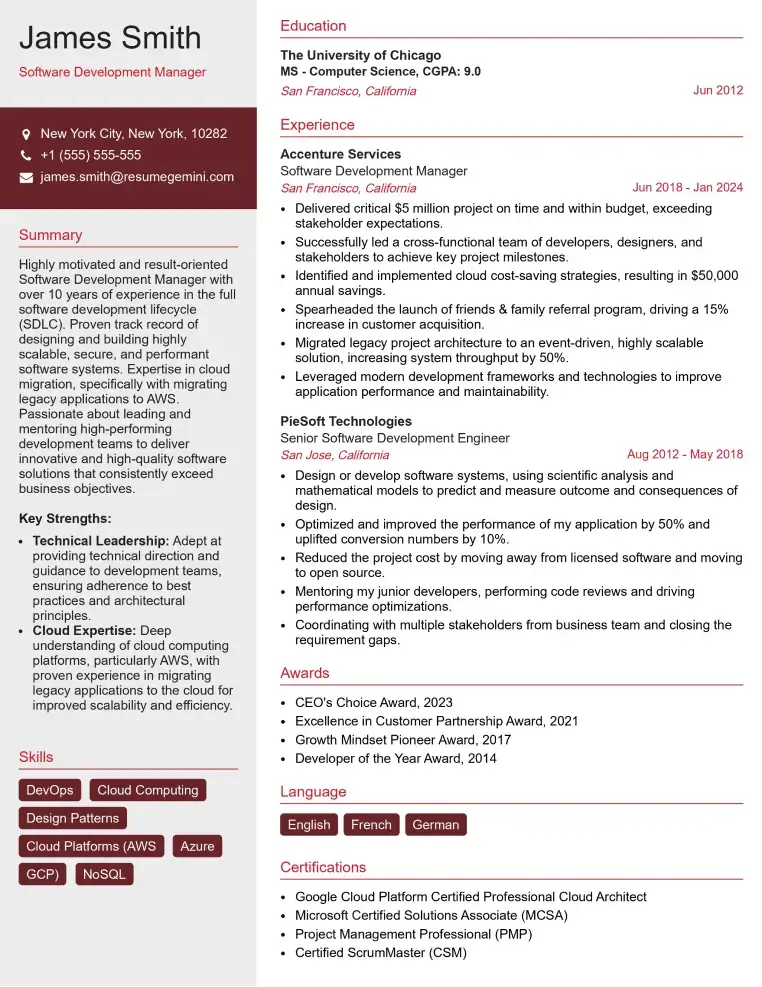
Check Out Resume Samples at ResumeGemini
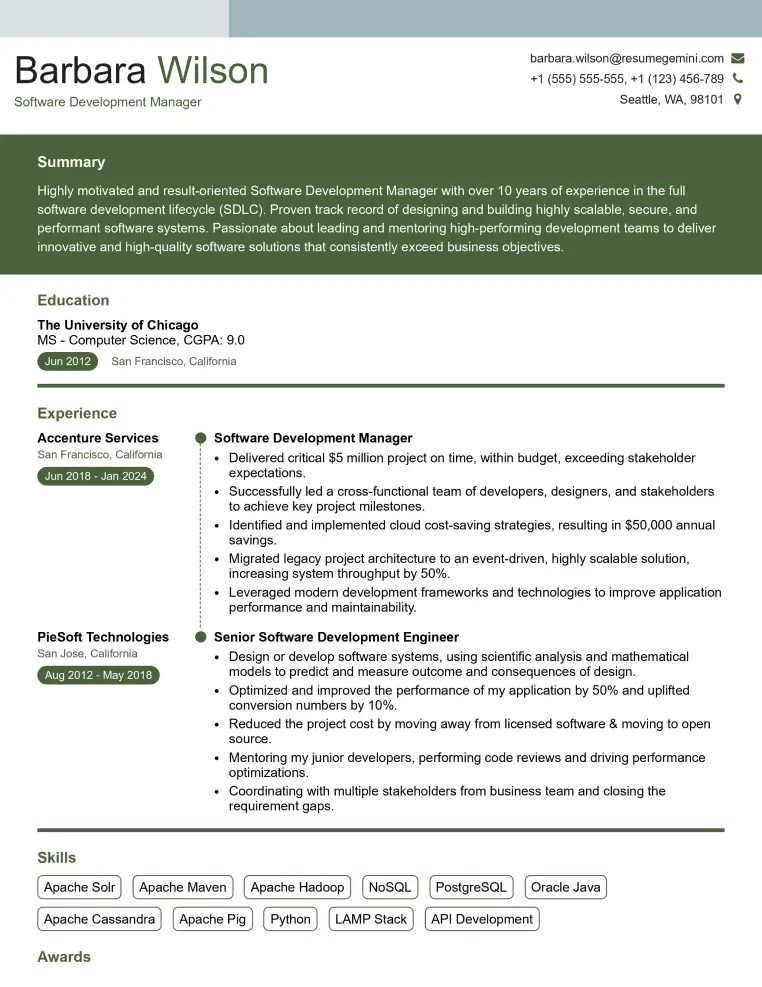
Check Out Resume Samples at ResumeGemini
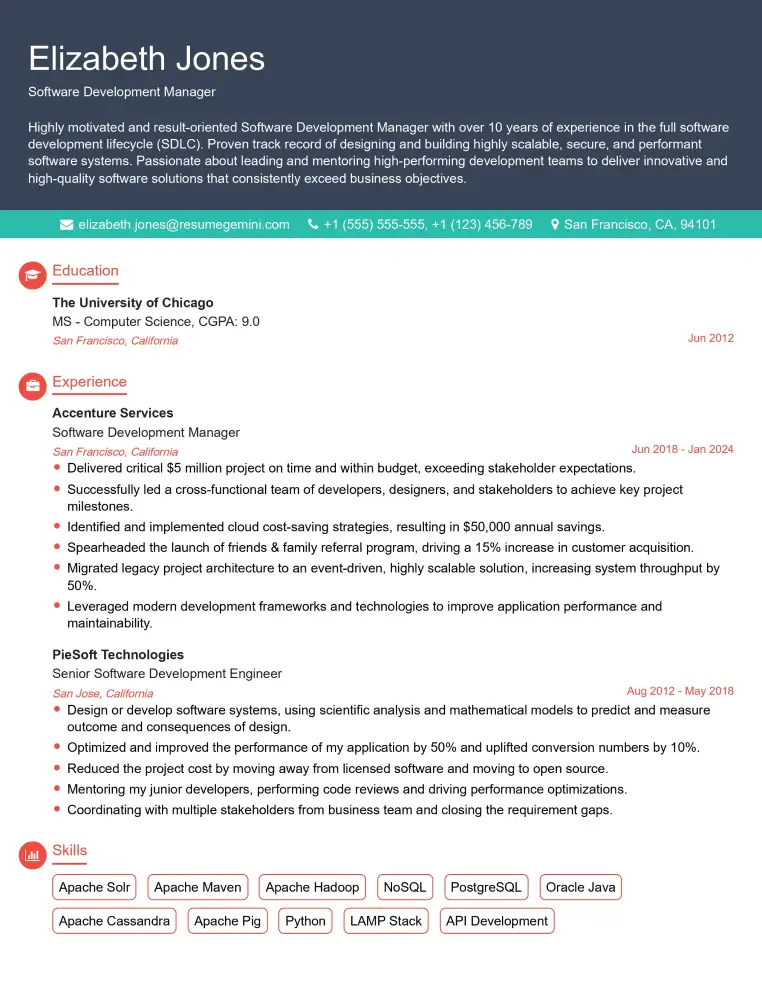
Check Out Resume Samples at ResumeGemini
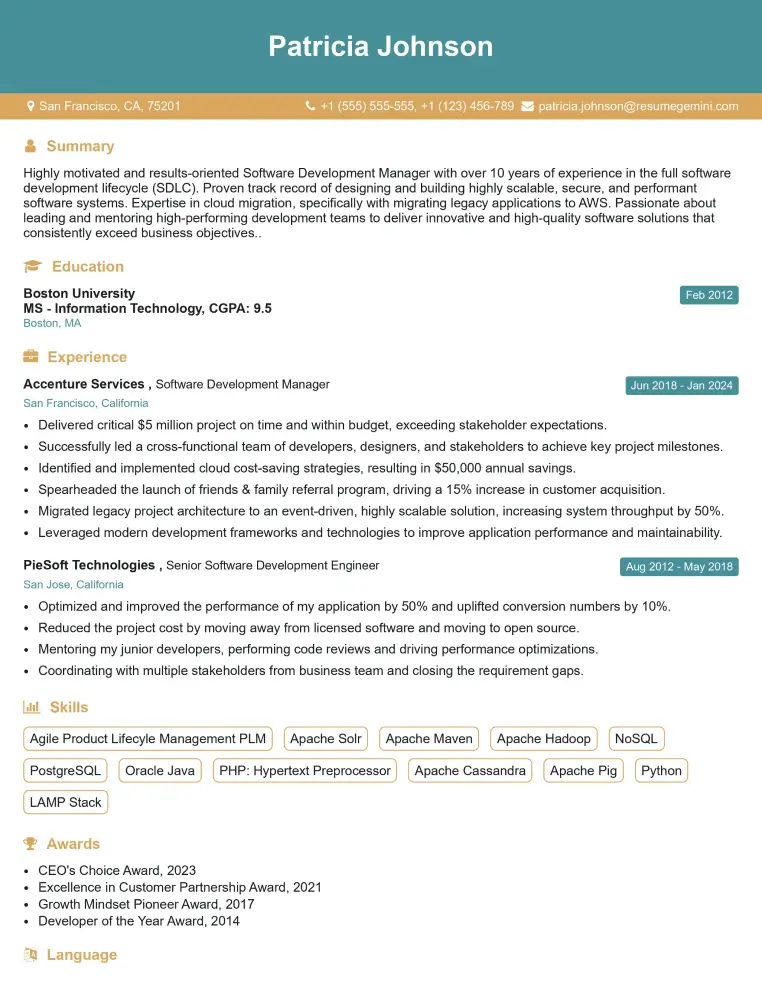
Check Out Resume Samples at ResumeGemini
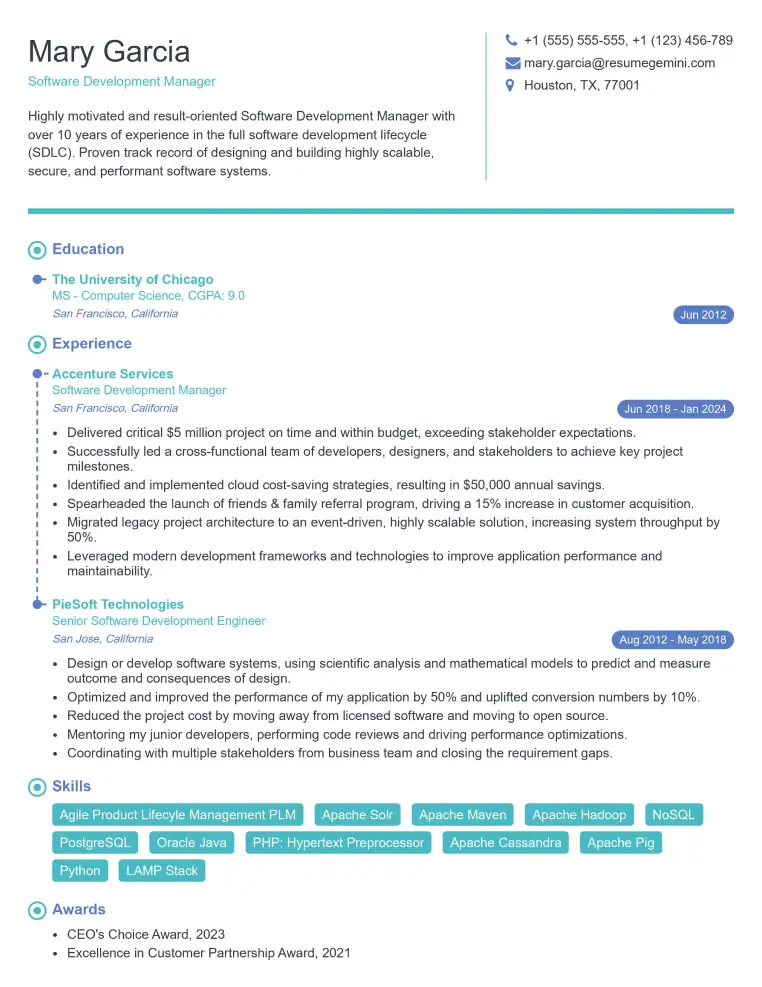
Check Out Resume Samples at ResumeGemini
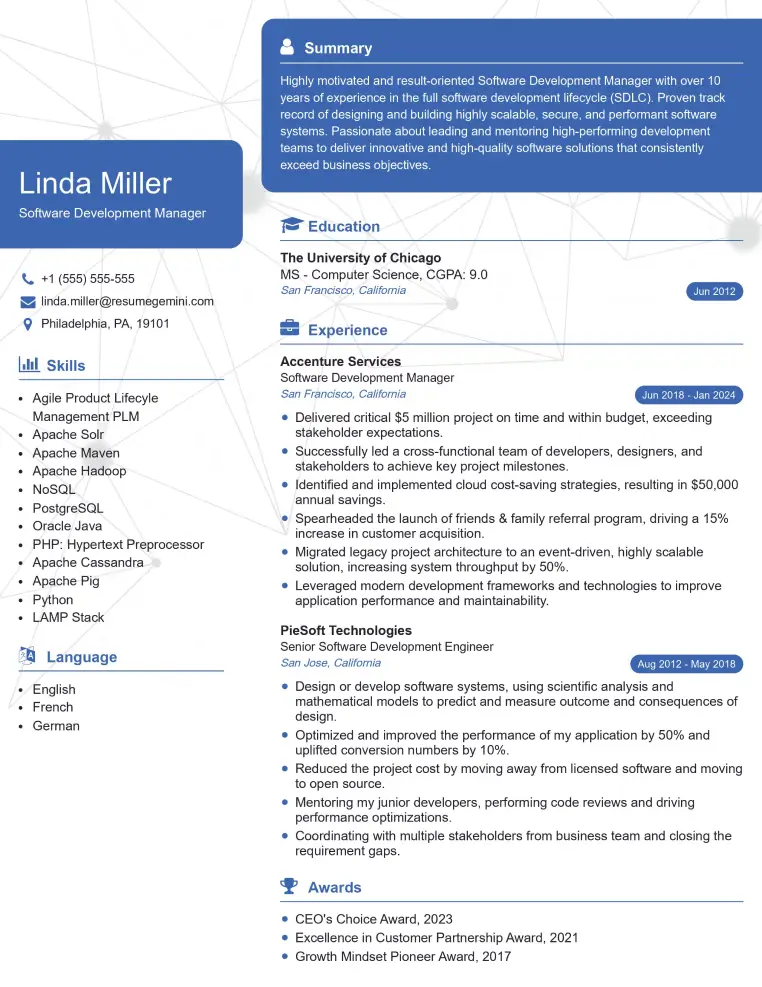
Check Out Resume Samples at ResumeGemini
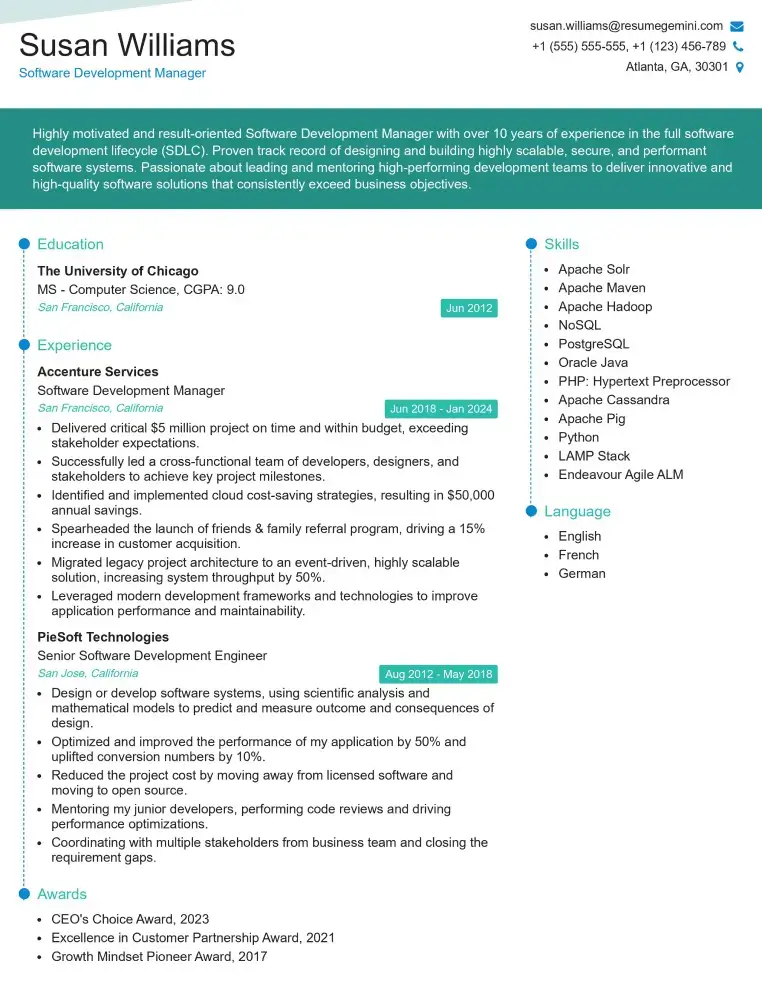
Check Out Resume Samples at ResumeGemini
Explore more articles
Users Rating of Our Blogs
Share Your Experience
We value your feedback! Please rate our content and share your thoughts (optional).
What Readers Say About Our Blog
To the interviewgemini.com Webmaster.
Very helpful and content specific questions to help prepare me for my interview!
Thank you
To the interviewgemini.com Webmaster.
This was kind of a unique content I found around the specialized skills. Very helpful questions and good detailed answers.
Very Helpful blog, thank you Interviewgemini team.