The right preparation can turn an interview into an opportunity to showcase your expertise. This guide to System Administration Tools (UNIX/Linux, Windows) interview questions is your ultimate resource, providing key insights and tips to help you ace your responses and stand out as a top candidate.
Questions Asked in System Administration Tools (UNIX/Linux, Windows) Interview
Q 1. Explain the differences between hard links and symbolic links.
Hard links and symbolic links are both ways to create references to files, but they differ significantly in how they operate. Think of it like having multiple pathways to the same house: a hard link is like having a second address that points directly to the same physical location, while a symbolic link is like having a map that leads to the house; it provides an indirect route.
A hard link creates a second entry in a file system’s directory that points to the same inode (data structure representing a file). Deleting one hard link doesn’t affect the others; the file only gets deleted when the last hard link is removed. Hard links cannot span different file systems, and they can only be created for regular files and directories (not special files like devices).
A symbolic link (or symlink) is a separate file containing a path to another file or directory. Deleting a symlink only removes the link itself, not the target file. Symlinks can span different file systems and can link to any type of file or directory, even special files.
- Hard Link Example (Linux):
ln file1 file2creates a hard link named ‘file2’ pointing to ‘file1’. - Symbolic Link Example (Linux):
ln -s file1 file2creates a symbolic link named ‘file2’ pointing to ‘file1’.
In a real-world scenario, imagine managing large media files. Using hard links allows multiple users to access the same file without duplicating storage space. Symlinks can be useful for creating shortcuts or for organizing files across different directories or even file systems.
Q 2. How do you troubleshoot network connectivity issues?
Troubleshooting network connectivity issues involves a systematic approach. I start with the most basic checks and work my way up, using tools appropriate to the environment. It’s like diagnosing a car problem: you check the basics first (fuel, battery) before delving into complex engine issues.
- Basic Checks: Verify cable connections, check the device’s physical status (lights on network cards), and ensure the device is powered on.
- IP Configuration: Check the IP address, subnet mask, and default gateway on the affected device using commands like
ipconfig /all(Windows) orifconfig(Linux). Is it getting a valid IP address from the DHCP server, or is it statically configured correctly? - Ping Test: Use the
pingcommand to check connectivity to the gateway (default router) and other known hosts. Successful pings indicate connectivity at the IP layer. Failure suggests a problem with the network itself. - Traceroute/Tracert: Use
traceroute(Linux) ortracert(Windows) to identify the path packets take and pinpoint potential choke points. This helps you identify if a problem exists with a router along the path or even with an ISP issue. - Network Diagnostics Tools: Utilize advanced tools such as Wireshark (packet capture and analysis), netstat (network connections), and nslookup (DNS resolution) to diagnose more complex issues. These tools provide deep visibility into network traffic and processes.
- Check Firewall/Antivirus: Ensure your firewall or antivirus software aren’t blocking network traffic.
- DNS Resolution: If you can ping IP addresses but not domain names, check the DNS server settings. Use
nslookupto verify DNS resolution.
By systematically checking these points, we can usually pinpoint the cause of connectivity problems efficiently and effectively.
Q 3. Describe your experience with Active Directory.
I have extensive experience managing and administering Active Directory environments, including implementation, maintenance, and troubleshooting. My experience spans various aspects of AD, from user and group management to domain controller replication and security policies.
I’ve worked on projects involving:
- User and Group Management: Creating, modifying, and deleting user accounts, assigning group memberships, implementing Group Policy Objects (GPOs) for streamlined administration.
- Domain Controller Management: Configuring and managing domain controllers, performing backups and restorations, troubleshooting replication issues, implementing high availability solutions.
- Security Policies: Implementing and enforcing security policies, managing access control lists (ACLs), auditing security events, and integrating with other security solutions like SIEM systems.
- Migration and Consolidation: Migrating users and data from older legacy systems to Active Directory, consolidating multiple domains into a single domain structure for improved management.
For example, in one project, I successfully migrated a large organization’s legacy system to a new Active Directory infrastructure. This involved meticulous planning, data migration, user training and ongoing support. The project resulted in a more streamlined and secure IT environment, greatly enhancing user productivity and IT efficiency.
Q 4. What are the common commands used for managing users and groups in Linux?
Linux user and group management relies heavily on command-line tools. Here are some key commands:
useradd: Adds a new user account.usermod: Modifies an existing user account (e.g., changing password, home directory, shell).userdel: Deletes a user account.groupadd: Adds a new group.groupmod: Modifies an existing group.groupdel: Deletes a group.passwd: Changes a user’s password.id: Displays user and group IDs.groups: Lists groups a user belongs to.sudo: Allows a user to execute commands as another user (typically root).
Example: To add a user named ‘john’ belonging to the ‘users’ group, you would use:
useradd -m -g users johnThis command creates a home directory (‘-m’) and adds the user to the ‘users’ group (‘-g users’).
Effective user and group management is crucial for maintaining security and system integrity. Understanding how to use these tools proficiently helps enforce security best practices and streamline administration.
Q 5. Explain the concept of virtualization and its benefits.
Virtualization is the process of creating a virtual version of something, often a computer system. Instead of running multiple operating systems on separate physical machines, you run them as virtual machines (VMs) on a single physical host. It’s like having multiple apartments within a single building.
Benefits of Virtualization:
- Cost Savings: Reduces hardware costs by consolidating multiple physical servers into fewer hosts.
- Resource Optimization: Enables more efficient use of hardware resources (CPU, memory, storage) by dynamically allocating resources to VMs as needed.
- Increased Efficiency: Simplifies server management and deployment, allowing for faster provisioning of new servers and applications.
- Improved Disaster Recovery: Enables easy creation and management of backups and reduces the impact of system failures.
- Flexibility and Scalability: Allows for easy scaling of resources and quick adaptation to changing workloads.
- Testing and Development: Provides a safe environment for testing new software and configurations without affecting production systems.
In a production environment, virtualization helps optimize resource allocation. For instance, a web server can run on one VM, a database on another, and an application server on yet another. If one VM fails, the others are unaffected. This minimizes downtime and enhances the reliability of the overall system.
Q 6. How do you monitor system performance in Linux/Windows?
Monitoring system performance is crucial for identifying and resolving potential problems before they impact users. The tools and methods vary slightly between Linux and Windows.
Linux:
- Top/Htop: Real-time view of CPU and memory usage.
- iostat: Monitors disk I/O performance.
- vmstat: Shows virtual memory statistics.
- netstat: Displays network connections and statistics.
- mpstat: Provides detailed CPU statistics.
- Monitoring Tools: Tools like Nagios, Zabbix, and Prometheus provide comprehensive system monitoring, alerting, and reporting capabilities.
Windows:
- Task Manager: Provides a basic overview of CPU, memory, disk, and network usage.
- Performance Monitor: A more advanced tool allowing you to monitor various system metrics with detailed graphs and logs.
- Resource Monitor: Gives a detailed real-time view of resource consumption by processes.
- Monitoring Tools: Similar to Linux, tools like SolarWinds, PRTG, and Datadog offer advanced monitoring, alerting and reporting for Windows systems.
In both Linux and Windows, regular monitoring allows proactive identification of performance bottlenecks and informs capacity planning, ensuring the system runs smoothly and meets the demands of its users.
Q 7. Describe your experience with scripting (e.g., Bash, PowerShell).
I have extensive experience writing scripts in both Bash (for Linux) and PowerShell (for Windows). Scripting is essential for automating repetitive tasks and improving operational efficiency.
Bash (Linux): I’ve used Bash scripting to automate tasks such as user account management, system backups, log analysis, and deployment of applications. For example, I’ve written a script to automatically create user accounts, assign them to specific groups, and set appropriate permissions. This reduced manual effort and standardized the user account creation process.
PowerShell (Windows): In Windows environments, I’ve leveraged PowerShell to automate system configuration, manage Active Directory objects, and monitor system events. I’ve built scripts to automate the deployment of software packages, ensuring consistency across a large number of machines. This saved significant time and reduced the risk of human error during deployment.
In one scenario, I created a PowerShell script to monitor the event log for specific errors. When the errors occurred, the script automatically sent email alerts to the IT team, allowing us to address the issues promptly. This dramatically improved response time to critical events.
Scripting is a critical skill for any system administrator, enabling automation and efficiency improvements across a wide range of tasks.
Q 8. How do you manage disk space on a Linux/Windows server?
Managing disk space on a server, whether Linux or Windows, involves a multi-pronged approach focusing on monitoring, cleanup, and proactive planning. Think of it like managing your home – you need to know what you have, get rid of unnecessary items, and plan for future needs.
On Linux: Tools like df -h show disk space usage. du -sh * helps identify large directories. Regularly deleting old logs (using logrotate), temporary files, and unused packages (using apt-get autoremove or yum autoremove) frees up space. For more sophisticated management, consider tools like ncdu (NCurses Disk Usage) for interactive visualization and identifying space hogs.
On Windows: The Disk Cleanup utility (accessible through the search bar) is a great starting point. It removes temporary files, old system files, and downloaded program files. Disk Management (accessible through the search bar or Control Panel) provides a visual representation of disk partitions and allows for shrinking and extending volumes. You can also utilize PowerShell cmdlets like Get-ChildItem and Remove-Item for more granular control.
Proactive measures include regularly monitoring disk space usage, setting up automated cleanup scripts, and implementing a robust storage strategy (e.g., utilizing Network Attached Storage (NAS) or cloud storage for backups and less frequently accessed data). For example, I once managed a server where log files were consuming excessive space. Implementing a daily log rotation script prevented a disk space crisis.
Q 9. What are different types of RAID and their uses?
RAID (Redundant Array of Independent Disks) combines multiple physical hard drives into a single logical unit, enhancing performance, redundancy, or both. Think of it like having multiple people working on the same project – some focus on speed, others on ensuring no one person’s failure stops the whole project.
- RAID 0 (Striping): Data is striped across multiple disks, increasing read/write speeds. No redundancy – a single disk failure results in complete data loss. Suitable for applications requiring high performance, such as video editing, but not for critical data.
- RAID 1 (Mirroring): Data is mirrored across multiple disks. Provides excellent redundancy, as data is duplicated. One disk can fail without data loss, but it’s less efficient in terms of storage capacity utilization. Ideal for servers requiring high availability and data protection.
- RAID 5 (Striping with Parity): Data is striped across multiple disks, with parity information distributed across all disks. Provides redundancy and increased performance, tolerating the failure of one disk. It’s commonly used for general-purpose servers balancing performance and redundancy. Requires at least three disks.
- RAID 6 (Striping with Double Parity): Similar to RAID 5 but can tolerate the failure of two disks. Offers greater redundancy than RAID 5 but requires at least four disks.
- RAID 10 (Mirrored Stripes): Combines mirroring and striping. Offers both high performance and redundancy. Requires at least four disks.
The choice of RAID level depends on the specific needs of the system. Factors to consider include the application’s performance requirements, data criticality, budget, and the number of available hard drives.
Q 10. Explain the process of setting up a VPN.
Setting up a VPN (Virtual Private Network) involves establishing a secure, encrypted connection between a client device and a server, creating a private network over a public network. It’s like creating a secret tunnel to protect your communication.
The process generally involves:
- Choosing a VPN service or setting up your own server: Several commercial VPN services are available. Alternatively, you can set up your own VPN server using OpenVPN, WireGuard, or other technologies. This requires server administration skills and knowledge of network configuration.
- Installing and configuring VPN software: On the server side, this might involve installing OpenVPN and configuring certificates and keys. On the client side, you would install the appropriate VPN client and connect to the server.
- Configuring network settings: This involves setting up the network interface on the server and configuring routing rules if necessary.
- Testing the VPN connection: Verify the connection’s security and functionality. Check IP address changes and network access.
Security considerations are paramount. Strong encryption protocols (like OpenVPN’s AES-256) and secure key management are essential. For example, in a previous role, I configured an OpenVPN server for remote access to a company network, ensuring secure connections for employees working from home.
Q 11. How do you secure a Linux/Windows server?
Securing a server, whether Linux or Windows, requires a layered approach involving operating system hardening, network security, and regular updates. Think of it as building a fortress, using multiple defenses to prevent breaches.
Linux:
- Firewall configuration: Using
iptablesorfirewalld, configure rules to allow only necessary network traffic. - Regular updates: Keep the OS and installed software updated to patch vulnerabilities.
- User and group management: Employ the principle of least privilege, assigning users only the necessary permissions.
- SSH key-based authentication: Disable password authentication for SSH to prevent brute-force attacks.
- Intrusion Detection/Prevention System (IDS/IPS): Tools like Fail2ban can detect and block suspicious login attempts.
Windows:
- Windows Firewall: Configure rules to allow only required inbound and outbound traffic.
- Windows Updates: Install security updates regularly.
- User Account Control (UAC): Keep UAC enabled to prevent unauthorized changes.
- Strong passwords and multi-factor authentication (MFA): Require strong, unique passwords and use MFA where possible.
- Regular security audits and vulnerability scans: Use tools to identify and address security weaknesses.
A holistic approach is crucial. In one instance, I secured a Linux server by implementing a strong firewall, disabling unnecessary services, and enabling SSH key authentication, significantly reducing the risk of unauthorized access.
Q 12. Describe your experience with DNS.
DNS (Domain Name System) translates domain names (like google.com) into IP addresses (like 172.217.160.142) that computers understand. Think of it as a phone book for the internet.
My experience with DNS includes administering DNS servers using BIND (Berkeley Internet Name Domain) on Linux and managing DNS records using tools like PowerShell on Windows. I’ve configured DNS zones, created records (A, AAAA, CNAME, MX), and implemented DNS security extensions (DNSSEC) to enhance security. Understanding DNS propagation times and troubleshooting DNS resolution issues is also part of my skillset. I’ve dealt with situations where incorrect DNS settings led to website inaccessibility, highlighting the importance of accurate configuration and regular monitoring.
I’m familiar with different DNS record types and their functions. For example, I’ve used CNAME records to point subdomains to different servers, and MX records to configure email servers. Furthermore, my experience extends to working with different DNS servers, including those provided by cloud platforms.
Q 13. How do you manage backups and restores?
Managing backups and restores involves creating copies of data and restoring it when necessary. This is crucial for disaster recovery and data protection – like having a safety net.
My approach includes:
- Choosing a backup strategy: This considers factors like the amount of data, recovery time objective (RTO), recovery point objective (RPO), and budget. Strategies range from simple file copies to more sophisticated solutions like incremental backups and cloud-based backups.
- Selecting backup tools: I have experience with tools like
rsync(Linux), Windows Server Backup, and various third-party backup solutions. The choice depends on the specific needs and environment. - Testing restores: Regularly test the restore process to ensure data integrity and a smooth recovery in case of a failure.
- Implementing a backup rotation policy: This defines how long backups are retained and helps manage storage space.
- Storing backups securely: Backups should be stored in a safe location, ideally offsite, to protect against physical damage or theft. This might include using a NAS, cloud storage, or a separate server.
For example, in one project, I implemented a three-tier backup strategy for a critical database server: daily incremental backups to a local disk, weekly full backups to a NAS device, and monthly full backups to cloud storage, ensuring that data recovery could be done quickly and effectively.
Q 14. What is your experience with cloud platforms (e.g., AWS, Azure, GCP)?
I have experience with several major cloud platforms, including AWS, Azure, and GCP. My experience spans various aspects, from basic infrastructure management to more advanced services. Think of it like knowing different types of building blocks for constructing a system in the cloud.
AWS: I have worked with EC2 (virtual machines), S3 (object storage), RDS (database services), and other services. I have experience provisioning and managing instances, configuring security groups, and implementing monitoring and alerting.
Azure: I’m familiar with Azure Virtual Machines, Azure Blob Storage, Azure SQL Database, and other services. I’ve set up and managed virtual networks, configured load balancing, and used Azure Active Directory for identity management.
GCP: My experience includes working with Compute Engine (virtual machines), Cloud Storage, Cloud SQL, and other GCP services. I’ve configured virtual networks, managed firewalls, and used Kubernetes for container orchestration.
My cloud experience allows me to design, deploy, and manage scalable and highly available systems in the cloud, leveraging the strengths of each platform for specific use cases. For example, I once migrated a client’s on-premise server infrastructure to AWS, reducing costs and improving scalability.
Q 15. How do you troubleshoot a system boot failure?
Troubleshooting a system boot failure requires a systematic approach. Think of it like diagnosing a car that won’t start – you need to check various components systematically. The first step is identifying the point of failure. Does the system power on at all? Do you see any error messages on screen (BIOS POST errors, GRUB errors, etc.)? If you have remote access, check the system logs for clues.
Check BIOS/UEFI Settings: Ensure the boot order is correct, pointing to the correct boot drive. Incorrect settings are a common cause.
Examine Boot Logs: The location varies by OS. On Linux systems, check
/var/log/boot.logor similar files. Windows uses Event Viewer. These logs contain details about the boot process and potential errors.Check the Boot Drive: Use a boot diagnostic tool (like a live Linux CD/USB) to check the integrity of the hard drive or SSD. Bad sectors or file system corruption can prevent booting.
Rule out Hardware Issues: A failing hard drive, RAM, or power supply can prevent booting. Try swapping known-good components if possible. Listen for unusual noises from the hardware.
Last Known Good Configuration (Windows): If the problem started after a recent update, Windows allows you to boot into a previous configuration. This is accessed through the advanced startup options.
Single-User Mode (Linux): For Linux, attempting to boot into single-user mode (
init=/bin/bashkernel parameter) allows for filesystem checks and repairs before a full boot.
For example, if I see a kernel panic, I’ll check the kernel log for details to pinpoint the problematic driver or module. If I see a GRUB error, I’ll try rebuilding the GRUB configuration. A systematic approach, starting with the most likely causes and progressing to more complex issues, is key to efficient troubleshooting.
Career Expert Tips:
- Ace those interviews! Prepare effectively by reviewing the Top 50 Most Common Interview Questions on ResumeGemini.
- Navigate your job search with confidence! Explore a wide range of Career Tips on ResumeGemini. Learn about common challenges and recommendations to overcome them.
- Craft the perfect resume! Master the Art of Resume Writing with ResumeGemini’s guide. Showcase your unique qualifications and achievements effectively.
- Don’t miss out on holiday savings! Build your dream resume with ResumeGemini’s ATS optimized templates.
Q 16. Explain your experience with log management and analysis.
Log management and analysis are crucial for system health and security. I have extensive experience using tools like syslog, rsyslog (Linux), and the Windows Event Viewer. I’m familiar with centralized log management systems such as ELK stack (Elasticsearch, Logstash, Kibana) and Splunk. My process involves:
Collecting logs from various sources: This includes servers, applications, network devices, and security tools.
Centralizing logs: Using a centralized system allows for easier search, analysis, and alerting.
Parsing and indexing logs: This makes searching and filtering easier. I use regular expressions extensively for complex log parsing.
Analyzing logs for patterns and anomalies: I look for recurring errors, performance bottlenecks, and security threats. This often involves using tools to visualize log data, identifying trends, and generating reports.
Creating alerts: Setting up alerts for critical events enables quick responses to problems.
For example, I once used ELK stack to monitor the logs of a web application. By analyzing the access logs, we identified a denial-of-service attack and were able to mitigate it effectively. The visualization capabilities of Kibana proved invaluable in understanding the attack patterns.
Q 17. What are your preferred methods for automating system tasks?
Automating system tasks is essential for efficiency and reliability. My preferred methods include:
Shell scripting (Bash, PowerShell): For simple automation tasks, shell scripts offer a quick and effective solution. I use them for tasks like backups, user account management, and system checks.
Configuration management tools (Ansible, Puppet, Chef): For complex, multi-server environments, configuration management tools are invaluable. They help maintain consistency across systems and automate deployments.
Cron jobs (Linux) and Task Scheduler (Windows): These built-in schedulers allow for scheduling recurring tasks like backups and log rotations.
Python scripting: Python provides more flexibility and power for complex automation tasks, including interacting with APIs and databases.
For example, I used Ansible to automate the deployment of a new web application across multiple servers, ensuring consistency and minimizing manual intervention. This included setting up the application, configuring databases, and managing firewall rules. A well-structured Ansible playbook significantly reduced deployment time and risks.
Q 18. How do you handle system failures and outages?
Handling system failures and outages requires a calm, systematic approach. My approach includes:
Immediate Response: First, I acknowledge the outage and assess the impact. Determine the affected systems and users.
Diagnosis: Use monitoring tools and logs to pinpoint the root cause. This involves checking server logs, network monitoring, and application performance metrics.
Mitigation: Implement immediate steps to minimize the impact. This might involve rerouting traffic, switching to backup systems, or applying temporary fixes.
Recovery: Address the root cause and restore the system to full functionality. This could involve repairing hardware, applying software updates, or restoring from backups.
Post-Mortem Analysis: Conduct a thorough analysis to understand what happened, why it happened, and what steps can be taken to prevent recurrence. This typically involves documenting the incident, identifying lessons learned, and implementing improvements to the system.
For instance, during a recent database server outage, we quickly switched to a read-only replica to minimize disruption. We then diagnosed the issue (a full disk), restored from backups, and implemented disk space monitoring to prevent future occurrences. The post-mortem analysis resulted in revised alert thresholds and improved backup procedures.
Q 19. Explain your experience with different file systems (e.g., NTFS, ext4).
I’m experienced with various file systems. NTFS (Windows) and ext4 (Linux) are two of the most common. NTFS is known for its features like journaling, security, and support for large files and volumes. Ext4 is a widely used Linux file system, also supporting journaling and large files, focusing on performance and stability. Key differences include:
Journaling: Both support journaling, enhancing data integrity in case of power failures. The specifics of journaling differ, affecting recovery times.
Security: NTFS has more robust security features, like Access Control Lists (ACLs), crucial for Windows environments.
Metadata Handling: Ext4 generally offers better performance for metadata operations, impacting things like file listing and directory traversal.
Support for Features: Specific features, like file encryption and compression, are handled differently or may be unavailable on one system compared to the other.
In my work, choosing the right file system often involves considering the operating system, the intended use (e.g., database server, web server), performance requirements, and security needs.
Q 20. How do you manage user accounts and permissions?
User account and permission management is crucial for system security. My approach depends on the operating system but generally involves:
Creating User Accounts: Using the appropriate commands or administrative tools (
useradd/usermodon Linux, Active Directory or local users and groups on Windows).Setting Passwords: Enforcing strong password policies and potentially using password management systems.
Assigning Permissions: Using access control lists (ACLs) to define which users or groups have what permissions on files, directories, and system resources. This often involves using commands like
chmodandchownon Linux and the graphical tools within Windows.Group Management: Organizing users into groups simplifies permission management and enables efficient access control.
Regular Audits: Periodically reviewing user accounts and permissions to identify unused accounts or inappropriate access rights.
For instance, I’ve used LDAP (Lightweight Directory Access Protocol) for centralized user management in a large organization, ensuring consistent account policies across different systems.
Q 21. Describe your experience with different types of firewalls.
I have experience with various firewall types, including:
Packet Filtering Firewalls: These firewalls examine individual packets based on rules defined by IP addresses, ports, and protocols.
iptableson Linux is a classic example.Stateful Inspection Firewalls: These firewalls maintain a state table, tracking connections, and only allowing return traffic from established connections. This provides better security than simple packet filtering.
Application-Level Gateways (Proxies): These firewalls inspect the application data, enabling more granular control. They are particularly useful for controlling web traffic (e.g., web application firewalls or WAFs).
Hardware Firewalls: These are physical devices that sit between networks, often provided by vendors like Cisco or Fortinet. They usually combine multiple firewall techniques and offer advanced features like intrusion detection/prevention systems.
Software Firewalls: These are software applications running on individual machines, often offering simpler configuration. Examples include Windows Firewall and pfSense.
My experience includes configuring firewalls to control network access, implementing rules for specific applications, and managing firewall logs for security monitoring. Choosing the appropriate firewall depends on factors like the network size, security requirements, and budget.
Q 22. How do you implement and manage network security policies?
Implementing and managing network security policies involves a multi-layered approach, focusing on preventative measures and reactive responses. Think of it like building a castle with multiple defenses – a strong outer wall (firewalls), inner walls (intrusion detection systems), and guards patrolling the inside (security information and event management, or SIEM).
- Firewall Configuration: We’d configure firewalls (like iptables on Linux or Windows Firewall) to allow only necessary traffic based on ports and protocols. For instance, allowing SSH (port 22) for remote access but blocking other ports unless explicitly required. This prevents unauthorized access.
- Intrusion Detection/Prevention Systems (IDS/IPS): These systems monitor network traffic for malicious activity, like port scans or known attack signatures. An IDS alerts administrators; an IPS automatically blocks threats. Think of them as the castle’s watchtowers.
- Access Control Lists (ACLs): ACLs control access to specific network resources. For example, restricting access to a database server to only authorized IP addresses. This is like the castle’s drawbridge only opening for certain people.
- Virtual Private Networks (VPNs): VPNs create secure connections over public networks, encrypting data in transit. This is essential for remote workers to securely connect to the company network, like a secret tunnel into the castle.
- Regular Security Audits and Penetration Testing: We’d perform regular security audits to identify vulnerabilities and penetration testing to simulate attacks to uncover weaknesses before malicious actors can exploit them. This is like regularly inspecting the castle walls for damage.
- Security Information and Event Management (SIEM): SIEM systems collect and analyze security logs from various sources, helping identify and respond to security incidents quickly. Think of it as the castle’s central command post.
The specific policies implemented would depend on the organization’s risk tolerance and regulatory requirements. For example, a financial institution will have far stricter policies than a small business.
Q 23. What is your experience with system patching and updates?
System patching and updates are crucial for maintaining system security and stability. It’s like regularly servicing a car – you need to change the oil (apply patches) to prevent engine failure (system vulnerabilities).
My experience involves using various tools and processes to manage patches across different operating systems. On Linux, I use tools like apt-get update && apt-get upgrade (Debian/Ubuntu) or yum update (Red Hat/CentOS). For Windows, I utilize WSUS (Windows Server Update Services) or SCCM (System Center Configuration Manager) for centralized patch management. This allows me to test updates in a controlled environment before deploying them to production systems.
The process typically involves:
- Identifying updates: Using the system’s built-in update mechanism or third-party tools to discover available patches.
- Testing updates: Deploying updates to a test environment to validate their functionality and compatibility before deploying to production.
- Scheduling updates: Planning update deployments during off-peak hours to minimize disruption to users.
- Monitoring updates: Tracking the deployment process and addressing any issues that may arise.
- Documentation: Maintaining detailed records of all updates applied, including dates, versions, and any encountered problems.
In larger environments, automation tools like Ansible or Puppet are used to streamline the patching process across hundreds or even thousands of servers.
Q 24. Explain your understanding of disaster recovery and business continuity planning.
Disaster recovery (DR) and business continuity planning (BCP) are critical for minimizing downtime and data loss in the event of a disaster. Think of it as creating a backup plan for your business, ensuring you can recover quickly if something goes wrong – like having a spare tire for your car.
BCP encompasses the entire business impact, defining critical business functions and developing strategies to maintain operations during a disruption. DR is a subset of BCP, specifically addressing the recovery of IT systems and data.
My approach to DR and BCP includes:
- Risk assessment: Identifying potential threats, such as natural disasters, cyberattacks, and hardware failures.
- Developing a recovery strategy: Defining recovery time objectives (RTOs) – how long it takes to restore systems – and recovery point objectives (RPOs) – how much data loss is acceptable.
- Implementing backup and recovery solutions: Using various methods, including backups to tape, cloud storage, or replicated systems.
- Testing the plan: Regularly conducting drills and simulations to verify the effectiveness of the DR plan.
- Documentation: Creating comprehensive documentation detailing all aspects of the DR and BCP plans.
The specific plan will depend on the organization’s size, industry, and critical business functions. For a small business, a simple backup solution may suffice. For a large financial institution, a comprehensive plan with multiple geographically dispersed data centers may be necessary.
Q 25. How do you troubleshoot application performance issues?
Troubleshooting application performance issues requires a systematic approach. It’s like diagnosing a car problem – you need to systematically check different parts to identify the root cause.
My approach typically involves:
- Gathering information: Collecting information from various sources, such as application logs, system metrics (CPU, memory, disk I/O), and user reports. Tools like
top,htop,iostat(Linux), and Performance Monitor (Windows) are essential here. - Analyzing logs: Examining application and system logs for errors, exceptions, or other anomalies. This often provides clues to the root cause of the problem.
- Monitoring system resources: Checking CPU utilization, memory usage, disk I/O, and network traffic. High resource utilization often indicates a bottleneck.
- Using profiling tools: Employing tools like JProfiler or YourKit (Java) or similar tools for the specific application to identify performance bottlenecks in the code.
- Database performance analysis: If the application uses a database, analyzing database query performance using tools provided by the database system (e.g., MySQL’s
slow_query_log). - Network analysis: Investigating network latency or bandwidth issues using tools like
tcpdumpor Wireshark.
The specific troubleshooting steps would depend on the nature of the application and the observed symptoms. For example, slow response times might indicate database issues, while frequent crashes might suggest memory leaks or coding errors.
Q 26. What is your experience with containerization technologies (e.g., Docker, Kubernetes)?
Containerization technologies like Docker and Kubernetes revolutionized application deployment and management. Think of them as standardized shipping containers for applications, making them portable and easily scalable.
My experience with Docker involves creating and managing Docker images, deploying containers, and orchestrating them using Docker Compose. I’m also proficient in using Kubernetes for managing clusters of containers, enabling automated deployment, scaling, and health management. This includes setting up Kubernetes clusters, deploying applications using YAML manifests, and managing deployments, services, and pods.
Docker simplifies application deployment by packaging the application and its dependencies into a single unit, ensuring consistency across different environments. Kubernetes takes this a step further by providing tools to automate container management at scale.
I’ve used these technologies to:
- Deploy microservices architectures.
- Automate the deployment process.
- Improve application scalability and resilience.
- Manage resources efficiently.
My understanding extends to container registries (like Docker Hub), networking within Kubernetes clusters, and monitoring tools specifically designed for containerized environments.
Q 27. Describe a challenging system administration problem you solved and how you approached it.
One challenging problem I solved involved a sudden and significant performance degradation on a critical web server. Initially, the symptoms were vague – slow response times and occasional timeouts. It was like a car suddenly losing power, but you’re not sure if it’s the engine, transmission, or fuel system.
My approach involved:
- Data gathering: I started by collecting system metrics (CPU, memory, disk I/O) and application logs using
top,iostat, and the web server’s error logs. - Identifying the bottleneck: The logs showed a high number of errors related to disk I/O. The
iostatcommand revealed extremely high disk utilization, consistently close to 100%. This pointed to a disk-related problem. - Root cause analysis: Further investigation showed that a single large log file was continuously growing, consuming all available disk space. This log file belonged to an application that had a logging configuration error, resulting in excessive logging.
- Solution implementation: I first corrected the logging configuration in the application to reduce the log file’s growth rate. Next, I implemented log rotation using
logrotateto prevent the file from exceeding a predefined size. Finally, I added monitoring to alert us to such issues in the future. - Preventative measures: To prevent this from happening again, I implemented better monitoring of disk space and automated alerts if disk utilization crosses a threshold.
This experience highlighted the importance of comprehensive monitoring, proactive log management, and the need for robust error handling in applications.
Key Topics to Learn for System Administration Tools (UNIX/Linux, Windows) Interview
- Command-Line Interface (CLI): Mastering basic and advanced commands in both bash (Linux/Unix) and PowerShell (Windows) is crucial. Understand command piping, redirection, and scripting fundamentals.
- User and Group Management: Learn how to create, manage, and troubleshoot user accounts and groups in both operating systems. Understand permissions and access control lists (ACLs).
- Networking Fundamentals: Grasp essential networking concepts like IP addressing, subnetting, DNS, and basic troubleshooting of network connectivity issues. Familiarize yourself with tools like `ping`, `traceroute`, `netstat` (or their Windows equivalents).
- Process Management: Understand how to monitor, manage, and kill processes. Learn how to use tools like `top`, `ps`, `kill` (Linux/Unix) and Task Manager (Windows).
- System Logging and Monitoring: Become proficient in analyzing system logs to identify and resolve issues. Understand log file locations and common log analysis tools. Explore basic system monitoring concepts.
- Security Best Practices: Familiarize yourself with common security vulnerabilities and best practices for securing systems. This includes password management, firewall configuration, and basic security auditing.
- Basic Scripting: Develop a foundational understanding of scripting languages like Bash (Linux/Unix) or PowerShell (Windows) for automating tasks and improving efficiency. Focus on practical applications.
- Virtualization and Containerization (optional): Understanding concepts like virtual machines (VMs) and containers (Docker) is a significant advantage. Familiarity with relevant management tools is beneficial.
- Troubleshooting Skills: Practice problem-solving techniques. Focus on systematically identifying the root cause of issues and implementing effective solutions.
- Storage Management: Understand different storage types (local, network), file systems, and basic storage management techniques. Be prepared to discuss storage optimization and troubleshooting.
Next Steps
Mastering System Administration Tools in both UNIX/Linux and Windows significantly enhances your career prospects, opening doors to diverse and challenging roles. An ATS-friendly resume is your key to unlocking these opportunities. ResumeGemini is a trusted resource to help you build a professional and impactful resume that highlights your skills and experience effectively. Examples of resumes tailored to System Administration Tools (UNIX/Linux, Windows) are available to guide you. Take the next step in your career journey today!
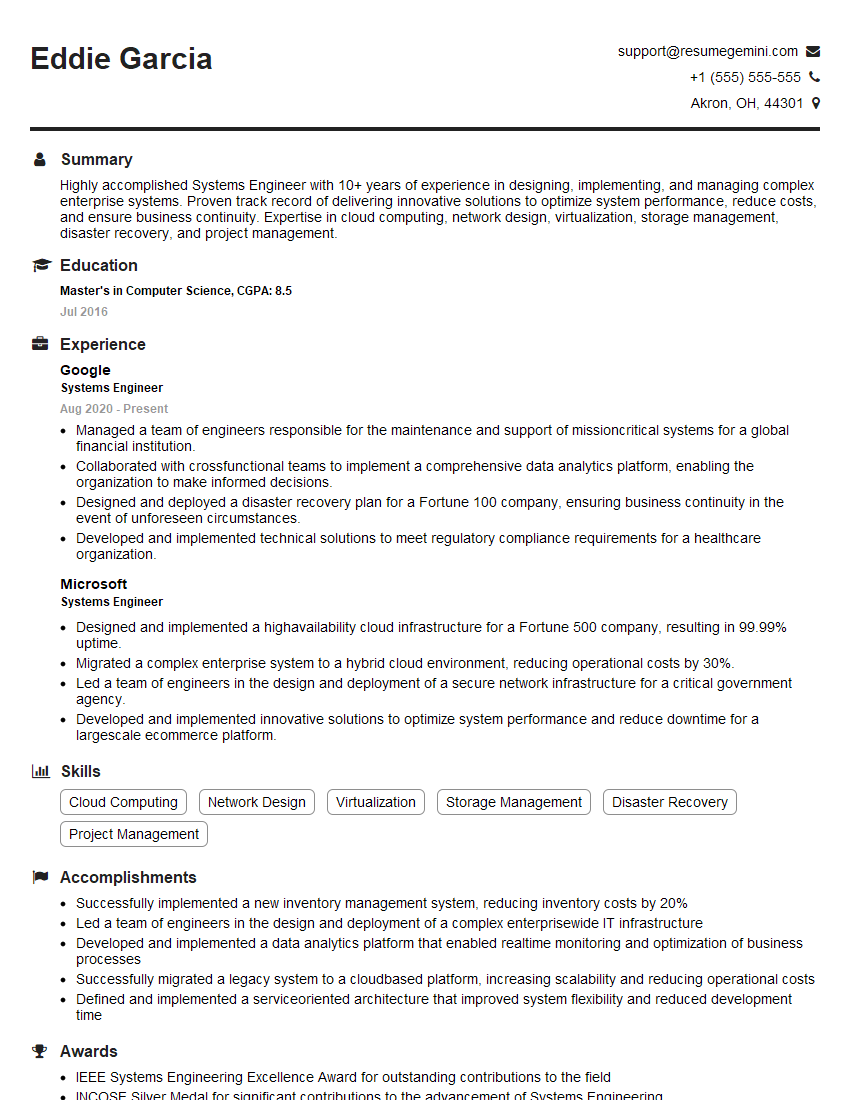
Systems Engineer Resume Sample

Security Administrator Resume Sample
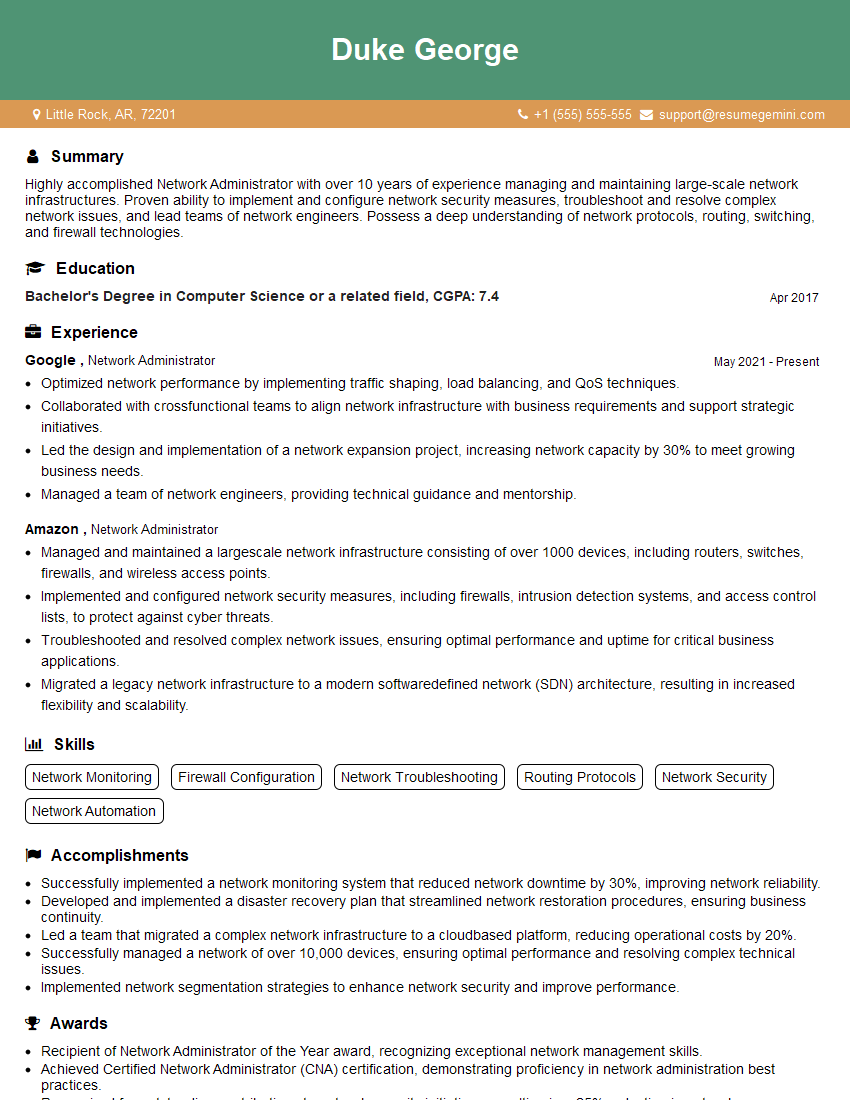
Network Administrator Resume Sample
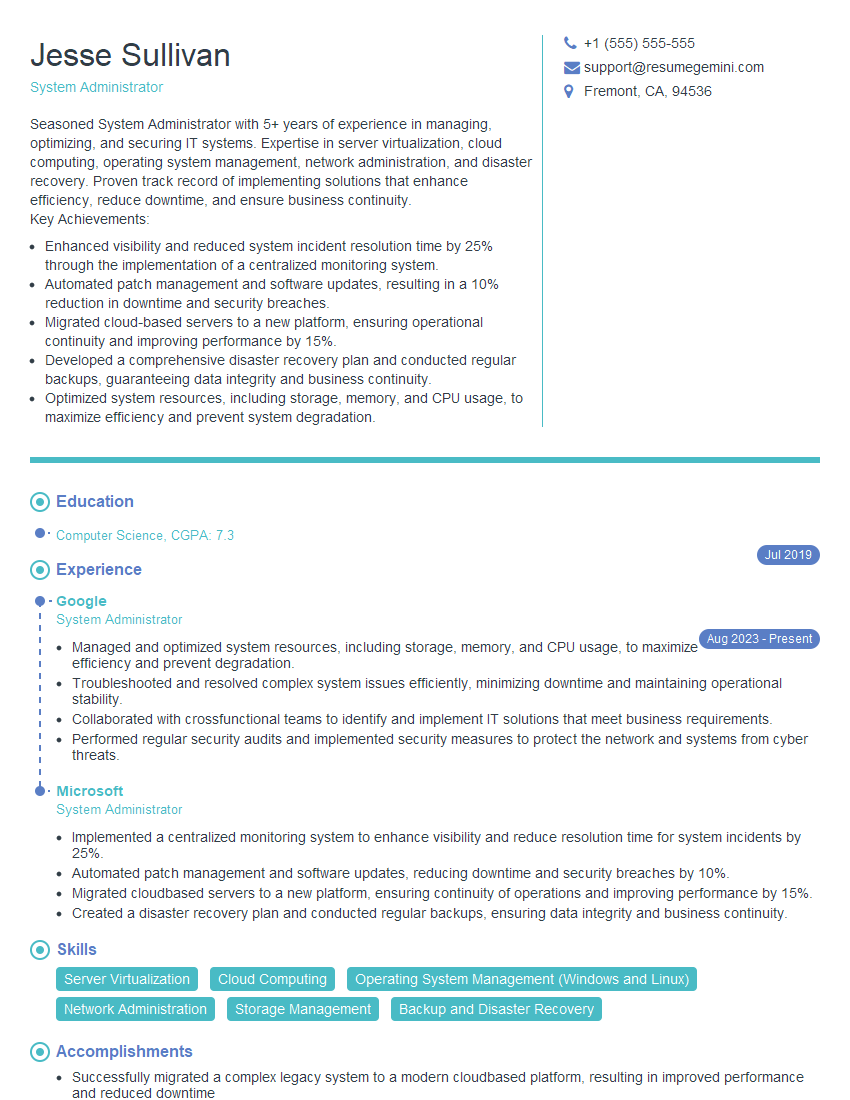
System Administrator Resume Sample
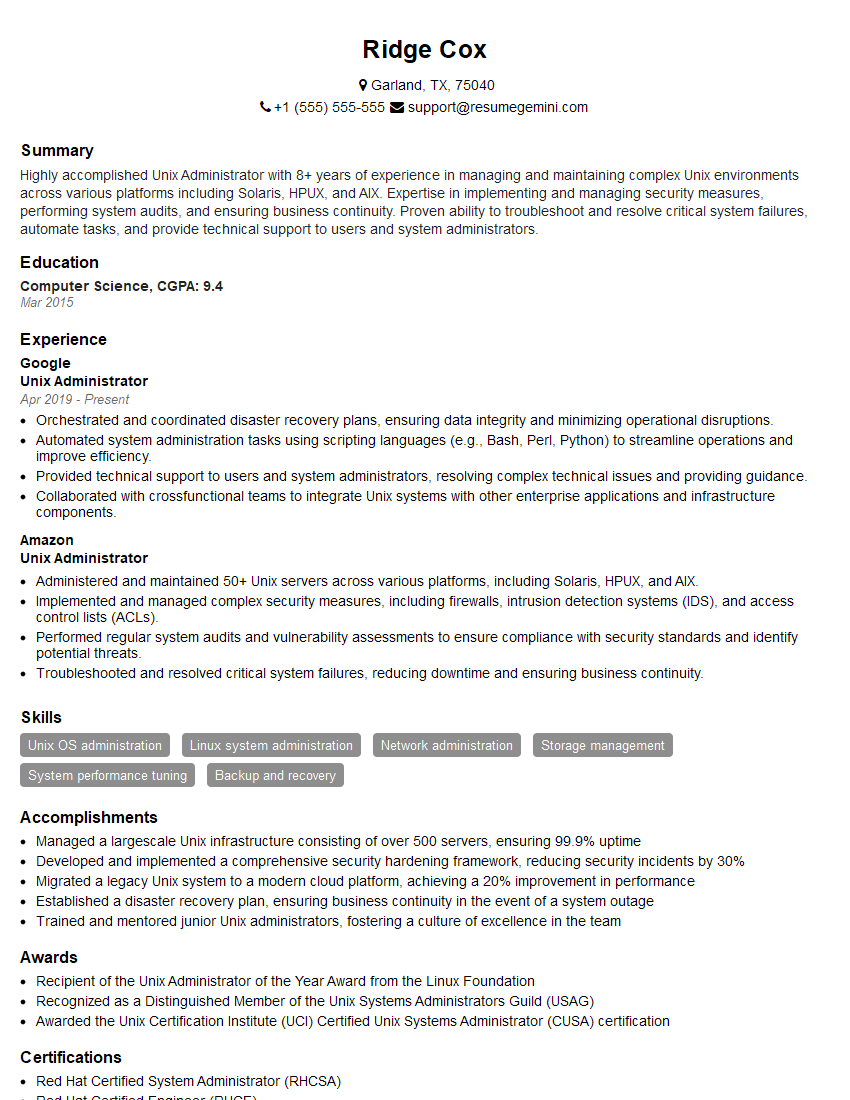
Unix Administrator Resume Sample
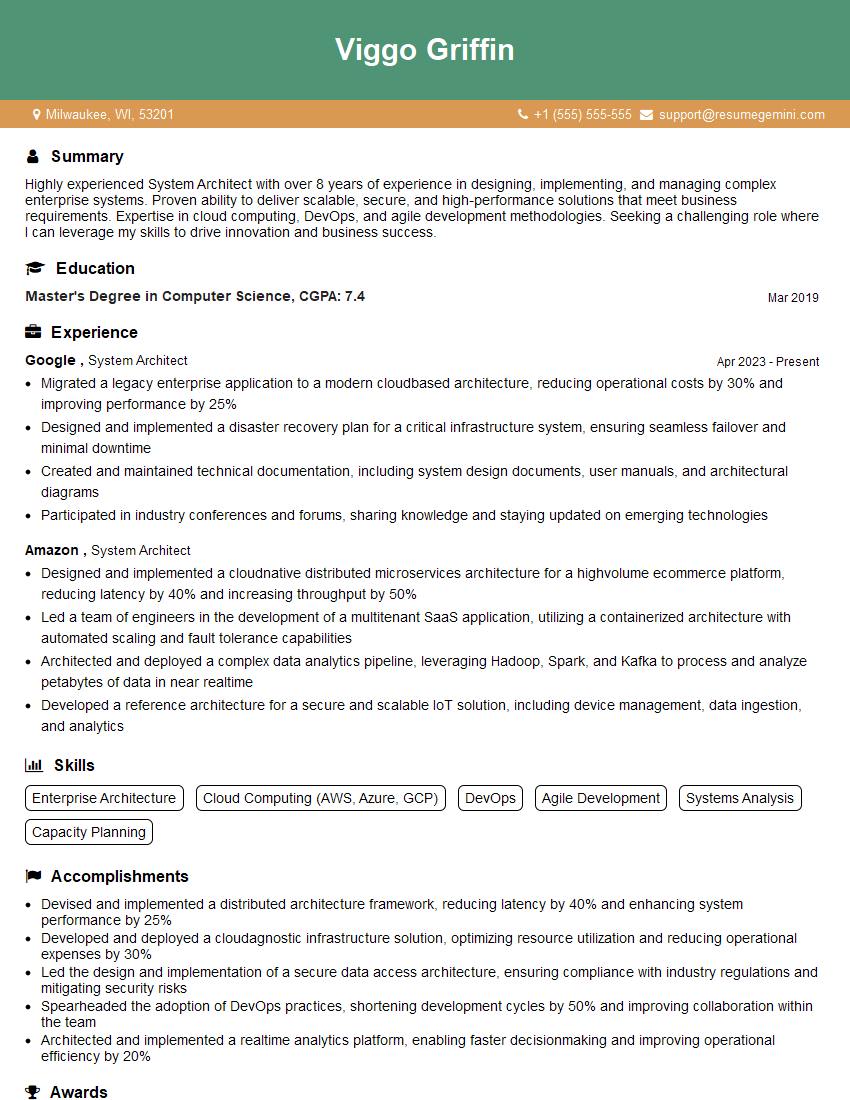
System Architect Resume Sample
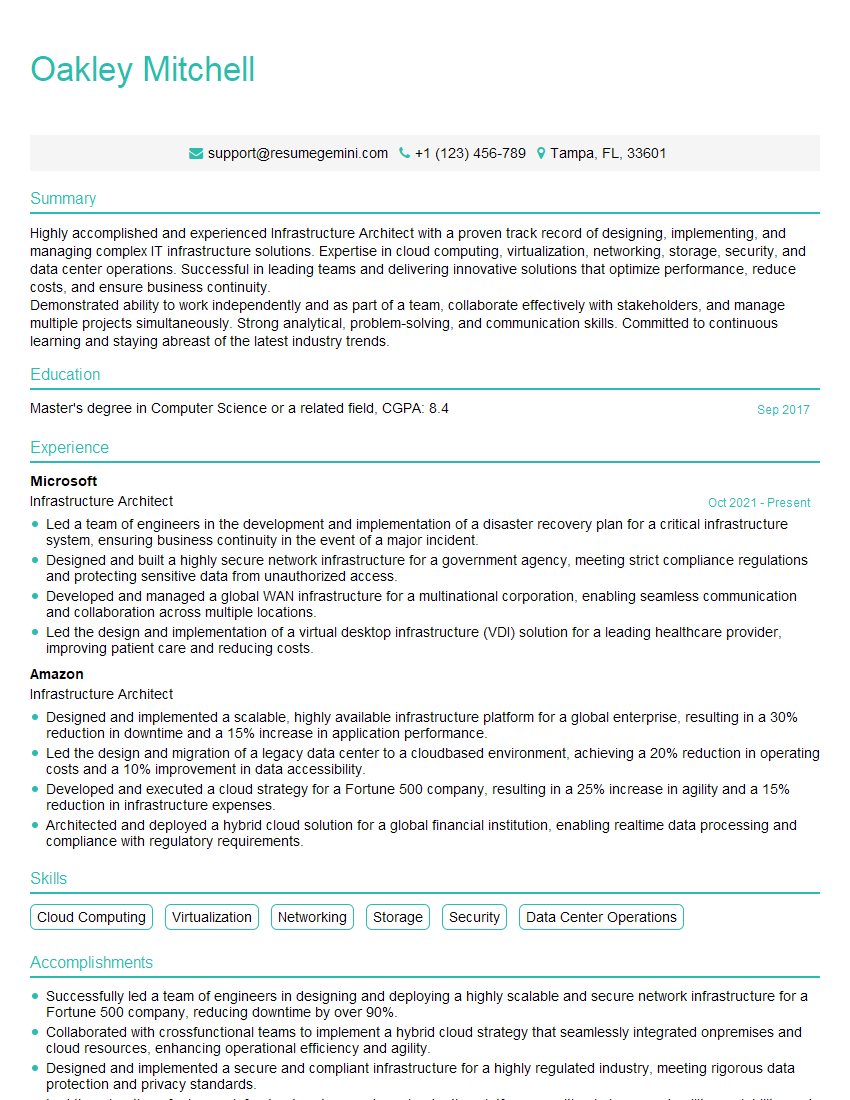
Infrastructure Architect Resume Sample
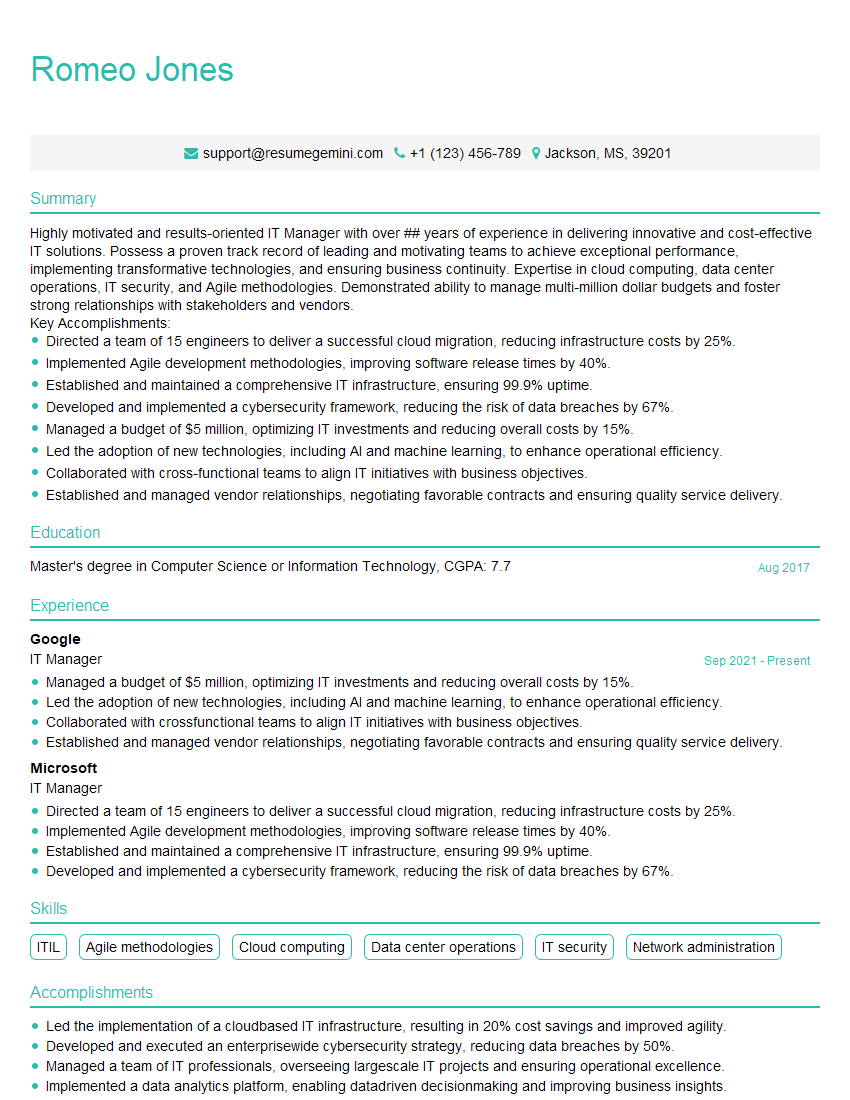
IT Manager Resume Sample
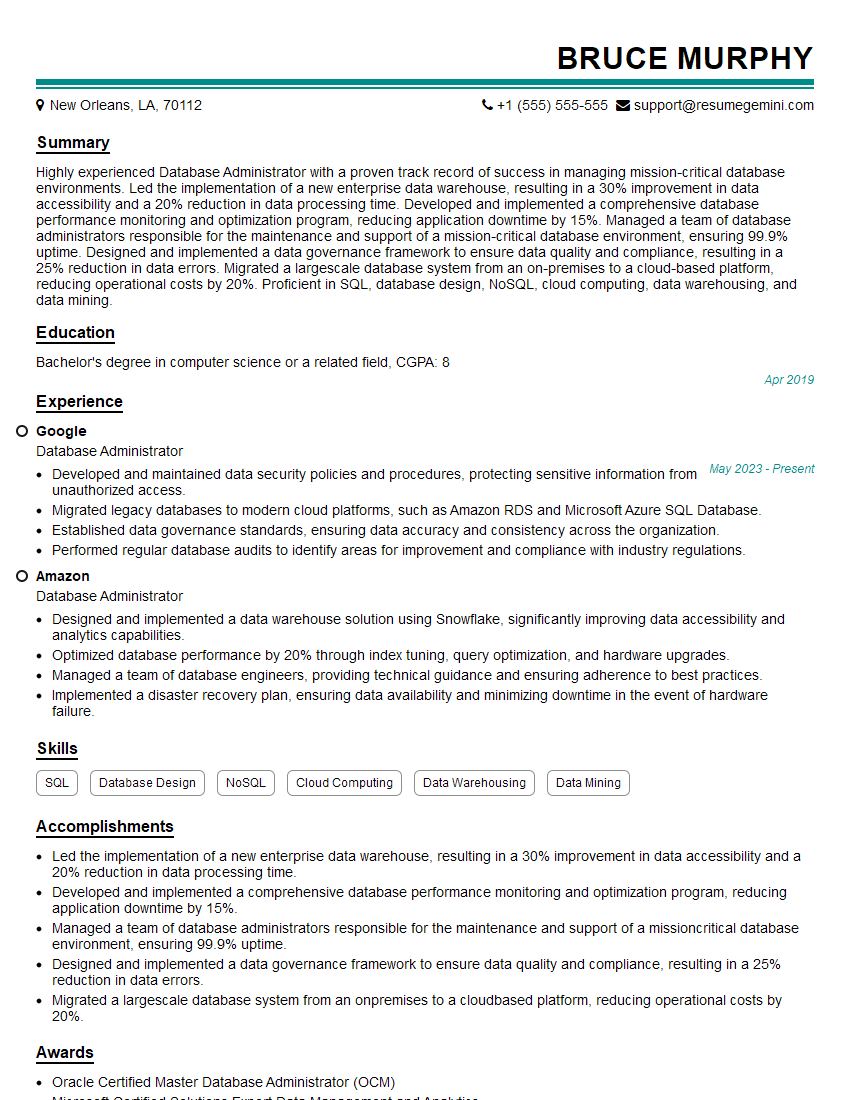
Database Administrator Resume Sample
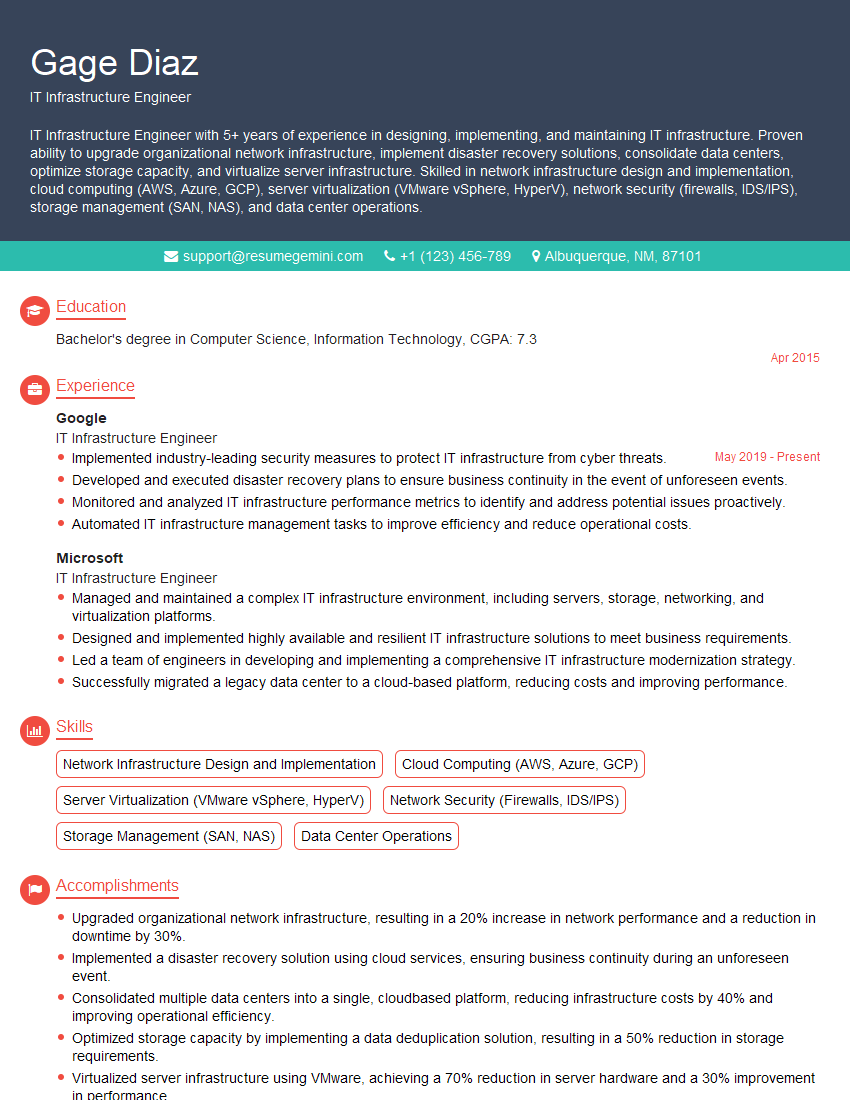
IT Infrastructure Engineer Resume Sample
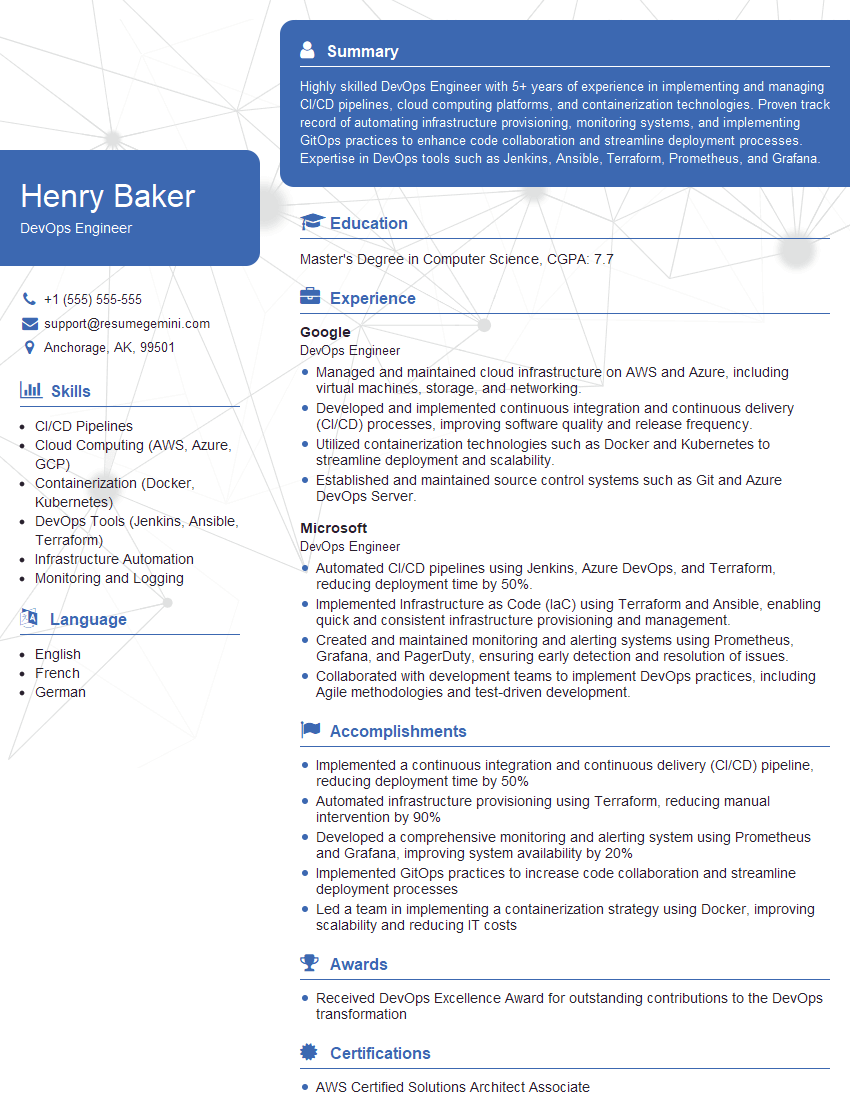
DevOps Engineer Resume Sample
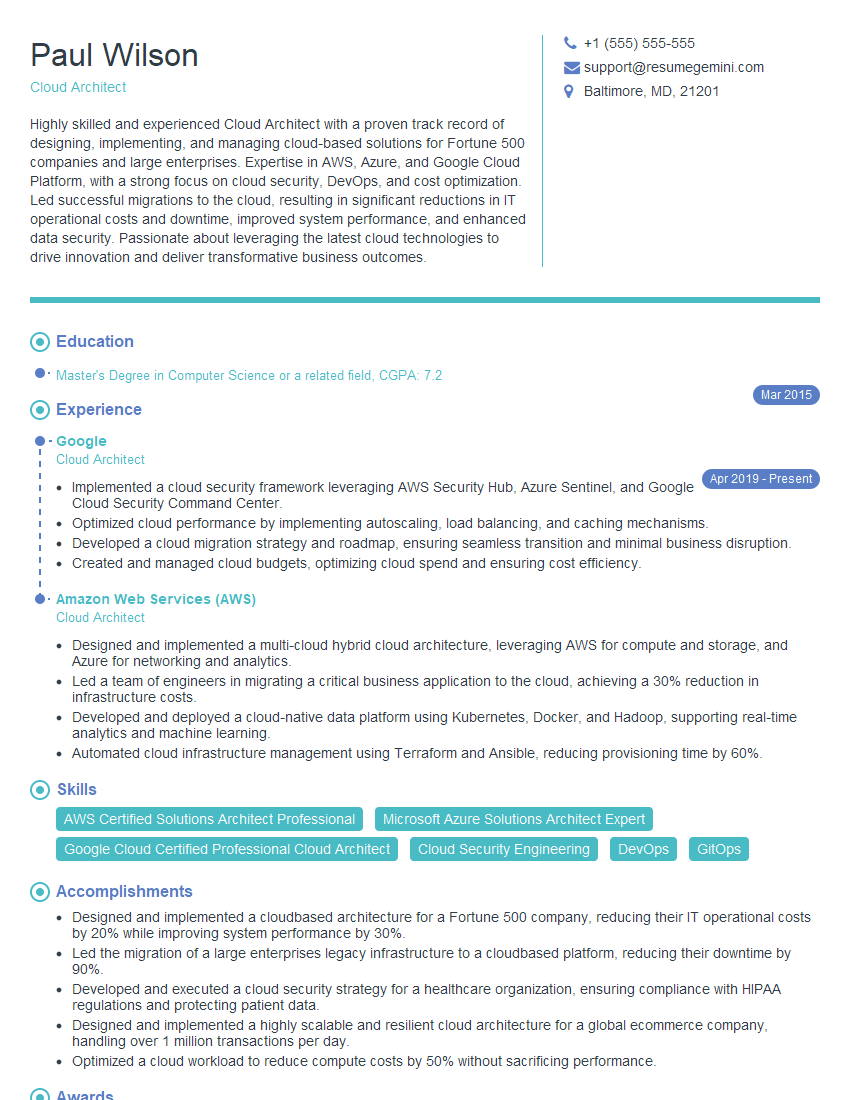
Cloud Architect Resume Sample
Explore more articles
Users Rating of Our Blogs
Share Your Experience
We value your feedback! Please rate our content and share your thoughts (optional).
What Readers Say About Our Blog
To the interviewgemini.com Webmaster.
Very helpful and content specific questions to help prepare me for my interview!
Thank you
To the interviewgemini.com Webmaster.
This was kind of a unique content I found around the specialized skills. Very helpful questions and good detailed answers.
Very Helpful blog, thank you Interviewgemini team.