The right preparation can turn an interview into an opportunity to showcase your expertise. This guide to ArcGIS Pro/ArcMap interview questions is your ultimate resource, providing key insights and tips to help you ace your responses and stand out as a top candidate.
Questions Asked in ArcGIS Pro/ArcMap Interview
Q 1. Explain the difference between ArcMap and ArcGIS Pro.
ArcMap and ArcGIS Pro are both Geographic Information System (GIS) software packages from Esri, but they differ significantly in architecture, functionality, and user experience. ArcMap is the older, desktop-only application, known for its mature toolset but limited extensibility and a somewhat dated interface. ArcGIS Pro, on the other hand, is the newer, 64-bit application designed from the ground up for modern computing. It boasts a more intuitive interface, better performance with large datasets, and extensive extensibility through Python scripting and add-ins. Think of ArcMap as a trusty, reliable vehicle – it gets the job done, but might lack some modern features. ArcGIS Pro is more like a sleek, high-tech car offering increased power, efficiency, and flexibility.
Here’s a table summarizing key differences:
| Feature | ArcMap | ArcGIS Pro |
|---|---|---|
| Architecture | 32-bit | 64-bit |
| Interface | Traditional, less intuitive | Modern, ribbon-based, more intuitive |
| Performance | Slower with large datasets | Better performance with large datasets |
| Extensibility | Limited | Extensive through Python and Add-ins |
| Functionality | Mature toolset | Advanced features, including 3D analysis, image processing enhancements |
| Platform | Desktop only | Desktop, and potential for cloud integration |
In essence, ArcGIS Pro offers a significantly improved user experience and capabilities compared to ArcMap, especially when dealing with modern data volumes and complexity. While ArcMap is still used in some legacy projects, ArcGIS Pro is Esri’s primary and future-focused platform.
Q 2. Describe your experience with geodatabase administration.
My experience with geodatabase administration is extensive. I’ve managed various geodatabases, from small, local file geodatabases to large, enterprise geodatabases spanning multiple servers. This includes tasks such as:
- Database design and creation: Defining schemas, feature classes, and relationships to efficiently store and manage spatial data based on project requirements. For example, in a project mapping urban infrastructure, I carefully designed a geodatabase to model the network connectivity of pipes and power lines using relationship classes for efficient querying and analysis.
- Data import and export: Transferring data from various sources (shapefiles, CAD files, databases) into geodatabases and exporting data to different formats. I frequently use data integration techniques such as feature classes’ append and merge to combine data efficiently.
- Data validation and quality control: Implementing rules and constraints to ensure data accuracy and consistency. For instance, I employed topology rules to validate the connectivity and geometric accuracy of a road network, ensuring proper intersections and minimizing sliver polygons.
- User and permission management: Configuring security settings to control access to geodatabase data. In a collaborative environment, I carefully defined user roles and permissions to restrict access to sensitive data.
- Versioning and conflict resolution: Managing concurrent editing and resolving conflicting edits in multi-user environments. I leveraged geodatabase versioning to allow multiple users to simultaneously work on the same data without overwriting each other’s changes, seamlessly managing concurrent edits and resolving conflicts effectively.
- Data replication and backup: Implementing strategies for data backup, replication and disaster recovery. A crucial aspect of database administration is to have comprehensive backup strategies and replication to mitigate data loss and ensure business continuity.
Throughout these tasks, I prioritize data integrity, efficient access, and streamlined workflows. My experience covers both file and enterprise geodatabases, allowing me to adapt to diverse project needs and scales.
Q 3. How do you perform spatial analysis in ArcGIS Pro?
Spatial analysis in ArcGIS Pro leverages a powerful suite of tools to explore and model geographic phenomena. It begins with selecting the appropriate data – points, lines, polygons, rasters, etc. Then, the analysis itself can be performed using various methods:
- Geoprocessing tools: These tools, accessed through the geoprocessing pane or the Catalog window, perform a wide range of spatial operations. Examples include overlay analysis (
Intersect,Union,Erase), proximity analysis (Buffer,Near), and surface analysis (Slope,Aspect). For instance, to find areas within 5km of a wildfire, I would use the Buffer tool on the wildfire polygon layer. - Spatial Analyst extension: This extension provides raster-based analysis tools for tasks like surface modeling, classification, and suitability analysis. For example, using raster calculator with the Spatial Analyst extension, I can combine different raster datasets (e.g., elevation, slope, and land cover) to create a suitability map for a new wind farm.
- 3D Analyst extension: This enables analysis in three dimensions, allowing for tasks such as viewshed analysis, interpolation, and surface volume calculations. For example, using the viewshed tool in the 3D Analyst extension, I can determine the visibility of a proposed cell tower from various vantage points.
- Network Analyst extension: This extension is crucial for network analysis, enabling tasks such as route optimization, service area determination, and location-allocation modeling. A project involving optimizing delivery routes for multiple trucks would utilize the Network Analyst extension effectively.
The choice of method depends on the specific analysis requirements and the type of data available. The results of spatial analysis are often visualized using maps, charts, and tables to communicate findings effectively.
Q 4. What are the different types of spatial relationships?
Spatial relationships describe how geographic features relate to one another in space. These relationships are fundamental to many spatial analyses. Key types include:
- Containment: One feature is entirely within another (e.g., a city is contained within a county).
- Intersection: Features share a common area (e.g., roads intersecting at an intersection).
- Proximity: Features are near each other, often measured by distance (e.g., houses within 1 kilometer of a school).
- Adjacency: Features share a common boundary (e.g., adjacent parcels of land).
- Disjoint: Features do not share any spatial extent (e.g., separate islands).
- Overlap: Features partially overlap (e.g., two overlapping polygons).
Understanding these relationships is critical for selecting appropriate spatial analysis tools. For example, if I need to identify buildings located within a flood zone, I’d use a containment analysis. Conversely, if I need to find parcels that intersect with a proposed road, I’d use an intersection analysis.
Q 5. Explain the concept of map projections and their importance.
Map projections are mathematical transformations that translate the three-dimensional Earth’s surface onto a two-dimensional map. Because it’s impossible to perfectly represent a sphere on a flat surface without distortion, projections introduce compromises. Different projections minimize different types of distortion: area, shape, distance, and direction. The choice of projection is crucial because it significantly impacts the accuracy of measurements and the overall interpretation of the map.
For example:
- Equirectangular projection: Preserves direction and minimizes distortion at the equator, but distorts areas significantly at higher latitudes. Useful for world maps showing general location.
- Mercator projection: Preserves shape and direction but distorts areas near the poles. Widely used for navigation.
- Albers Equal-Area Conic projection: Preserves area but distorts shape. Ideal for mapping large areas with minimal area distortion.
The importance of choosing the correct projection cannot be overstated. Using an inappropriate projection can lead to inaccurate measurements and misinterpretations. For example, calculating distances using a Mercator projection near the poles would yield significantly inaccurate results. Therefore, selecting the projection that minimizes distortion relevant to the analysis is vital for accurate results.
Q 6. How do you handle large datasets in ArcGIS Pro?
Handling large datasets in ArcGIS Pro requires a strategic approach focused on efficient data management and processing techniques. Here are some key strategies:
- Data partitioning: Splitting large datasets into smaller, manageable chunks for processing. This approach allows parallel processing and drastically reduces memory usage.
- Feature layers: Instead of loading the entire dataset, utilize feature layers which connect to the data source, allowing dynamic rendering of the data based on the extent of the current view. This reduces memory and improves performance.
- Geodatabase tiling: Dividing large raster datasets into tiles to allow for faster rendering and access.
- Spatial indexing: Creating indexes for frequently queried fields, significantly improving query performance.
- Data compression: Reducing the file size of datasets using compression techniques such as using file geodatabases.
- Data selection: Limiting the analysis to a subset of the dataset relevant to the task at hand reduces the data to process significantly.
- Using Python scripting: Automating data processing tasks improves efficiency and reduces human errors.
- Employing cloud computing: Utilizing cloud resources to process large datasets using platforms like ArcGIS Enterprise.
For example, when working with a large point dataset representing building locations, I would employ feature layers to significantly reduce rendering time and only load data within the current map extent. Combining these strategies ensures efficient processing and analysis of large datasets.
Q 7. Describe your experience with geoprocessing tools.
My experience with geoprocessing tools is extensive. I’ve utilized them for a wide range of tasks including data conversion, spatial analysis, and data management. My proficiency includes both using pre-built tools and customizing workflows with Python scripting.
Examples of my geoprocessing applications:
- Data conversion and management: Using tools like
FeatureClassToFeatureClassandAppendto manage and prepare data for analysis. I’ve regularly utilized these tools to reformat and consolidate data from multiple sources. - Spatial analysis: Employing tools like
Buffer,Intersect,SpatialJoin, andDissolvefor various spatial analysis operations. For instance, a project involving analyzing proximity to hospitals involved extensively using buffer analysis. - Model building: Creating custom geoprocessing models using ModelBuilder to automate complex workflows. This allowed me to effectively repeat tasks and create reproducible results.
- Python scripting: Writing Python scripts to automate geoprocessing tasks and enhance the capabilities of ArcGIS Pro. This customization allows creating sophisticated analysis workflows tailored to specific projects.
I consider geoprocessing to be the backbone of GIS workflows. The ability to automate and customize these processes is crucial for efficient and reproducible research and analysis.
For example, I once automated a multi-step process involving data cleaning, spatial analysis, and report generation through a custom Python script, dramatically reducing processing time compared to manual execution.
Q 8. How do you create and manage custom toolboxes?
Creating and managing custom toolboxes in ArcGIS Pro and ArcMap is crucial for streamlining workflows and automating repetitive tasks. Think of a toolbox as a container for your custom tools – scripts, models, or even shortcuts to common geoprocessing tasks. You essentially build your own mini-application within ArcGIS.
In ArcMap, you create a toolbox by right-clicking in the Catalog window and selecting “New > Toolbox”. Then, you add tools to it. These tools can be Python scripts (.py), model tools (.tbx), or even shortcuts to existing geoprocessing tools. Managing involves organizing the tools within the toolbox, updating tool parameters, and documenting their functionality.
ArcGIS Pro offers a similar approach but with a more integrated feel. You can create toolboxes directly within the Pro projects. Furthermore, Pro allows for better organization using toolboxes within folders, making managing complex projects much easier. The core principle remains the same: you group your custom tools for efficiency and reusability.
Example: Imagine you frequently need to clip multiple datasets with the same boundary. Instead of manually doing this each time, you can create a Python script that automates this process and package it within a custom toolbox. This reduces manual effort and guarantees consistency.
Q 9. What are your preferred methods for data visualization?
My preferred methods for data visualization in ArcGIS hinge on the type of data and the message I want to convey. I utilize a variety of techniques to ensure clarity and effectiveness. For example, point data might be best shown with graduated symbols, reflecting attribute values such as population density. Line data might be visualized using different line weights or colors to show road types or river flow.
For thematic maps, I often use classified symbology (quantile, equal interval, natural breaks) to highlight spatial patterns. Choropleth maps are excellent for displaying aggregated data across areas, while proportional symbol maps show data magnitudes at specific locations. I also utilize cartographic techniques to enhance the map’s readability, such as carefully chosen colors, appropriate labels, and clear legends. Beyond static maps, I incorporate interactive web maps using ArcGIS Online or Portal for a dynamic viewer experience, allowing users to explore the data at their own pace.
Additionally, I leverage 3D visualization for complex datasets. This is particularly useful for terrain analysis and urban planning projects. The choice of visualization method depends heavily on the audience and the story I am trying to tell.
Q 10. Explain the different data formats supported by ArcGIS Pro.
ArcGIS Pro boasts impressive support for a wide range of data formats. This includes both vector and raster data.
- Vector Data: Shapefiles (.shp), geodatabases (file and enterprise), CAD files (DXF, DWG), and various other formats like KML, GeoJSON, and even CSV files (with appropriate coordinate information).
- Raster Data: TIFF, JPEG, GeoTIFF, IMG, ERDAS IMAGINE, and many more. ArcGIS handles various satellite imagery, aerial photography, and DEM formats seamlessly.
- Other formats: ArcGIS also handles tabular data (databases, spreadsheets), and various other specialized formats used in specific applications like LiDAR data or point cloud data.
The ability to handle numerous formats is a key strength of ArcGIS. It allows for interoperability with diverse data sources and ensures that data from various organizations and projects can be easily integrated and analyzed.
Q 11. How do you perform data quality control and assurance?
Data quality control and assurance (QA/QC) is paramount in GIS. It involves a systematic approach to identify and correct errors or inconsistencies in spatial data. My QA/QC process typically involves several steps:
- Data validation: Checking for topological errors (e.g., overlaps, gaps, slivers) using ArcGIS’s topology tools. This ensures data integrity and geometric accuracy.
- Attribute checks: Verifying that attribute fields are correctly populated, consistent, and contain valid data types. This might involve using SQL queries or Python scripts to perform automated checks.
- Spatial accuracy assessment: Comparing data to known accurate sources to determine the level of precision. This often involves statistical analysis.
- Completeness check: Ensuring that the data covers the intended geographic area and contains all necessary information.
- Metadata review: Ensuring that metadata (information about the data) is complete, accurate, and up-to-date.
I regularly employ ArcGIS tools like the Geoprocessing tool ‘Check Geometry’ and custom Python scripts to automate parts of this process. A comprehensive QA/QC process guarantees reliable analysis and decision-making.
Q 12. Describe your experience with scripting (Python) in ArcGIS.
I have extensive experience using Python scripting within the ArcGIS environment. It allows for automation of tasks, custom tool development, and more sophisticated spatial analysis. I’ve used Python to create custom tools for automating geoprocessing workflows, such as batch processing of rasters, creating custom visualizations, and developing tailored analyses for specific research questions.
Example: I used Python to automate the process of generating reports from spatial data. The script iterated through a series of shapefiles, calculating various statistics for each feature class and generating a PDF report with customized charts and maps for each. This significantly reduced manual effort and provided a consistent reporting structure.
I’m proficient with ArcPy (the ArcGIS Python site package) and leverage its functionalities to interact with geodatabases, access and manipulate spatial data, and execute geoprocessing tools programmatically. This allows for complex processing tasks far beyond the capabilities of the standard graphical user interface.
Q 13. How do you create and use custom symbology?
Creating and using custom symbology is essential for effective data visualization. It allows you to create visually appealing and informative maps tailored to your specific needs. In ArcGIS, you can create custom symbology using various methods:
- Using the Symbology pane: This is the most common method, allowing for the adjustment of color, size, shape, and other visual properties of symbols. You can even create unique symbols for specific feature values or ranges.
- Importing Symbol Layers: You can import pre-made symbol layers (`.lyr` files) to quickly apply consistent symbology across multiple maps or projects.
- Creating symbol layers from scratch: For advanced customization, you can create entirely new symbol layers from scratch by specifying their various graphic elements, allowing the creation of very specific and complex symbols.
Example: For a map showing different types of land use, I might create custom symbols: a green square for forests, a yellow square for agricultural land, and a gray square for urban areas. These would be easily differentiated visually, facilitating map interpretation.
Custom symbology enhances communication and ensures that your maps convey the intended information clearly and effectively.
Q 14. Explain the concept of topology and its applications.
Topology is a powerful concept in GIS that defines and enforces the spatial relationships between geographic features. Think of it as defining the rules that govern how features can interact with each other. It ensures data integrity and consistency by preventing geometric errors like overlaps, gaps, and self-intersections.
Applications: Topology has many applications, including:
- Utility Network Management: Ensuring that pipes or cables don’t overlap or have gaps in their connections.
- Cadastral Mapping: Maintaining the accuracy and consistency of land parcel boundaries.
- Transportation Networks: Defining connections between roads and railways to accurately model traffic flow.
- Data Editing and Validation: Topology rules ensure data is consistent during editing, avoiding errors that could result in inaccurate analyses.
In ArcGIS, you define topology rules in a geodatabase. These rules specify the allowable relationships between features. For example, you might define a rule that prevents polygons from overlapping. Then, during editing, the system automatically detects and flags any violations of these rules. This dramatically improves data quality and reduces the risk of errors propagating through your analyses.
Q 15. How do you perform raster analysis in ArcGIS Pro?
Raster analysis in ArcGIS Pro involves manipulating and analyzing raster datasets – essentially gridded data representing continuous phenomena like elevation, temperature, or satellite imagery. It leverages a powerful suite of tools accessible through the ‘Spatial Analyst’ extension (which needs to be licensed and enabled).
My workflow typically begins with defining the problem: What information am I trying to extract from the raster data? For example, I might need to calculate slope and aspect from a Digital Elevation Model (DEM), identify areas suitable for agriculture based on soil type and rainfall, or model the spread of a wildfire using a fire spread simulation tool.
- Data Preparation: This includes checking for data quality issues like gaps or inconsistencies and pre-processing steps like mosaicking multiple rasters or converting them to a consistent spatial reference.
- Tool Selection: ArcGIS Pro provides numerous raster analysis tools, categorized into functions like:
- Local functions: These operate on a single cell at a time (e.g., reclassification, calculating a cell’s value based on a lookup table).
- Focal functions: These consider the values of a cell and its neighbors (e.g., calculating the average or standard deviation within a moving window).
- Zonal functions: These operate on groups of cells that share a common attribute (e.g., calculating the mean elevation within each watershed).
- Global functions: These consider all cells in a raster (e.g., calculating the overall mean or standard deviation).
- Analysis Execution: I carefully select and configure the appropriate tools based on the analysis goals, defining parameters like cell size, analysis extent, and output settings.
- Result Interpretation and Visualization: The output is typically another raster dataset that requires careful interpretation. Visualization techniques such as color ramps, classification schemes, and symbology help communicate the results effectively. I might also create charts and graphs to summarize key statistics.
For instance, in a recent project involving flood risk assessment, I used the ‘Watershed’ tool to delineate drainage basins, followed by applying the ‘Cost Distance’ tool to model the potential flood extent from a river, finally overlaying it with population density data to assess vulnerability.
Career Expert Tips:
- Ace those interviews! Prepare effectively by reviewing the Top 50 Most Common Interview Questions on ResumeGemini.
- Navigate your job search with confidence! Explore a wide range of Career Tips on ResumeGemini. Learn about common challenges and recommendations to overcome them.
- Craft the perfect resume! Master the Art of Resume Writing with ResumeGemini’s guide. Showcase your unique qualifications and achievements effectively.
- Don’t miss out on holiday savings! Build your dream resume with ResumeGemini’s ATS optimized templates.
Q 16. What are your experiences with different coordinate systems?
Coordinate systems are fundamental in GIS, defining how locations are represented on a curved Earth’s surface. My experience encompasses working with various coordinate systems, understanding their strengths and limitations, and the implications of choosing the right one for a particular task.
I am proficient in handling Geographic Coordinate Systems (GCS), like WGS 1984 (latitude and longitude), which are Earth-centered and location-based, and Projected Coordinate Systems (PCS), which transform the curved Earth’s surface into a flat plane for measurements (e.g., UTM, State Plane).
- Understanding Projections: I understand the various map projections (Mercator, Albers Equal-Area, etc.) and their respective distortions (area, shape, distance, direction). Selecting an appropriate projection depends on the area of interest and the purpose of the analysis. For instance, a Mercator projection is suitable for navigation but distorts areas at higher latitudes.
- Coordinate System Transformations: I am adept at using ArcGIS Pro’s tools to project data between different coordinate systems, ensuring accurate spatial analysis and map creation. This involves using the ‘Project’ tool or defining the appropriate coordinate system during data import. Incorrect coordinate systems lead to significant errors; it’s crucial to ensure all datasets in an analysis share the same coordinate system.
- Datum Transformations: I am aware of the importance of datums (a reference surface for a coordinate system) and how differences between datums can cause spatial misalignments. Using appropriate datum transformations during data integration is crucial for accuracy.
A recent project involved integrating data from multiple sources with varying coordinate systems. I meticulously checked each dataset’s coordinate system, transformed them to a common projection (UTM Zone 17N), and then performed the spatial analysis, ensuring accurate results.
Q 17. Describe your experience working with GPS data.
My experience with GPS data encompasses data acquisition, processing, and integration into GIS projects. This involves working with various GPS devices and understanding the inherent limitations of GPS technology, such as accuracy and signal availability.
- Data Acquisition: I’ve used various GPS devices, from handheld units to high-precision geodetic receivers, to collect spatial data. The choice of device depends on the project’s accuracy requirements.
- Data Processing: GPS data often requires post-processing to enhance accuracy and remove errors caused by atmospheric effects and satellite geometry. This typically involves using specialized software (e.g., ArcGIS Pro’s GPS tools) to apply corrections and smooth the data.
- Data Integration: Once processed, the GPS data is typically imported into ArcGIS Pro as point features and integrated with other geospatial data for analysis. This could involve tasks such as creating routes from tracklogs, visualizing GPS points on a map, or performing spatial analysis using GPS-derived features.
- Error Analysis: I understand the concept of Dilution of Precision (DOP), which quantifies the quality of GPS signal, and its impact on positional accuracy. I carefully consider the error associated with GPS data when performing geospatial analysis.
In one project, we used GPS data to map the location of rare plant species. Processing the raw GPS data to improve accuracy was crucial for achieving accurate mapping and spatial analysis of the species distribution, allowing for more effective conservation strategies.
Q 18. How do you manage and update metadata?
Metadata is essential for managing and understanding geospatial data. It provides information about the data’s origin, creation, content, quality, and other characteristics. Maintaining accurate and comprehensive metadata is crucial for data discovery, interoperability, and long-term accessibility.
My approach to metadata management involves:
- Creating Metadata: I create metadata using the built-in ArcGIS Pro tools or specialized metadata editors, ensuring all required elements are included (e.g., spatial reference, projection, coordinate system, accuracy information, data source). I follow established metadata standards like FGDC or ISO 19115 to ensure consistency and interoperability.
- Updating Metadata: Metadata needs to be updated regularly to reflect any changes to the data or its attributes. Any modification, update, or correction requires a corresponding metadata update.
- Metadata Validation: I use ArcGIS Pro’s tools to validate the metadata, ensuring it meets the chosen standard and is consistent.
- Metadata Storage and Management: I use a variety of techniques for metadata storage and management – integrating it directly into the data files themselves, storing it within a metadata catalog (like a geodatabase), or in a separate metadata repository (e.g., a SharePoint site) accessible by authorized users. This ensures easy access and consistency.
In a recent environmental monitoring project, maintaining comprehensive metadata was critical. Detailed metadata ensured that data collected by different teams over several years could be readily integrated and analyzed accurately.
Q 19. Explain your workflow for creating a thematic map.
Creating a thematic map involves visually representing spatial data using symbols, colors, and patterns to highlight specific features or patterns. My typical workflow includes:
- Data Preparation: This involves selecting the appropriate dataset, cleaning and preparing the data (checking for errors, inconsistencies, or missing values), and defining the theme the map will focus on.
- Data Classification: Choosing an appropriate classification method (e.g., equal interval, quantile, natural breaks) is crucial for effective communication. This step converts the attribute data into meaningful symbols. The selected method should reflect the data distribution and enhance the interpretation of patterns and trends.
- Symbology Selection: I carefully select appropriate symbols, colors, and patterns that are visually appealing and clearly convey the thematic information. The selection is guided by color theory, ensuring good contrast and avoiding confusion. The legend should clearly label the symbols and their meaning.
- Layout and Design: This is critical for map readability and understandability. It involves arranging map elements (title, legend, scale bar, north arrow) strategically, using clear and concise labels, and selecting an appropriate map projection.
- Map Composition and Export: The final step involves reviewing the map for clarity and accuracy, exporting it in an appropriate format (e.g., PDF, JPG, PNG), and ensuring it adheres to cartographic principles.
For example, when creating a map showing population density, I would use a graduated color ramp to represent population density levels. Higher densities would be represented by darker colors, and a clear legend explaining the color scale is crucial.
Q 20. How do you perform spatial joins and relate tables?
Spatial joins and relating tables are powerful techniques to integrate information from different data sources based on spatial relationships.
- Spatial Joins: A spatial join merges attributes from one feature class (the ‘join features’) into another (the ‘target features’) based on the spatial relationship between the features. The type of spatial relationship (intersect, contains, nearest) is defined by the user. The join creates a new feature class with the attributes of both datasets.
- Relate Tables: Relating tables creates a link between two tables based on a common attribute field without actually merging the datasets. This link allows you to query and display information from both tables simultaneously, even if their geometries are not spatially related. Related tables are dynamic; changes in one table will be reflected in the other.
Example: Suppose you have a polygon dataset of counties and a point dataset of schools. A spatial join (using ‘contains’ as the spatial relationship) could merge the school attributes (e.g., school name, enrollment) into each county polygon, providing the total number of schools and students per county. In contrast, if you had a table of county demographics and another of county crime statistics linked by a common ‘County ID’ field, you could relate these tables to analyze demographic factors and crime trends within each county without altering the initial tables.
The choice between spatial joins and relating tables depends on whether you need to create a new dataset or simply access related information without altering the original data.
Q 21. What is your experience with ArcGIS Server and online services?
My experience with ArcGIS Server and online services spans deploying, configuring, and using geospatial services.
- ArcGIS Server Deployment: I have experience deploying geoprocessing services, map services, and feature services using ArcGIS Server. This involves configuring the server, publishing services with appropriate capabilities and security settings, and managing server resources.
- Service Configuration and Optimization: I can optimize service performance through caching, tiling, and other techniques. Understanding how to configure services for optimal access and performance is key for scalable web mapping applications.
- Online Service Consumption: I regularly consume web services from ArcGIS Online and other sources, integrating these services into my ArcGIS Pro projects for map creation, analysis, and visualization.
- Web Application Development: While not a primary focus, I have experience integrating ArcGIS services into simple web applications using JavaScript APIs to create interactive maps and perform basic spatial analysis in a web browser.
In a recent project, we used ArcGIS Server to deploy a real-time traffic monitoring system. We published live traffic data as a feature service and developed a web application that used this service to display traffic conditions on a dynamic map.
Q 22. Describe your experience with versioning in geodatabases.
Versioning in geodatabases is a powerful tool for managing data changes over time. It allows multiple users to work on the same data concurrently without overwriting each other’s work. Think of it like a sophisticated version control system, similar to Git, but specifically designed for geospatial data. It’s crucial for collaborative projects and ensuring data integrity.
My experience encompasses utilizing both ArcSDE geodatabases and file geodatabases with versioning. I’ve extensively used traditional versioning, creating and managing versions, reconciling edits, and posting changes. I’ve also worked with branch versioning, enabling parallel development and independent workflows. For instance, in a land management project, one team could be updating parcel boundaries in a private branch while another team works on updating infrastructure data in a separate branch, all without interfering with the main dataset. This ensures efficient and organized collaboration. I’m proficient in resolving conflicts that arise during reconciliation, employing various conflict resolution strategies based on the nature of the edits.
- Traditional Versioning Workflow: I’m familiar with the standard workflow of creating a version, editing that version, reconciling edits with the parent version, and posting changes to make them permanent.
- Branch Versioning: I have experience creating and managing branch versions, understanding the benefits of parallel workflows and the importance of careful version merging to avoid data inconsistencies.
- Conflict Resolution: I am experienced in resolving conflicts that can arise during reconciliation, using the ArcGIS Pro interface to select the appropriate version of conflicting edits.
Q 23. Explain your experience with data modeling and schema design.
Data modeling and schema design are fundamental to building robust and efficient geodatabases. A well-designed schema ensures data integrity, consistency, and facilitates effective analysis. It’s like creating a blueprint for your data, defining the relationships and structure before you start building the house (the database).
My experience involves designing geodatabases for various applications, from environmental monitoring to urban planning. I’m proficient in creating feature classes, tables, and relationships (one-to-one, one-to-many, many-to-many) using ArcGIS Pro’s geodatabase design tools. I consider data normalization principles (reducing data redundancy) and carefully select appropriate data types to minimize storage space and improve data accuracy. For example, I wouldn’t use a text field for storing numerical data such as elevation; an appropriate numeric data type would be chosen instead.
In a recent project involving road network management, I designed a geodatabase with feature classes for roads, intersections, and road segments. I implemented relationships to link segments to intersections and roads to their associated attributes (e.g., speed limits, road material). This design ensured that data was consistent, easily queried, and readily accessible for network analysis.
Example of a simple relationship: A one-to-many relationship between 'Roads' (parent table) and 'Segments' (child table), where one road can have many segments.
Q 24. How do you troubleshoot common ArcGIS Pro issues?
Troubleshooting ArcGIS Pro issues requires a systematic approach. My strategy involves a combination of methodical investigation and leveraging available resources.
- Reproduce the Error: First, I try to reproduce the problem consistently. This helps isolate the cause and avoids unnecessary steps.
- Check Logs and Error Messages: ArcGIS Pro provides detailed logs and error messages. Examining these messages is crucial for pinpointing the root cause.
- Review Data Integrity: Often, issues stem from problems within the data itself, like corrupted files or inconsistent attribute data. I’ll use tools like the Geoprocessing tools to assess data validity and check for errors.
- Environmental Factors: Sometimes, issues are linked to the system’s resources, such as insufficient RAM or hard drive space, or conflicting software. I’ll check system resources and uninstall conflicting programs.
- Esri Support and Community Forums: If the problem is persistent, I consult Esri’s online support and community forums. These platforms provide a wealth of knowledge and solutions from other users and Esri experts.
- Reinstall/Repair: As a last resort, I will reinstall or repair the ArcGIS Pro application itself.
For example, if a geoprocessing tool fails, I would first check the log file for specific error messages. This could reveal issues with input parameters, data format incompatibilities, or underlying system limitations. Based on this information, I can adjust parameters, convert data, or increase system resources.
Q 25. What is your experience with different map layouts and printing?
Map layouts and printing are critical for effectively communicating GIS analysis. I am experienced in creating professional-quality maps for various purposes, from simple location maps to complex thematic maps.
My experience includes designing and producing maps with diverse layouts using ArcGIS Pro. I’m proficient in utilizing different map elements such as titles, legends, scale bars, north arrows, and annotation to improve clarity and visual appeal. I understand the importance of selecting appropriate map projections and scales depending on the map’s purpose and geographical extent. I also have experience exporting maps in various formats (PDF, PNG, JPG) optimized for different printing needs (e.g., high-resolution printing for posters, web-optimized for online use).
For example, I recently designed a series of maps for a transportation planning project. Each map showcased different aspects of the transportation network (road density, traffic volume, transit routes), utilizing diverse cartographic techniques to highlight key features and emphasize data patterns.
I also have experience creating map books to showcase complex results from a variety of maps created over several project stages. The layout of these book maps was critical to effectively communicating the different stages of the project and the analysis performed.
Q 26. Describe your experience with 3D analysis in ArcGIS Pro.
3D analysis in ArcGIS Pro is a powerful tool for visualizing and analyzing spatial data in three dimensions. This allows for a more realistic and comprehensive understanding of the data, particularly for applications involving topography, terrain modeling, and urban planning.
My experience includes using various 3D analysis tools in ArcGIS Pro, such as creating 3D scenes from different data sources (LiDAR, point clouds, DEMs). I’m proficient in performing surface analysis, creating visualizations like hillshades, slope maps, and aspect maps. I’ve also worked with 3D symbology to create visually compelling representations of data, including utilizing different visualization styles and effects.
For example, in a flood risk assessment project, I created a 3D scene of the study area using LiDAR data. This allowed me to visualize the terrain and model flood inundation zones by incorporating a digital elevation model (DEM) and a flood model output.
Furthermore, I have worked with creating and interacting with 3D scenes using the ArcGIS Pro’s scene viewer, allowing for detailed visualizations to assist in presentations and aid in better understanding of the data.
Q 27. How do you integrate data from different sources into a GIS project?
Integrating data from diverse sources is a fundamental aspect of GIS projects. Data often comes in various formats and from different sources (e.g., databases, spreadsheets, GPS devices, web services). The key is to ensure consistency, accuracy, and compatibility before integrating them into the project.
My experience involves using various data integration techniques within ArcGIS Pro. I’m proficient in importing data from different sources using tools such as the ‘Import’ tool and the ‘Add Data’ functionality. I regularly use geoprocessing tools to transform data into compatible formats, such as converting coordinate systems and projecting data to a common spatial reference system. I also utilize data appending and joining tools to combine data tables and feature classes based on common fields.
For instance, in a project involving urban green space analysis, I combined data from city databases (containing tree inventory data), satellite imagery (for land cover classification), and survey results (regarding public opinion on green spaces). I ensured that all data was projected to a uniform coordinate system, that attribute fields had consistent naming conventions, and that appropriate join or append operations were used to integrate data tables appropriately.
Furthermore, I use geoprocessing tools such as ‘Feature Class to Feature Class’, ‘Project’, and ‘Append’ in order to handle data conversions that help to ensure data consistency and proper functionality.
Q 28. What is your experience with spatial statistics?
Spatial statistics are essential for extracting meaningful insights from geospatial data. They help quantify spatial patterns, relationships, and trends that are not readily apparent through visual inspection alone. They are like advanced detective tools that allow us to uncover the ‘story’ within our data.
My experience covers a range of spatial statistical methods in ArcGIS Pro, including spatial autocorrelation analysis (Moran’s I), spatial interpolation (kriging, IDW), and point pattern analysis (hotspot analysis). I understand the underlying assumptions of these methods and how to interpret their results appropriately. I am also adept at selecting the most suitable method based on the research question and the characteristics of the data.
For example, in a project analyzing crime hotspots, I employed hotspot analysis using the ‘Spatial Statistics Tools’ to identify areas with statistically significant clustering of crime incidents. This enabled law enforcement agencies to focus resources on high-risk areas. The results were visualized using maps and graphs, allowing a clear communication of findings to stakeholders.
Moreover, I have experience with using the spatial statistics toolset for various applications such as identifying spatial relationships between features and investigating spatial autocorrelation in order to further understand patterns and trends in the data.
Key Topics to Learn for ArcGIS Pro/ArcMap Interview
- Data Management: Understanding geodatabases, feature classes, and rasters; importing, exporting, and managing different data formats; data cleaning and preprocessing techniques.
- Spatial Analysis: Applying spatial analysis tools like overlay, buffer, proximity analysis; interpreting results and drawing meaningful conclusions; problem-solving using spatial relationships.
- Cartography and Map Design: Creating effective and visually appealing maps; selecting appropriate symbology and cartographic elements; communicating spatial information clearly and concisely.
- Geoprocessing: Understanding model builder and scripting (Python); automating geoprocessing workflows; creating custom tools and extensions.
- Projections and Coordinate Systems: Understanding map projections and their implications; working with different coordinate systems; transforming data between projections.
- ArcGIS Pro vs. ArcMap: Key differences and advantages of each platform; knowing when to use each; migration strategies between the two.
- Data Visualization and Presentation: Creating charts, graphs, and reports from spatial data; effectively communicating findings to both technical and non-technical audiences.
- Spatial Statistics: Understanding and applying spatial statistical methods to analyze spatial patterns and relationships in data.
- 3D Analysis and Visualization: Utilizing 3D capabilities in ArcGIS Pro for analysis and presentation of spatial data.
- Practical Application & Problem Solving: Be prepared to discuss real-world projects where you’ve used ArcGIS Pro/ArcMap to solve spatial problems. Focus on your problem-solving approach and the impact of your work.
Next Steps
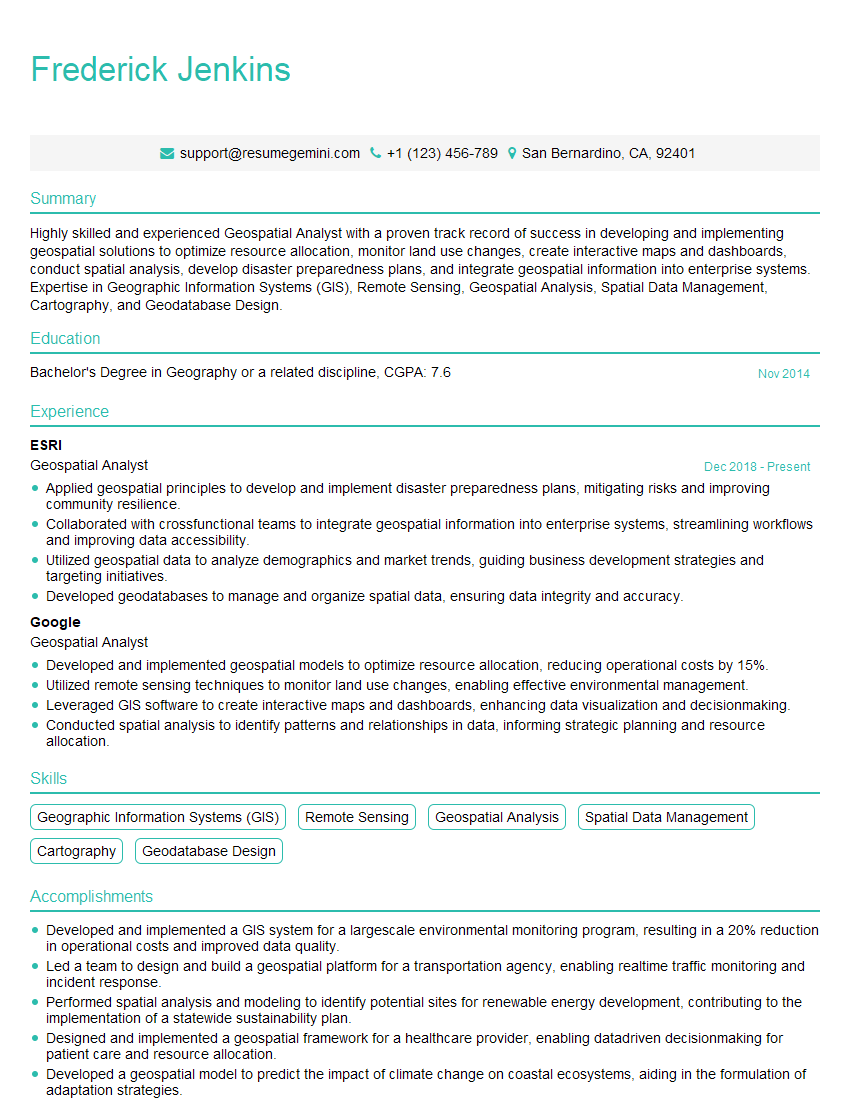
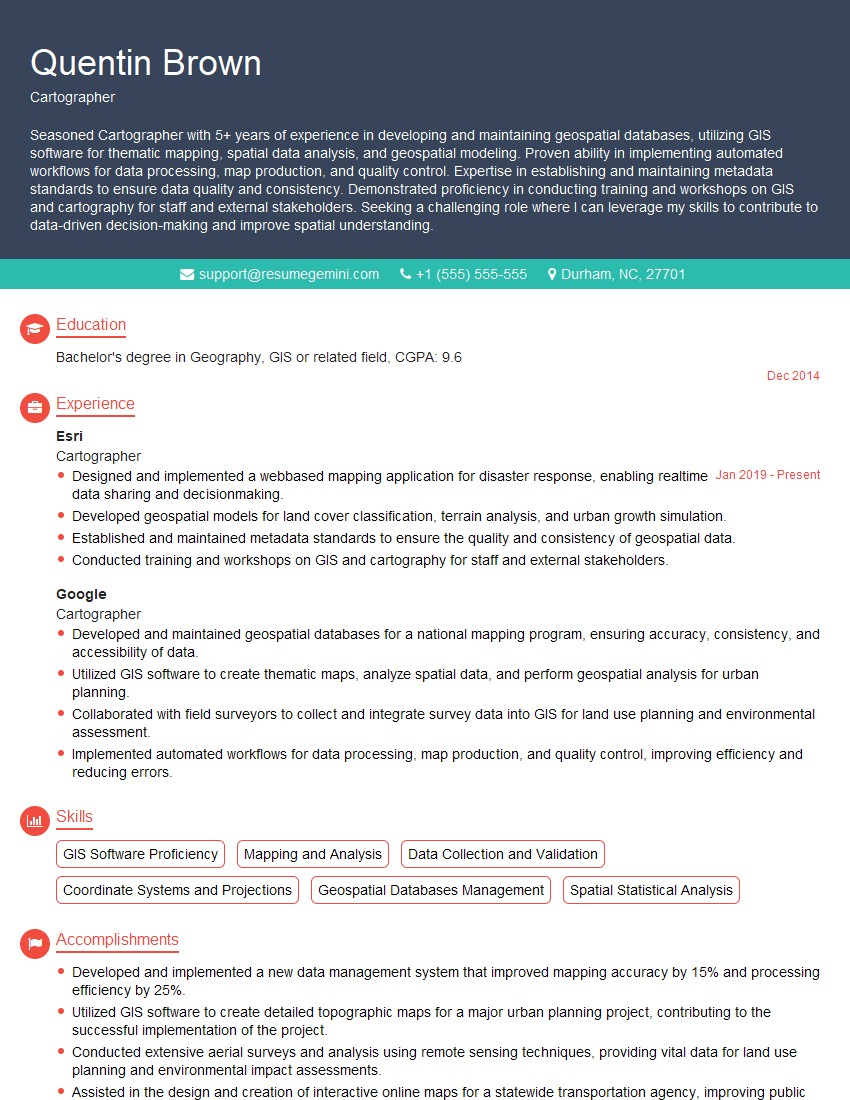
Mastering ArcGIS Pro/ArcMap significantly enhances your career prospects in GIS and related fields, opening doors to diverse and exciting opportunities. A strong, ATS-friendly resume is crucial for showcasing your skills and experience to potential employers. To make your resume stand out, we strongly encourage you to use ResumeGemini, a trusted resource for building professional and impactful resumes. ResumeGemini provides examples of resumes tailored to ArcGIS Pro/ArcMap roles, helping you craft a compelling document that highlights your unique qualifications.
Explore more articles
Users Rating of Our Blogs
Share Your Experience
We value your feedback! Please rate our content and share your thoughts (optional).
What Readers Say About Our Blog
To the interviewgemini.com Webmaster.
Very helpful and content specific questions to help prepare me for my interview!
Thank you
To the interviewgemini.com Webmaster.
This was kind of a unique content I found around the specialized skills. Very helpful questions and good detailed answers.
Very Helpful blog, thank you Interviewgemini team.